
Photoshop ATN | 6 Actions | 7 MB
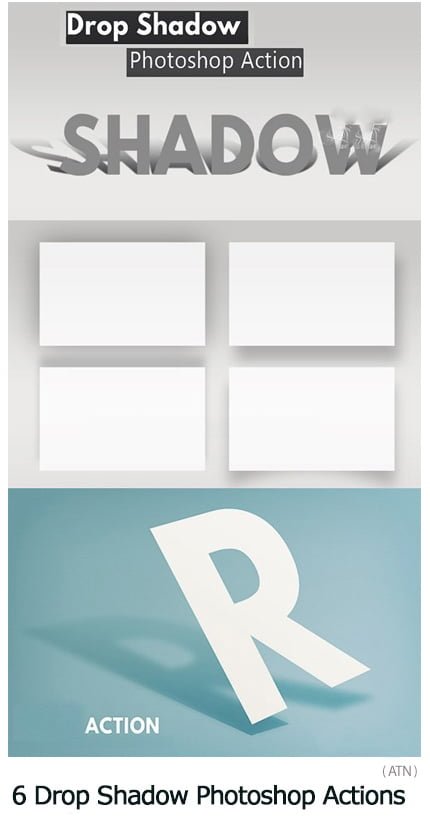
Create drop shadow in Photoshop with this action. Photoshop shadow effect for text, shapes, images, person…etc
To give depth to a text in an image we use the Drop Shadow layer style. But to create a realistic cast shadow effect for objects, persons, the standard Drop Shadow just doesn’t cut it.
How to Draw a Shadow of a Person in Photoshop?
— To draw a shadow of a person in Photoshop, first we have to duplicate the layer.
— After that, we have to transform/distort the image to create the realistic shadow in perspective.
— Add a black Color Overlay or use a gradient shadow (#000000 with opacity 100% and #000000 with opacity 70%). Reducing the opacity of this layer and adding a Gaussian Blur effect also help create a real shadow.
This action set contains 6 Photoshop actions for creating shadow effect:
— 2 actions for cast shadow of a person (direction left or right)
— 1 action for drop shadow effect used for text
— 3 actions for material design shadow in Photoshop; use these actions for box shadow
6 Drop Shadow Photoshop Actions
A Photoshop action is an incredible feature tool that allows you to record a series of steps
To achieve remarkable effects, and then play the sequence back to apply those effects on any image.
Because these actions are reusable you can improve your workflow by chopping countless hours off your design process.
you can transform your images into polished works of art while saving a lot of time and money.
Designed to save you time in the editing process for actions that you do repeatedly and create lots more elements that can be edited manually.
Exclusively designed for graphic designers & photographers .
we’ve cut out the hard work for you by putting the best collection of excellent Premium Photoshop actions!
Photoshop actions are perfect for both beginners and advanced Photoshop users
➡️ ➡️ For More Actions Photoshop 😀 😀
System Requirement For Photoshop CC
How to Change Language Setting
Reviews
There are no reviews yet.