
Batch Render Creator for Blender
Batch Render Creator v2.1.2 for Blender – The Ultimate Multi-Scene & Multi-Engine Rendering Automator
Versions: v2.1.2
File Size: 2.56 MB
Download Batch Render Creator v2.1.2 for Blender on Windows and Mac, a powerful addon that allows you to queue, manage, and render multiple scenes, cameras, and view layers simultaneously without manual intervention. With support for switching between Cycles and Eevee on the fly, automatic file naming conventions, and post-render actions, Batch Render Creator v2.1.2 transforms how you handle large-scale projects, eliminating the need to stay glued to your computer while your renders complete.
Key Features of Batch Render Creator v2.1.2:
Multi-Scene Queueing: Add unlimited scenes from your current .blend file or external .blend files to a single render queue and process them sequentially
Dual Engine Support: Automatically switch render engines (Cycles, Eevee, Workbench) per scene or per camera within the same batch job
Camera & View Layer Automation: Render specific cameras or isolate specific view layers (Beauty, AO, Normal, Cryptomatte) for each scene automatically
Smart File Naming: Customizable output paths and filename tokens (e.g., {scene}{camera}{frame}) to keep your rendered assets perfectly organized
Post-Render Actions: Automatically move files to specific folders, run Python scripts, send email notifications, or shut down the computer when the queue finishes
Error Handling & Retry: Detects failed frames and automatically retries them a set number of times before moving to the next scene, ensuring no data is lost
Background Mode Support: Fully compatible with Blender’s background mode (-b) for headless rendering on render farms or remote servers
Improved Stability v2.1.2: Enhanced memory clearing between scenes to prevent crashes during long batches, better handling of missing textures, and faster queue initialization
Cross-Platform Support: Works flawlessly on both Windows and Mac systems including Apple Silicon M1/M2/M3 chips
Perfect For:
Architectural visualization artists rendering dozens of room variations or camera angles
Animation studios processing hundreds of shots across multiple scenes overnight
Product designers creating turntable animations and static renders for multiple SKUs
Freelancers who need to maximize their hardware usage while working on other tasks
Anyone tired of manually opening files, changing settings, and hitting F12 repeatedly
System Requirements:
Blender 3.6, 4.0, 4.1, 4.2, 4.3+ (Latest LTS recommended)
Windows 10/11 (64-bit) or macOS 10.15+
8GB RAM minimum (16GB+ recommended for heavy Cycles scenes)
Sufficient disk space for output images and video sequences
Installation:
Open Blender and go to Edit > Preferences > Add-ons:
Click “Install…” and select the downloaded .zip file for Batch Render Creator
Enable the checkbox next to “Render: Batch Render Creator”
Access via the Top Menu Bar > Render > Batch Render Creator or the 3D Viewport Sidebar (N-panel) > Batch Render Tab
Note: Version 2.1.2 introduces a new “Dry Run” mode that simulates the entire queue without rendering, allowing you to verify file paths and naming conventions before committing hours of render time.
WHAT IS BATCH RENDER CREATOR?
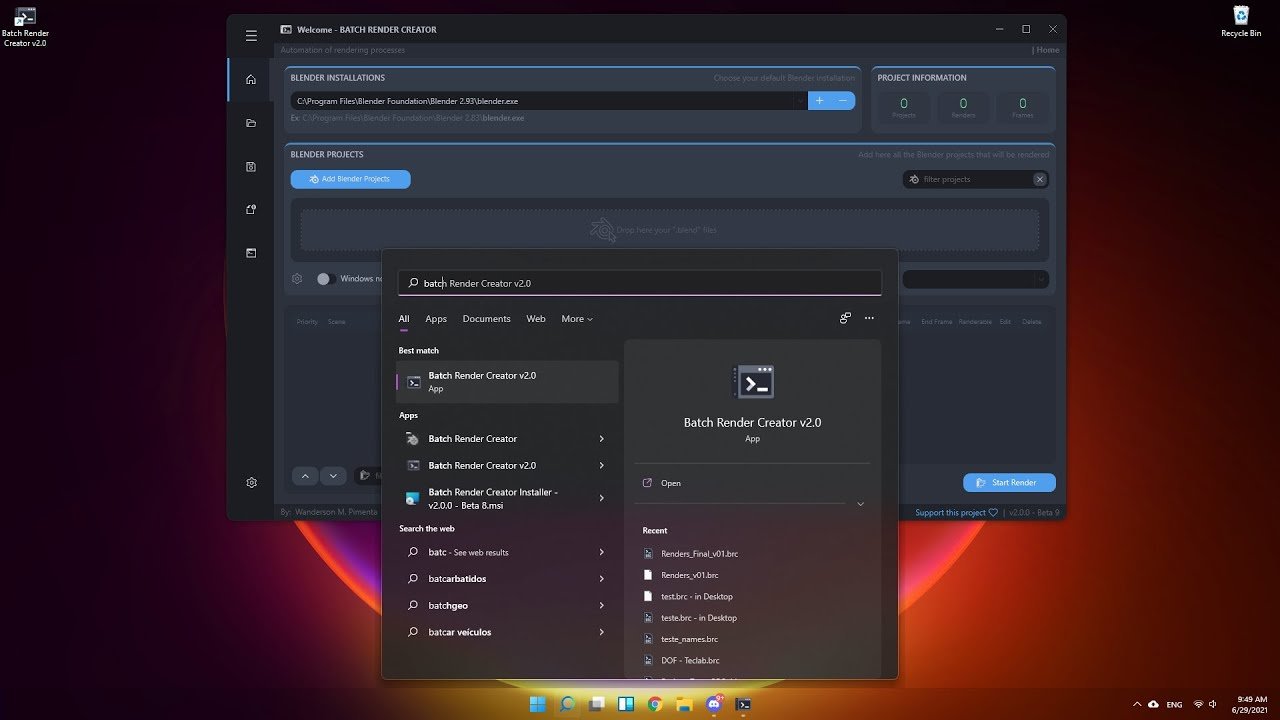
The Batch Render Creator is a render queue for Blender that works like a local render farm, allowing you to send multiple projects to it, set render priorities, get an estimated completion time, and even define actions upon completion, such as shutting down or putting your computer to sleep, all quickly and easily. Available for Windows and Linux!
Simply drag your projects into the Batch Render Creator, and it will read all your Blender project data, set the render order, and start rendering. During the process, you can pause the rendering and resume where it left off. You can also define what actions to take upon completion.
Not to mention that the Batch Render Creator can notify you with messages and sound alert throughout the process.
This new version was designed to be scalable, robust, and provide an excellent user experience. It can automatically recover from issues, such as restarting the Blender process in the background and setting a timeout if Blender stops processing the render. By default, the Batch Render Creator will automatically restart, inspired by software from major companies like AWS Deadline, which is used by leading studios.
We are excited to announce this new version, which brings highly requested features and a critical architectural fix to make your rendering pipeline more resilient than ever.
HOW TO USE AND INSTALL:
The Batch Render Creator is currently available in Windows and Linux. It is provided as an MSI installer and a portable version, and “.deb”, “.rpm” and “.AppImage” for Linux users.
First Use:
To use the BRC for the first time, you need to choose which Blender version you would like to use for rendering your projects. Multiple Blender versions can be added, but only one should be selected for each render queue to ensure stability.
Adding Blender Projects to BRC:
You can drag your projects directly into the application interface, and the BRC will automatically read all the projects (if this feature is enabled). Alternatively, you can add projects by clicking the “+” button in the application. An add-on for this will also be available in upcoming beta versions.
Actions:
Currently, you can select three actions to execute after rendering is complete:
- Shut down the computer.
- Put the computer to sleep.
- Restart the computer.
Soon, a feature to execute scripts will be added. These actions and scripts are executed by default 60 seconds after the render finishes, but users can cancel this within the waiting period.
Extras:
The BRC offers many features that we recommend exploring in the settings tab, including keyboard shortcuts. Take a few minutes to study them to enhance your experience.
Starting and Pausing Rendering:
To start rendering, click the blue “Start Render” button in the bottom-right corner of the application. Once rendering begins, a pause button will appear, allowing you to pause and resume your rendering. However, you cannot edit an ongoing render for core stability reasons only queued projects can be edited.
HOW TO USE AND INSTALL:
The Batch Render Creator is currently available in Windows and Linux. It is provided as an MSI installer and a portable version, and “.deb”, “.rpm” and “.AppImage” for Linux users.
First Use:
To use the BRC for the first time, you need to choose which Blender version you would like to use for rendering your projects. Multiple Blender versions can be added, but only one should be selected for each render queue to ensure stability.
Adding Blender Projects to BRC:
You can drag your projects directly into the application interface, and the BRC will automatically read all the projects (if this feature is enabled). Alternatively, you can add projects by clicking the “+” button in the application. An add-on for this will also be available in upcoming beta versions.
Actions:
Currently, you can select three actions to execute after rendering is complete:
- Shut down the computer.
- Put the computer to sleep.
- Restart the computer.
Soon, a feature to execute scripts will be added. These actions and scripts are executed by default 60 seconds after the render finishes, but users can cancel this within the waiting period.
Extras:
The BRC offers many features that we recommend exploring in the settings tab, including keyboard shortcuts. Take a few minutes to study them to enhance your experience.
Starting and Pausing Rendering:
To start rendering, click the blue “Start Render” button in the bottom-right corner of the application. Once rendering begins, a pause button will appear, allowing you to pause and resume your rendering. However, you cannot edit an ongoing render for core stability reasons only queued projects can be edited.
Supercharge your 3D creation workflow with premium selection of Blender Add-ons. Whether you are modeling intricate characters, sculpting realistic environments, or animating cinematic sequences, the right add-on can transform how you work inside Blender. Our curated collection includes powerful tools for UV unwrapping, procedural texture generation, rigging automation, rendering optimization, and more—each rigorously tested for compatibility with the latest Blender versions. Eliminate tedious manual processes and unlock advanced functionality that lets you focus on what matters most: bringing your creative vision to life. Explore our full range of professional Blender plugins today and take your 3D projects to the next level.
➡️ ➡️ For more Blender Plugins 😀 😀
Reviews
There are no reviews yet.