

Blur Background Photoshop Action
Photoshop Action Crystallizing Photo Background | 1.10 MB | Comes with Preview | ATN & JPG Format
In this series, you can see another example of Photoshop action called Crystallizing the Background of the Photo, which has been placed on the site for download in ATN and JPG formats.
Blur Image Background
The blur image background is used for wedding photography as well as for outdoor portrait photography. A good background mustn’t be distracting. If you blur image background the viewer’s eye goes straight to the subject.
If you want the subject to be the only thing that captures the attention, choose a blurry, creamy background. A blurred background won’t steal the attention from your subject.
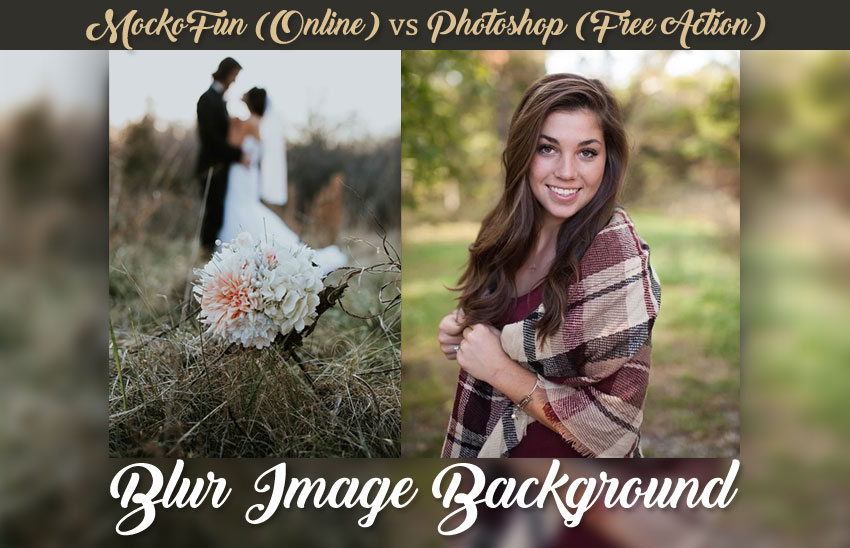
But, how to blur background easily?
There are lots of methods and tools that can help you blur background in just a few simple steps:
- Camera – Take a Photo with Blurry Background using Your Camera. Change the aperture’s f-value in aperture priority mode; to make a blurry background, simply select a wide aperture (the smallest f-value possible).
1. How to Blur Background in Photoshop?
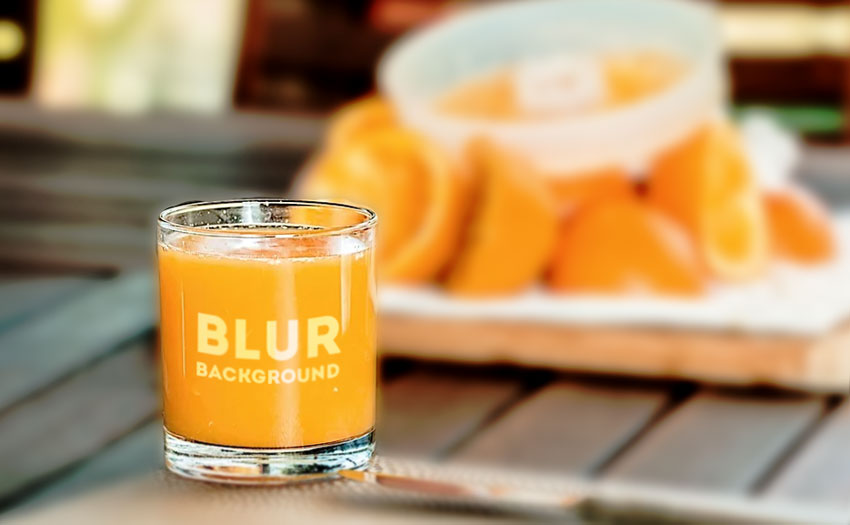
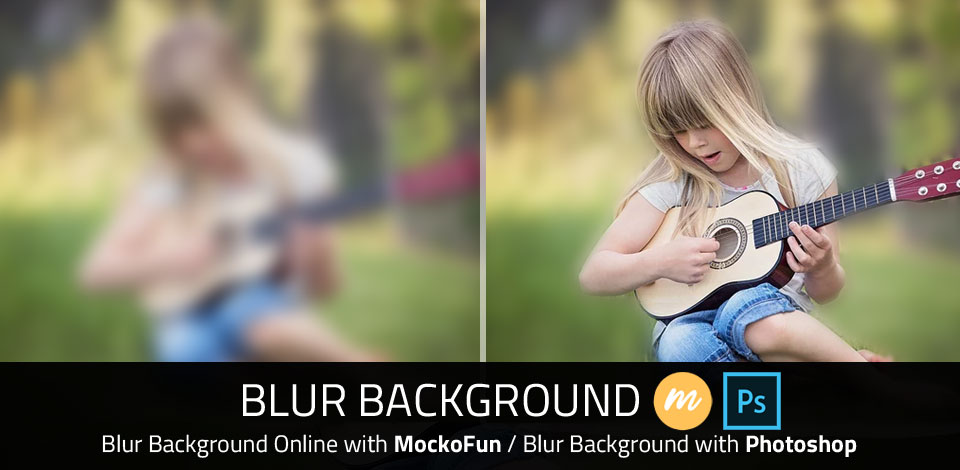
With Photoshop, you can blur background making cool looking blurry background images. But, you can also blur photo parts and make a big contrast within the depth filed and surface.
The blurred backgrounds (made with the Photoshop‘s Gaussian Blur filter) are often used in food photography or product photography to emphasize the product.
Motion blur and Radial Blur, on the other hand, is used in sports photography for showing movement, speed and action.
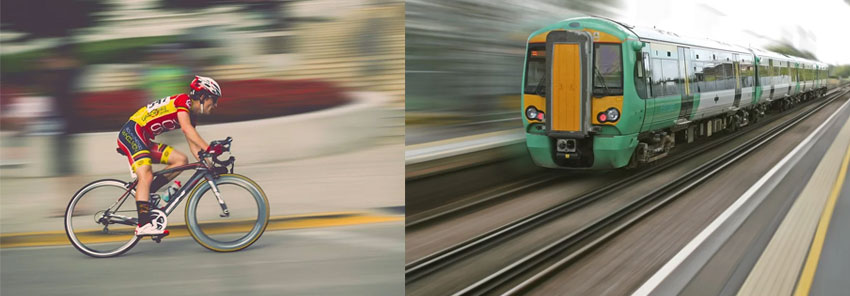
The blur that you see in photography that separates a subject from the background is the result of shallow “depth of field”. It is simply called “background blur”.
No need to use your camera to blur photos and to create depth of field. You can use Photoshop to add some drama to your still image using a variety of Blur filters.
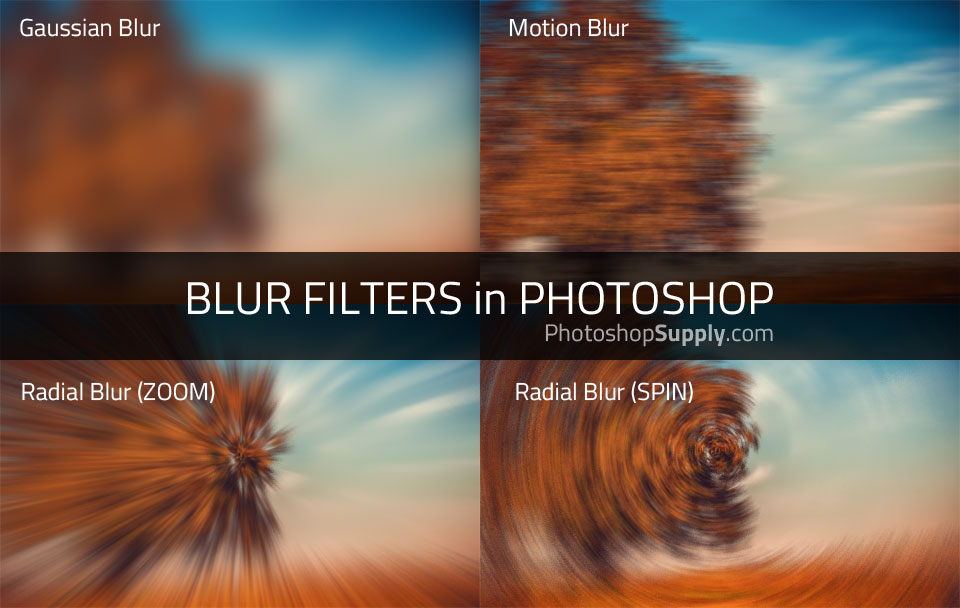
Photoshop Blur Filters
To blur background in Photoshop, open your image and go to Filter > Blur menu and choose a blur filter from the list. The Gaussian Blur filter and the Motion blur filter are probably the most used blur filters.
These are the main Photoshop blur filters that you can use to blur pictures. These blur filters are used by stock photographers in post processing their pictures.
- Gaussian Blur – In image processing, a Gaussian blur is the result of blurring an image by a Gaussian function. It is a widely used effect in graphics software, typically to reduce image noise and reduce detail.
- Lens Blur – The Gaussian Blur simply softens the edges whereas the Lens Blur filter results in a blur effect that has a more geometric shape or pattern to it.
- Motion Blur – To create movement in images use the motion blur. Use this effect when you are photographing sports or other fast moving subjects like cars. Motion blur is the streak-like effect that occurs when shooting a still image or video, because your subjects are moving rapidly through the frame, or the camera exposure is particularly long. (read more)
- Radial Blur (Zoom Blur or Spin Blur) – This photo blur effect is also used to simulate movement in a photo and to increase the visual interest. The radial blur creates a rotational blur centered on a point. The effect is similar to the motion blur you would see if an image were spinning or moving toward you quickly.
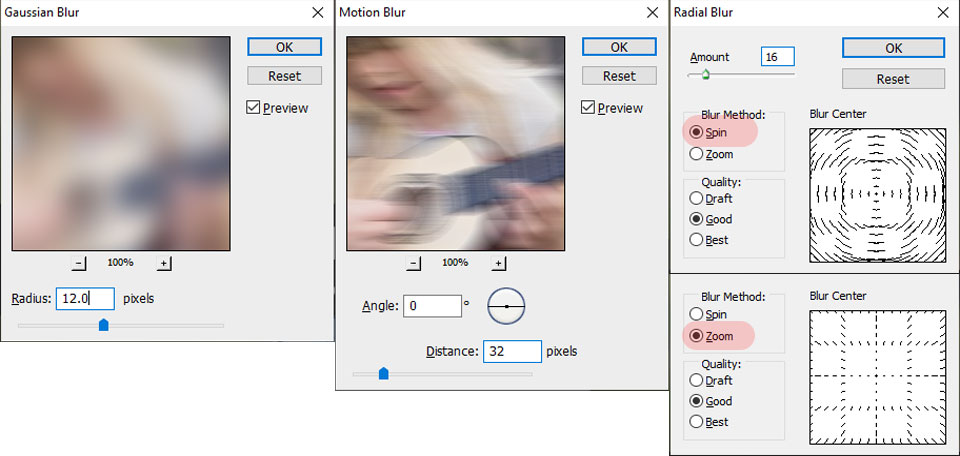
How to blur in Photoshop? The best blur layer Photoshop method is to use smart filters. Right click on your layer and Convert to smart object.
Then, you can apply the blur filter that you like and it will be added as a smart filter. As a result, your original photo remains intact and you can hide the blur effect from parts of your photo using a mask.
Photoshop Blur Tool
You can also blur parts of your images using the Photoshop Blur Tool. You can find it in the Photoshop toolbar.
To blur images with the Photoshop Blur Tool, use a soft round brush and simply paint over the part of the picture that you want to blur. You can set the Strength of the blur effect.
But, there is another super quick method to create blurry pictures and blurred backgrounds using Photoshop actions.
A Photoshop action is an incredible feature tool that allows you to record a series of steps
To achieve remarkable effects, and then play the sequence back to apply those effects on any image.
Because these actions are reusable you can improve your workflow by chopping countless hours off your design process.
you can transform your images into polished works of art while saving a lot of time and money.
Designed to save you time in the editing process for actions that you do repeatedly and create lots more elements that can be edited manually.
Exclusively designed for graphic designers & photographers .
we’ve cut out the hard work for you by putting the best collection of excellent Premium Photoshop actions!
Photoshop actions are perfect for both beginners and advanced Photoshop users
➡️ ➡️ For More Acions Photoshop 😀 😀
Reviews
There are no reviews yet.