
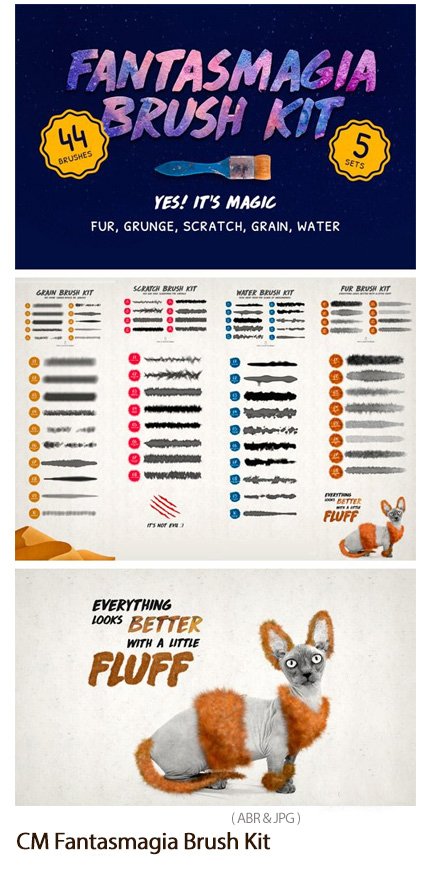
CM Fantasmagia Brush Kit
- Compatible with: Adobe Photoshop
- File Size: 6.11 MB
CM Fantasmagia Brush Kit
5 sets of brushes that behave beautifully on your Photoshop canvas and give a extra bit of personality to your artwork. What brushes are, you ask? Take a seat, have a drink and let us change your (Photoshop) world!
01 / Grain Brush Kit – We know Sahara would be jealous!
Don’t have the time to visit Sahara this year? We’ve got something even better! The beautiful randomness of grains of sand in 10 amazing brushes (sizes varying from 200 px to 500 px).
02 / Water Brush Kit – Your drop from the ocean of awesomeness!
The set of brushes you have been looking for to get that liquid effect for your artwork. A pack of 10 brushes (sizes varying from 500 px to 1300 px) for backgrounds and detail work altogether.
03 / Scratch Brush Kit – You are only scratching the surface!
A great set of 8 brushes (sizes varying from 500 px to 3600 px) for your background work. The result is a beautiful random scratchy texture.
04 / Grunge Brush Kit – Sometimes you need to get rough!
We know you are tiered of that sloppy brush texture that is lacking a natural feel. Say no more! We have exactly what you need: 8 grunge brushes (sizes varying from 200 px to 1200 px) to get that authentic grungy feel that you love!
05 / Special treat: Fur Brush Kit – Everything looks better with a little fluff!
A one-of-a-kind set of 8 brushes (sizes varying from 900 px to 1300 px) for that extra something you were looking for! We all love fluffy thing, let’s be honest! So why not unleash you inner-cuteness and fluff away everything? We promise you – you will have the time of your life!
So, let’s wrap up!
What’s included
Over 45 Photoshop brushes giving you the ability to “paint” wonderfully crafted textures onto your canvas (.ABR)


The Brush tool allows you to paint on any layer, much like a real paintbrush.
It’s easy to use the Brush tool to paint in your document. Simply Import The Brushes, locate and select the Brush tool from the Tools panel, then click and drag in the document window to paint. You can also press the B key on your keyboard to select the Brush tool at any time.
Brush Size: If you want to make the brush larger or smaller, click the Brush Picker drop-down arrow in the Control panel, then adjust the Size slider. You can also press the bracket keys [ ] to quickly increase or decrease the brush size at any time.
Hardness: If you want to make the edges of the brush harder or softer, you can adjust the hardness from the same drop-down menu. A harder brush will have clear, defined edges, whereas a softer brush will have blurry, less-defined edges. For most situations, we recommend setting the hardness to 50% or less because it will help to make individual brush strokes less obvious.
Brush Tip: If you want to create a unique effect, there are different brush tips to choose from in the same drop-down menu. Some of these are designed to mimic real-life drawing tools like pens and markers, while others are simpler.
Opacity: By default, the opacity of your brush is set to 100%, meaning the brush will use the highest intensity. However, you can reduce the opacity of your brush to make it less intense.
➡️ ➡️ For More Brushes Products 😀 😀
System Requirement For Photoshop CC


Reviews
There are no reviews yet.