

Flow 1.3.0 script for animation after-effects motion graphics with video tutorial
This section includes the Flow plugin version 1.3.0 for After Effects, which is included on the site for download along with a video tutorial. You can use this plugin to easily smooth or speed up the movement of the made frames.
Installation Guide
1. First install the ZXP software.
2. Then run the software and press CTRL + O and in the window that opens, select the Flow file in the folder to be installed.
3. In the last step, in the After Effects window, then run the Flow Plugin Extension.
Flow brings an easy interface to After Effects for customizing animation curves without needing to touch the graph editor.
Video tutorial
What is it?
Flow will change the way you work with graph editor the moment you launch it. Period.
Flow brings an easy interface to After Effects for customizing animation curves, without needing to venture into the aging, confusing graph editor. Gone are the days of slow, heavy expressions, or fighting with speed and influence (what do those even mean?) – just make a curve, hit APPLY and you’re gold!
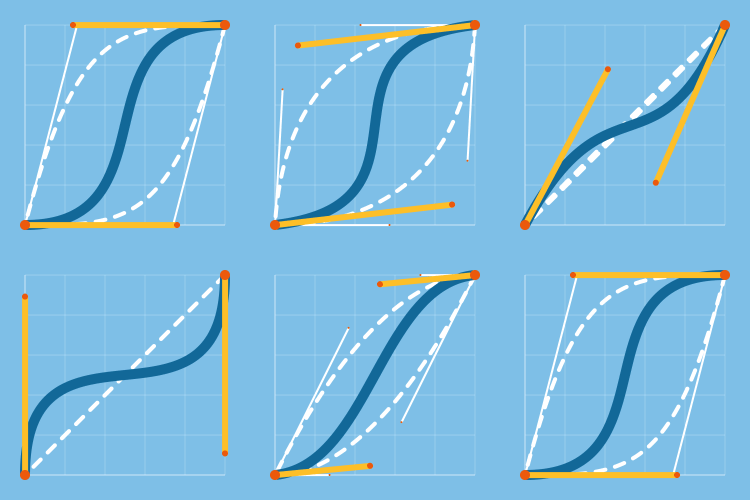
Flow comes with 25 pre-defined, commonly-used motion curves based on Robert Penner’s Easing Functions. But don’t limit yourself – build your own library and share it with the world, or import custom presets from other animators with the single click of a button. Check out some available packs for download below!
Our graph and library support keyboard shortcuts; in the library, use Shift / Alt / Ctrl to quickly set eases to Ease In / In & Out / Ease Out, or in the graph to snap handles in different ways or move them symmetrically.
Flow is a collaboration between Zack Lovatt and renderTom
| Flow’s library is filled with 25 commonly-used animation curves |
                        |
Features
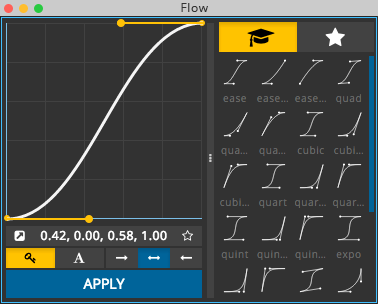
Easy-to-use Curve Editor – click and drag the handles to define the shape of your curve. Anything you make here will directly translate to your animation curve.
Read Values from AE will analyze your currently selected keys and set the graph to their in/out curves.
Bezier Points reflects the location of your two points; if you’re familiar with the CSS cubic-bezier() transition, these values work exactly the same way and will produce the exact same curve. You can click here to manually set or copy these values out.
Save to Library saves current curve to User Library for quick use later.
Apply as Keys or Expressions – don’t want to mess with your perfect keys? Instead, try applying your curve as an expression. Flow will apply the curve to each pair of keys.
Use for Ease Out / In & Out / In toggles define whether you want to use your curve for easing into your keys, out of your keys, or both.
Import / Export Library provides a simple way of sharing animation curves with a team. Check out additional animation curves packs available for download below.
Responsive Layout – have it wide, have it slim, have it vertical or horizontal – Flow’s interface will adjust to any given situation. Don’t want to see the graph and have only library – we’ve got you covered. Simply slide the divider to hide the graph and you’re set.
How to install Flow
In order to install Flow, please download the aescripts+aeplugins ZXP installer and follow the on-screen instructions. After installation is finished, you can access Flow via Window -> Extensions -> Flow.
If your target application is CC2014 and it does not appear in the aescripts+aeplugins ZXP Installer, proceed to install it for newer versions of AE and it should automatically install for CC2014 as well.
3D Plugins are a way to extend the functionality of your video editing software. They can be used for anything from color correction to 3D animation and compositing…
3D Plugins are a set of utilities for after effects, premiere, cinema 4D.., created specifically for the professional needs of video Editors artists.
➡️ ➡️ For more 3D Pluggins 😀 😀
System Requirement For adobe after effects




Reviews
There are no reviews yet.