
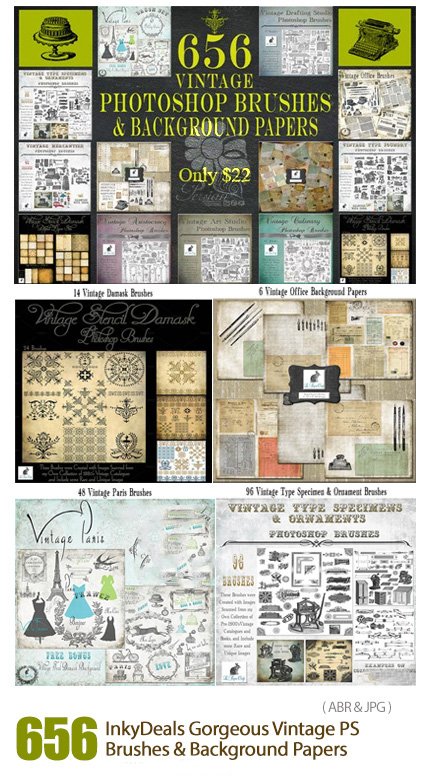
InkyDeals Gorgeous Vintage PS Brushes And Background Papers
Old Photoshop brushes and old paper backgrounds 821 MB | ABR & JPG format
In this collection, you can see 604 old Photoshop brushes and 52 old paper backgrounds in ABR and JPG formats on the site for download.
InkyDeals Gorgeous Vintage PS Brushes And Background Papers
Vintage Photoshop: This essential 656-piece variety pack of some of Le Paper Cafe’s best-selling vintage background papers and brushes is a must-have set for any designer.
The collection includes a variety of some of the most in-demand vintage backgrounds, images, and patterns on the market today, including damasks, type ornaments, office & writing tools, postcards, vintage paper, Paris, culinary, and more.
Le Paper Cafe’s unique backgrounds and brushes come with an extended commercial use royalty license and can be used in all of your personal and commercial design projects including websites, books, posters, invitations, digital papers, collage sheets, cards, tags, photography, T-shirts, merchandise, and whatever else you can think up!
These 14 sets regularly sell for $252, but this entire collection is being offered now for only $8.99!
Here’s what you get:

Each background paper is at 3600 x 3600px and 300 dpi high-resolution images in JPEG format.
The Photoshop brushes are in ABR format and range in size from about 200px to 3600px, with most of them being well over 1200px, resulting in crisp sharp images that can easily be resized according to the designers needs without sacrificing detail.
The Brush tool allows you to paint on any layer, much like a real paintbrush.
It’s easy to use the Brush tool to paint in your document. Simply Import The Brushes, locate and select the Brush tool from the Tools panel, then click and drag in the document window to paint. You can also press the B key on your keyboard to select the Brush tool at any time.
Brush Size: If you want to make the brush larger or smaller, click the Brush Picker drop-down arrow in the Control panel, then adjust the Size slider. You can also press the bracket keys [ ] to quickly increase or decrease the brush size at any time.
Hardness: If you want to make the edges of the brush harder or softer, you can adjust the hardness from the same drop-down menu. A harder brush will have clear, defined edges, whereas a softer brush will have blurry, less-defined edges. For most situations, we recommend setting the hardness to 50% or less because it will help to make individual brush strokes less obvious.
Brush Tip: If you want to create a unique effect, there are different brush tips to choose from in the same drop-down menu. Some of these are designed to mimic real-life drawing tools like pens and markers, while others are simpler.
Opacity: By default, the opacity of your brush is set to 100%, meaning the brush will use the highest intensity. However, you can reduce the opacity of your brush to make it less intense.
➡️ ➡️ For More Brushes Products 😀 😀
System Requirement For Photoshop CC


Reviews
There are no reviews yet.