
Parallel for After Effects
parallel animated typeface plugin
Download Parallel v1.1.1 for After Effects on Windows and Mac, a unique animated typeface that builds letters from controllably styled pairs of parallel lines . With an integrated dockable interface, this innovative tool lets you create and customize animated fonts where each character is formed by two parallel strokes—adjust weight and color independently for each pair, or zero either line weight to create two additional minimalist fonts .
Key Features of Parallel v1.1.1:
- Parallel Line Construction: Each letter is built from stylized pairs of parallel lines, creating a distinctive geometric aesthetic that stands out from traditional fonts
- Dual Color Control: Independently adjust the color and weight of each parallel pair for unlimited creative combinations
- Built-in Animation: Letters animate in by default with the ability to precisely stagger timing letter by letter through the UI—perfect for kinetic typography projects
- Minimalist Options: Zero either line weight to create two additional minimal font styles, expanding your creative palette without leaving the plugin
- Offset Direction Control: Take your designs in a funky new direction with adjustable offset parameters that modify the parallel line arrangement
- Legibility-Focused Design: Despite its geometric construction, Parallel is engineered to remain as legible as possible—even when pushing minimalism to its limits
- Animate Out Capability: Time reverse a copy to create matching out animations (simple manual process outside the UI)
- v1.1.1 Update (Feb 16, 2026): Updates licensing framework for improved stability and activation reliability
Perfect For:
- Motion graphics artists creating distinctive kinetic typography
- Title sequence designers wanting unique, geometric letterforms
- Brand identities needing custom, animated logotypes
- Anyone looking for a font that’s literally built for animation
- Creators who want to push typographic boundaries with parallel line aesthetics
System Requirements:
- Adobe After Effects 2026 down through CS3 (broad compatibility across decades of releases)
- Windows 10/11 (64-bit) or macOS
- 4GB RAM minimum (8GB+ recommended)
- 10MB available disk space
- Enable “Allow Scripts to Write Files and Access Network” in Preferences > Scripting & Expressions
Installation:
Copy the script file to your After Effects ScriptUI Panels folder:
- Windows:
C:\Program Files\Adobe\Adobe After Effects [version]\Support Files\Scripts\ScriptUI Panels\ - Mac:
/Applications/Adobe After Effects [version]/Scripts/ScriptUI Panels/
Access via Window menu > Parallel
Note: Parallel is proudly built with compCode and created by renderTom, with special upgrade pricing for existing users . The font’s unique construction makes it ideal for projects where typography needs to be both legible and visually distinctive .
Extension for Premiere Pro that Synchronize Clips by Timecode.
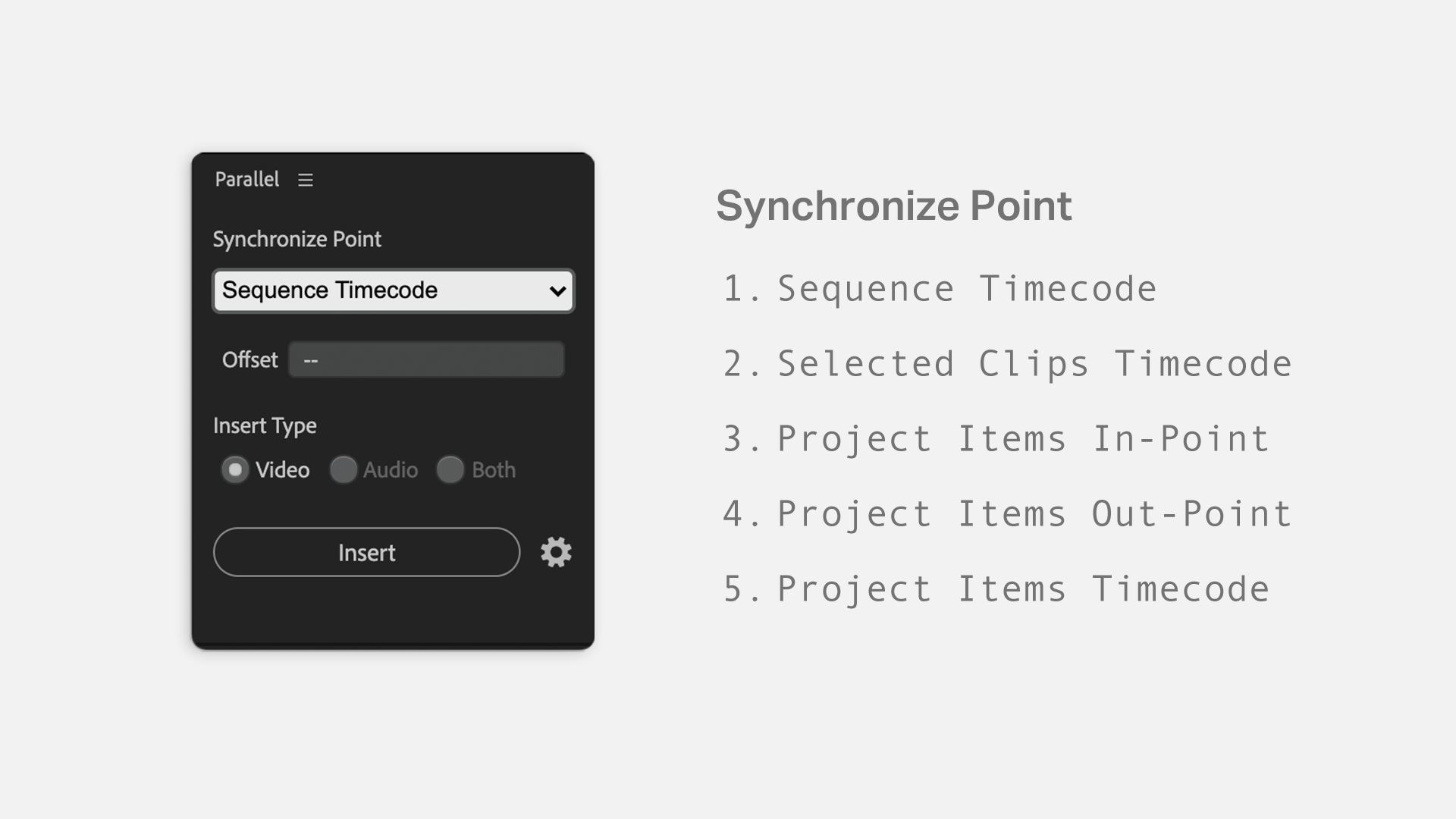
Parallel inserts clips selected in Project Panel into the current sequence by way of five sync points. The location of the track to be inserted has priority over the target track. If there is a clip on the target track where it will be inserted, it will automatically be inserted on the track above it.
1. Sequence Timecode
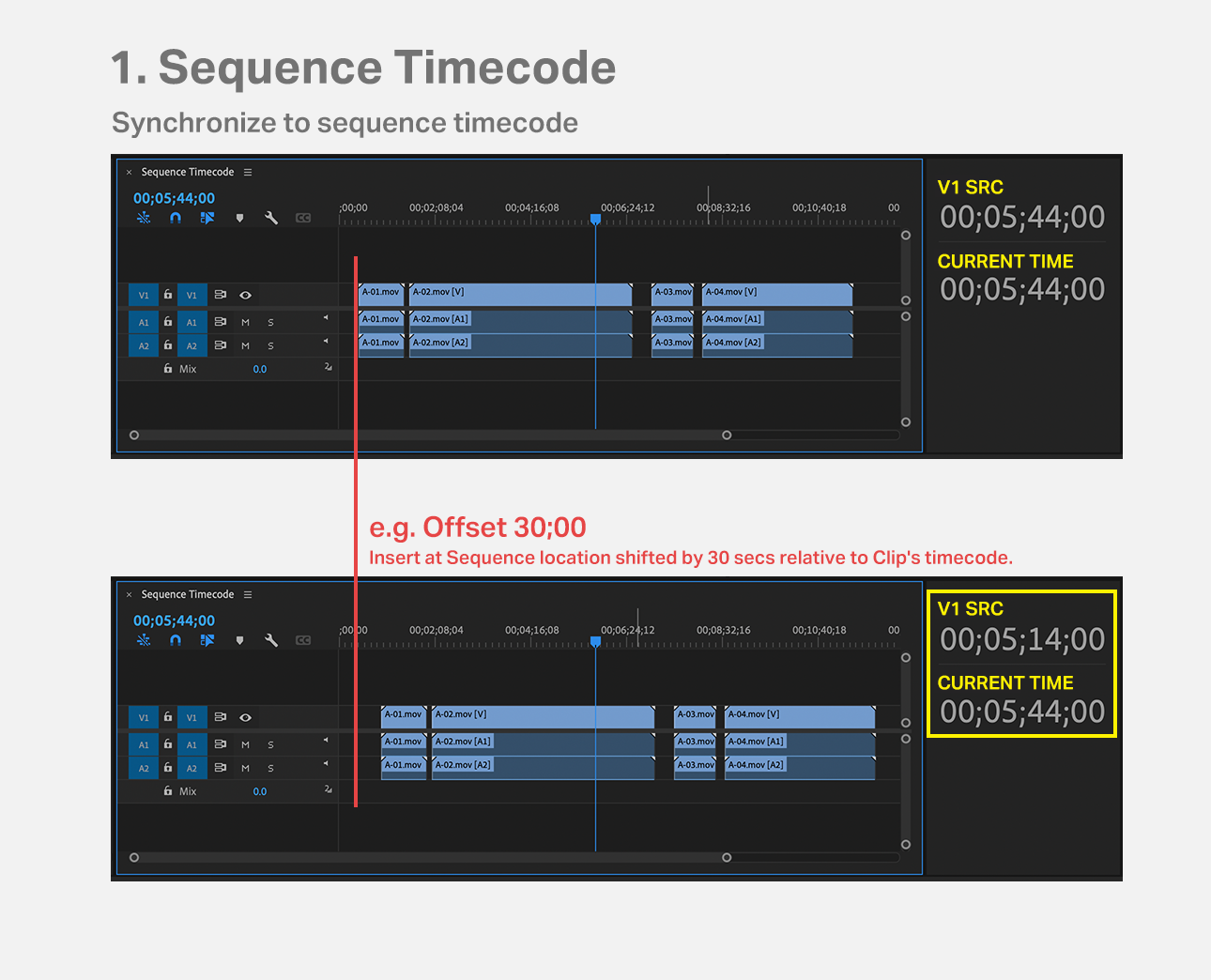
Inserts clips selected in Project Panel into the same sequence timecode location as the timecode of that clips. Setting the Offset time allows you to shift the location of the sequence to be inserted.
2. Selected Clips Timecode
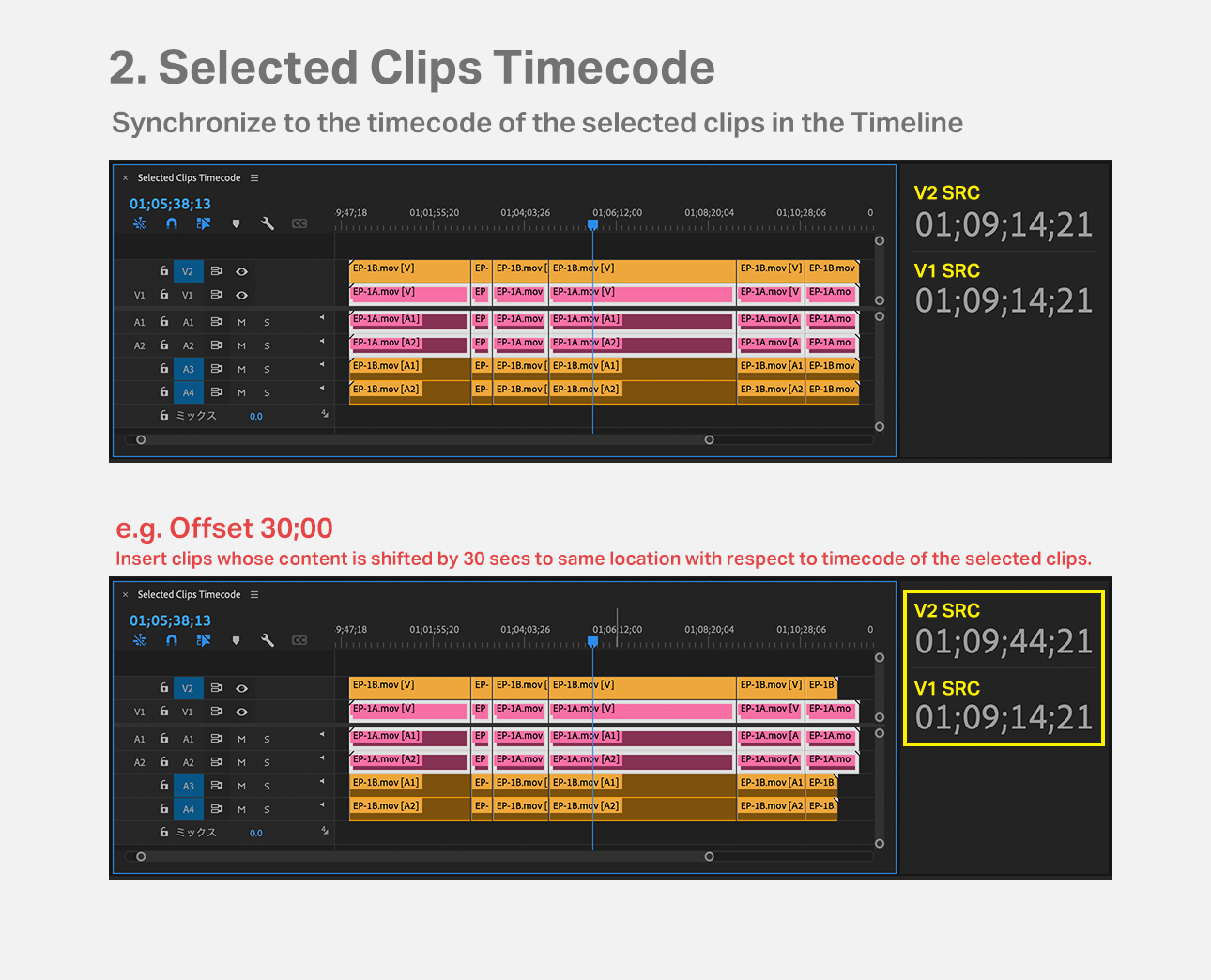
Inserts clips selected in Project Panel in the same timecode location as the clips selected in the sequence. (You can select multiple clips to be selected in a sequence, but be sure to select them from the same track.) Offset time can be set to shift the timecode of clips being inserted.
3. Project Items In-Point
Stacks clips selected in Project Panel into a sequence based on the clip’s In Point. When the Offset time is set, the Offset time is stair-stepped in steps of Offset time with respect to the In Point.
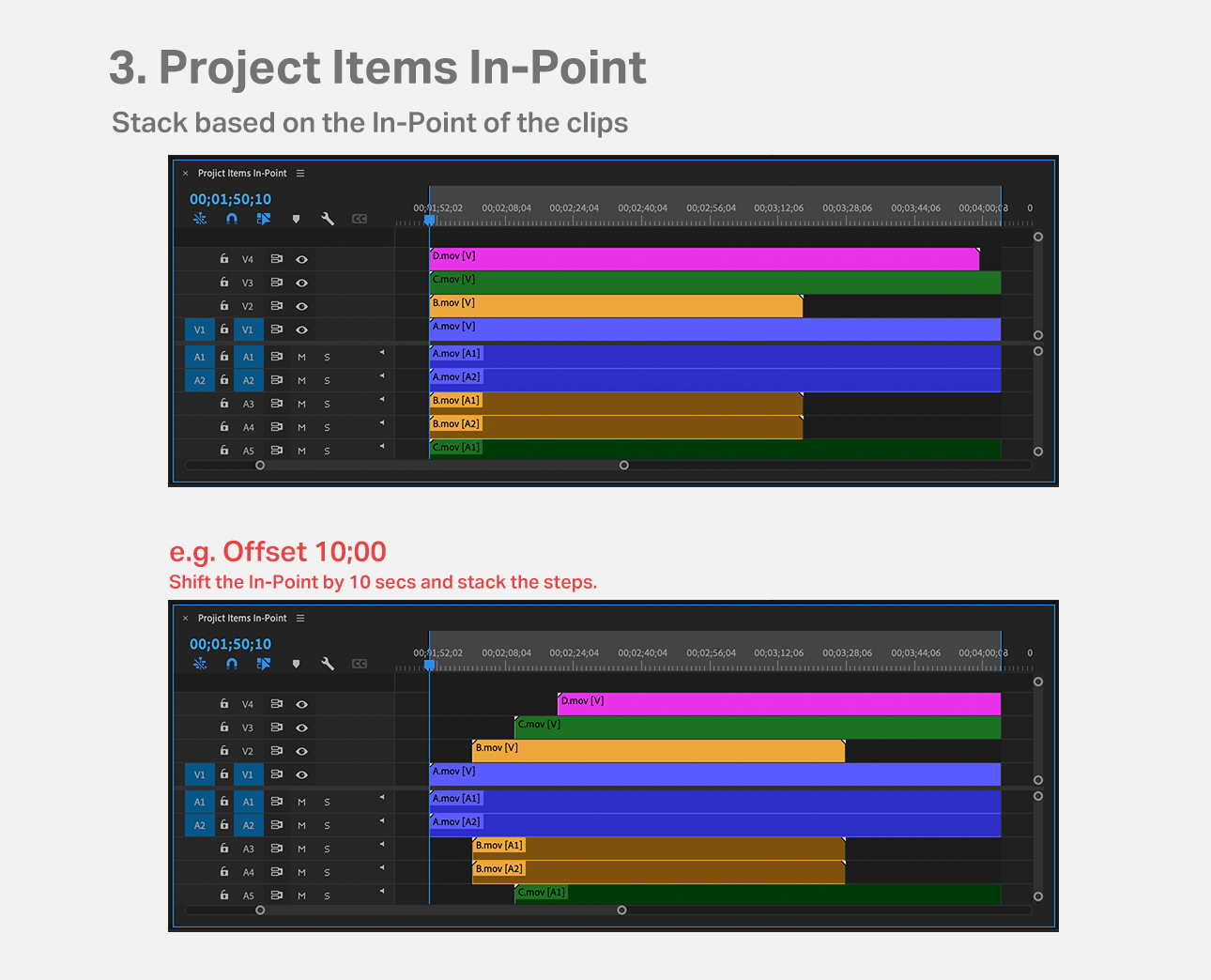
4. Project Items Out-Point
Stacks clips selected in Project Panel into a sequence based on the clip’s Out Point. When the Offset time is set, the Offset time is stair-stepped in steps of Offset time with respect to the Out Point.
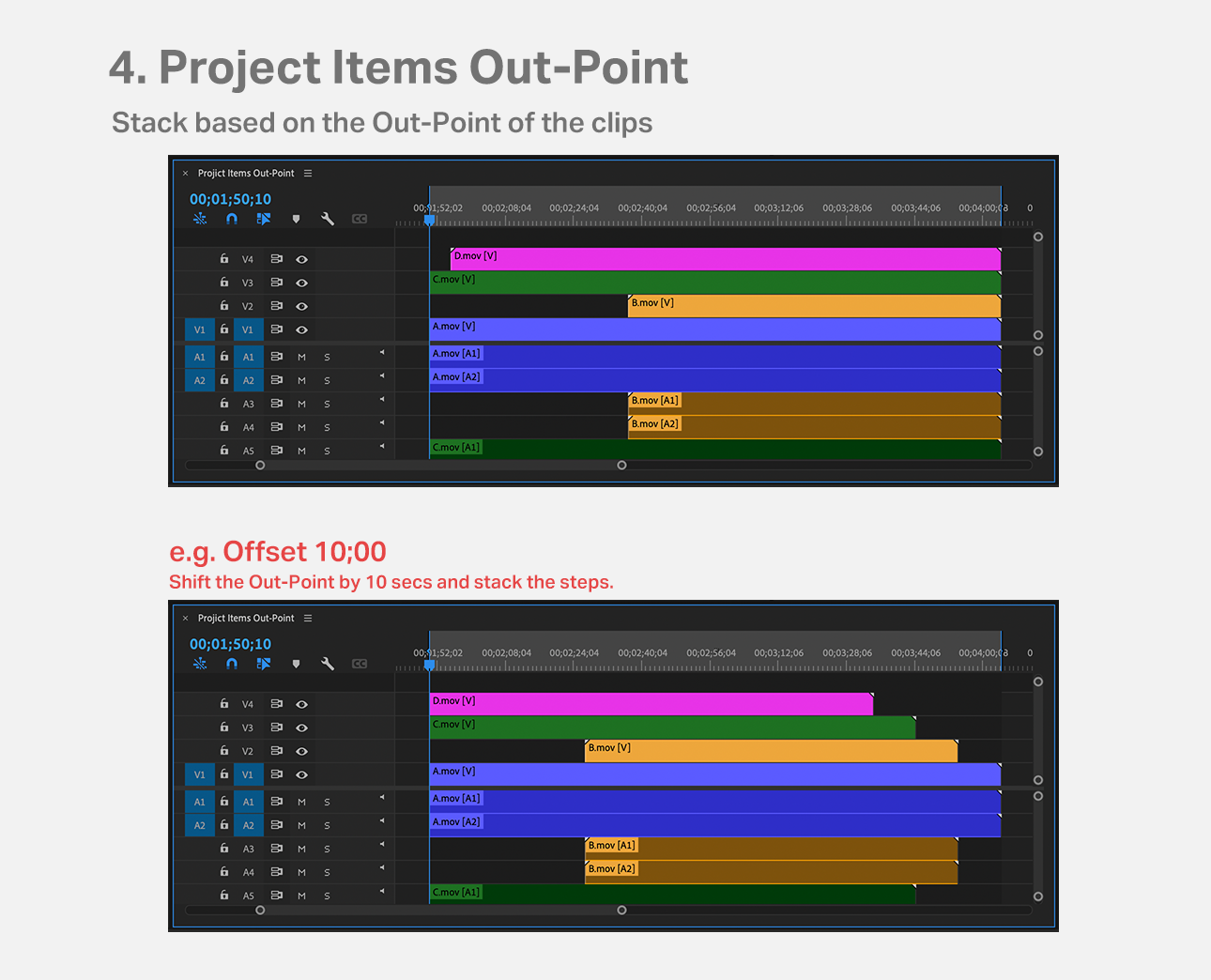
5. Project Items Timecode
Stacks the timecode of the clip selected in the Project Panel into a sequence with the timecode aligned. The Offset time in this case is a timecode, which allows all clips to be stacked with that time as the in point.
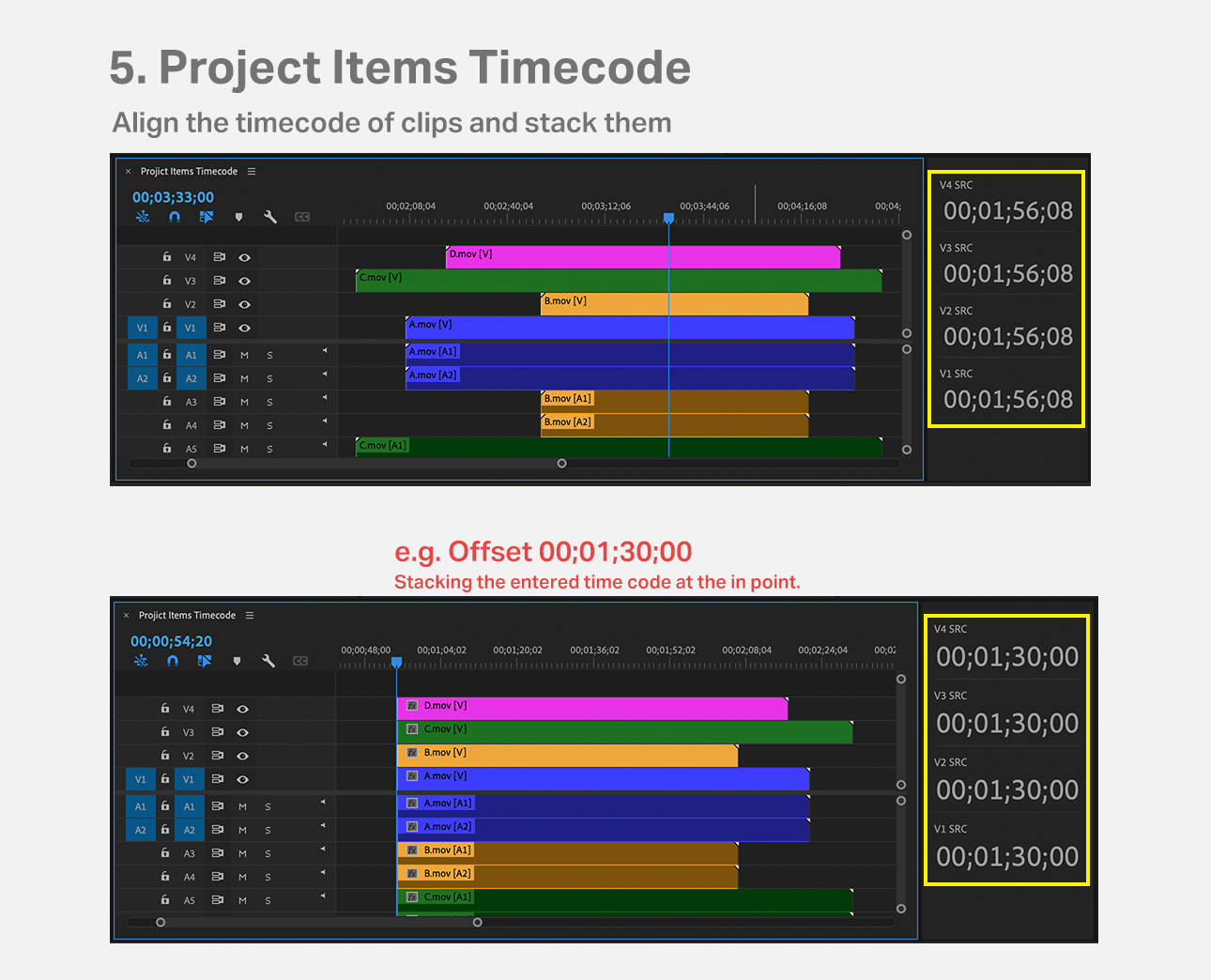
With methods 3, 4, and 5, the In/Out Point of the sequence is valid. If no In/Out Point is specified, the insert is placed where the indicator is.
Offset
Offset input is valid for methods 1, 2, 3, and 4. Negative values can also be set by adding “- (minus)” at the beginning. Reset to “0” by double-clicking the “Offset” text area.
Insert Type
Select Video only, Audio only, or both Video and Audio.
The inserted audio will reflect the clip’s audio channel settings. The source patch is not reflected.
Settings
Click the gear icon in the lower right corner of the panel to display the settings screen.
‘Display Confirm before Insert’ checkbox allows you to choose whether or not to display a confirmation screen before inserting.
Extension for Premiere Pro that Synchronize Clips by Timecode.
Elevate your motion graphics workflow with premium collection of After Effects plugins. Whether you are a seasoned professional or just starting your VFX journey, powerful tools designed to streamline complex tasks, unlock creative possibilities, and save you hours of rendering time. From stunning glitch effects and seamless transitions to advanced 3D extrusion and text animation tools, each plugin in our library is rigorously tested for compatibility with the latest versions of Adobe after Effects. Enhance your video production value today and download industry-leading plugins that help you create breathtaking visuals without the technical headaches. Browse our full range and find the perfect extension to supercharge your editing suite now.
➡️ ➡️ For more after effects Plugins 😀 😀
➡️ ➡️ System requirements AE
Reviews
There are no reviews yet.