
Auto Dance Camer for Blender
Auto Dance Camera for Blender
The Ultimate Automated Camera Animation and Motion Tracking Tool for Blender
Download Auto Dance Camera today. Consequently, you can instantly generate dynamic, rhythmic camera movements that perfectly follow your animated characters. Because dance animations and music videos rely heavily on engaging cinematography, having a dedicated automated camera tool is absolutely essential.
Nevertheless, manually keyframing complex camera orbits and angle changes takes hours of tedious work. Fortunately, Auto Dance Camera eliminates this bottleneck completely. Moreover, it intelligently tracks your subject’s movement and generates cinematic camera paths automatically. In short, you can achieve professional dance cinematography with unprecedented speed.
Intelligent Subject Tracking and Framing
The core of this addon lies in its ability to lock onto moving characters. For instance, the tool automatically detects the center of your animated subject and keeps them perfectly framed. Furthermore, you can define specific tracking points, such as the hips or head, to control the camera’s focus.
Additionally, the system handles sudden jumps and spins smoothly. Since the camera reacts dynamically to the animation, your subjects will never drift out of frame. Consequently, your dance videos will always look professionally directed.
Comprehensive Camera Movement Presets
Professional workflows demand variety in visual presentation. Therefore, Auto Dance Camera includes a rich library of movement presets. For example, you can instantly apply sweeping orbits, low-angle shots, and rhythmic push-ins.
Furthermore, you can sync camera cuts directly to the beat of your audio track. Additionally, the addon supports multiple camera setups, allowing you to switch angles dynamically. Since every preset is fully customizable, you can tweak the speed and easing to match the specific vibe of your song. Thus, you maintain complete creative authority over the visual flow.
Real-Time Performance and Seamless Integration
Creative exploration demands immediate visual feedback. Accordingly, the addon is fully optimized for real-time performance in Blender. For instance, the viewport updates the camera path instantly as you adjust the tracking parameters.
Furthermore, the tool integrates natively with Blender’s standard cameras and timeline. Additionally, it supports exporting the generated motion as keyframes, allowing for further manual refinement. Since the tool is highly optimized, it never slows down your playback. Consequently, you can iterate rapidly and achieve polished results quickly.
Perfect for 3D Animators and Music Video Directors
This addon is particularly well-suited for 3D animators working on dance performances and TikTok trends. Similarly, music video directors will appreciate the ability to generate dynamic angles without a virtual film crew. Additionally, motion designers creating kinetic character pieces will find the automated tracking invaluable. Ultimately, Auto Dance Camera accelerates your entire animation and rendering pipeline.
System Requirements and Compatibility
Auto Dance Camera supports Blender versions 3.0, 3.1, 3.2, 3.3, 3.4, 3.5, 3.6, 4.0, 4.1, 4.2, and 4.3. It works on both Windows and macOS operating systems. The addon requires at least 8GB of RAM.
Installation and Usage Guide
To install, first download the ZIP file from your library. Next, open Blender and navigate to Edit > Preferences > Add-ons. Then, click Install and select the downloaded ZIP file. After that, enable the Auto Dance Camera addon.
Finally, select your animated character, choose your desired camera preset, and click Generate. Thus, your automated cinematography workflow will be ready instantly.
What is Included Inside?
The pack contains the complete Auto Dance Camera addon. Furthermore, it includes the intelligent subject tracking engine and the comprehensive camera movement presets. Additionally, you receive real-time performance optimization and full keyframe export support. Ultimately, you receive everything needed for professional dance cinematography.
Final Thoughts on the Addon
Effortless camera animation evokes profound creative freedom. Therefore, this addon provides the ultimate foundation for your character workflows. You can create dynamic, rhythmic camera movements with unprecedented speed. Consequently, your creative vision becomes a stunning reality.
Blender addon: Auto Dance Camera
A dance animation often comes with 5000-7000 frames. Creating its camera motion is painful.
This Blender addon can create camera motion for the whole dance animation with one click, with professional composition and combine with 4x3x3x3x5=540 total different shots.
Demo Video
A full song demo video
Export Blender Camera to MMD’s Demo
Info
Github
Github repo is for document and issues. There is no code in it.
Version
Addon: 2.4.3
Blender: 3.0 or later
Feature
- Generate character’s camera motion automatically
- (New) Export camera motion into vmd file, to use in MMD
- (New) Export camera motion into .duf file, to use in Daz Studio
- (New) Extract melody beats from song and generate camera motion which fit with these beats (Windows 64bit only)
- Re-generate a range of the motion
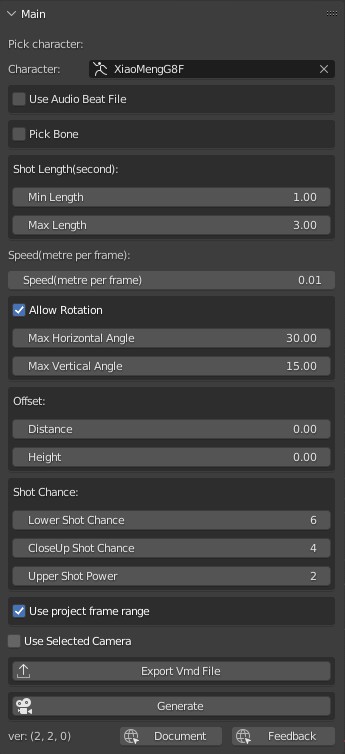
- Adjust moving speed, min and max length of shots, so it can be use to both pop song and slow romantic song.
- Can only generate front shot if needed (good for composing)
- Combine 4x3x3x3x5=540 total shots and only generate those can fit for character’s pose
- Track eye position to prevent character moves out frame.
- Set offset to fit with any kind of characters
Install
- Install the .zip file you get from online shop.
- Search “Auto Dance Camera” in your addon list and enable it
- In viewport, press “N” to display tool panels, select “Auto Dance Camera” panel
If you are new to blender and don’t know how to install a blender addon, search: “blender install addon” in google.
Supported Character
Any type. It has build-in support for: Daz, CC3, MMD, Rigify, Mixamo
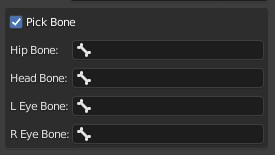
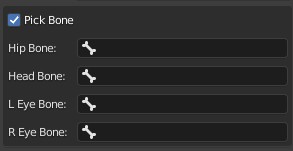
If your character is not one of them, just check “Pick Bone” on addon panel, then select bone names it needed.
How to use
Generate Camera motion
- Pick your character’s Armature on addon’s panel
- Click “Generate” button, done.
It will create a new camera named “Auto Dance Camera” with motion on it in your active collection, and set that camera as active camera.
Export to MMD
- Select a camera(Or its empty parent)
- Click “Export to Vmd File” button, save it, done.
You selected camera’s motion, now is in this vmd file, it can be used in MMD.
Export to Daz
- Select a camera(Or its empty parent)
- Click “Export to Daz” button, save it, done.
- In Daz Studio, select a camera, load this saved .duf file.
You can export any blender camera, not just the one created by this addon. That means, you can load MMD’s camera motion with Blender Vmd Retargeting addon, then export it to Daz Studio.
Use song’s melody beats (Windows 64bit only)
We made a video tutorial for this:
Now, this addon comes with a tool can extract melody beats from audio, and export those beats into a beat file.
Then in this blender addon, you can load this generated beat file, to generate camera motion can fit with the audio’s melody.
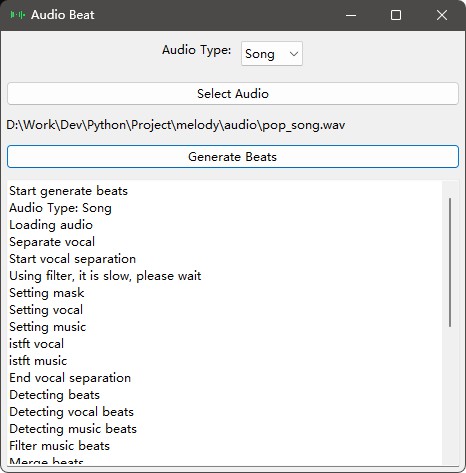
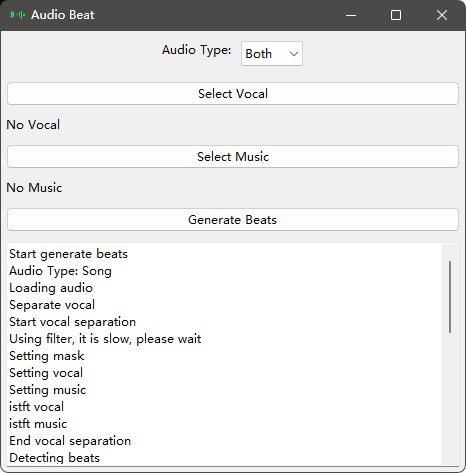
First, at product file list web page, there is a .zip file called “Audio Beat”. Donwload and unzip it. Then run the “audio_beat.exe”.
Select the song for your dance motion, then click “Generate Beats”. And wait.
After it is done, the beat file will be saved in this audio’s folder, named as: “audio_name_beat.npy”.
Now, in blender, at Auto Dance Camera addon’s panel, check “Use Audio Beat File”, and load this beat file. Then, generate the camera motion, done.
You can reuse this beat file in blender, so you don’t need to generate it again for the same song.
Audio Type
There are 3 audio types for this tool: song, vocal, or just music. Choose the right type can get a better result.
Isolate Vocal with Machine Learning AI
This audio beat tool, will isolate vocal from the song, to get reasonable melody beats.
It did that with audio filter, not with AI. So the isolate vocal may not be good enough in some cases.
But if I package the AI version into this tool, its size gonna be about 3.5GB. That’s just too crazy for this little tool.
So, if you want to get the best melody beasts, you can use other AI based audio tool, to isolate vocal from this song, then use that vocal file with this audio_beat tool.
There are 2 ways to isolate vocal from your song.
- Free AI based website service. (Recommanded)
There are many websites can do this for free. Just upload your song, then download the vocal and music file. For example:
- Or Download a free AI based audio tool to your local machine.
There are tons of free tools for this. For example:
Be aware of that, an AI audio tool like this, its file size will be more than 3GB. It’s your choice.
After you get vocal and music seperated from the song, which one should you use in audio_beat?
In most case, vocal works great. But if you are not sure, you can change Audio Type to Both, then pick both vocal and music files.
Tips
- Move camera’s empty parent object can adjust the whole camera motion.
- Click “Generate” button mutiple times, then pick the one you like most.
- For slow romantic song, set shot length min to 3, max to 5 and speed to 0.004 will be better
- Select a generated camera, check “Use selected camera”, and set a frame range. Then you can re-generate that range again and again, until you get a shot you like.
Apply Transform Issue
If you are using Mixamo or any model that has not “Apply Transfrom Rotation” when importing, you need to do this before using it.
Just select the armature, press `ctrl+A`, click `Rotation` to apply.
Supported camera motion
This addon will try to put character’s eye on the top 1/3 area of the camera frame. Like a professional cameraman.
If character moves too far away in a single shot, it will try to follow.
- Supported shot types: full shot, medium shot, lower shot, close-up shot
- Supported rotation types: fix, left, right, up, down
- Supported camera movements: fix, zoom in, zoom out, left pan, right pan, move up
It will check your character’s pose and remove those shots won’t fit for this pose, then pick one shot randomly.
Shot length is also generated randomly.
For non-Dance motion
Change the setting, make shot length longer, then it can be used in other cases.
Options
Pick Bone
If your character is not one of “`Daz, CC3, MMD, Rigify, Mixamo`”, you need to check this and select bone names it needed.
Shot length
Min and max shot length, in second.
Addon will convert it to frame numbers based on your project’s fps setting.
Default value is for pop song. For slow romantic song, change min length to 3, max length to 5 will be better.
Camera move speed
Default is 0.008 metre per frame, which is for pop song. For slow romantic song, change it to 0.004 will be better
Allow Rotation
Uncheck to only generate front shot.
This can be good for composing.
Offset
Add your own offset, or just move the empty parent of generated camera.
Shot Chance
Lower shot is targeting on legs, which can be very sexy or a very bad choice. So in some cases you may wish to have less lower shots.
The chance of low shot is 0.25/this value. So, the bigger of this value, the less lower shots you will have.
The same as Close-Up Shot Chance.
Upper Shot Power
Bigger value, means more upper body shots.
Default value is 2. If you set it to 3, about half of your shots will be upper body shot. It is good in many cases. Because in many really music video, there are more than 1/3 upper body shots, which is good to highlight the singer.
Use Project’s frame setting
Uncheck to input your own frame range
Use selected camera
This option is very powerful, check it, it will add motion to the camera you currently selected.
If this camera already has motion on it, for example, a camera generated by this addon, it will only remove the camera motion on the frame range you set. Then add new motion only to this range.
That means, if you don’t like a shot in the generated motion, you can select that frame range, click the button to generate motion only for that part again and again, until you get a motion you like.
Supercharge your 3D creation workflow with premium selection of Blender Add-ons. Whether you are modeling intricate characters, sculpting realistic environments, or animating cinematic sequences, the right add-on can transform how you work inside Blender. Our curated collection includes powerful tools for UV unwrapping, procedural texture generation, rigging automation, rendering optimization, and more—each rigorously tested for compatibility with the latest Blender versions. Eliminate tedious manual processes and unlock advanced functionality that lets you focus on what matters most: bringing your creative vision to life. Explore our full range of professional Blender plugins today and take your 3D projects to the next level.
➡️ ➡️ For more Blender Plugins 😀 😀
➡️ ➡️ System requirements For Blender
Reviews
There are no reviews yet.