

BakeMaster for Blender
bakemaster addon
BakeMaster v2.7.2 for Blender – Professional Texture Baking & Material Conversion Suite
Versions: v2.7.2
File Size: 1.4 MB
Download BakeMaster v2.7.2 for Blender on Windows, Mac, and Linux, a comprehensive texture baking add-on that automates the conversion of complex materials to export-ready texture maps. Perfect for game developers, asset creators, and 3D artists who need high-quality baked textures for Unity, Unreal Engine, and other real-time applications.
Key Features of BakeMaster v2.7.2:
- PBR Texture Baking: Bake diffuse, normal, roughness, metallic, ambient occlusion, and displacement maps
- Multi-Object Baking: Bake multiple objects simultaneously with consistent settings
- Smart UV Preparation: Automatic UV unwrapping and island packing for baking
- High Resolution: Support for 1K, 2K, 4K, and 8K texture outputs
- Material Conversion: Convert any node-based material to export-ready textures
- Batch Processing: Process multiple materials and objects in one operation
- Preset System: Save and load baking configurations for different asset types
- Render Engine Support: Works with Eevee, Cycles, and third-party renderers
- v2.7.2 Updates: Enhanced baking algorithms, improved UV packing, and Blender 4.0+ compatibility
Perfect For:
- Game developers baking textures for Unity and Unreal Engine
- 3D artists preparing assets for real-time rendering
- Asset creators needing export-ready texture maps
- Architectural visualization professionals converting materials
- Anyone needing professional texture baking in Blender
System Requirements:
- Blender 3.6, 4.0, 4.1, 4.2, 4.3
- Windows 10/11 (64-bit), macOS, or Linux
- 4GB RAM minimum (8GB+ recommended)
- 50MB available disk space
Installation:
- Download the add-on zip file
- In Blender, go to Edit > Preferences > Add-ons
- Click “Install” and select the downloaded zip file
- Enable the add-on by checking the box next to “BakeMaster”
Note: BakeMaster v2.7.2 is a professional texture baking solution for Blender, automating the complex process of converting materials to export-ready texture maps. The multi-object baking, high-resolution support, and preset system make it essential for game developers, asset creators, and anyone preparing models for real-time rendering. Designed for Blender 3.6 and above.

About BakeMaster
We all know that models with loads of geometry require way more computer power to render. On the other hand, lowpoly model is easier to handle, and you can transfer high-resolution details onto it. This is called texture baking, and BakeMaster delivers everything you need to get it fast and of the highest quality.
Introduction
Welcome to BakeMaster, a powerful and feature-packed baking solution created for Blender.
Along with the BakeMaster’s intuitive and convenient workflow baking process becomes a pleasure. The addon is for users who can’t stand wasting time and yearn for most functionality with professional and cutting-edge baking features.
With it, baking feels like a new book. Everything is right in your hands, under control, and easy to access and configure. Created by artists, BakeMaster is straightforward and comfortable to use, yet lands with numerous tweaks and toggles to fully meet your ultimate texture baking preferences.
Baking with BakeMaster takes only three steps:
- Setup Objects
- Choose Maps
- Hit Bake!
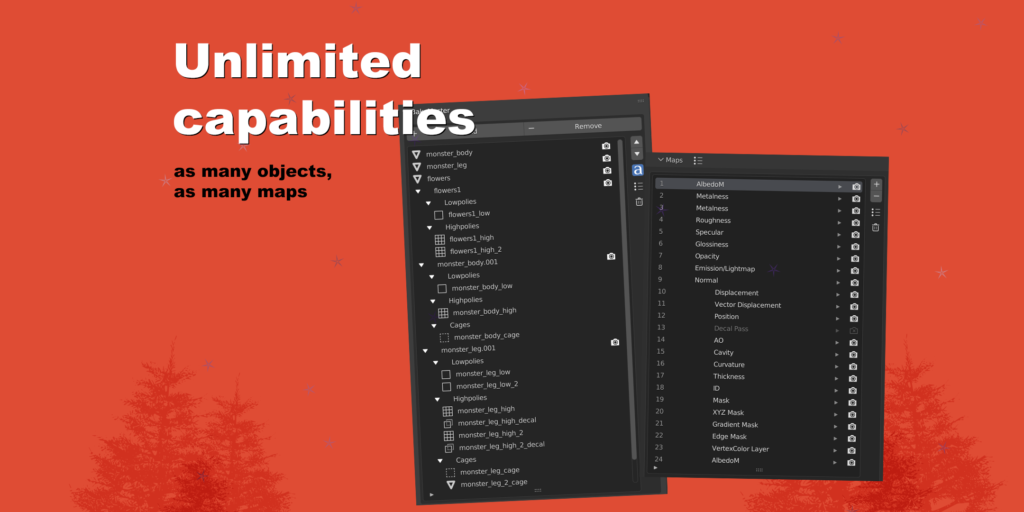
An unlimited number of objects and maps to bake, each driven by unique or grouped settings – carry it all out with BakeMaster!
Why creators choose BakeMaster
Baking standardly with Blender is ok. But what about baking dozens of models with a desire to have different settings, maps, masks, or view how baked maps will look like, make sure your objects have a correct shading set up, perform a Channel Pack, or any other highly requested task? It can easily lead to losing valuable time. Here is when BakeMaster comes into play. It can manage all of that in seconds and with a few clicks!
Have complex materials? Never worry about the nodes again: toggle a couple of settings, and BakeMaster will configure it all for you. Are Cycles maps gone? Not just yet – simple UI and manageable settings make it feel cool.
For whom is BakeMaster
Whether you come from Game Dev, prepare and texture your models, or bake for fun, BakeMaster is for you.The addon fits beginners as well as proficient users. Comfortable creation tools saving you time and making your artistic thoughts never jump out of the boat are vital.
Key features
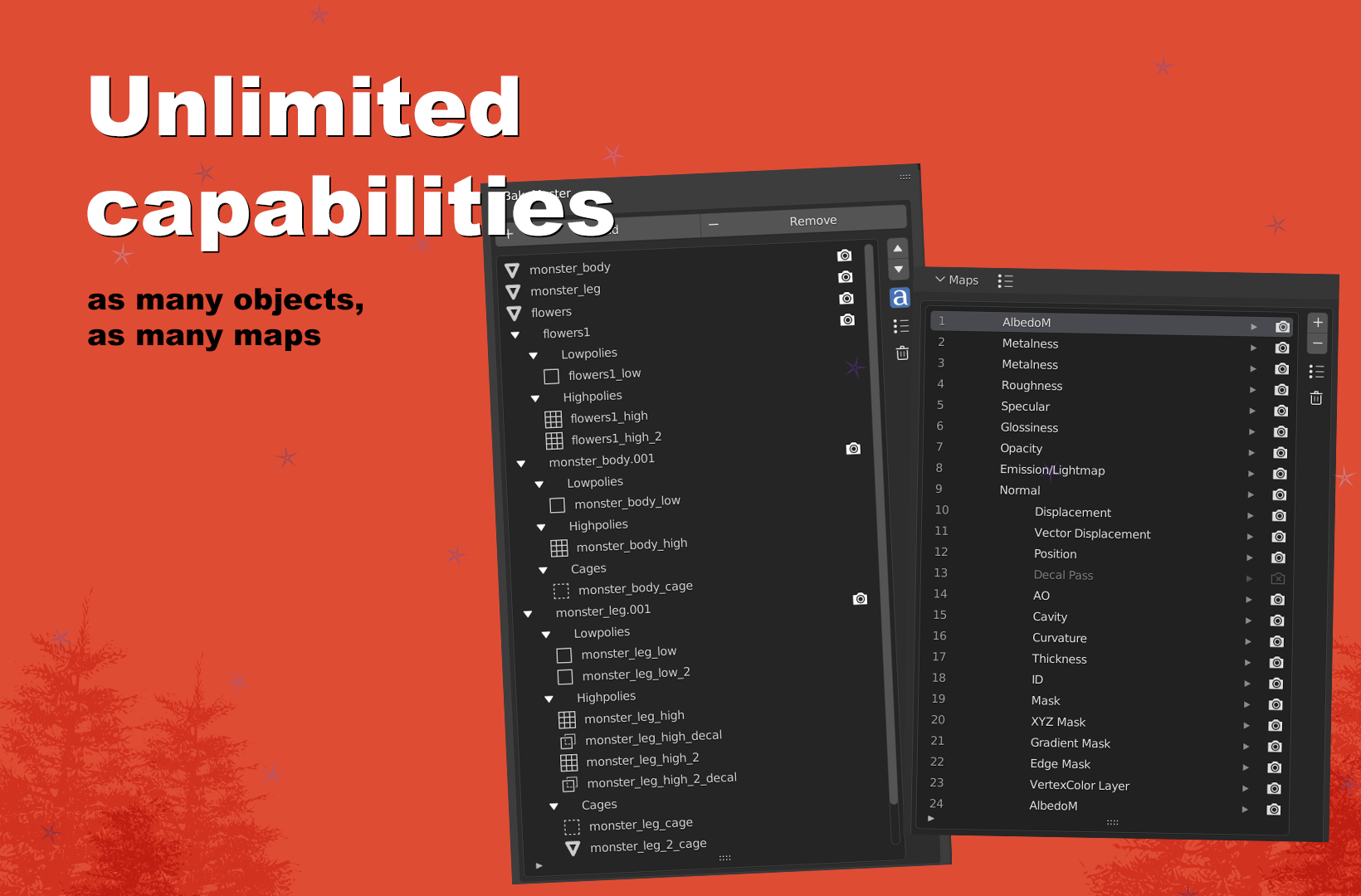
- Bake an unlimited number of objects and maps.
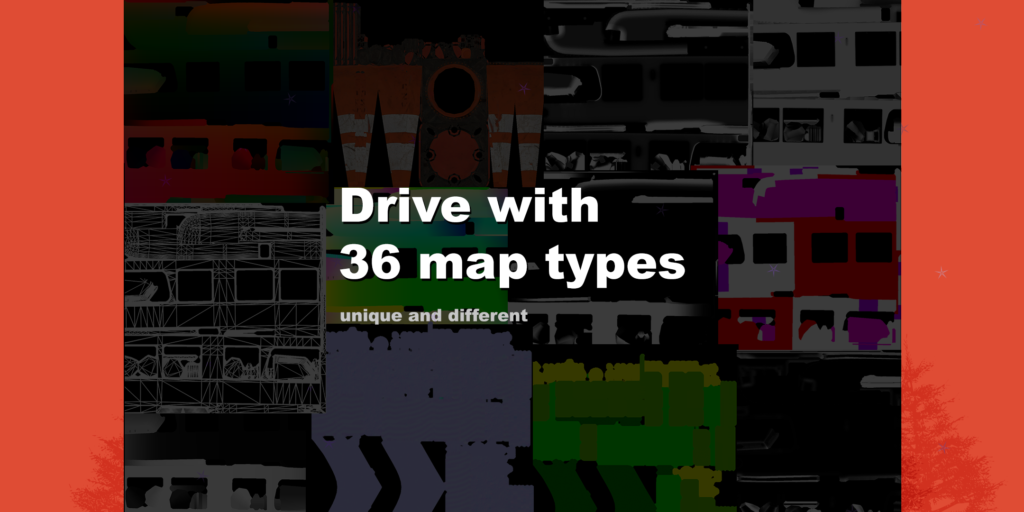
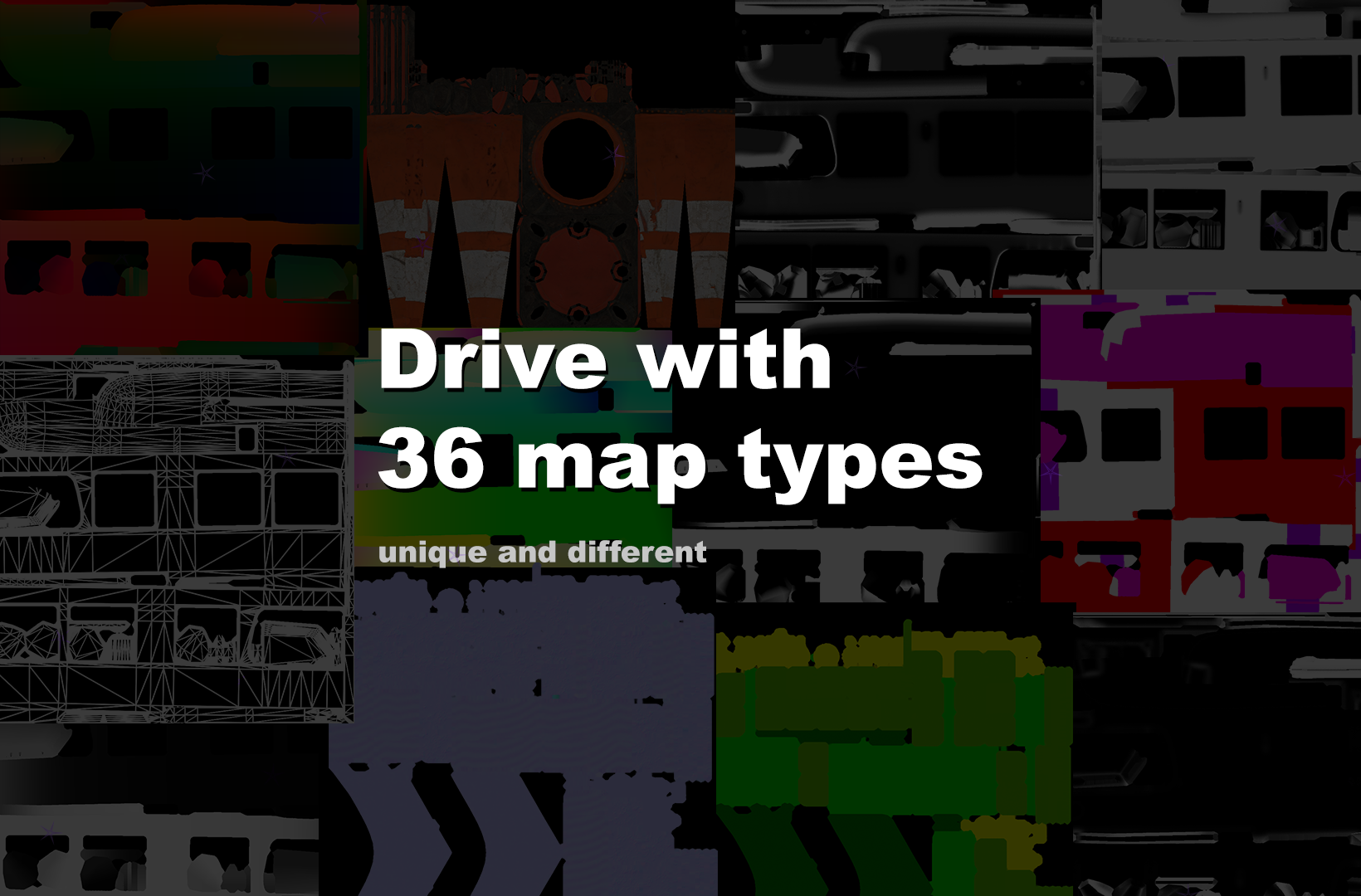
- Drive with 36 different map types.
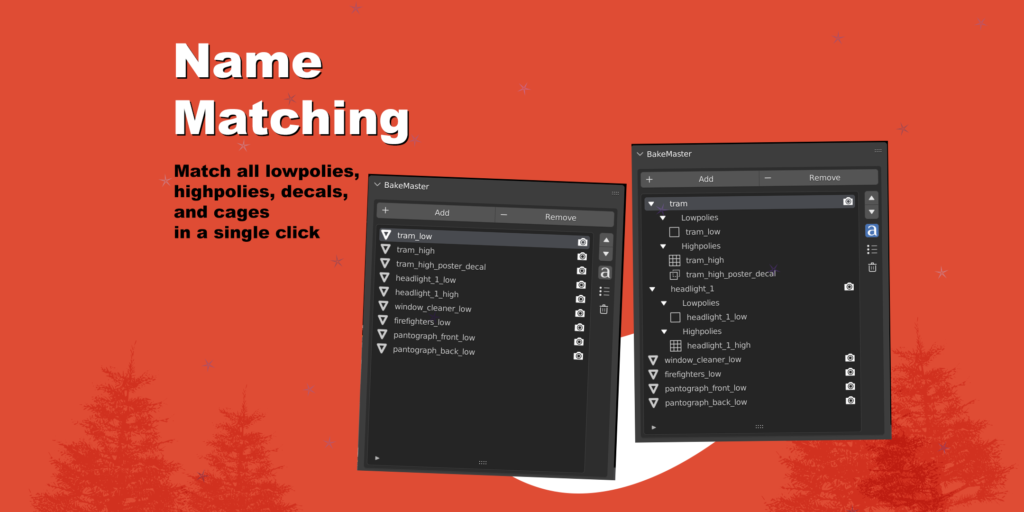
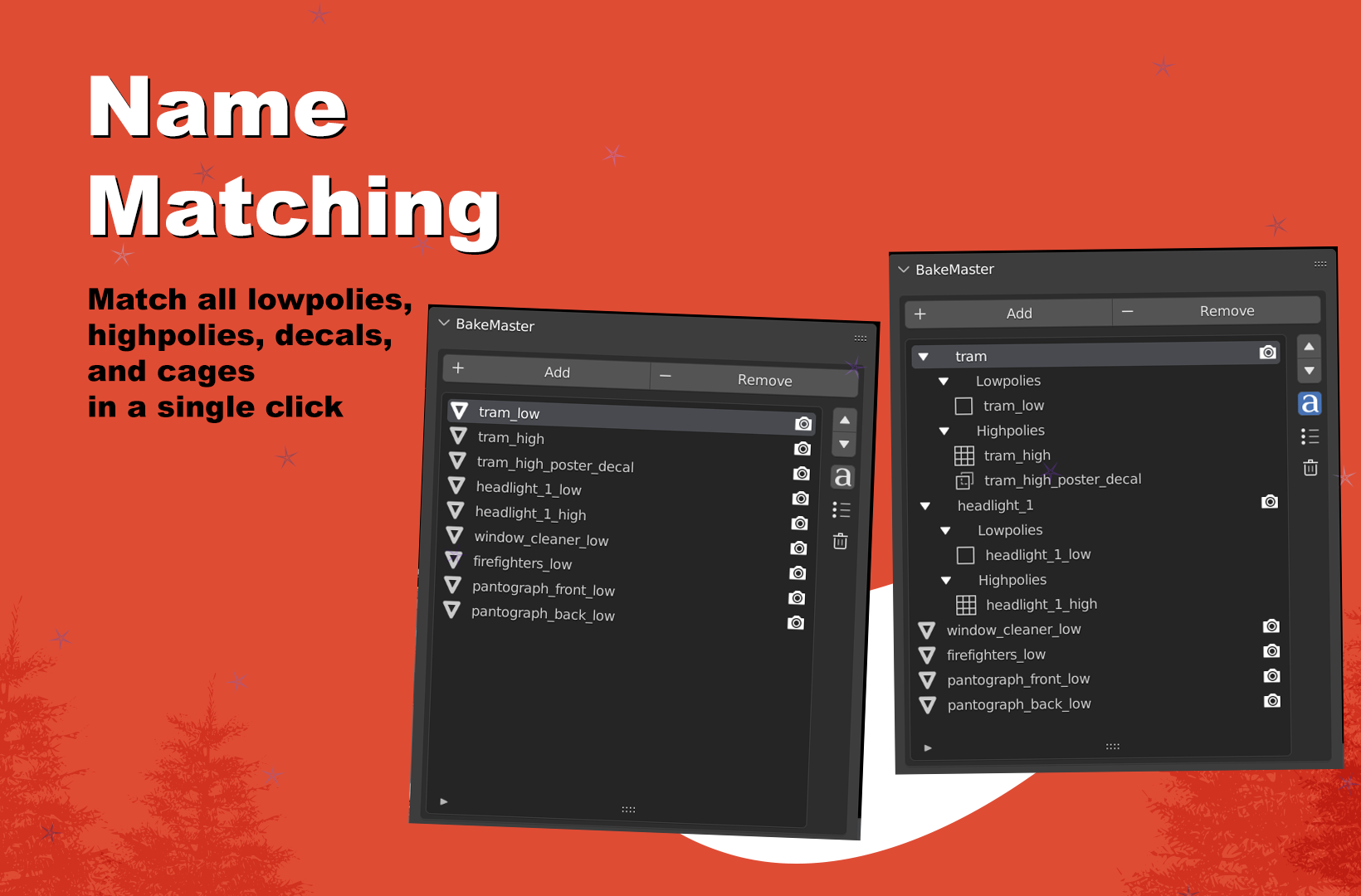
- Match all lowpolies, highpolies, decals, and cages in a single click.
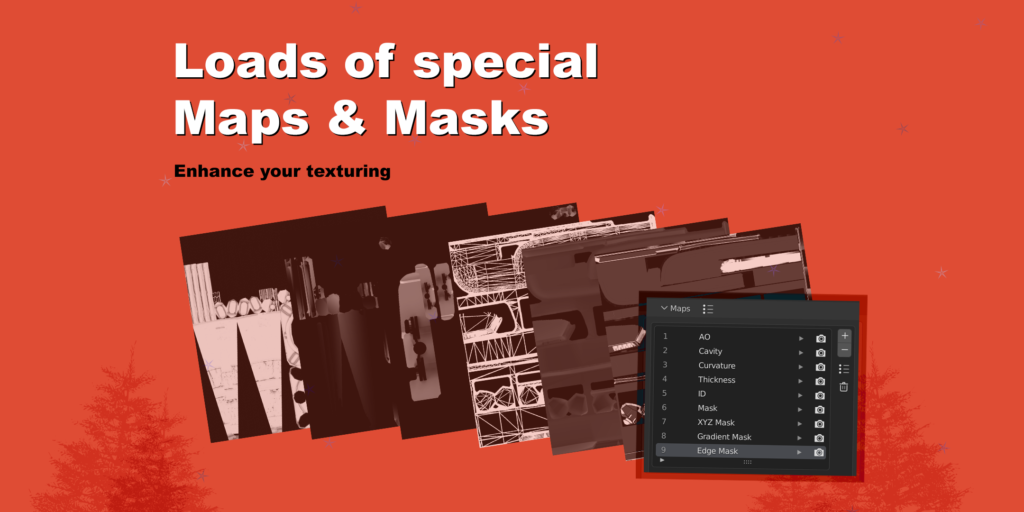
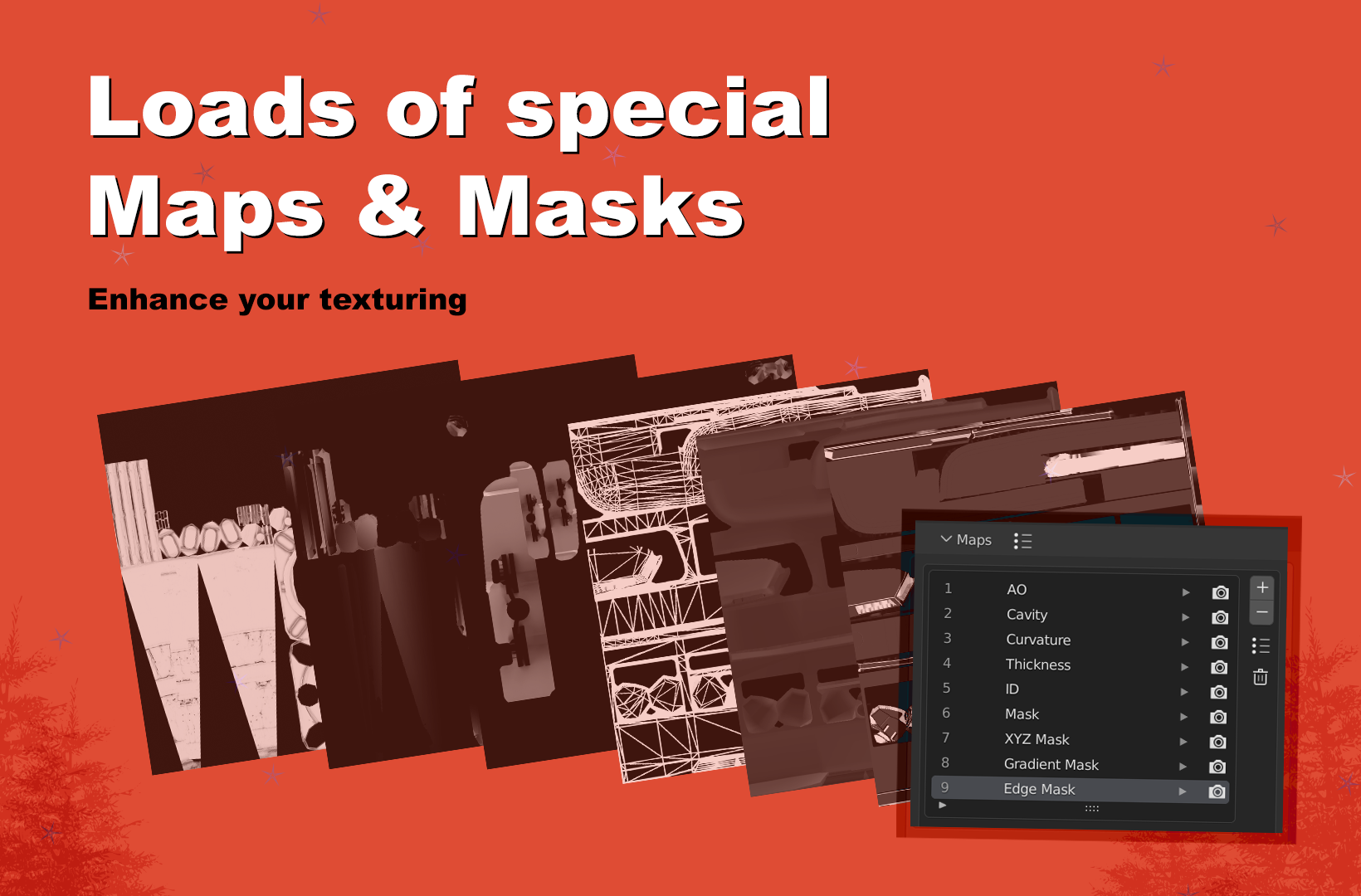
- Enhance your texturing with loads of special maps and masks.
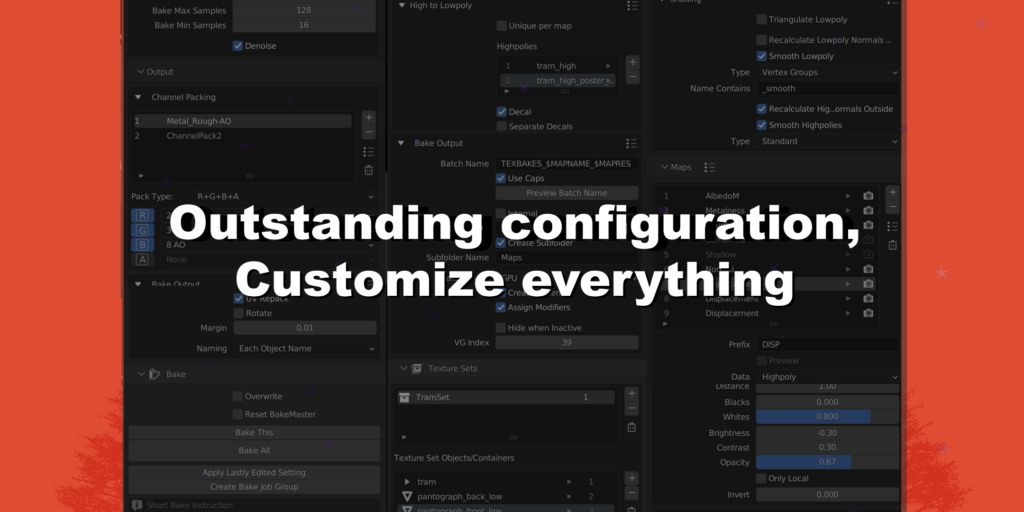
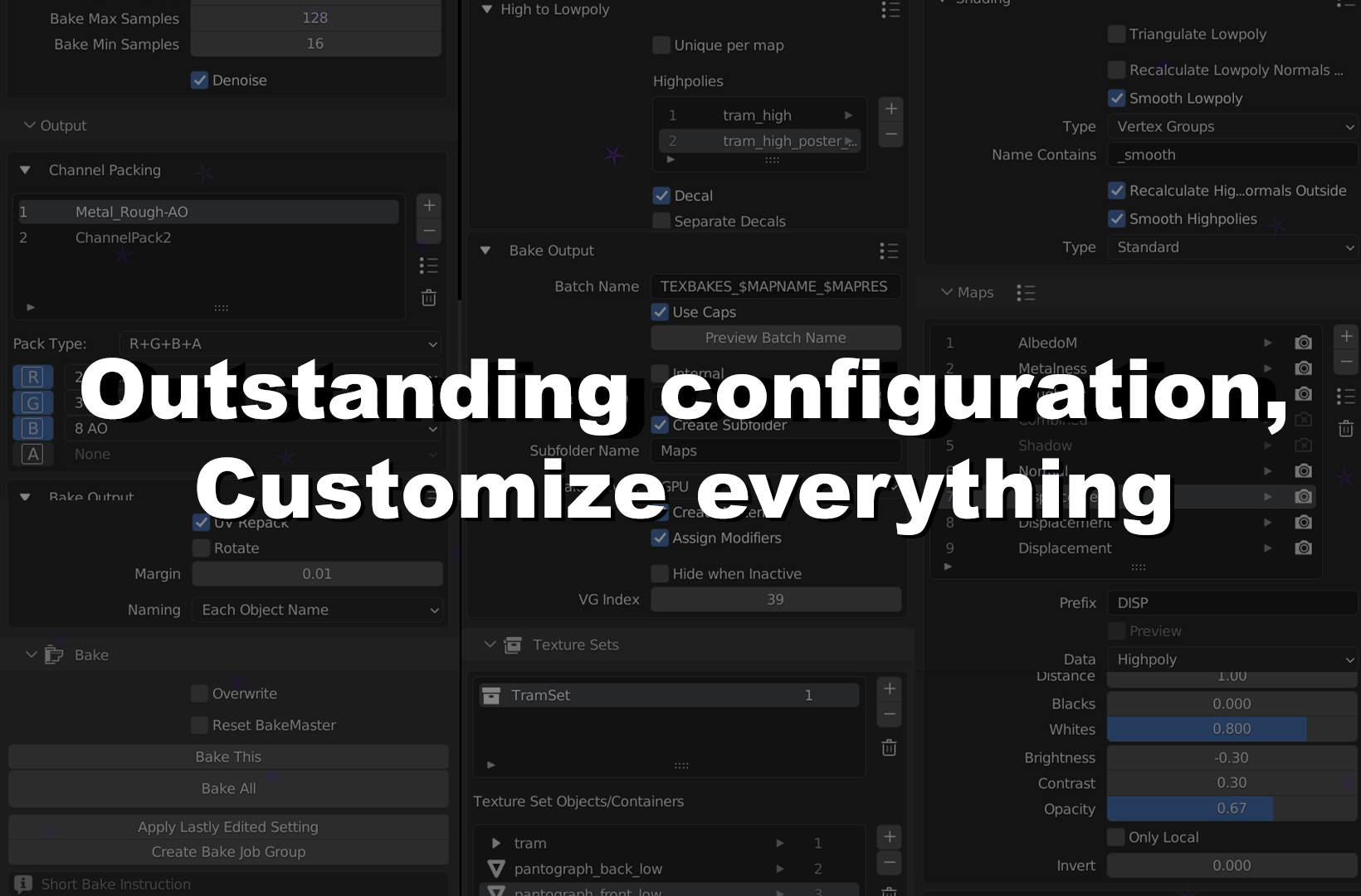
- Outstanding configuration, customize everything.
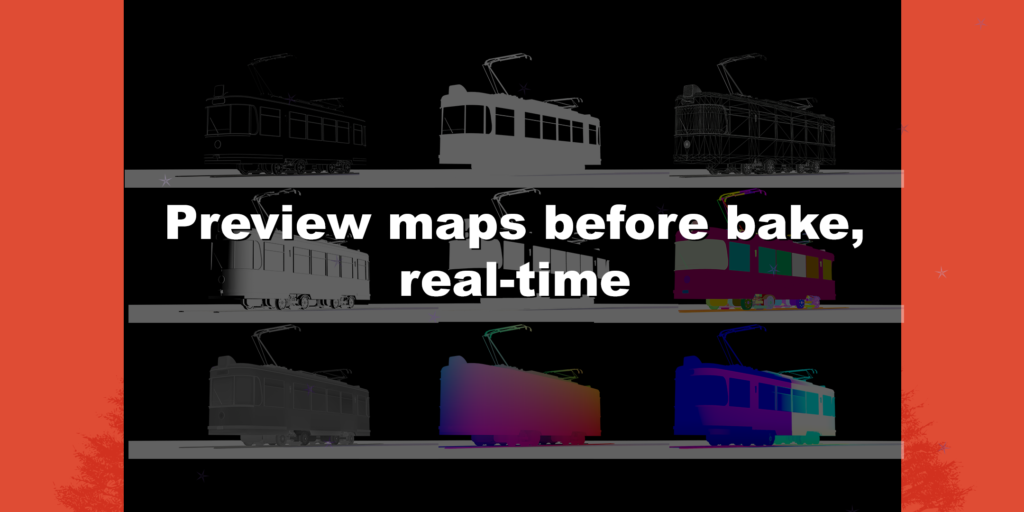
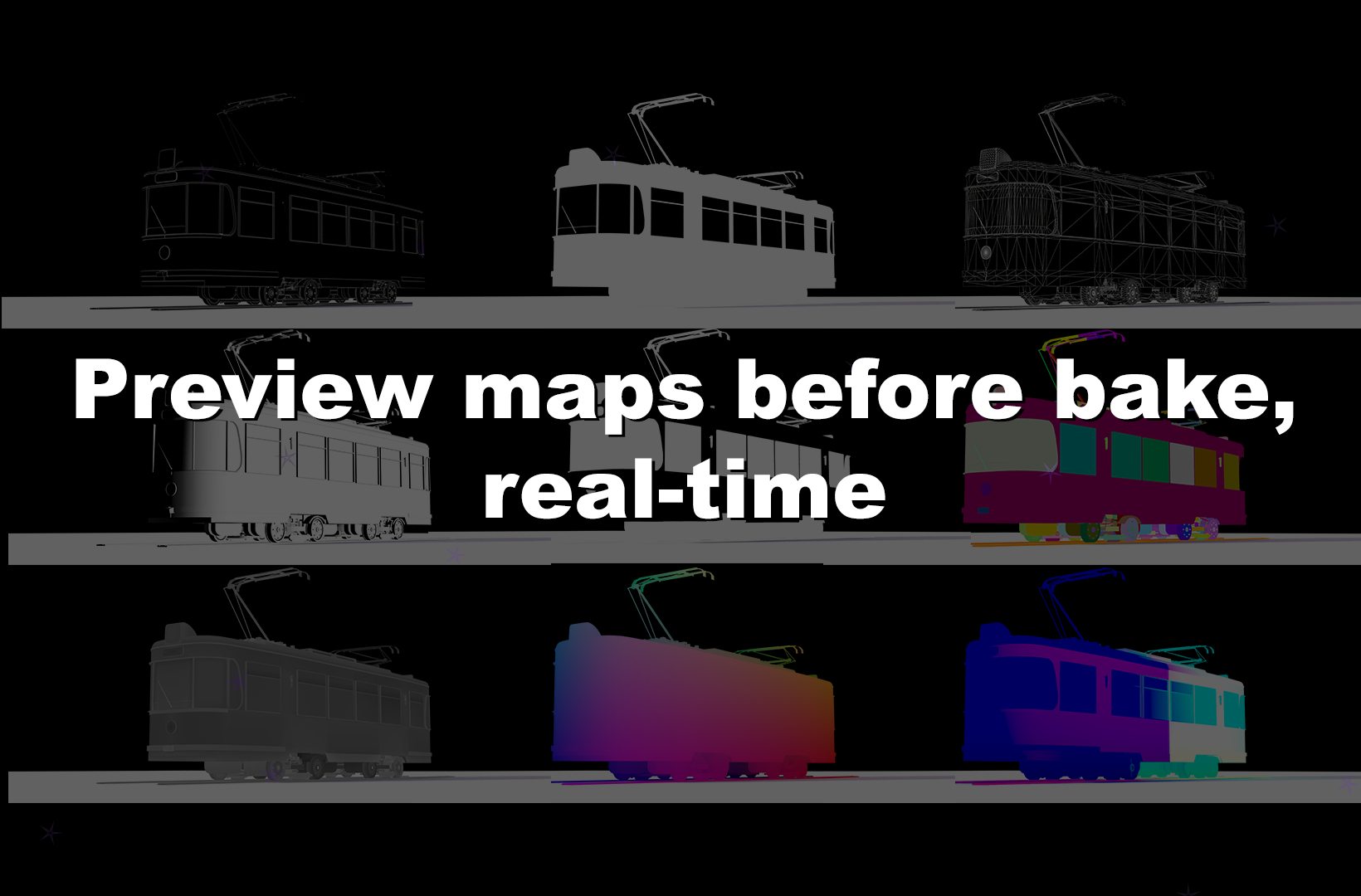
- Preview maps before baking, real-time.
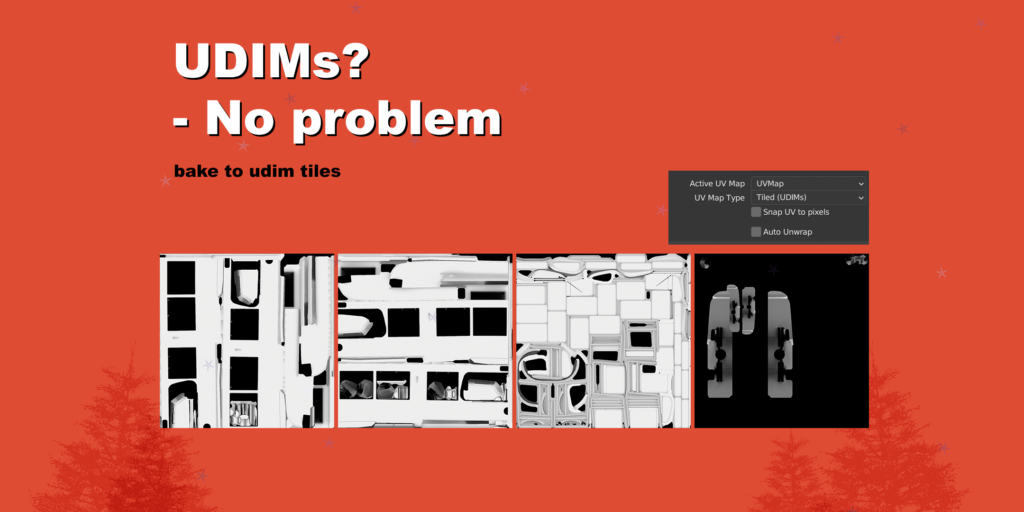
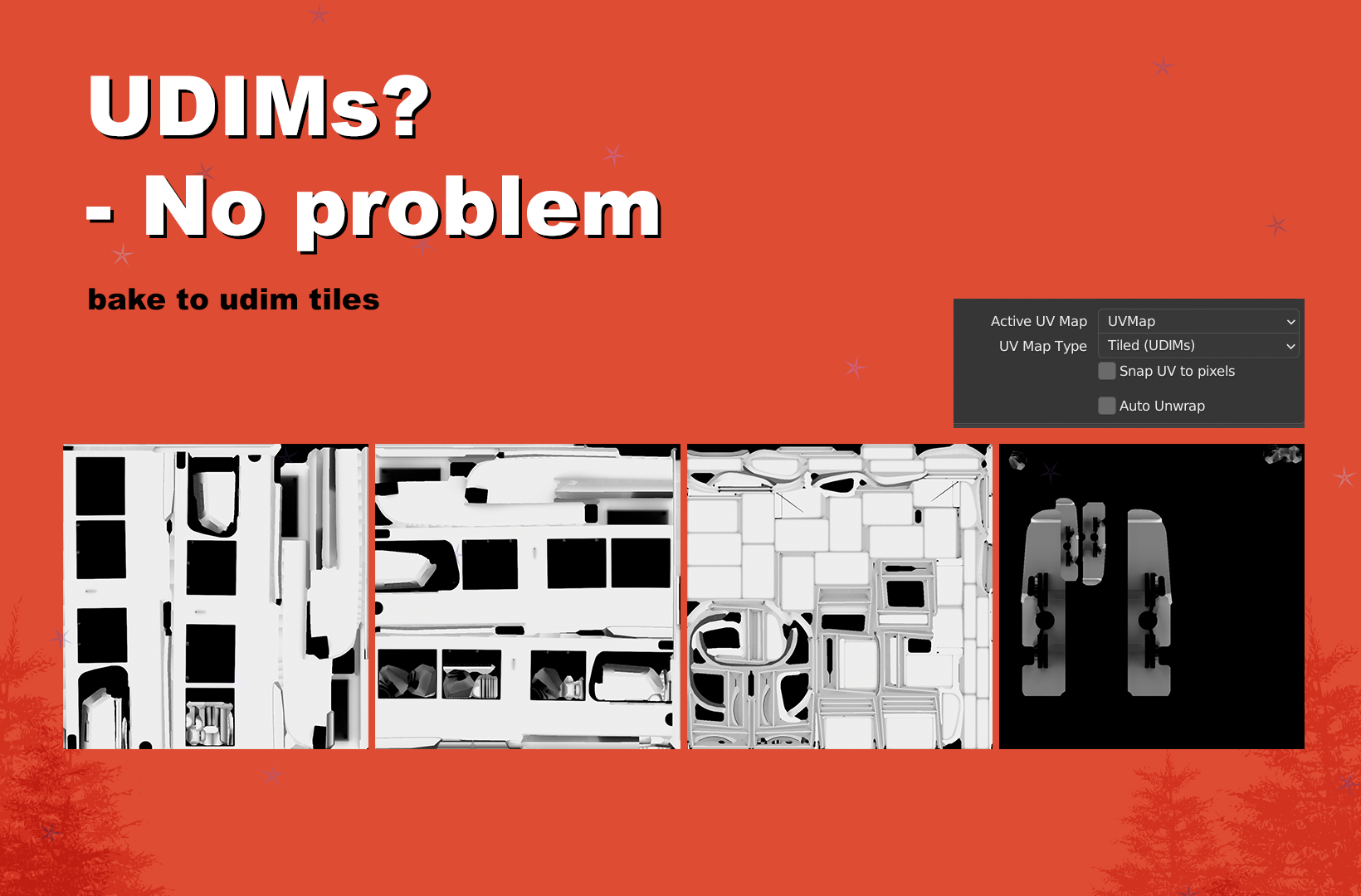
- UDIMs? No problem.
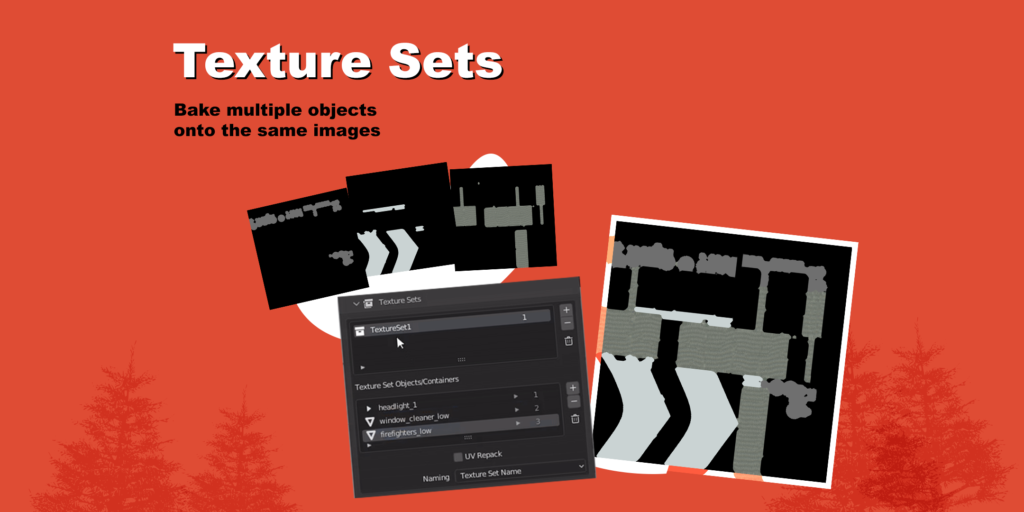
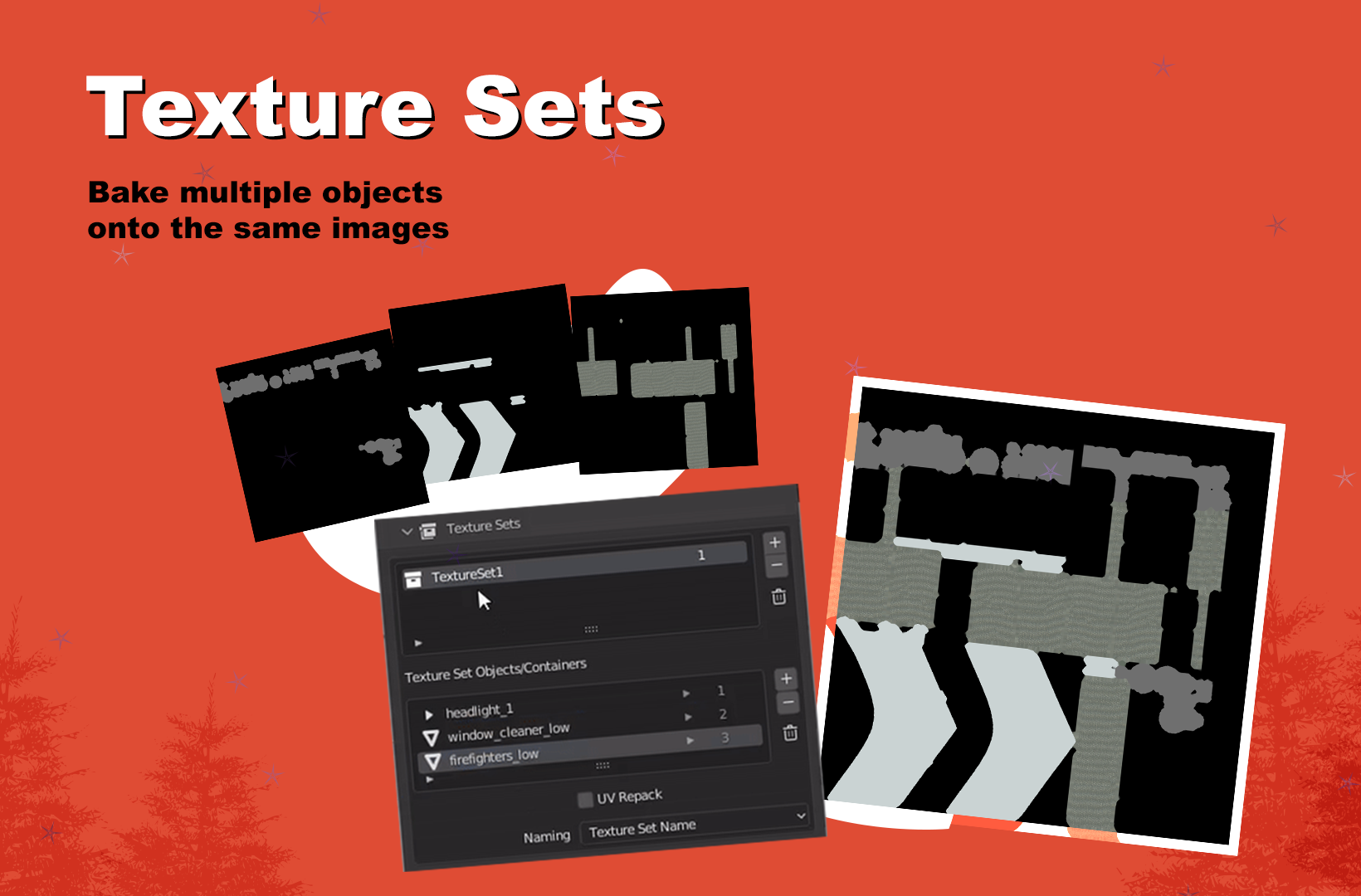
- Texture Sets. Bake multiple objects onto the same images.
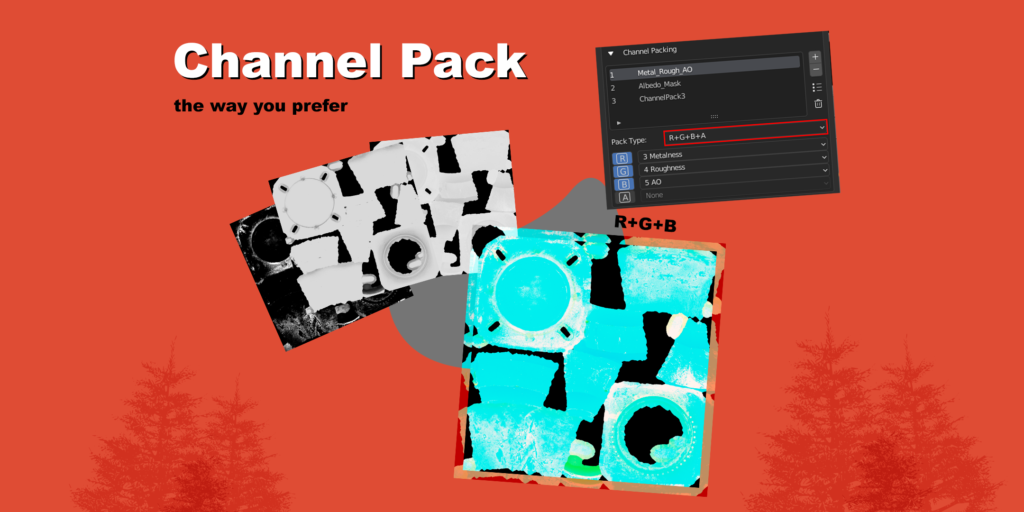
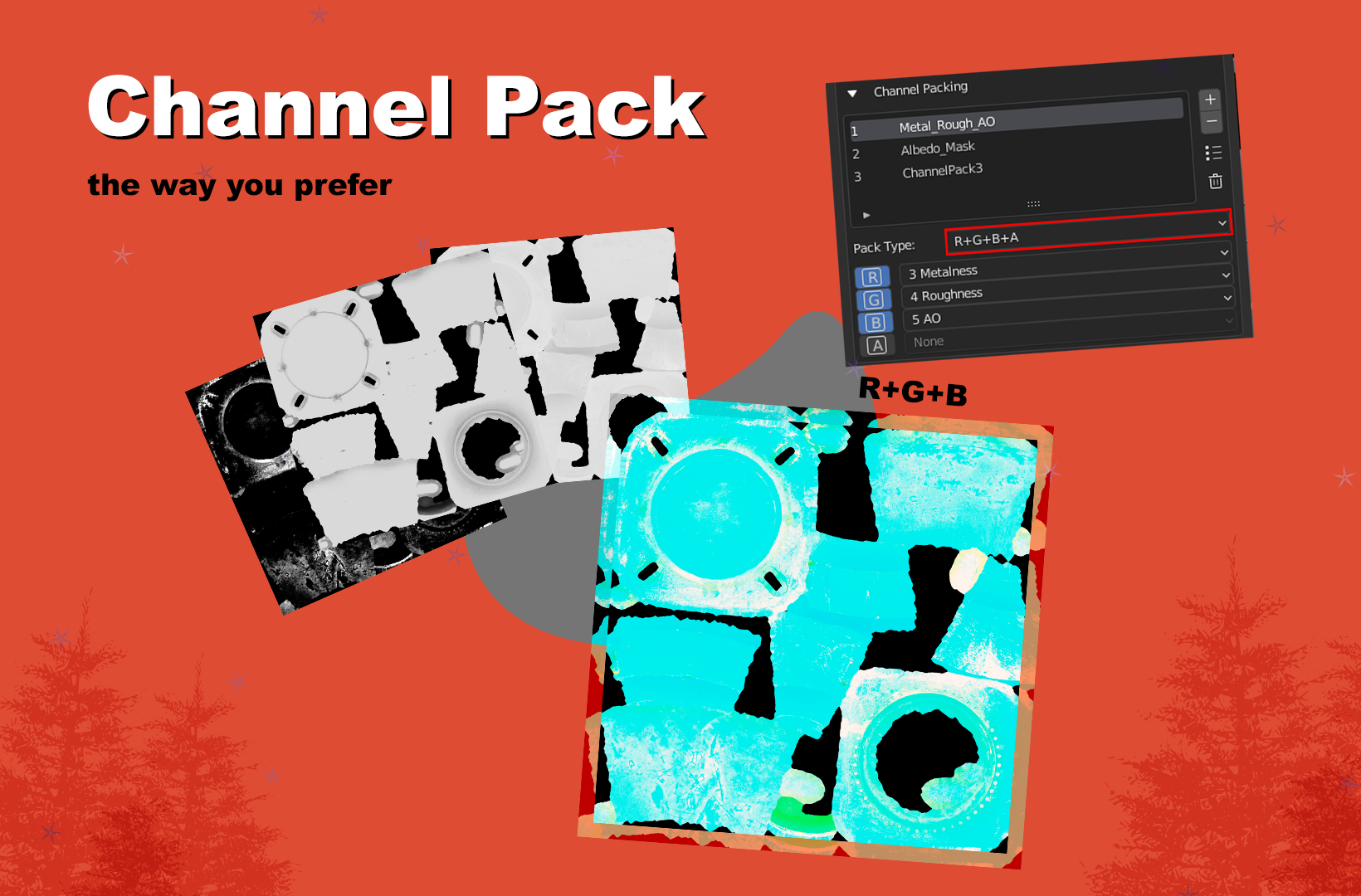
- Channel Pack maps the way you prefer.
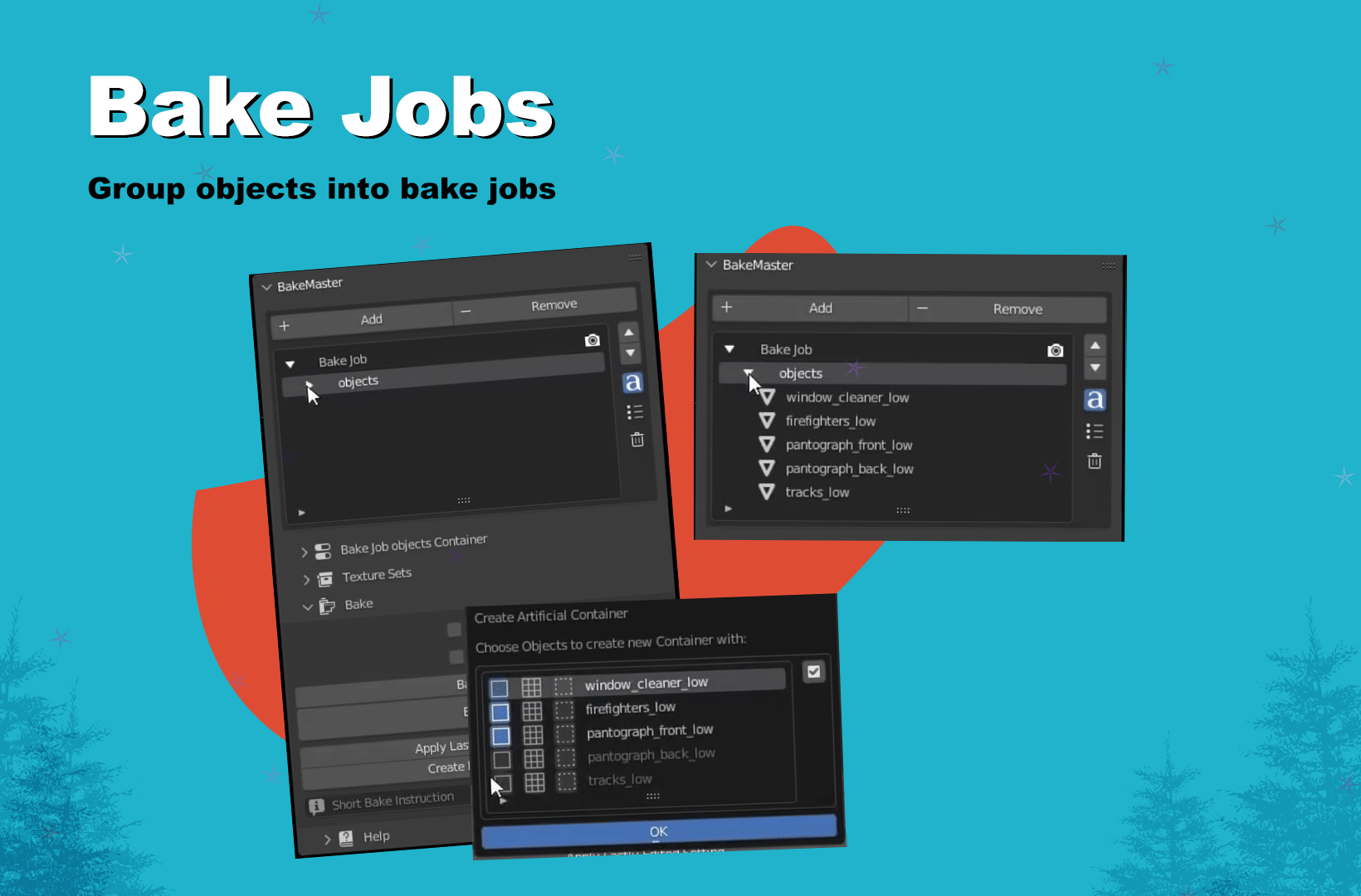
- Group objects into bake jobs.
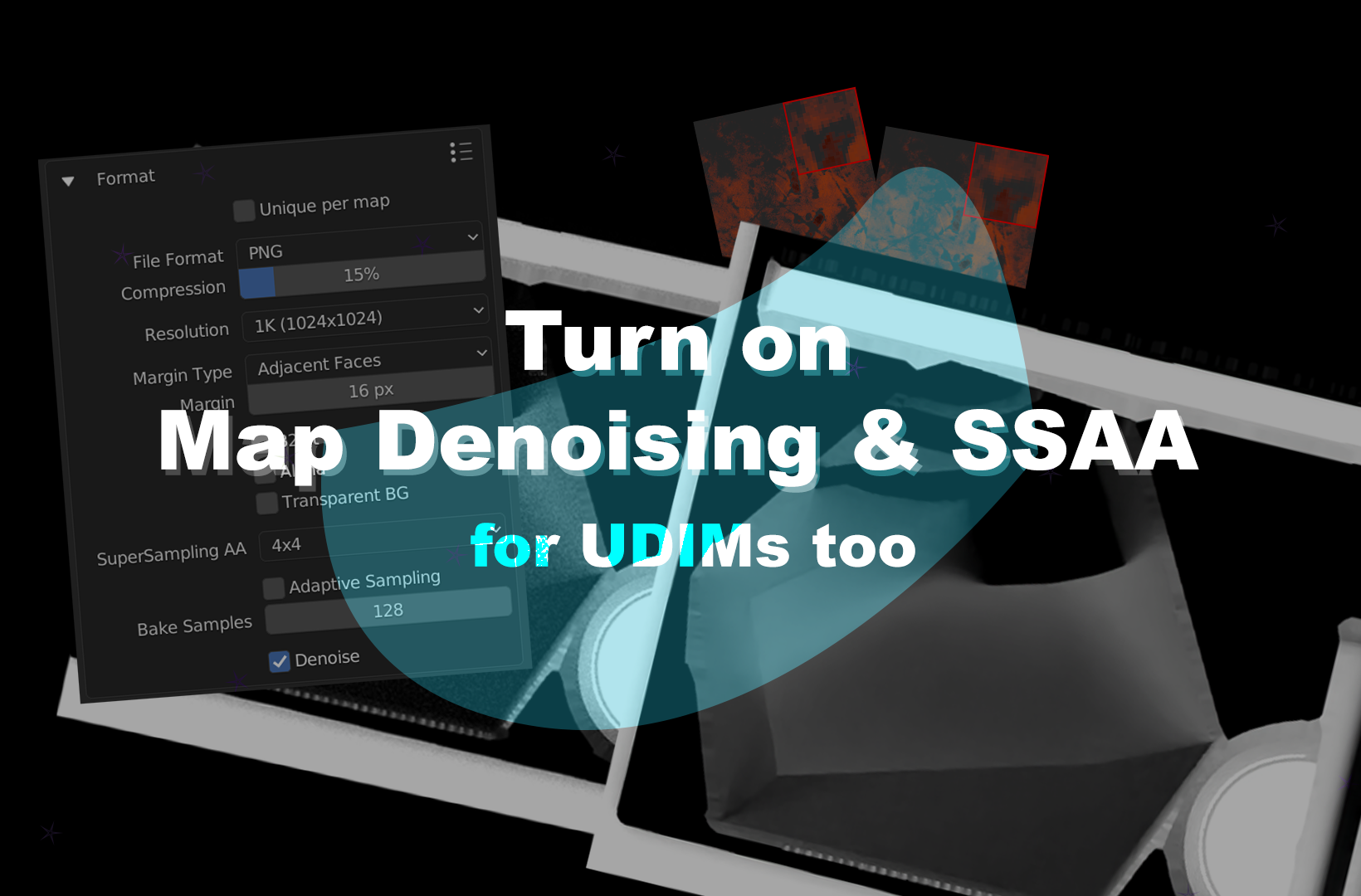
- Turn on Denoising and Supersample AA, for UDIMs too.
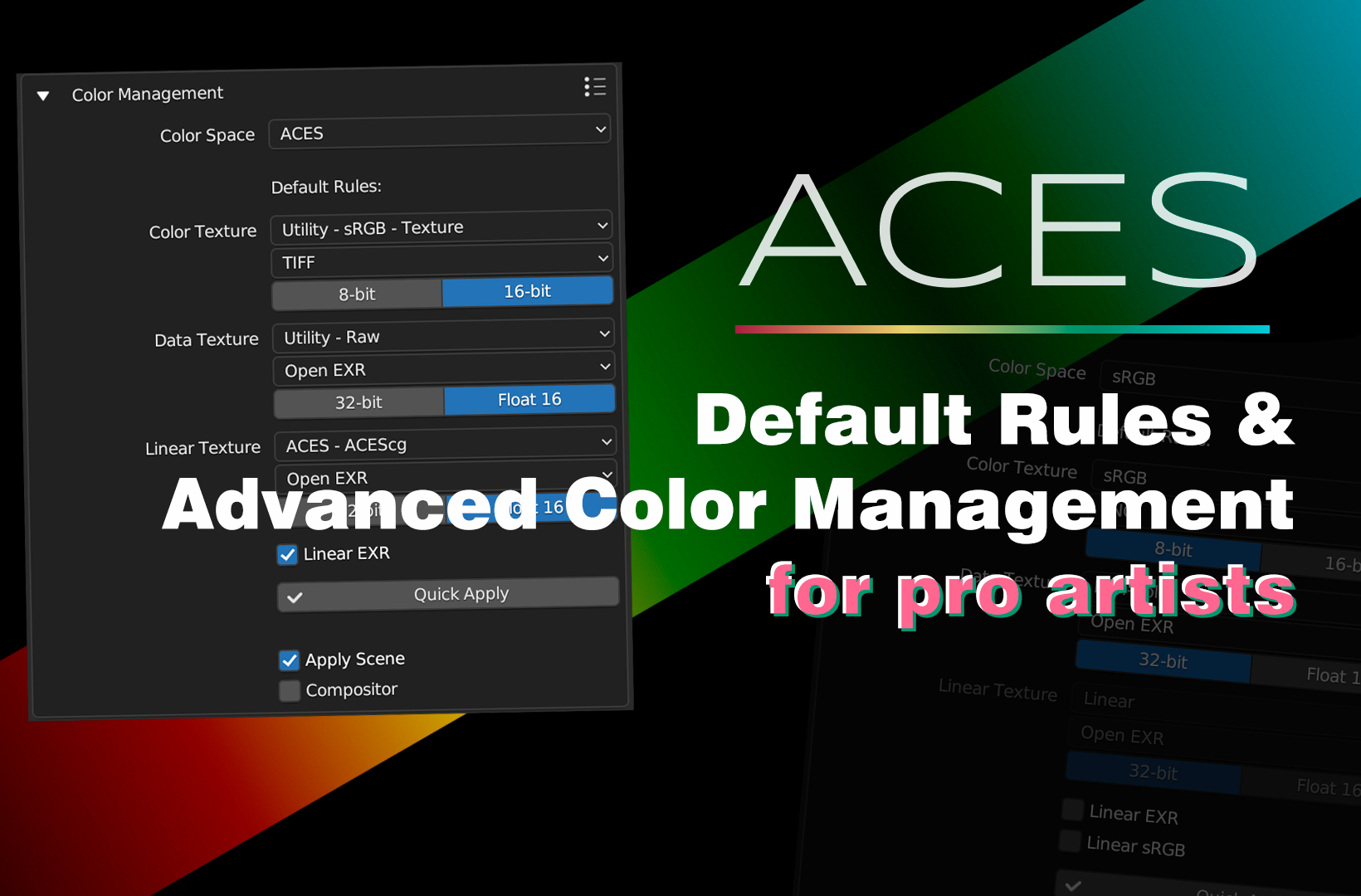
- ACES out of the box, Default Rules and Color Management for pro artists.
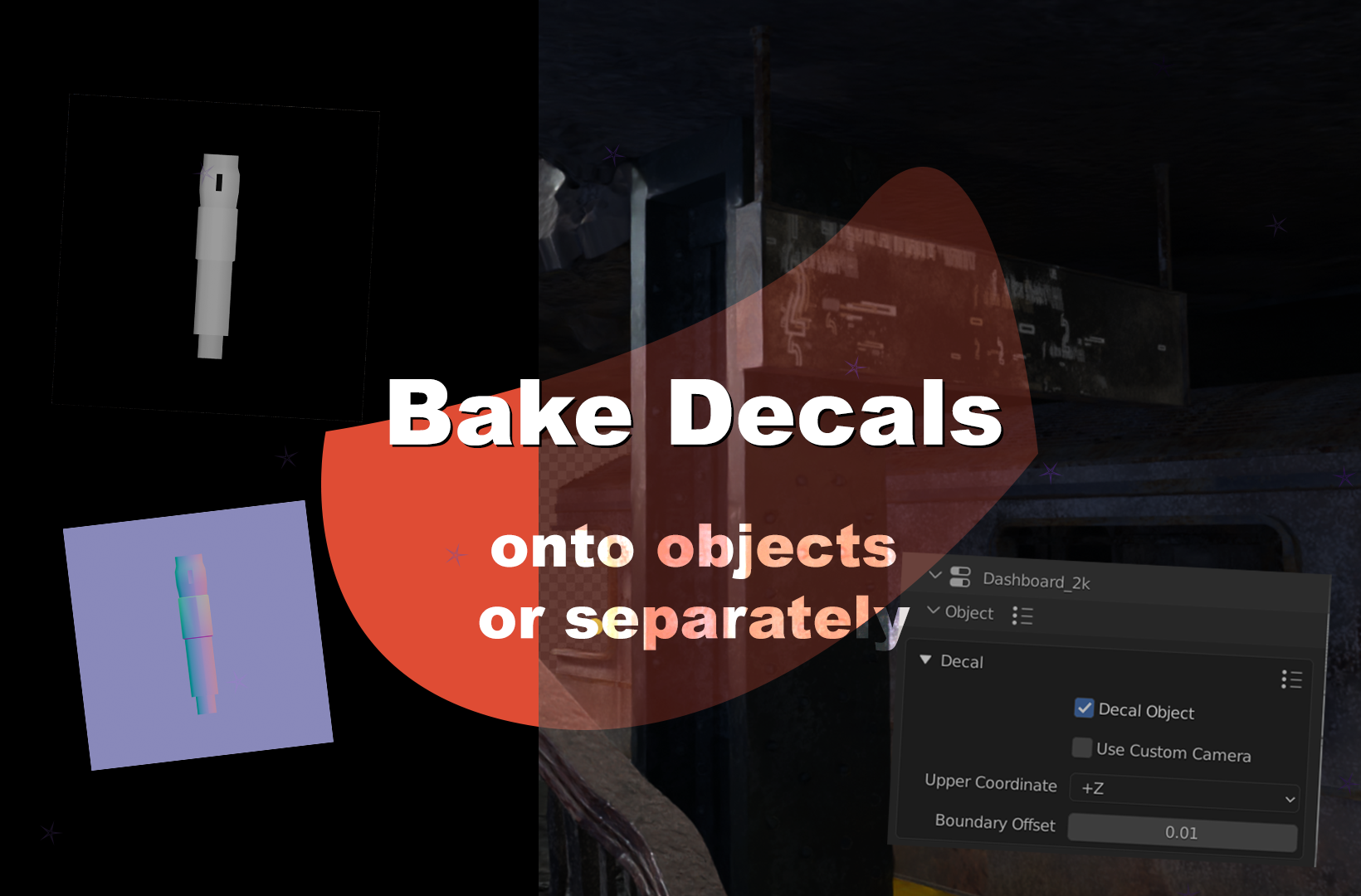
- Bake Decals separately and onto objects.
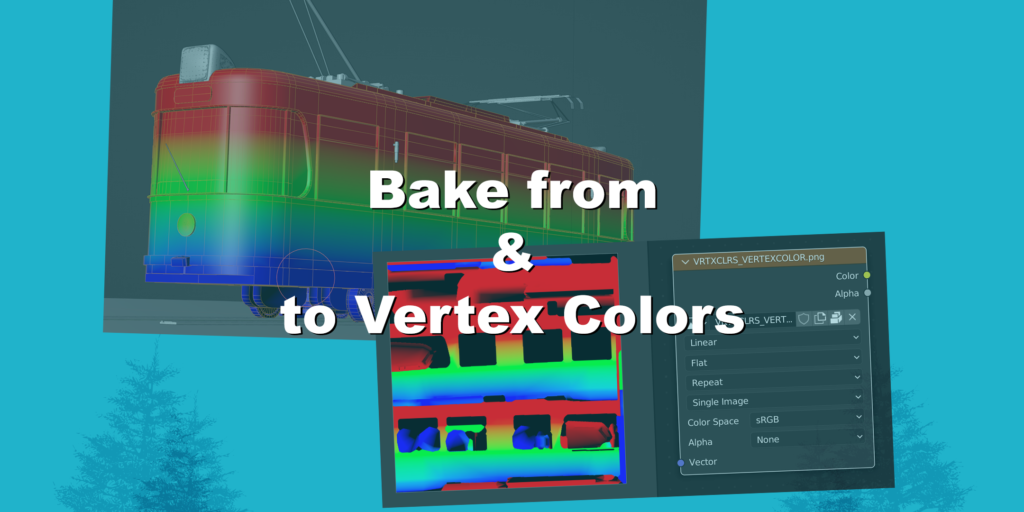
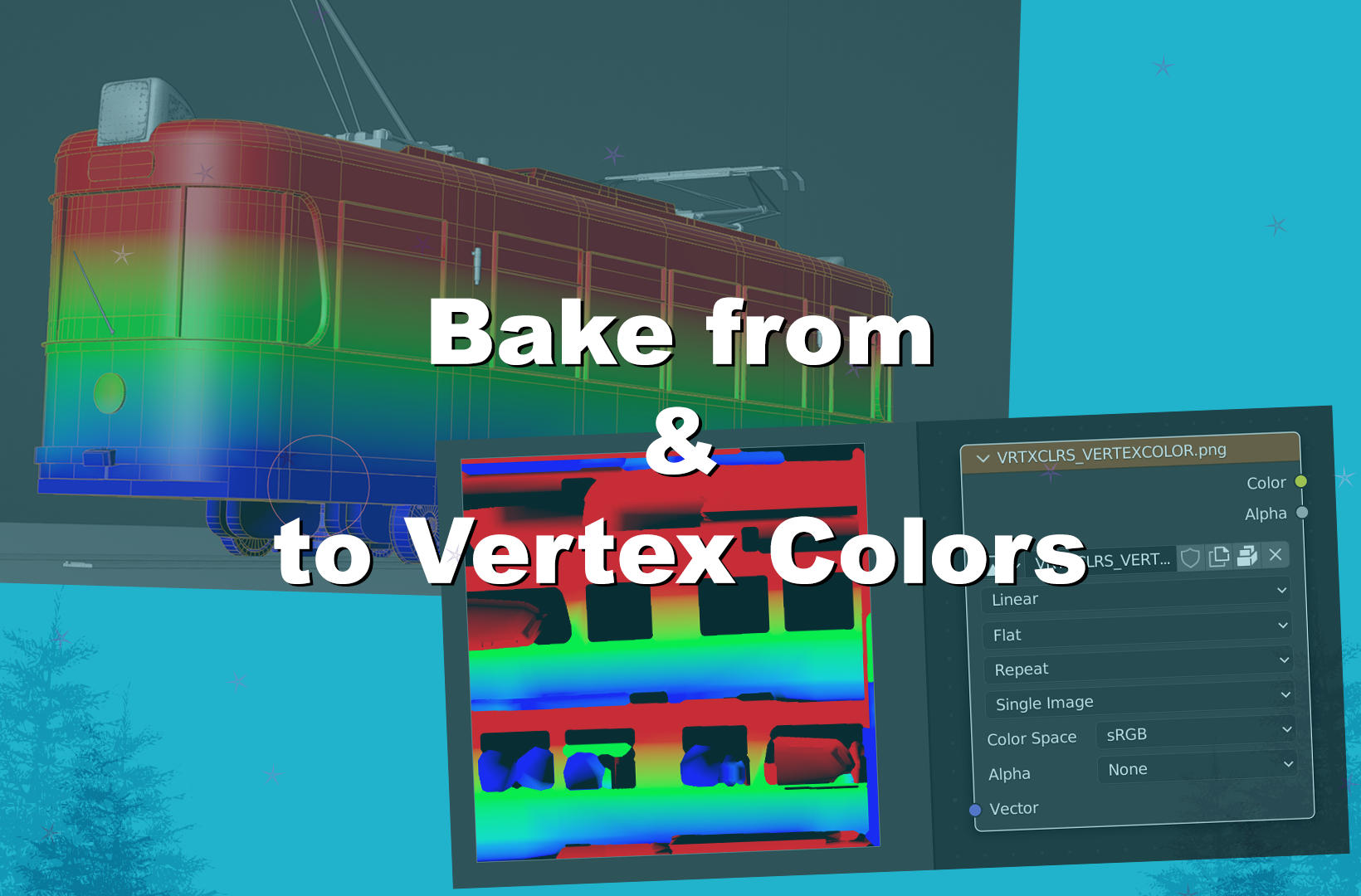
- Bake from and to Vertex Colors.
- Fastest ID Map.
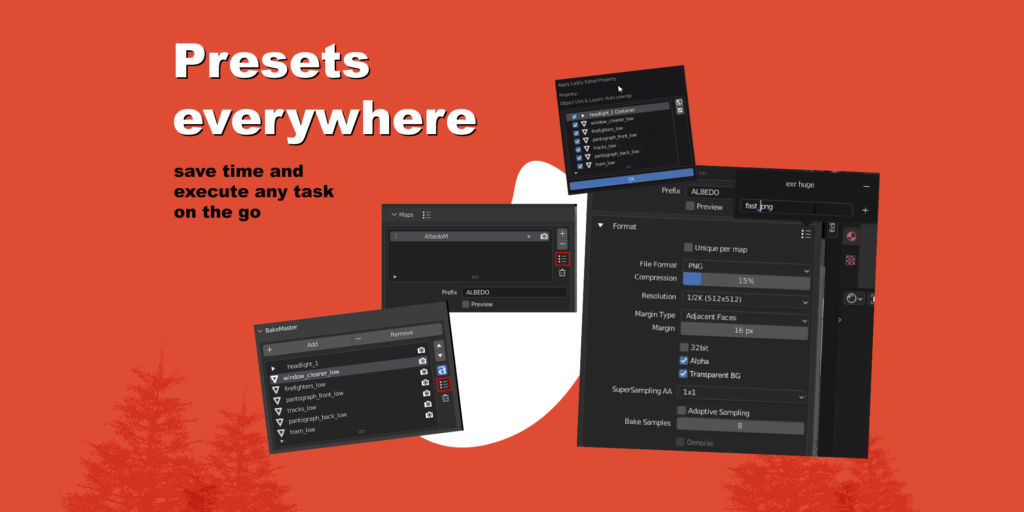
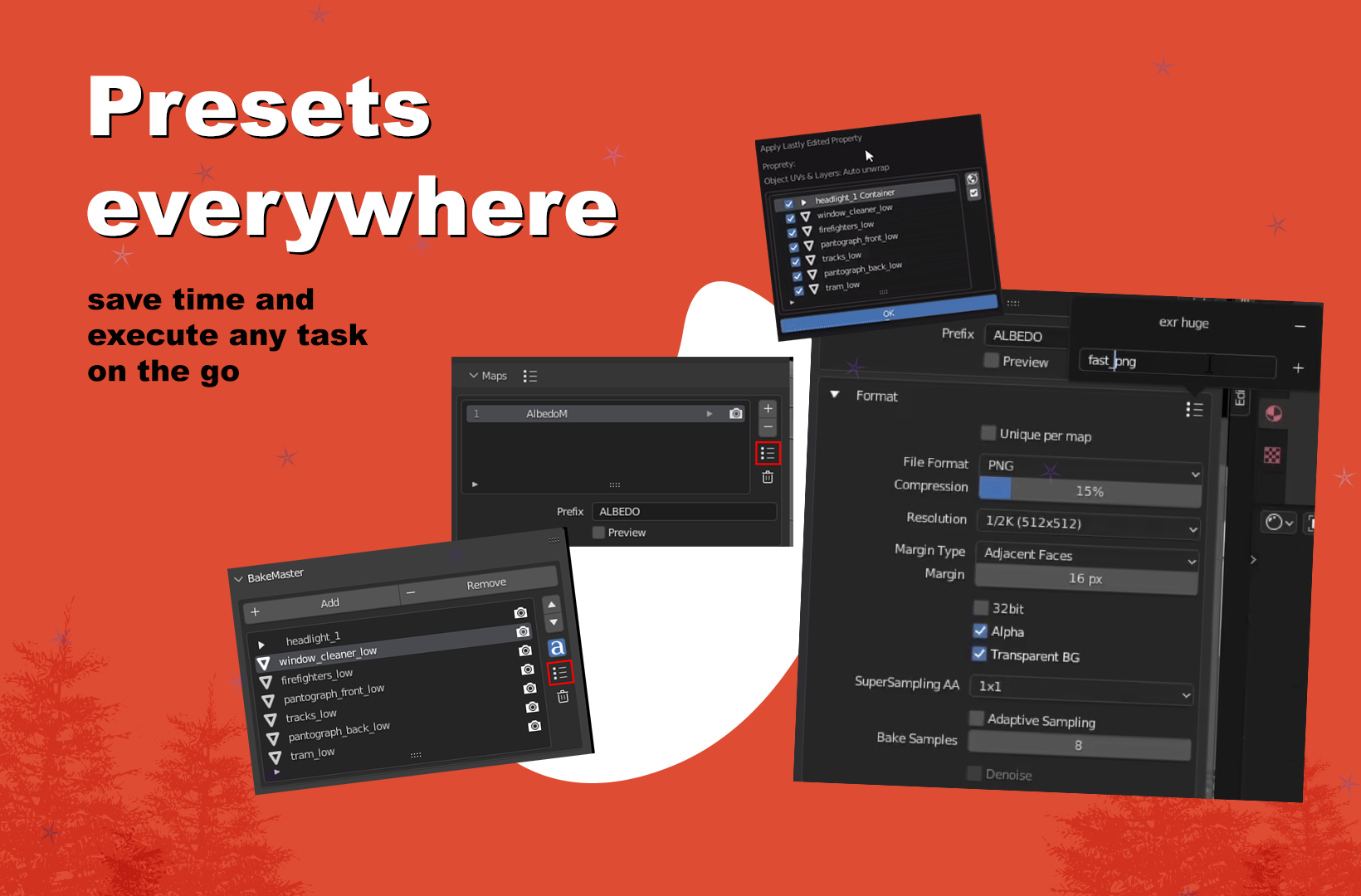
- Save time with presets and execute any task on the go.
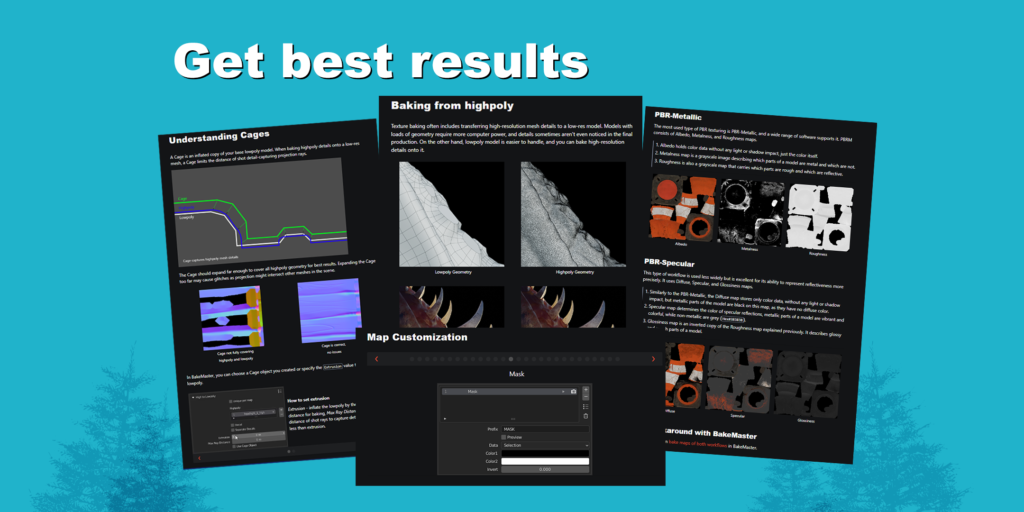
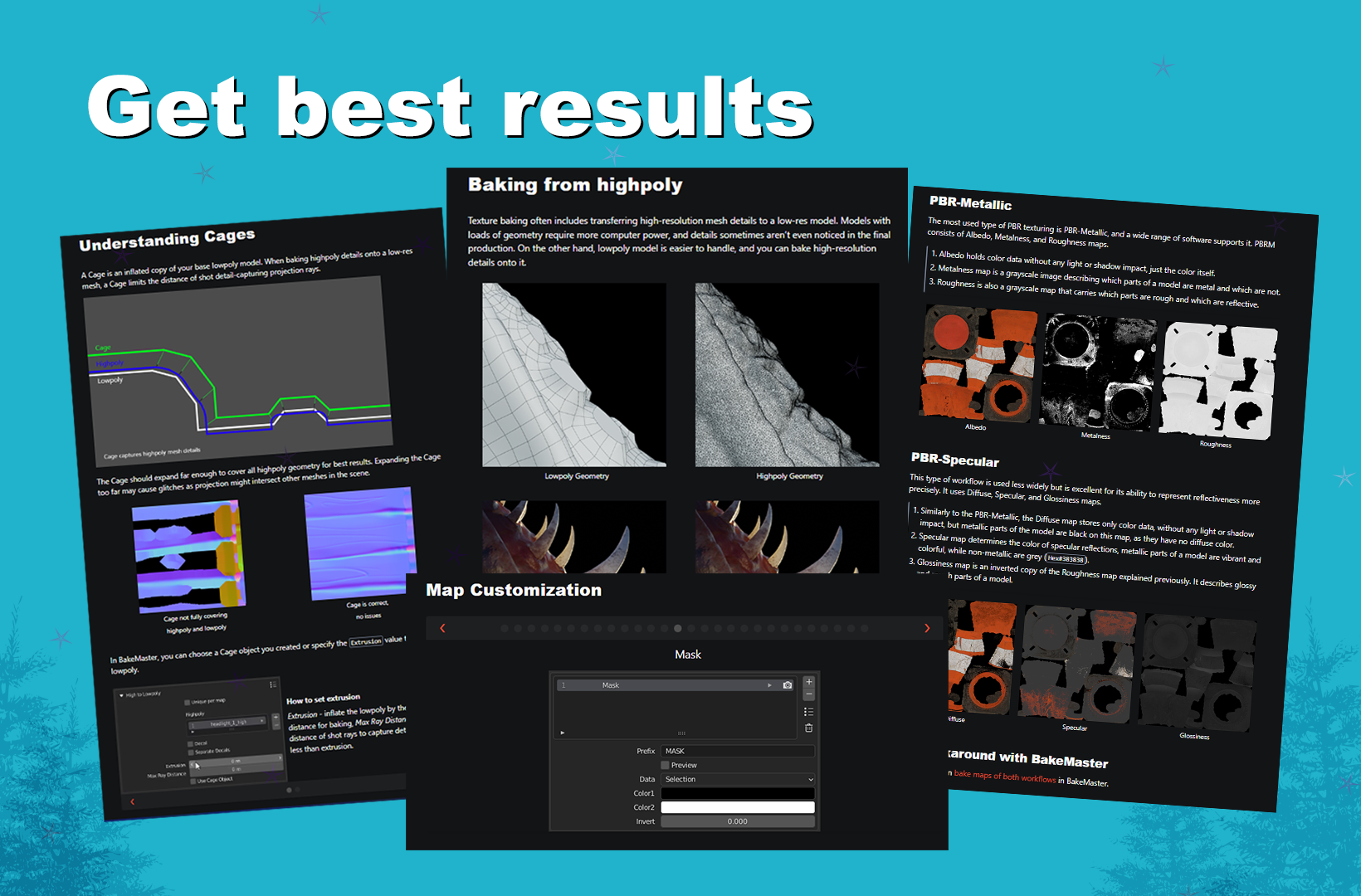
- Get the best results.

Learn the ropes of BakeMaster
Click on the hyperlinks to view the most important sections in the online Documentation, or follow them below.
The Setup
Getting Started
Advanced
- No Limits (Channel Packs, Bake Jobs, Texture Sets, Denoising, SSAA)
- Save Time
- Get Best Results (Understand High to Lowpoly baking, Color Management, PBRM & PBRS comparisons
More
Installation
Make sure the Blender version you use is compatible with BakeMaster.
Download BakeMaster
Download the latest BakeMaster addon version from the Blender Market or Gumroad.
Go to your Blender Preferences and install the downloaded zipped folder.
- Open Blender
- Go to Edit > Preferences > Add-ons
- Click “Install”
- Choose the downloaded zipped folder
- Enable the addon
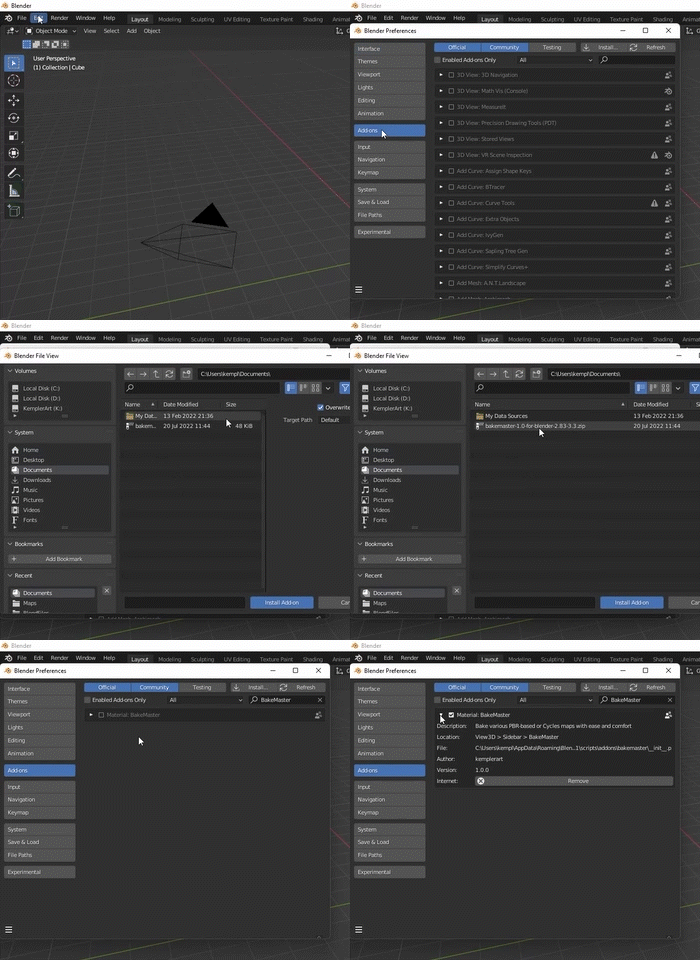
It is recommended to install the latest BakeMaster version, as it delivers more stability, improvements, and features.
If you have a previous version of BakeMaster running, make sure you uninstall it first:
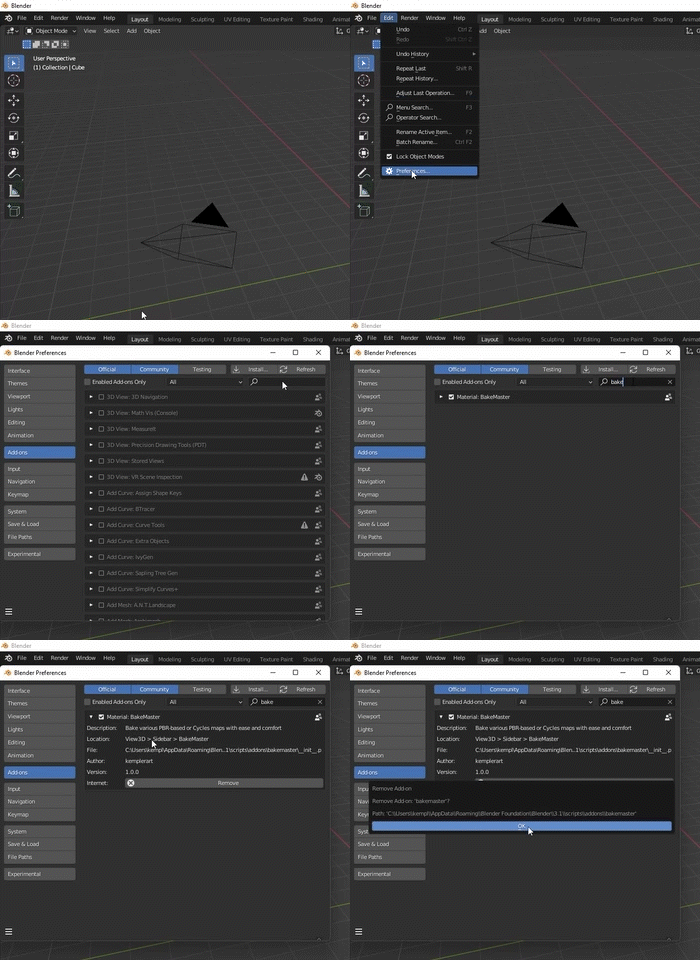
If you have any issues with installing the addon, feel free to reach out for help.
Access BakeMaster in Blender
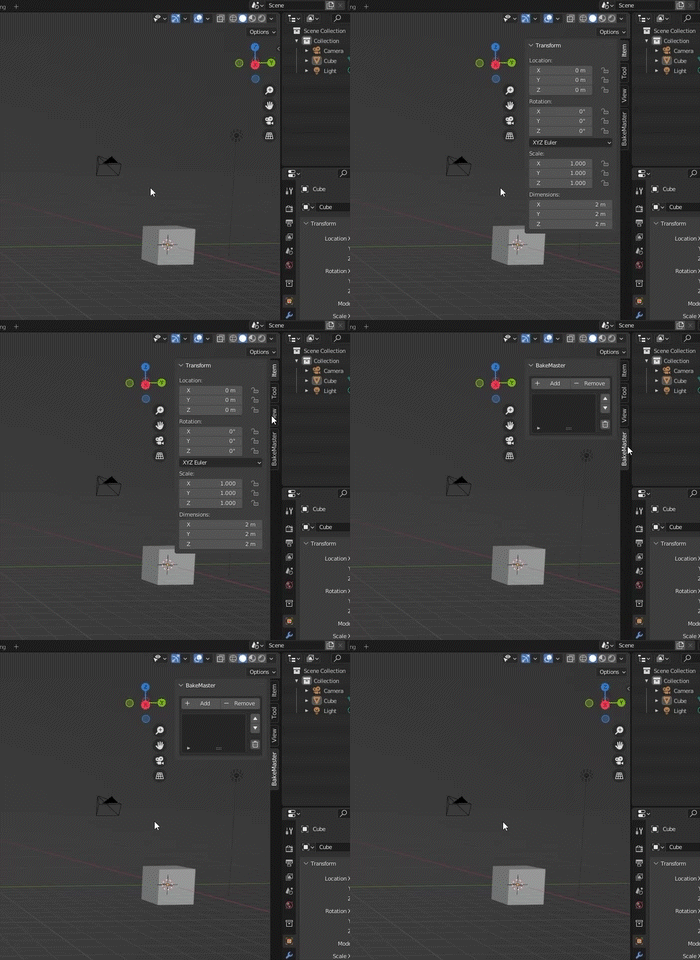
BakeMaster can be accessed in the 3D Viewport. Hit the “N” key on your keyboard and you’ll see the side menu pop up on the right. Head over to the addon’s panel called “BakeMaster”.
Setup Objects
Choose Objects
To start settings up maps (image textures) for the mesh objects you want to bake, add these objects to the Table of Objects. Do it by pressing the “Add” button on the top:
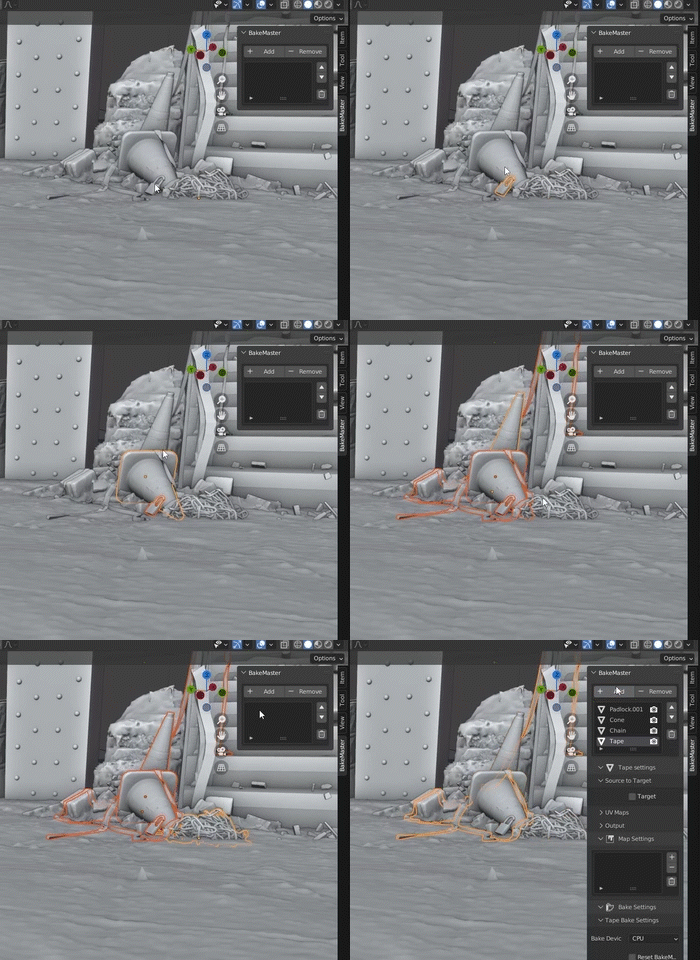
If you have highpolies or cages beside lowpoly models, add them to the Table too.
Name Matching
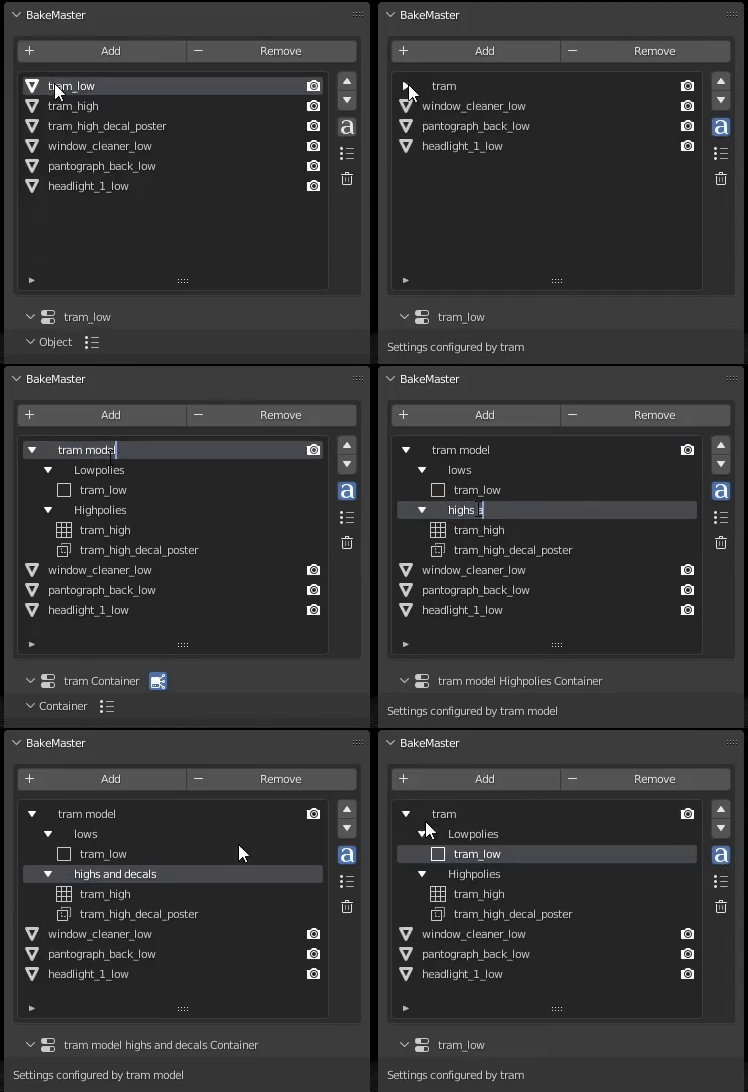
BakeMaster can automatically match all your lowpolies, highpolies, and cages with each other. To do so, press the “ɑ”button (Containers will form):
Additional Controls
The Table of Objects provides additional controls for the Objects in it.
You can read about them here.
Object settings
Select the object in the Table of Objects to configure its settings.
High to Lowpoly
Mind this section if you plan to bake from high to lowpoly meshes.
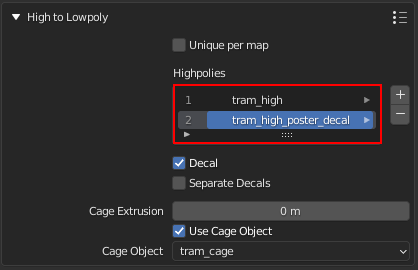
Table of Highpolies
Table of all added highpolies for the current object.
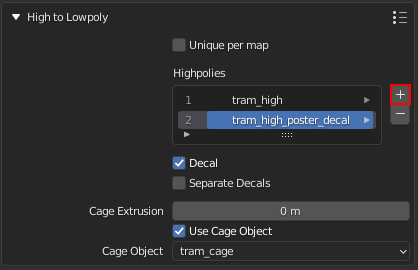
Add Highpoly
Add new highpoly for the current object.
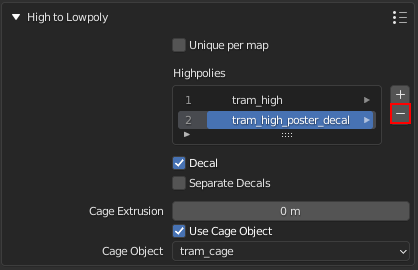
Remove Highpoly
Remove the current highpoly from the table.
Read more about High to Lowpoly panel here.
UVs and Layers
Configure crucial UV and other settings for the object like bake to Image Textures or Vertex Colors.
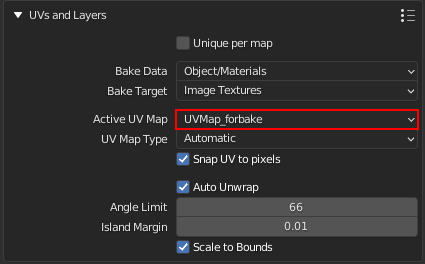
UV Layer for bake
Choose UV Map to use for baking.
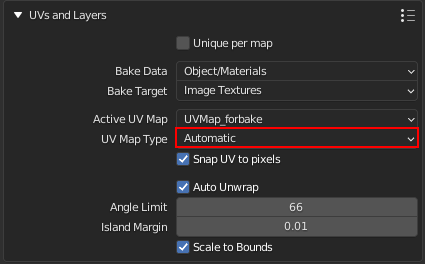
UV Layer Type
Set the type of chosen UV Layer for bake. Single – single tile, Tiled – UDIM tiles, Automatic – automatically determine if the chosen UV Layer for bake is single-tiled or uses UDIMs.
Read more about UVs and Layers panel here.
Shading Correction
Let BakeMaster save you time with important mesh normals and shading correction that can decrease the number of projection glitches when baking from highpoly.
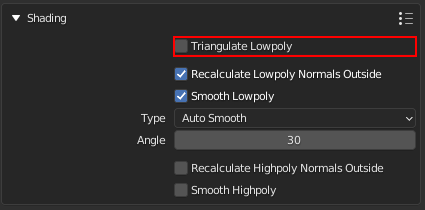
Triangulate lowpoly
Enable lowpoly triangulation. Takes time but improves lowpoly mesh shading with redundant UV stretches.
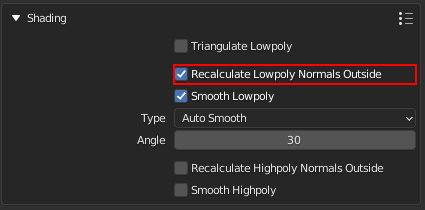
Recalculate lowpoly normals outside
Recalculate lowpoly mesh vertex and face normals outside.
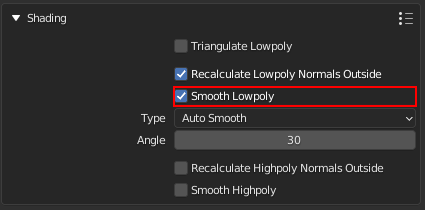
Enable smooth-shaded lowpoly
Use smooth-shaded lowpoly for baking. Can be kept unchecked if you’ve set up the shading on your own.
Read more about Shading Correction panel here.
Decal Object
When baking decals separately, configure Decal Object baking.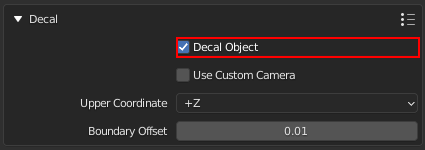
Enable Decal Object
Set the current object to be the Decal Object.
Read more about Decal Object panel here.
Bake Output
Specify how you want to output the baked result.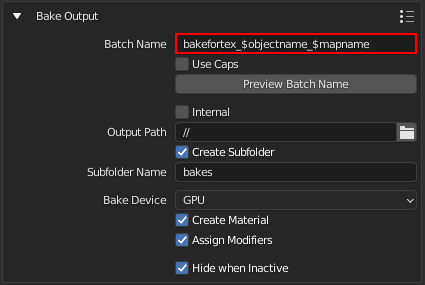
Batch name
Output files naming convention. Write keywords starting with $, any additional text can be added. View available keywords by hovering over this setting.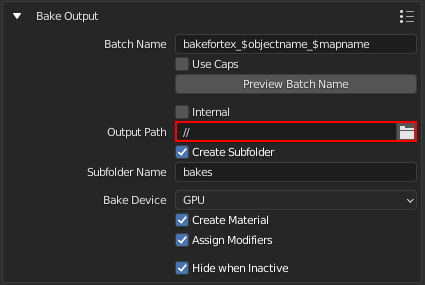
Output filepath
Directory path on your disk to save baked maps to. “//” is relative to the blend file.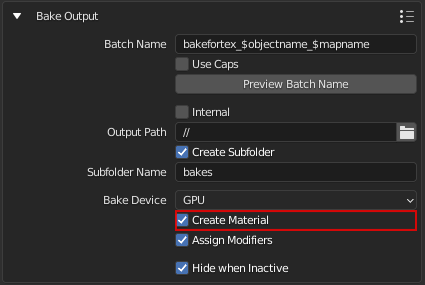
Create material
Assign a new material to the object after the bake with all baked maps included.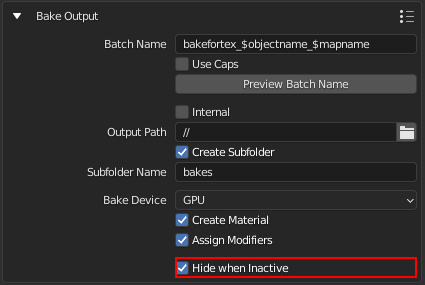
Hide when inactive
if checked, the object won’t affect any other objects while baking.(more about visibility groups)
Read more about Bake Output panel here.
Choose Maps
Add Maps first
Each object has a list of added maps. The slideshow below will guide you through.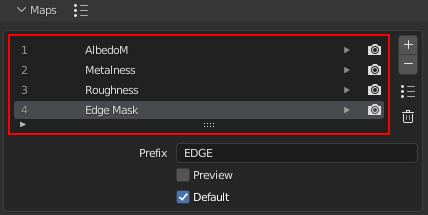
Table of Maps
Table of all added maps for the current object.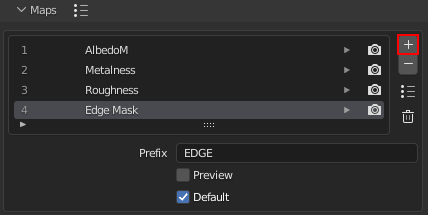
Add Map
Add a new map pass to the table.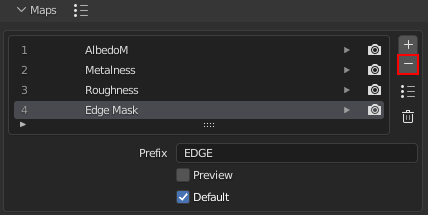
Remove Map
Remove the current map from the table.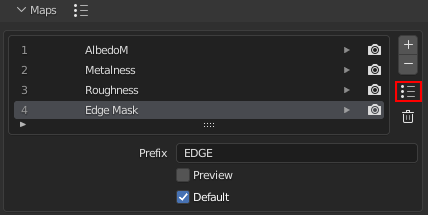
Map Preset
Load/save the Map panel Settings to a preset.(more about presets)
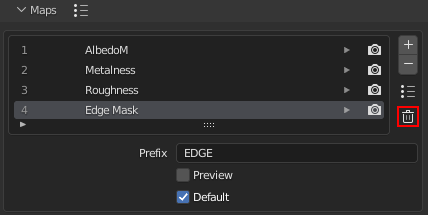
Remove all maps
Remove all added maps from the table.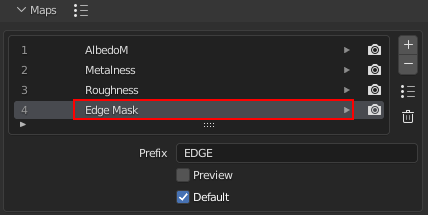
Active/current map
Select a map in the table to configure its settings. Click on the map in the table to choose its type in 36 available.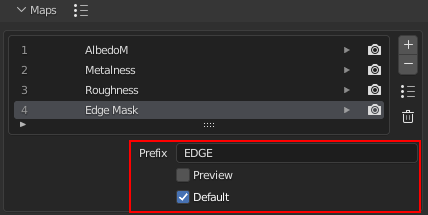
Map Settings
Each map has got custom map settings.
Read more about Adding Maps here.
Map Types
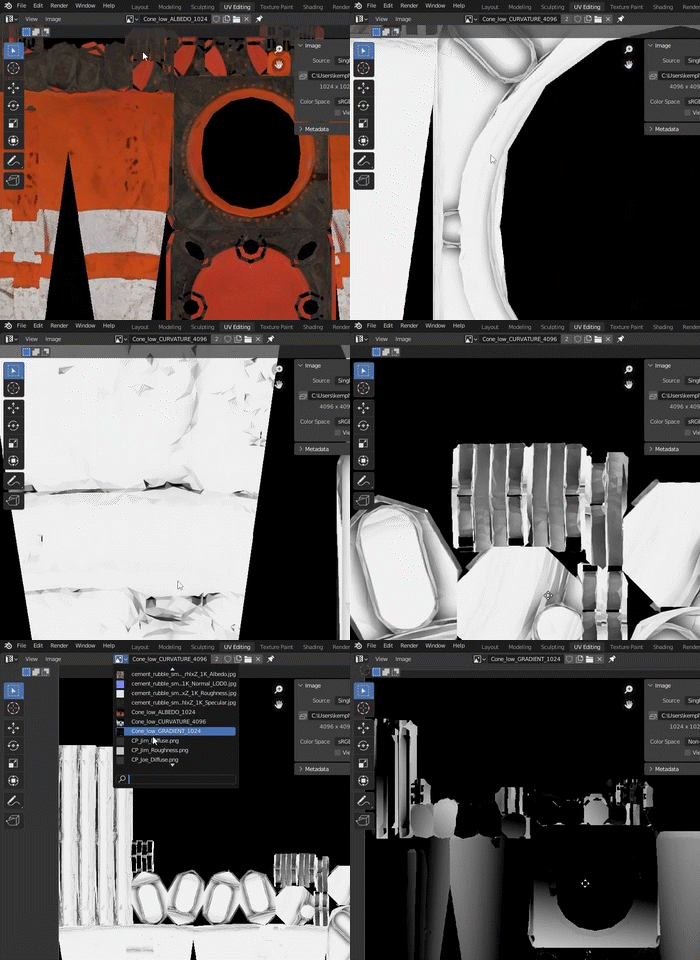
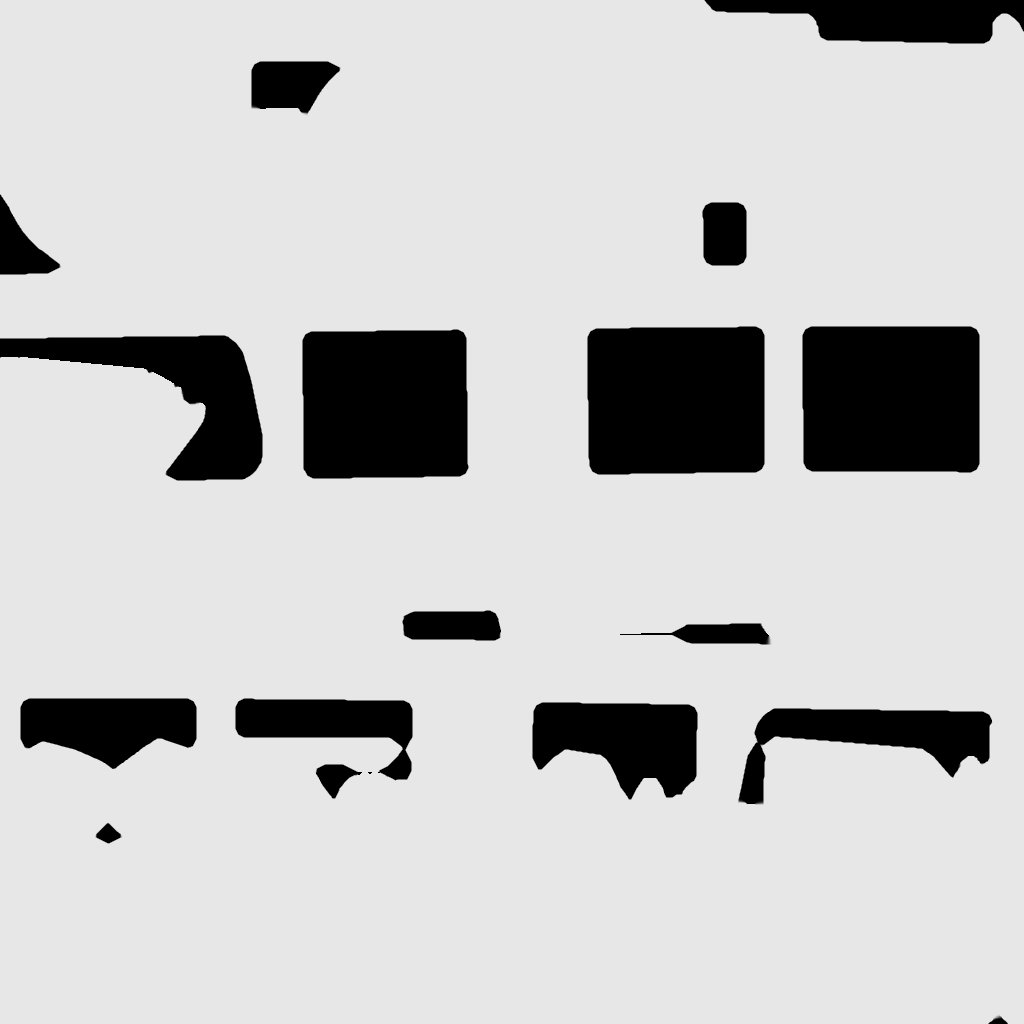
BakeMaster can bake 36 different map types, here are some of them:
Albedo

Glossiness

Opacity
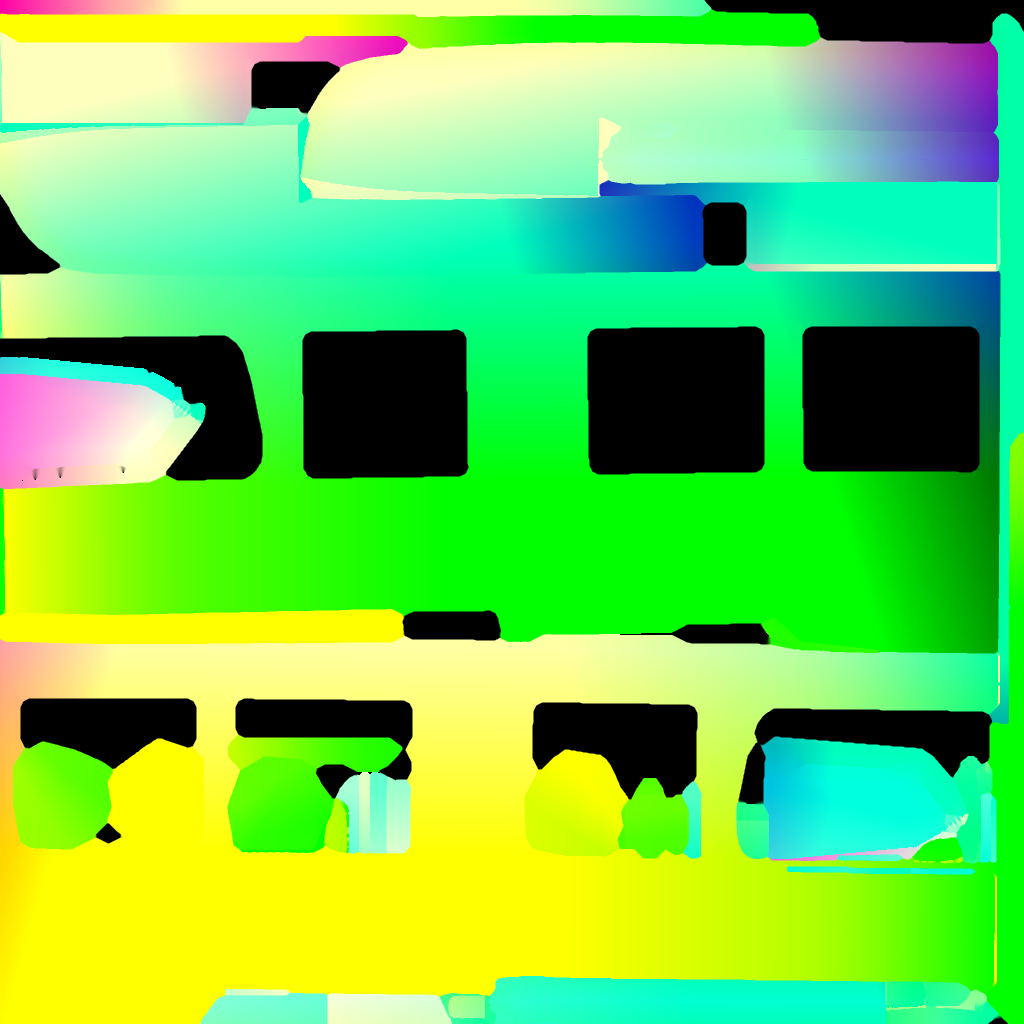
Vector Displacement

Position
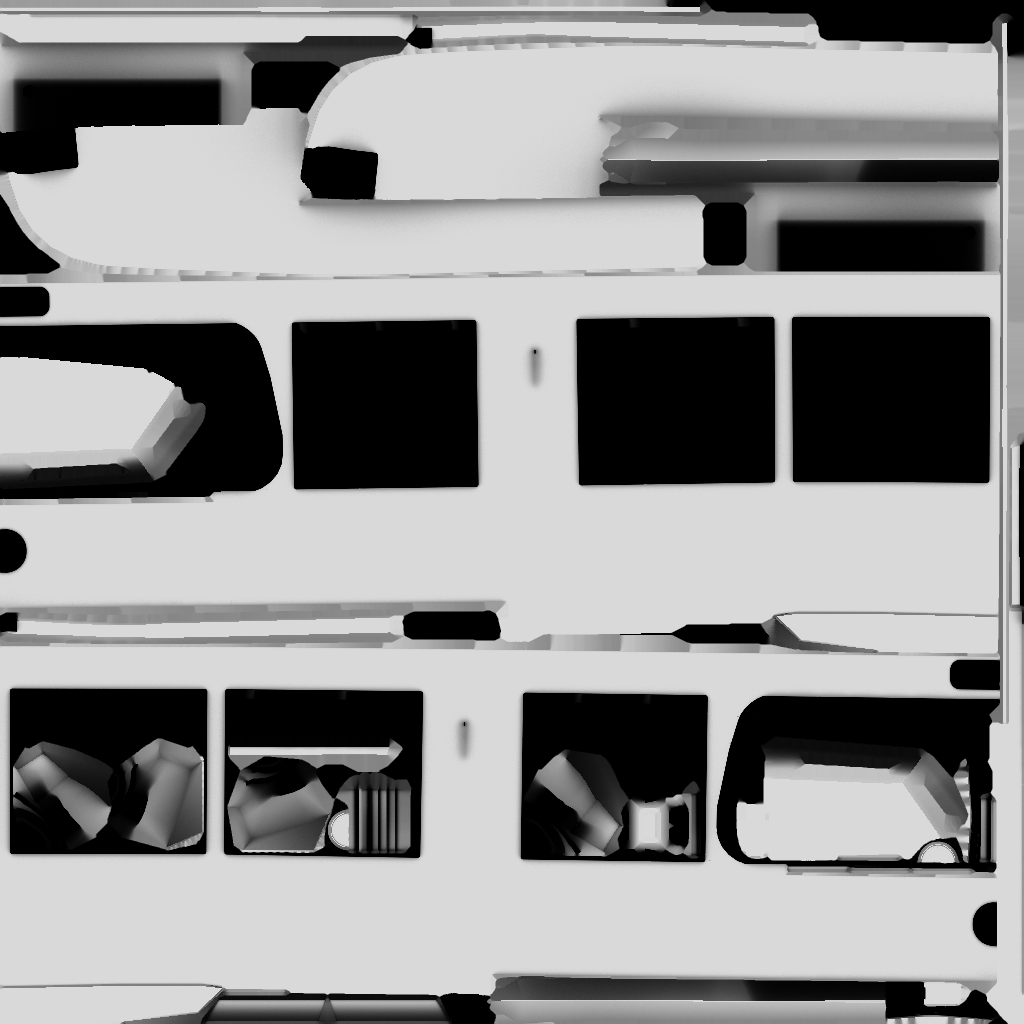
AO
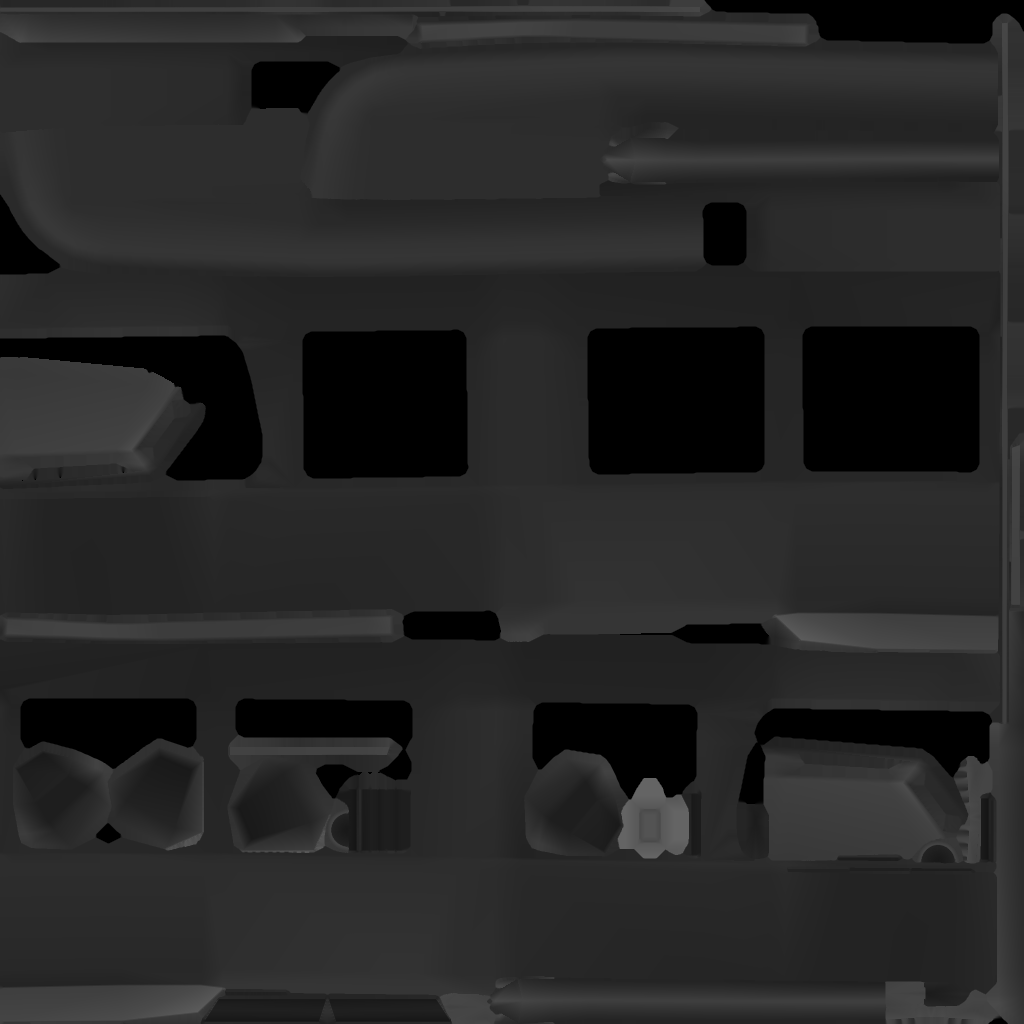
Cavity
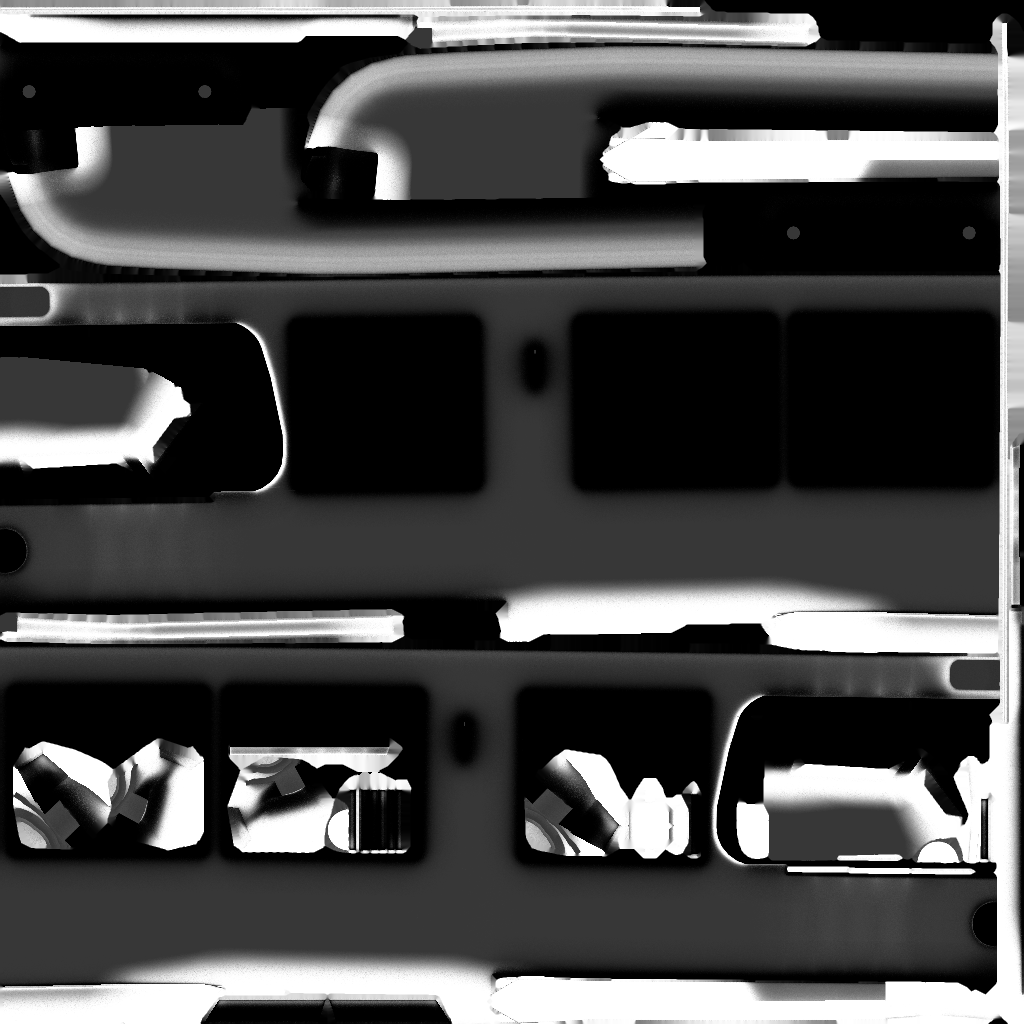
Curvature

ID
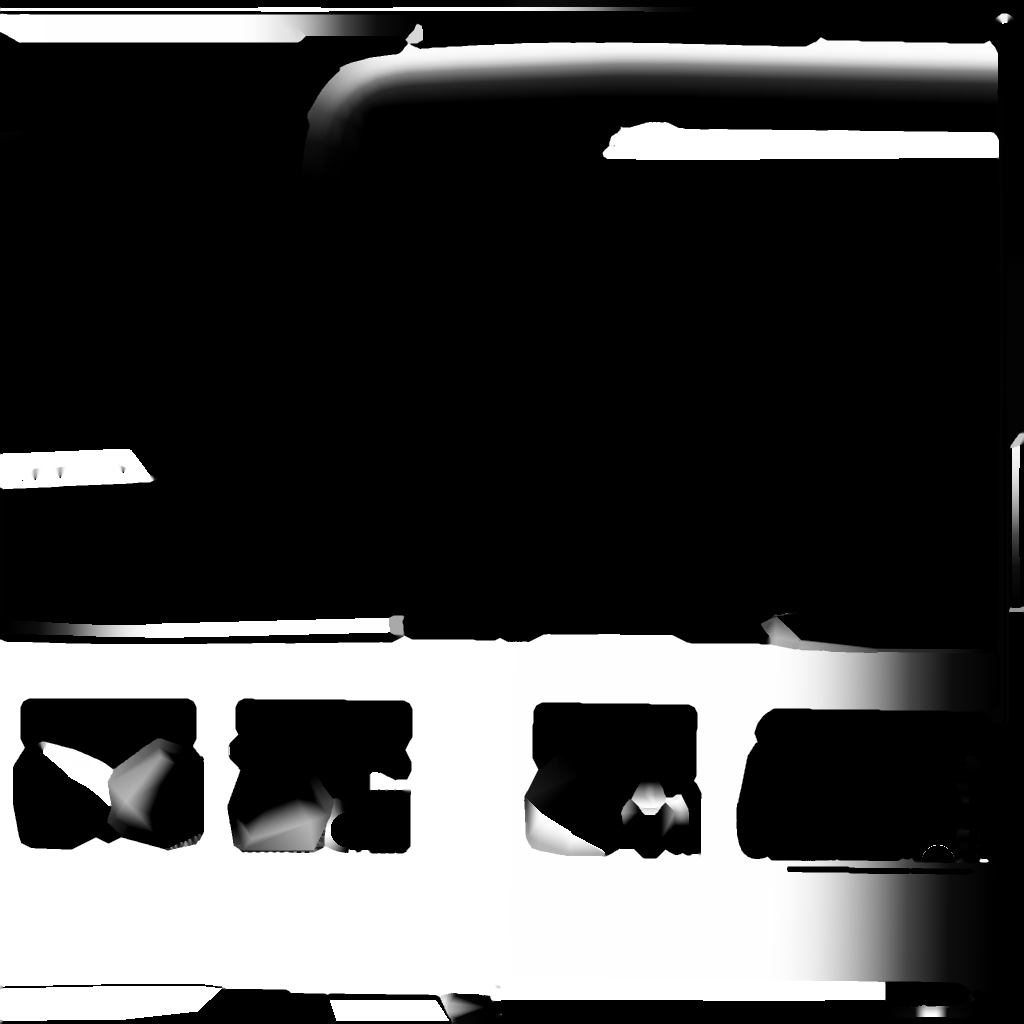
XYZ Mask

Gradient Mask
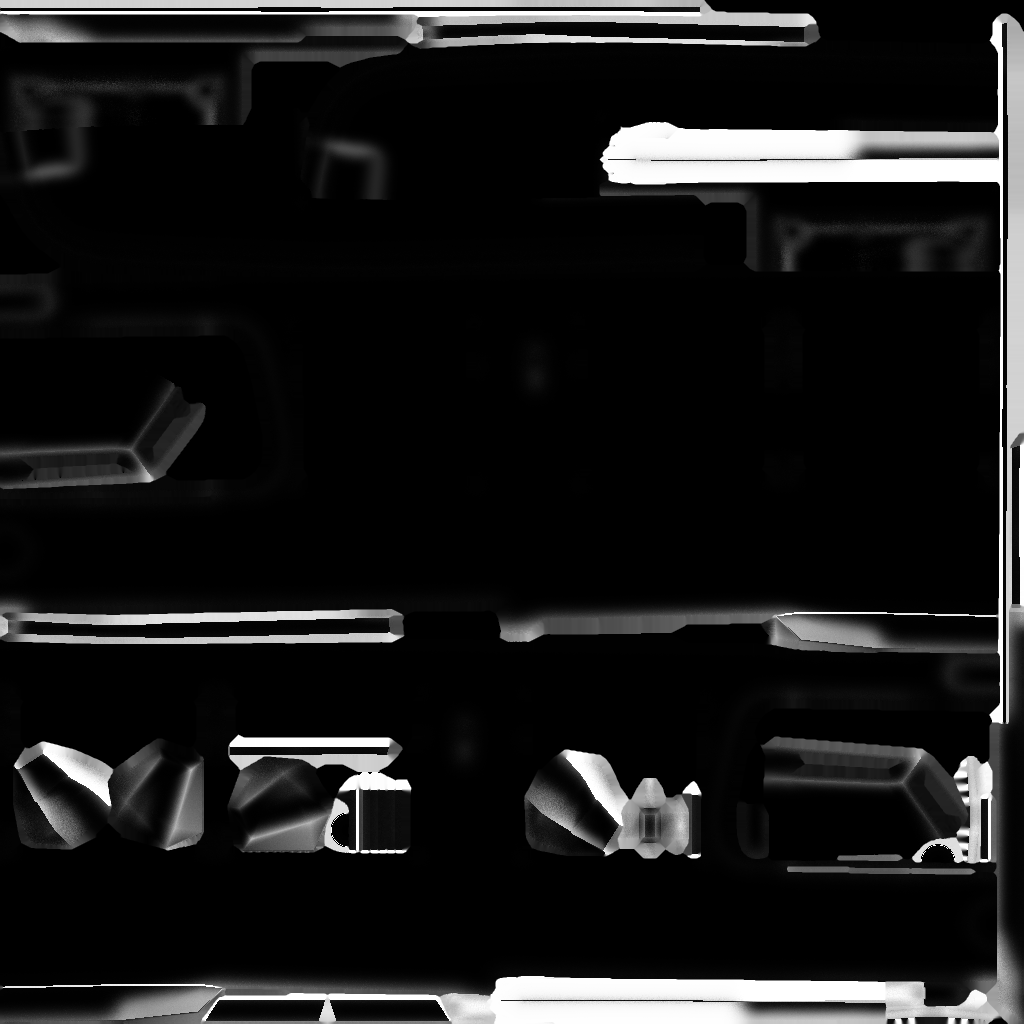
Edge Mask
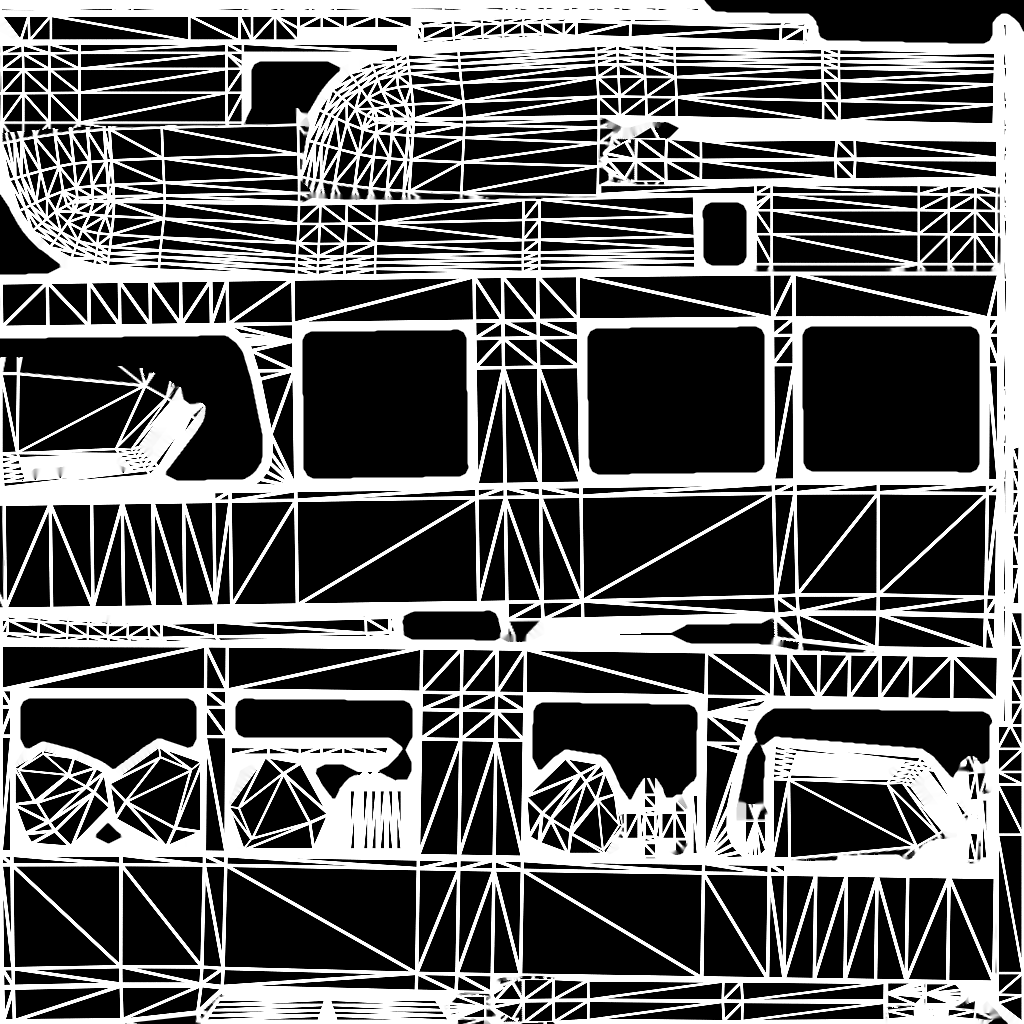
Wireframe Mask
Map settings
Besides the map type mentioned above, there’s more to tweak.
Map Customization
Read how you can fully customize each map here.
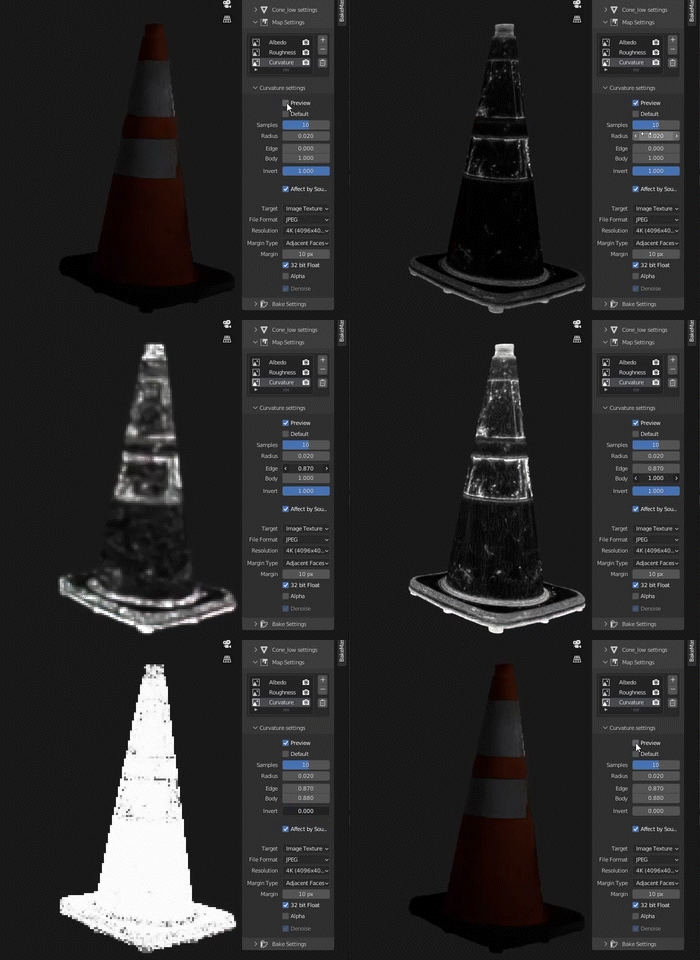
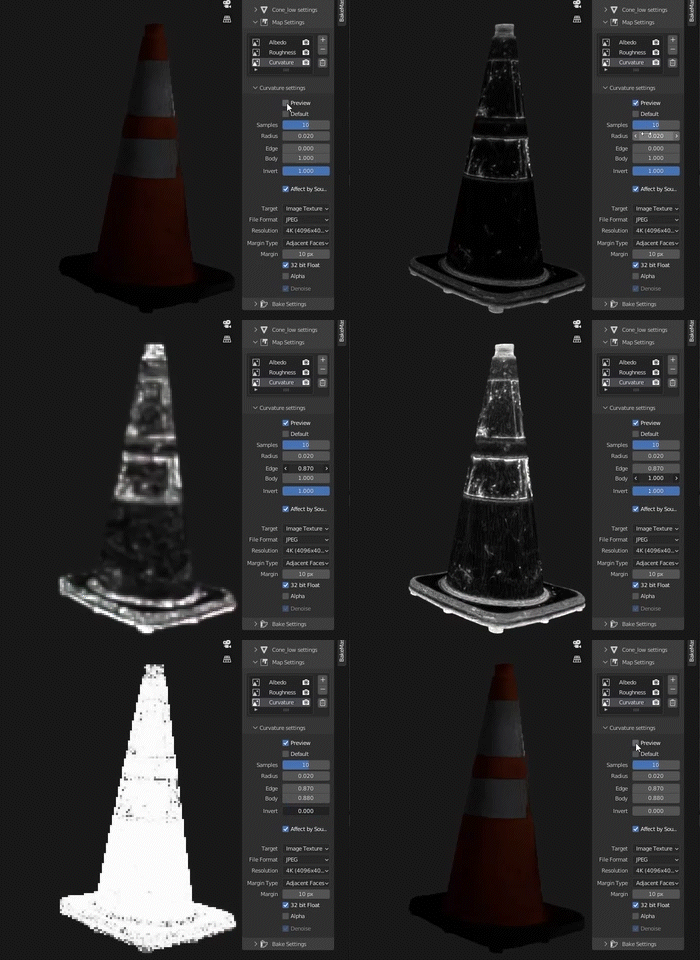
Real-time Preview
Preview how the map will look when baked!
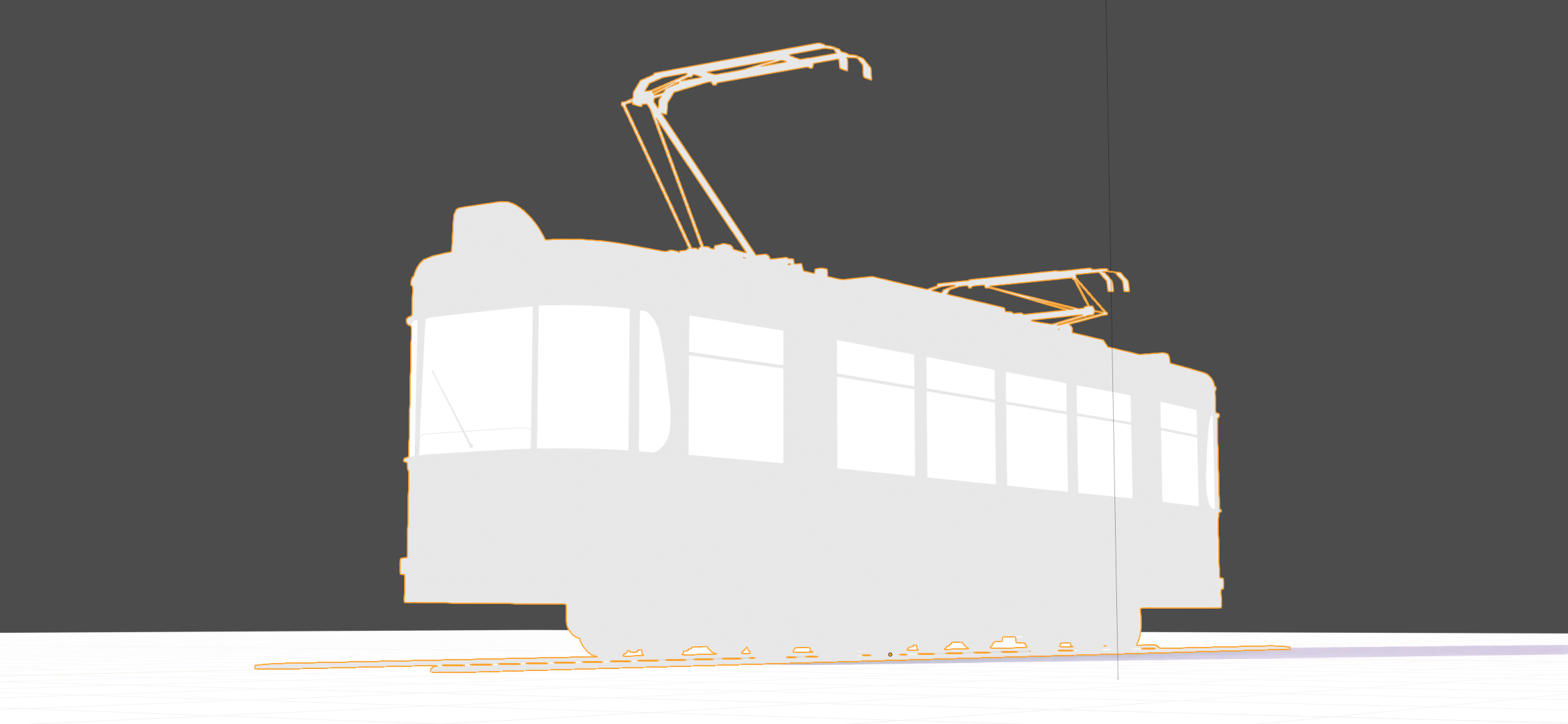
Albedo Metallic
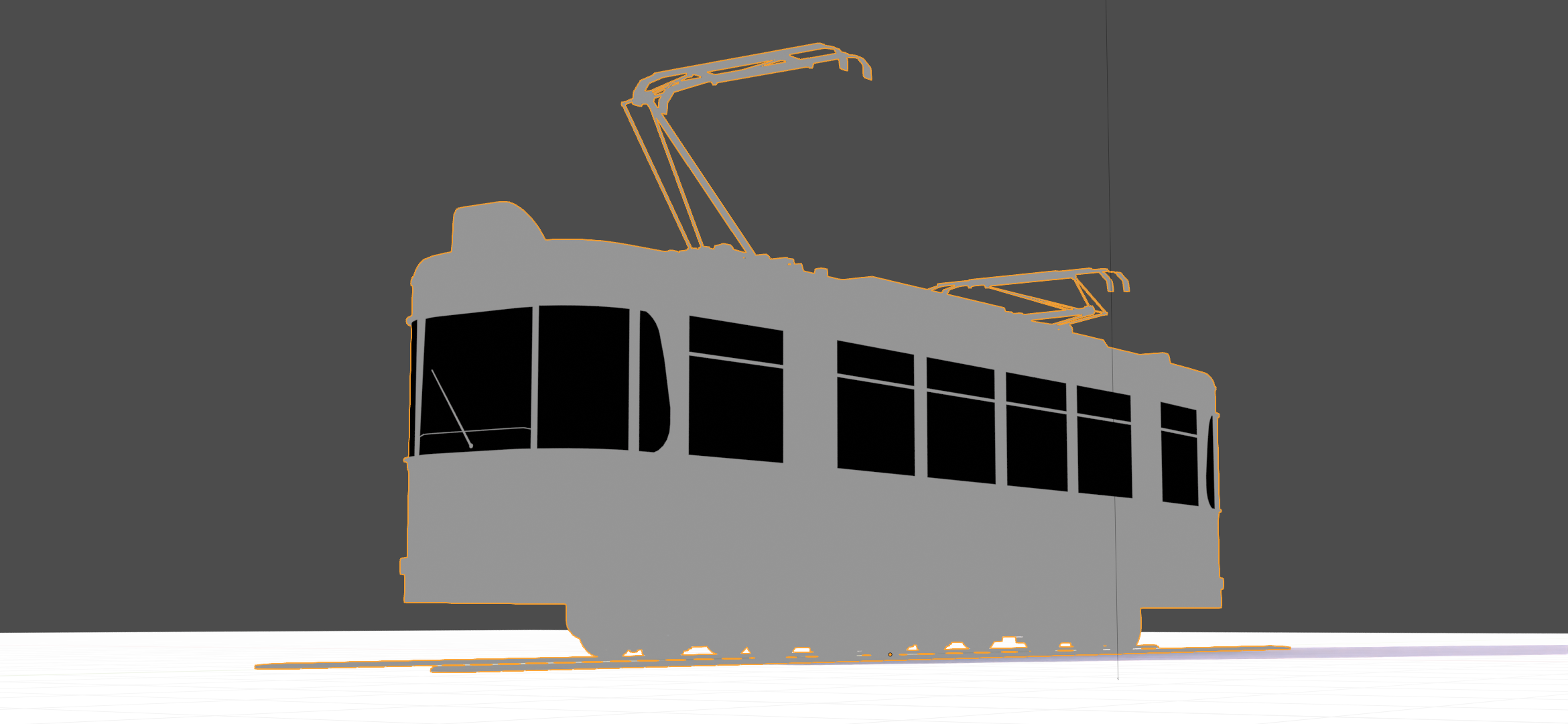
Metalness
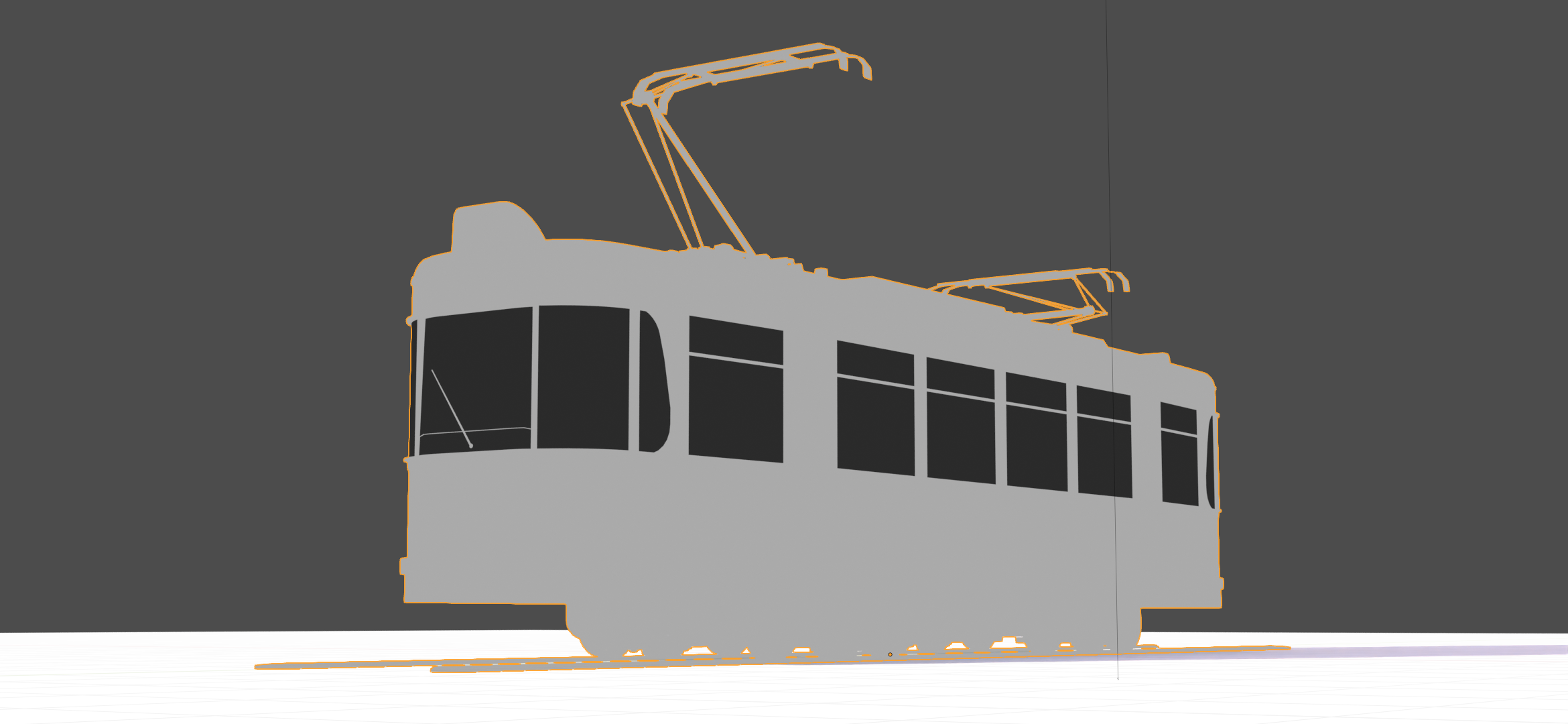
Rougness
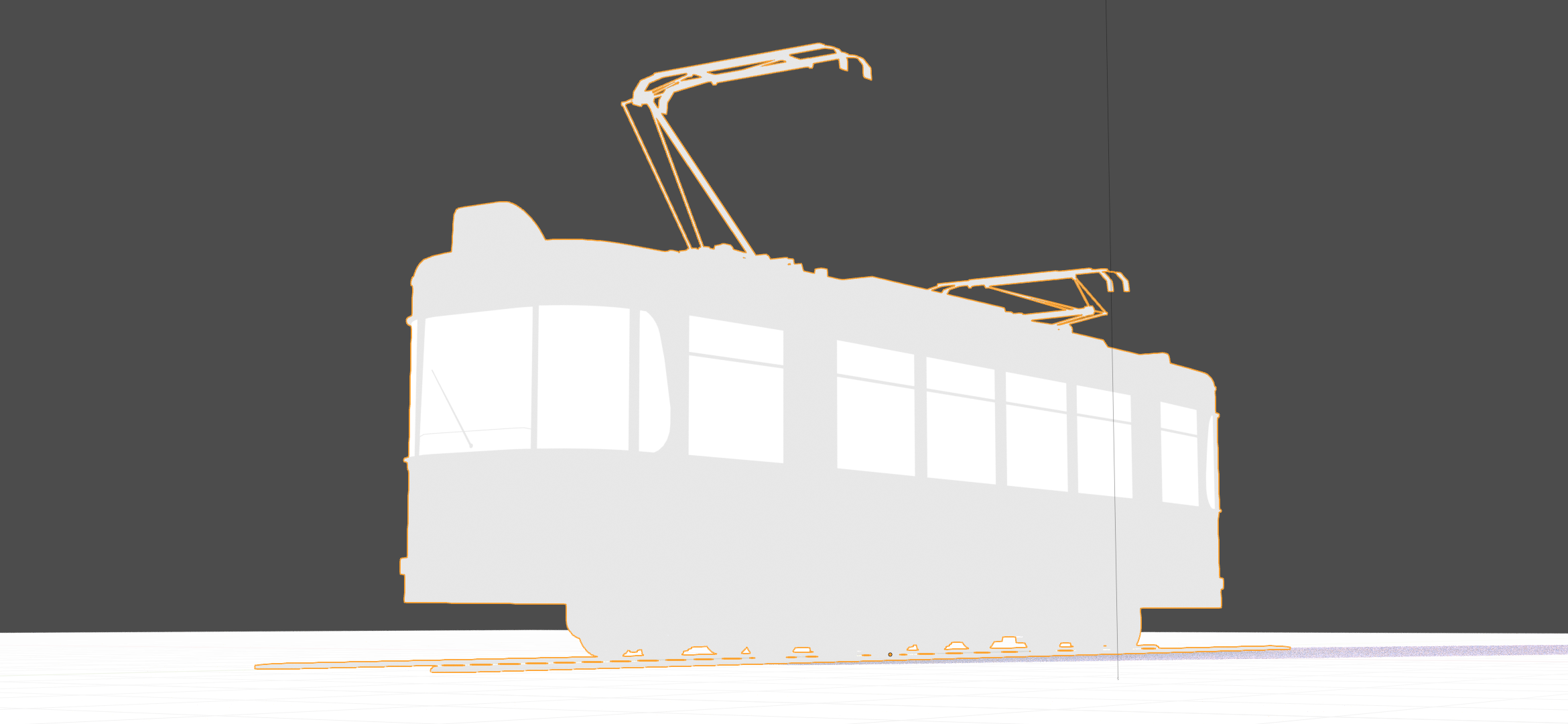
Albedo Specular
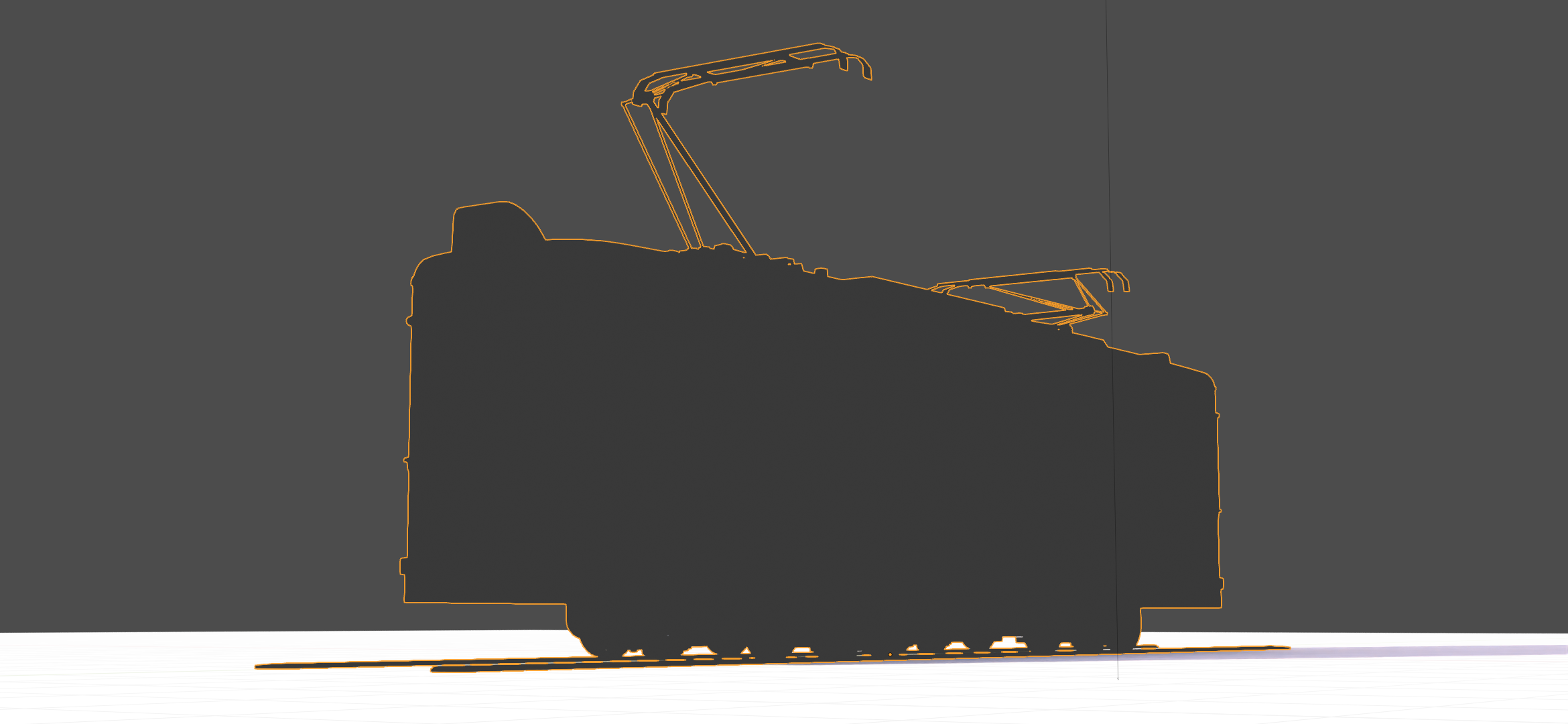
Specular
Glossiness
Opacity
Emission/Lightmap
Normal
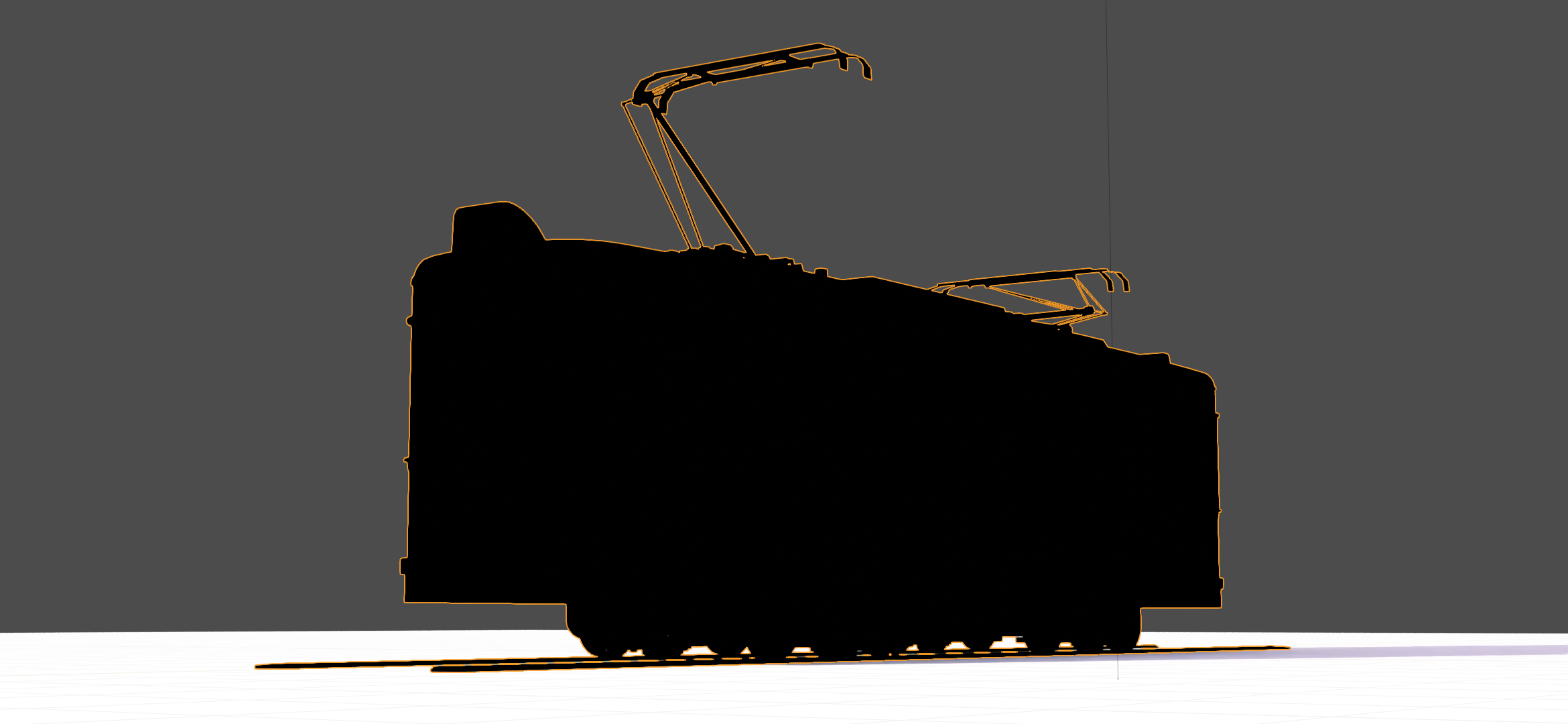
Displacement
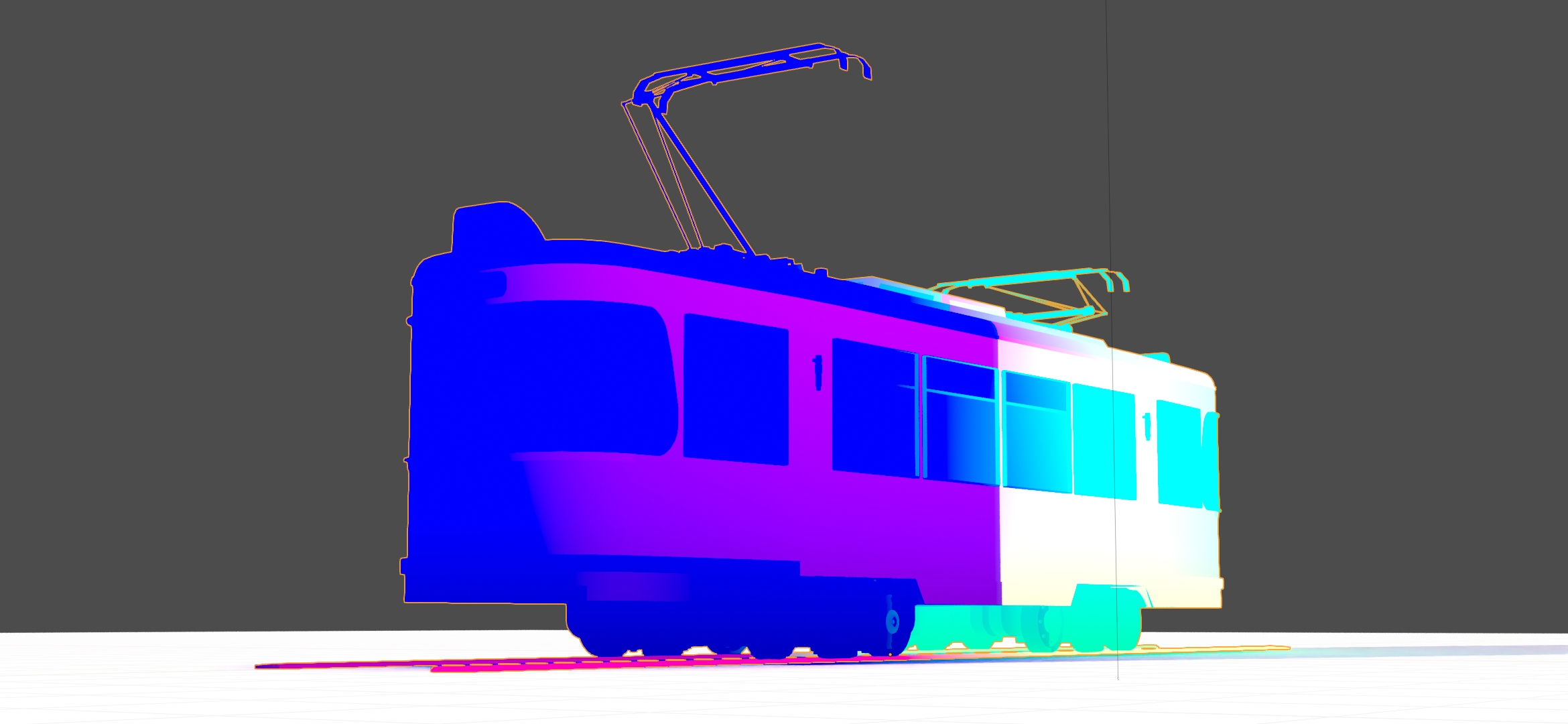
Vector Displacement
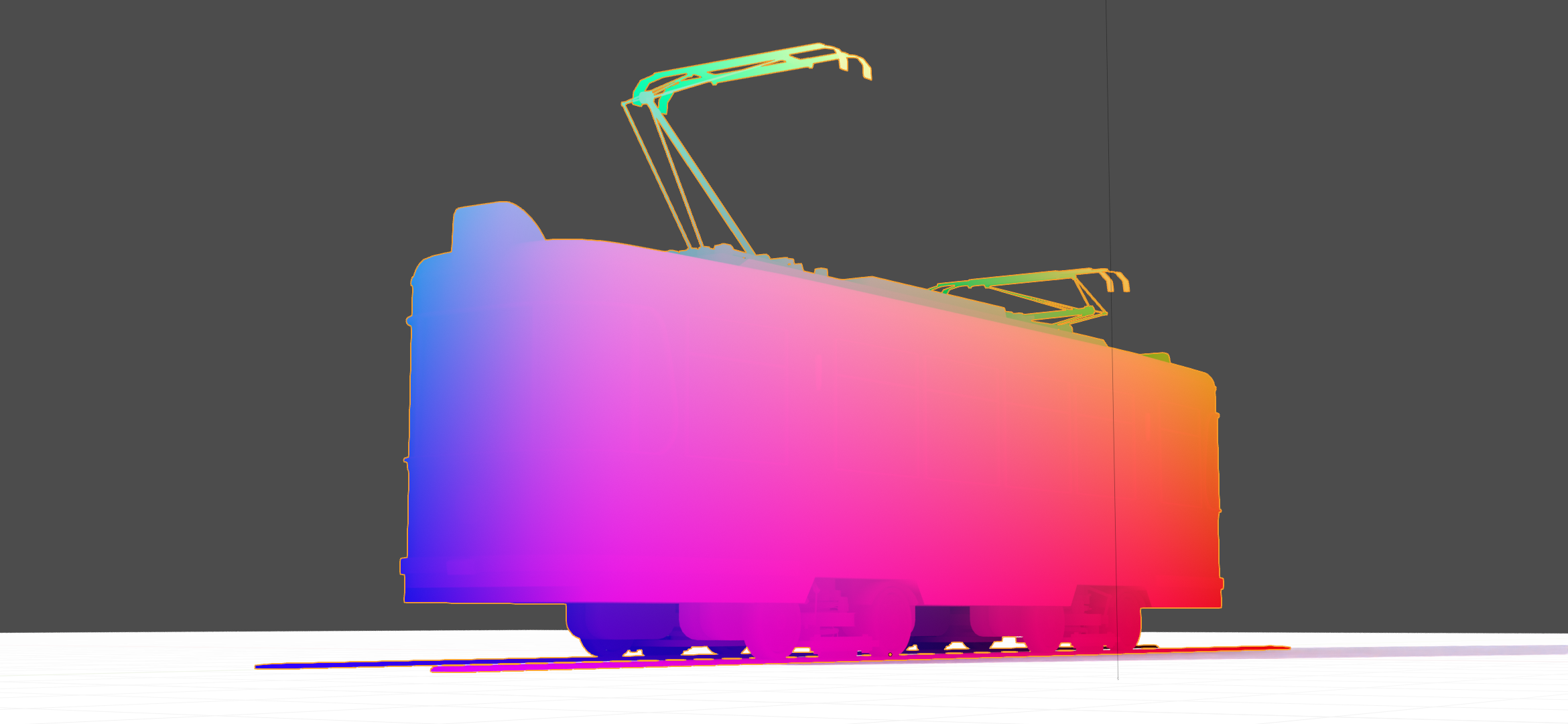
Position
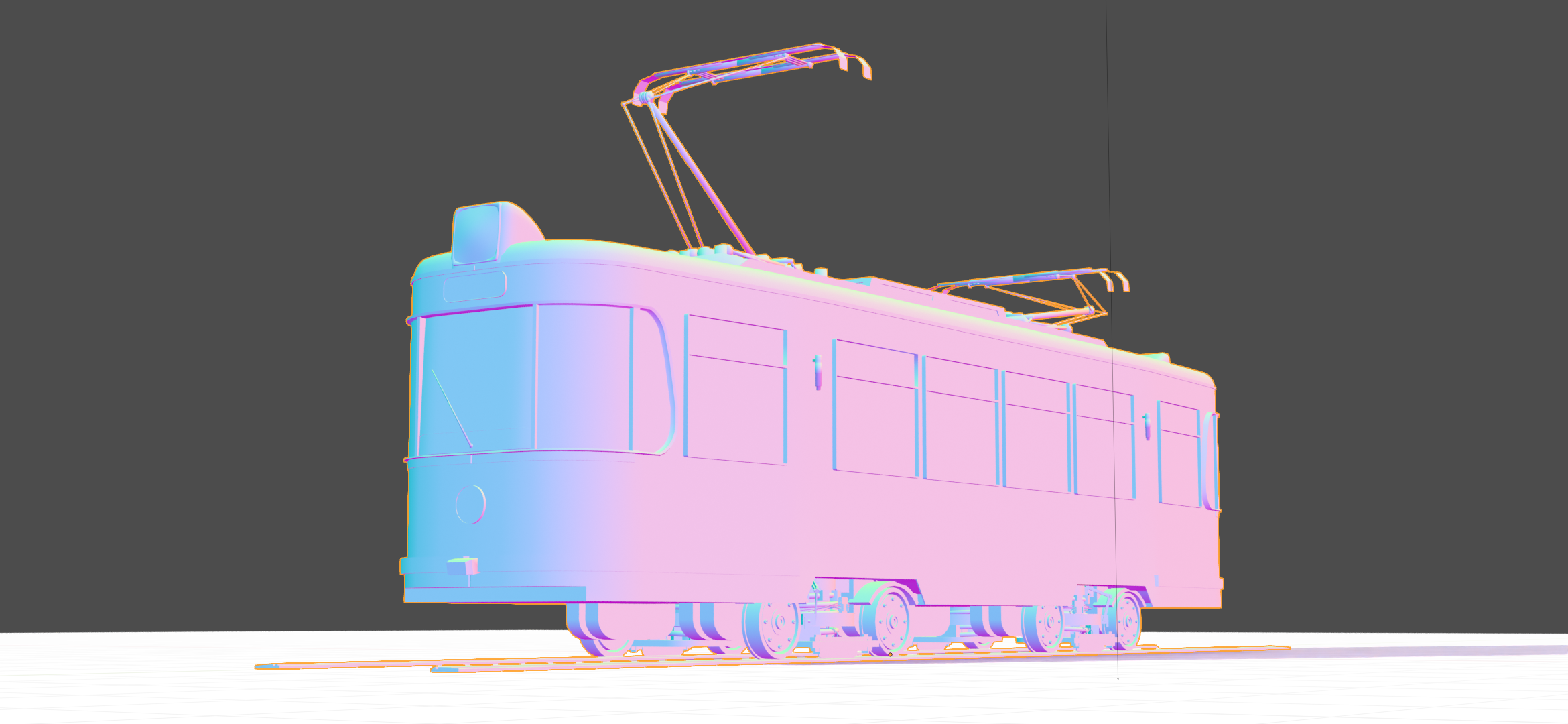
Decal Pass Normal

AO
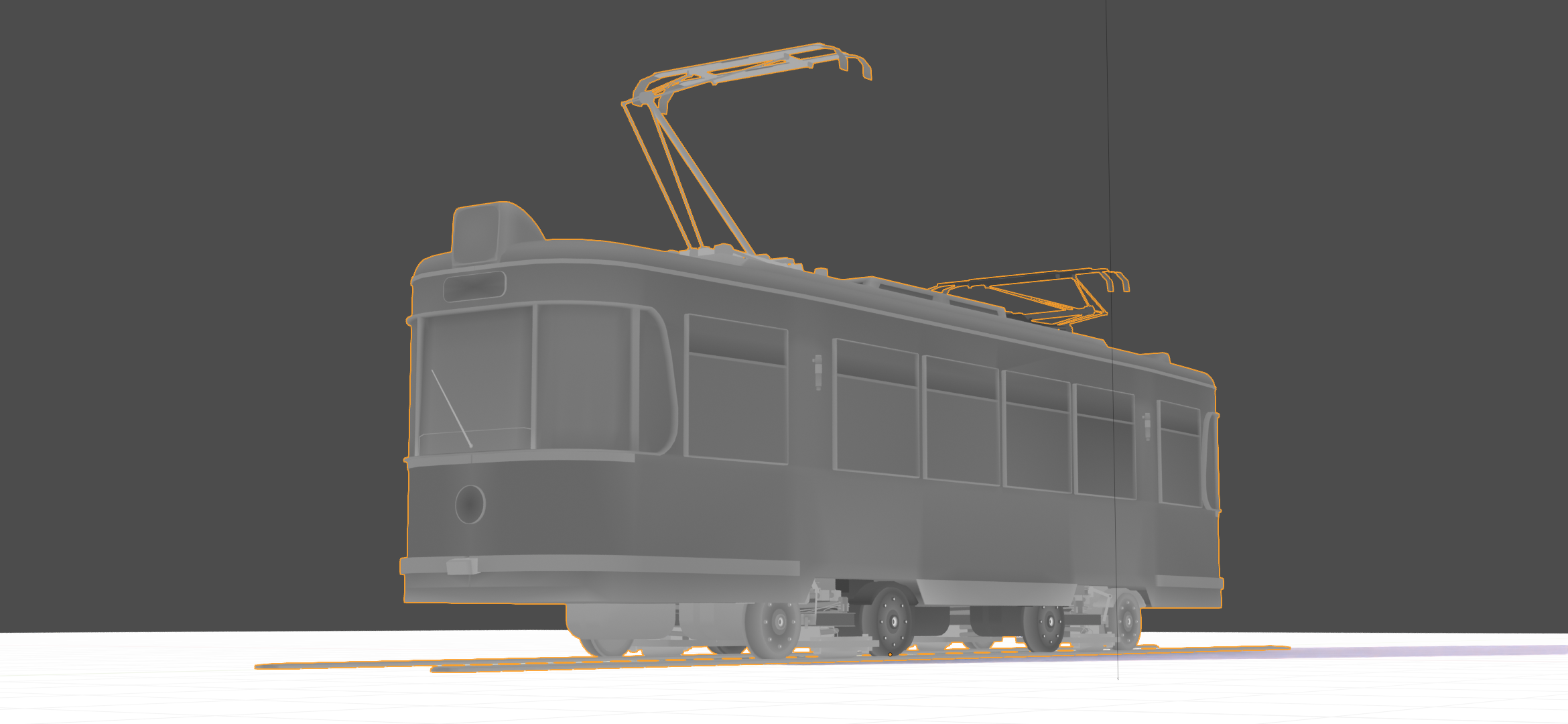
Cavity
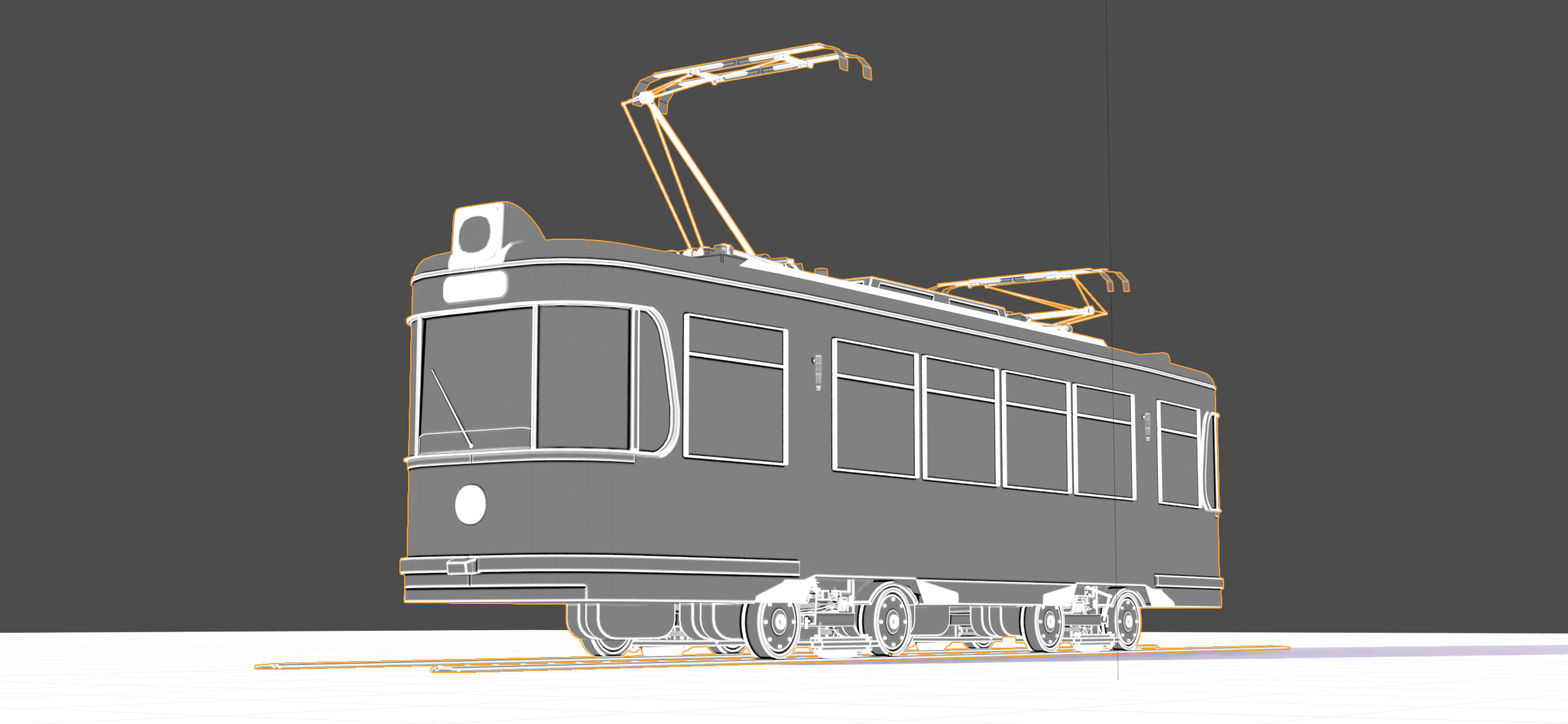
Curvature
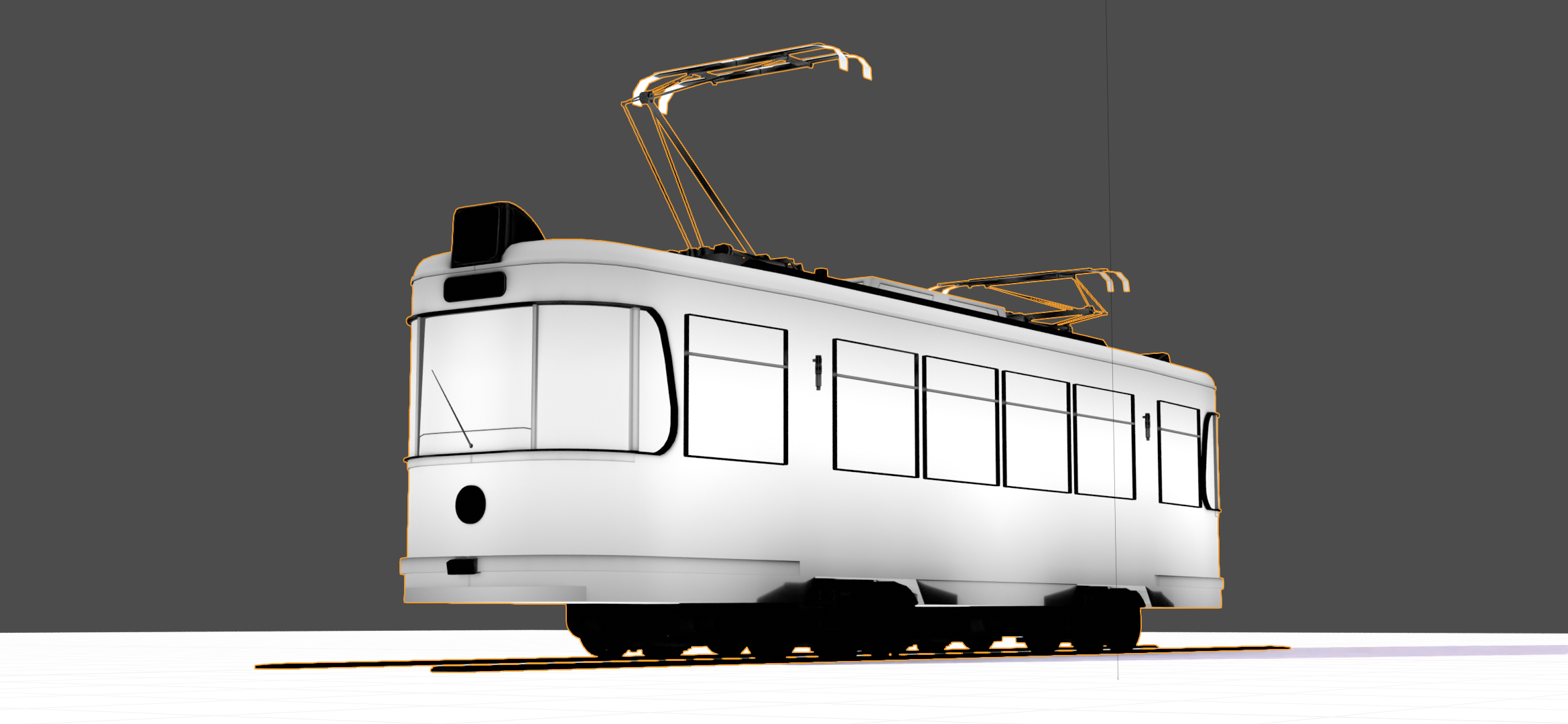
Thickness
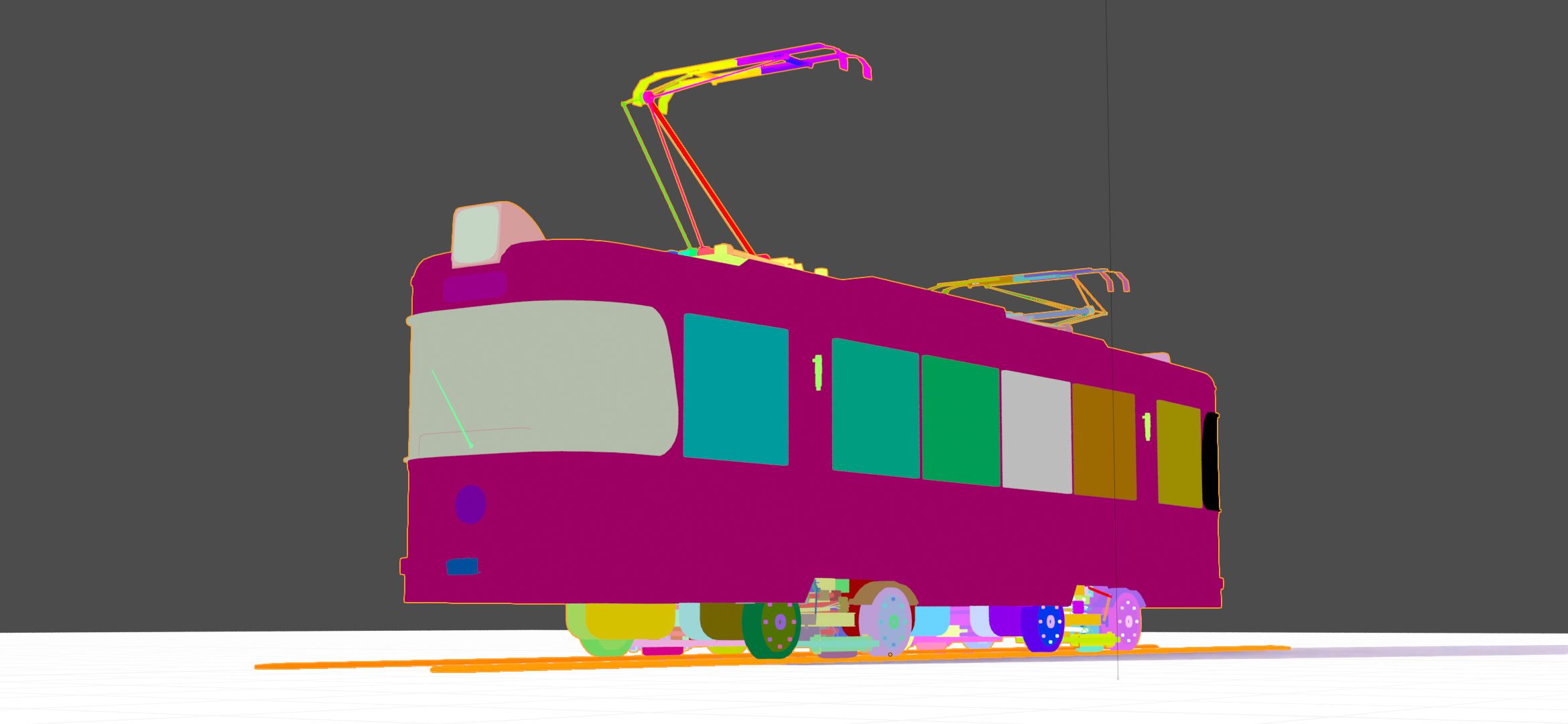
ID
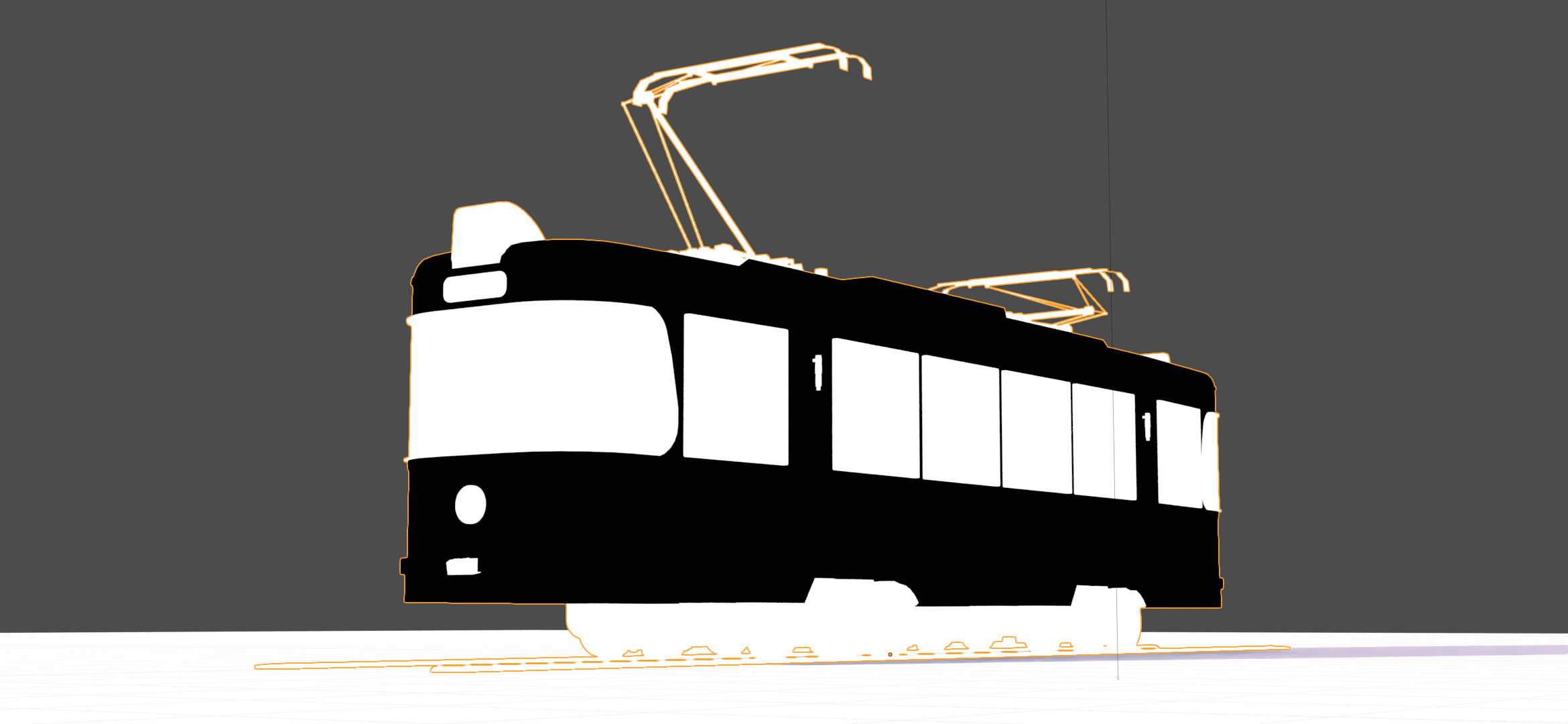
Mask
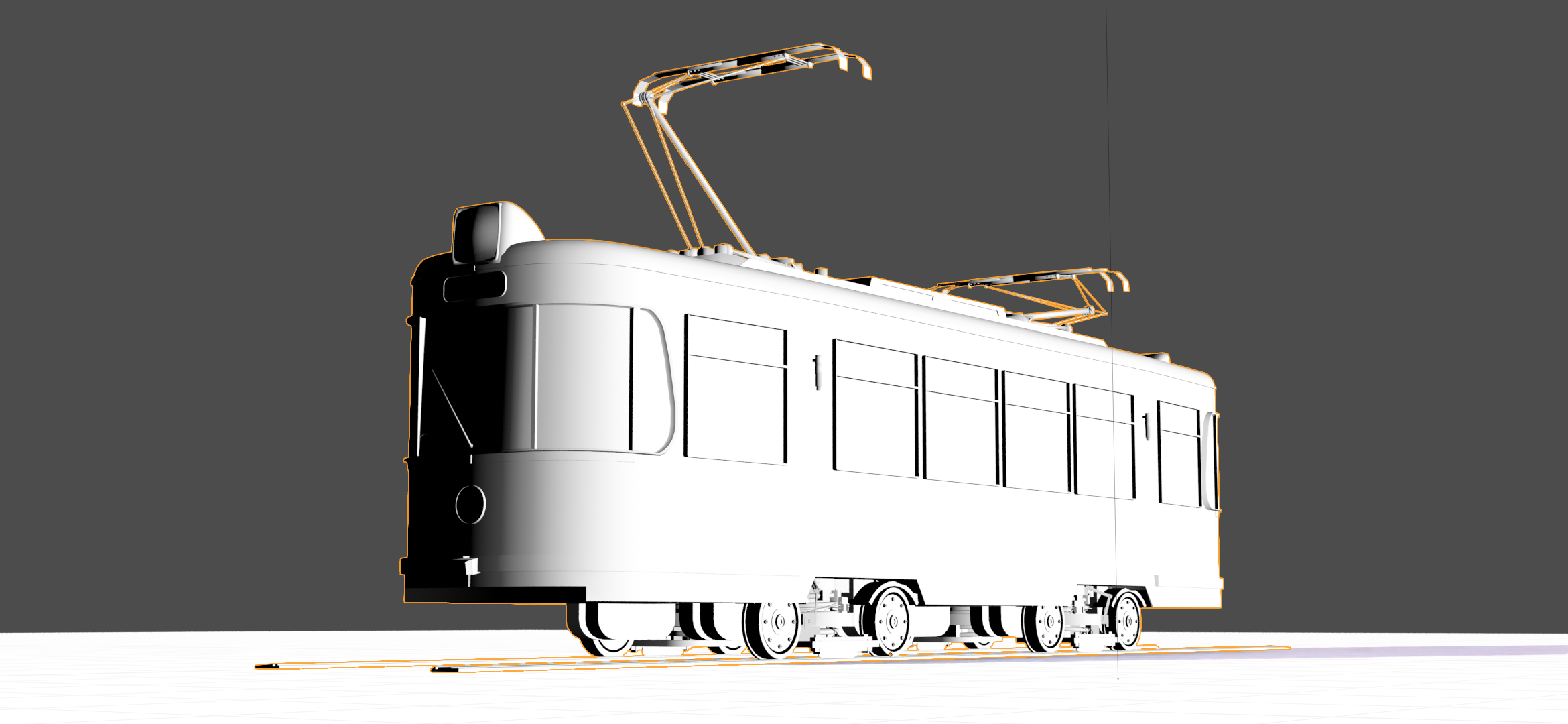
XYZ Mask
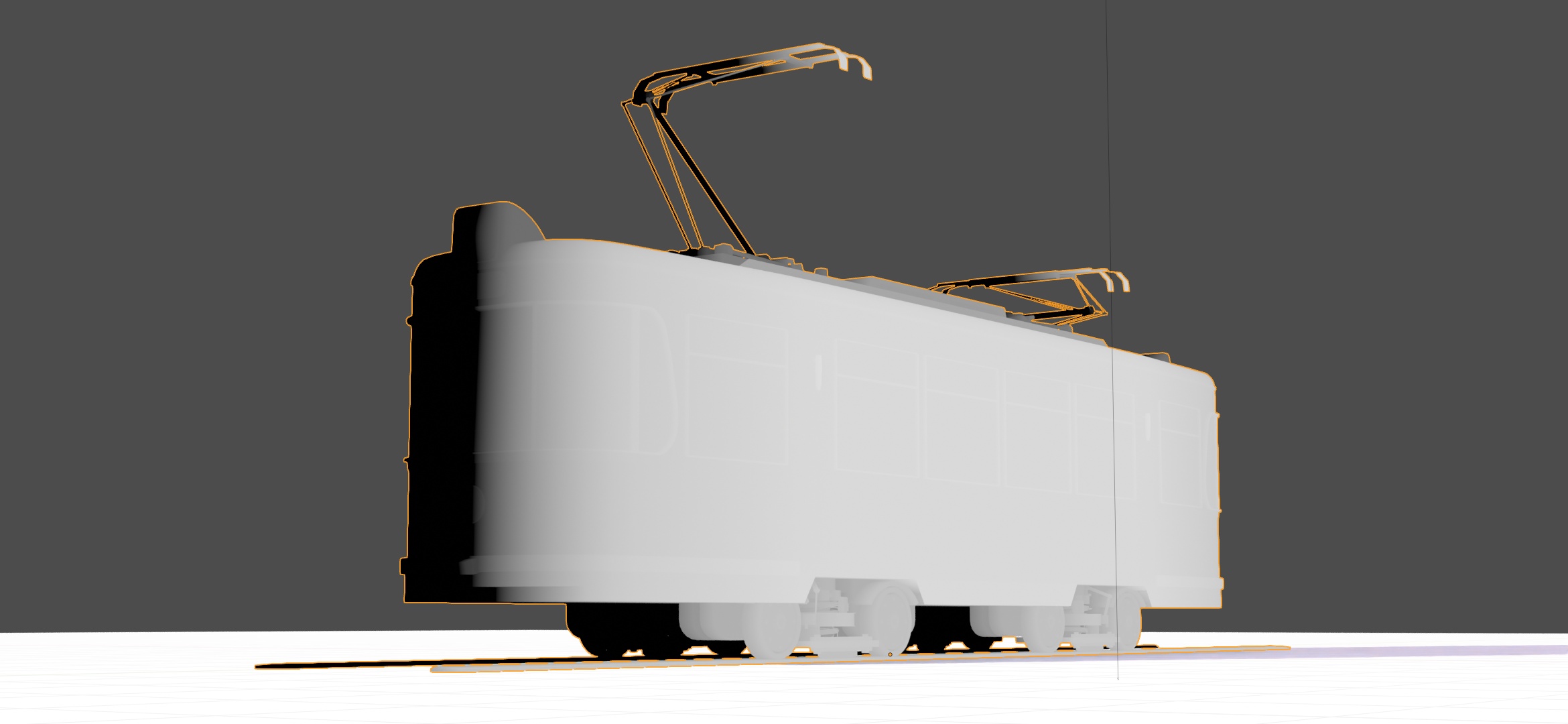
Gradient Mask
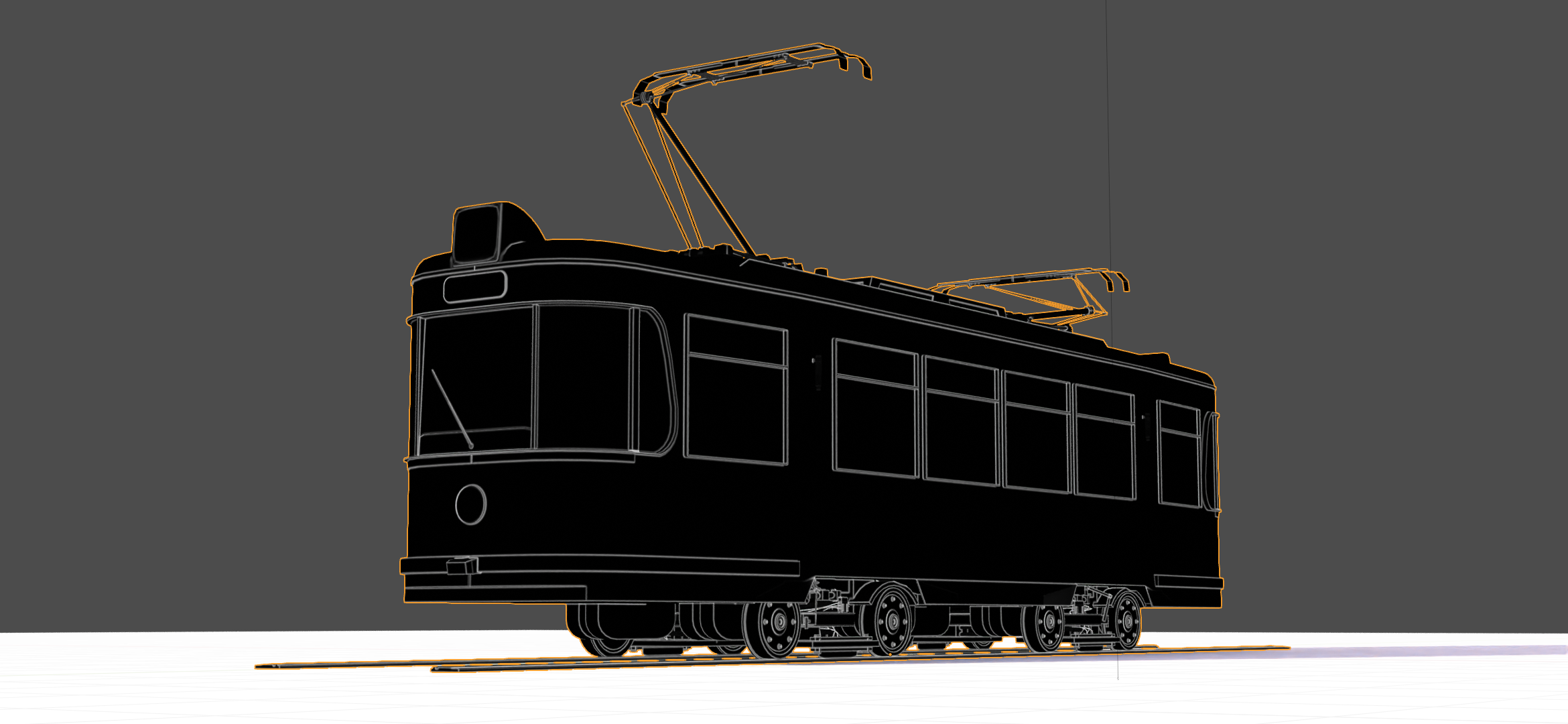
Edge Mask
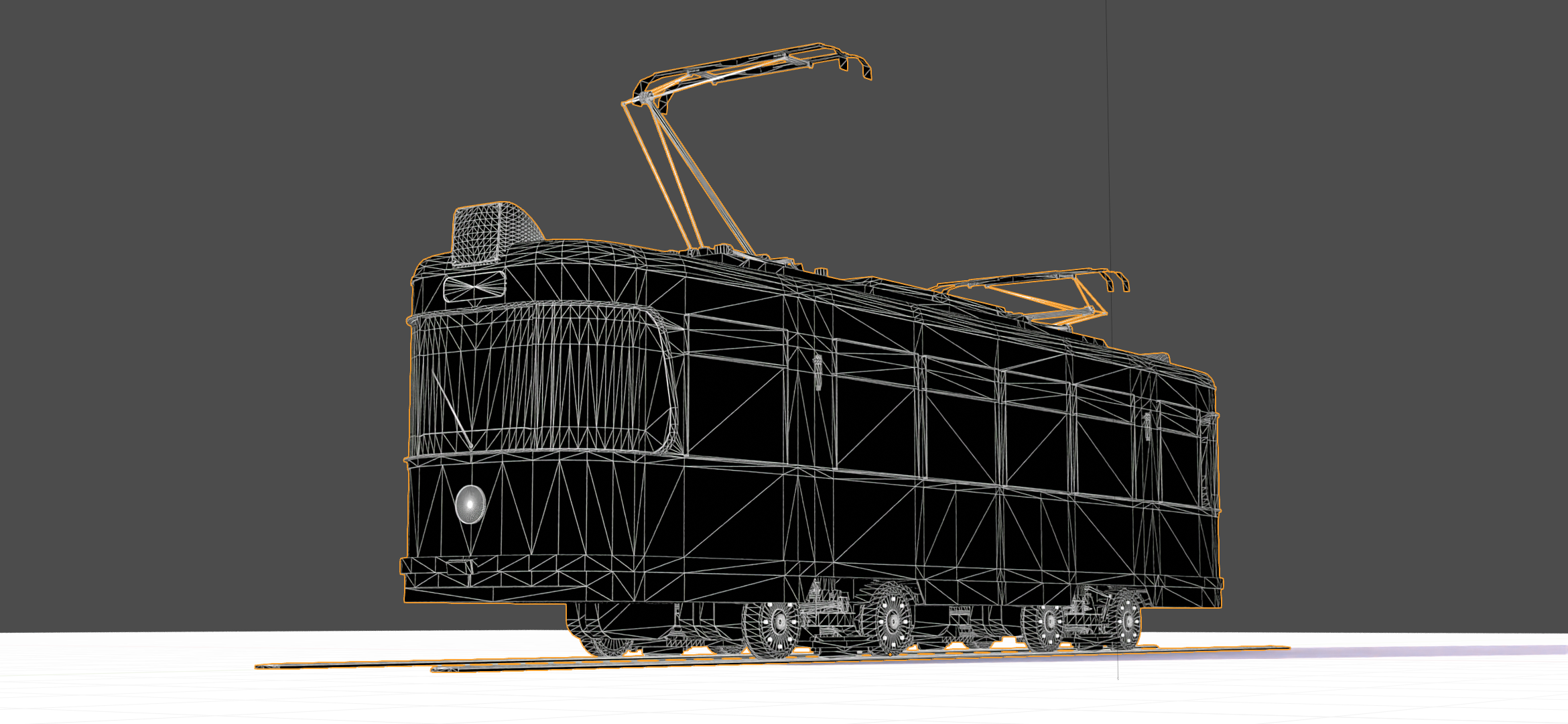
Wireframe Mask
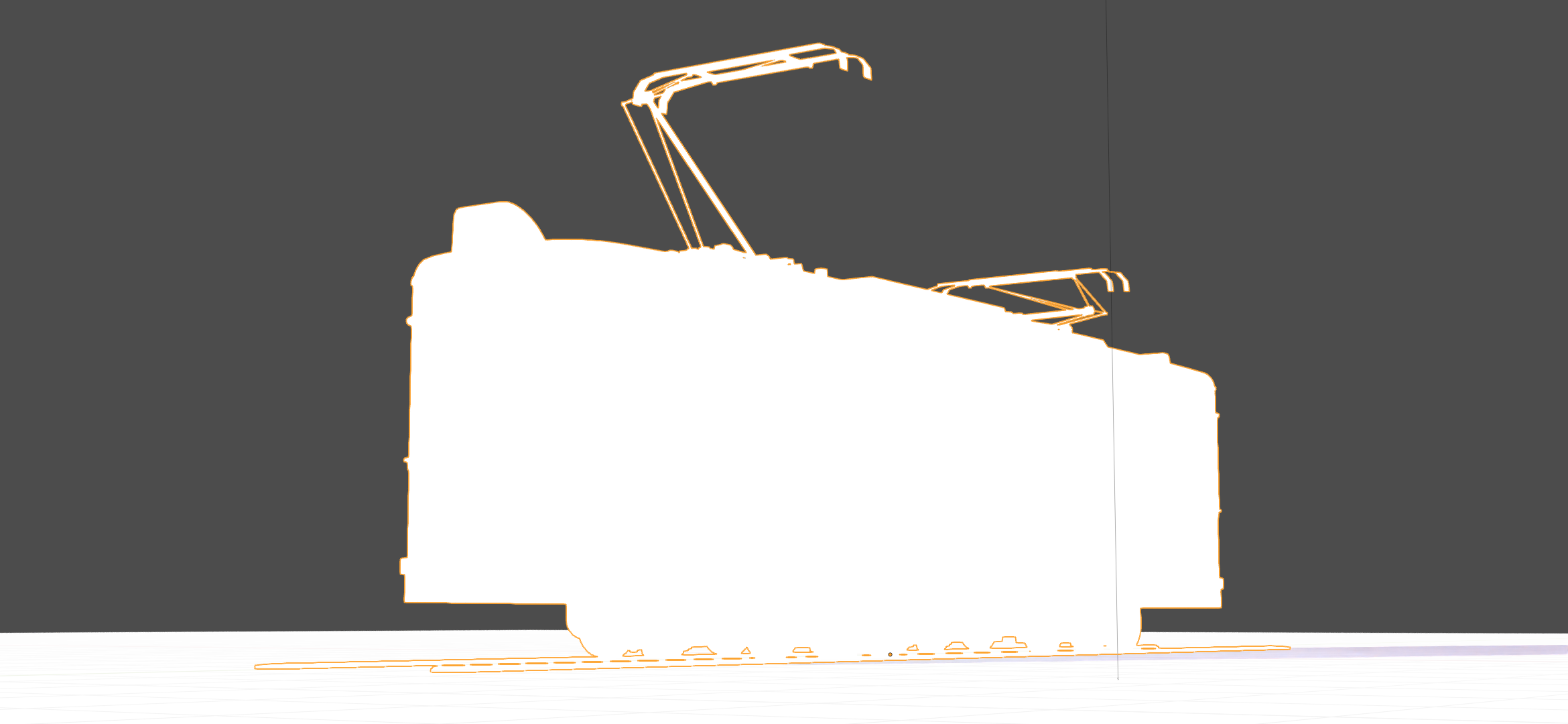
BSDF Pass IOR
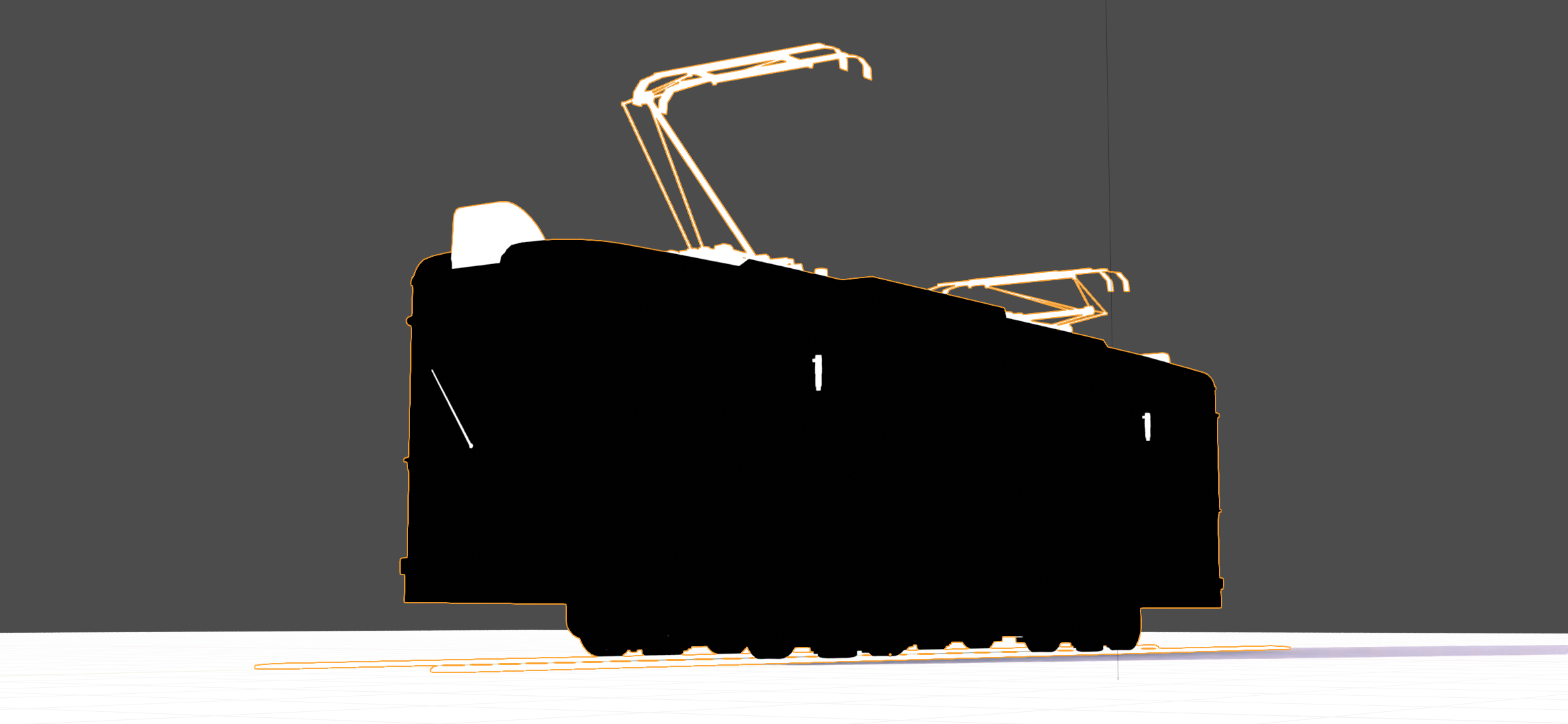
Vertex Color Layer
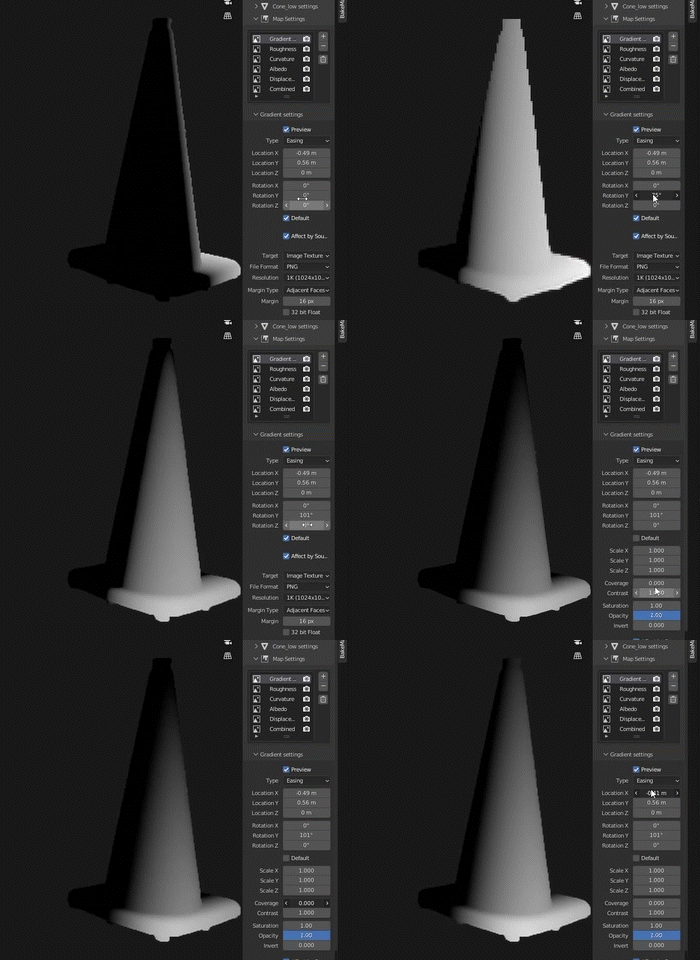
Format Settings
Configure output format settings for maps.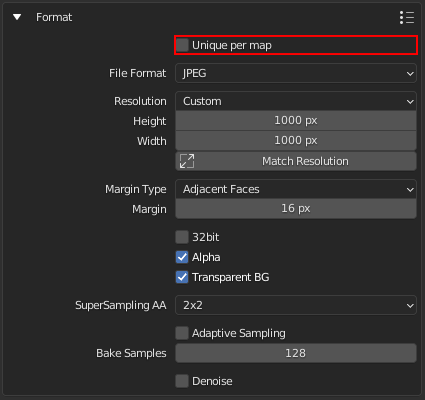
Unique per map
Set unique format settings for each map.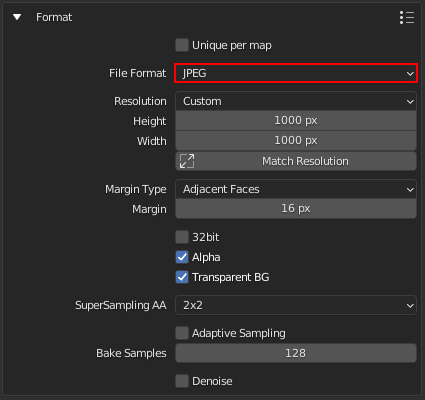
File Format
Choose a file format for output image files. BMP, PNG, JPEG, TIFF, EXR.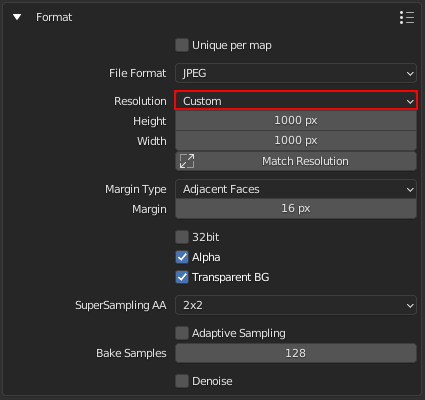
Map Resolution
Specify the output map resolution. You can choose between the common ones or set custom.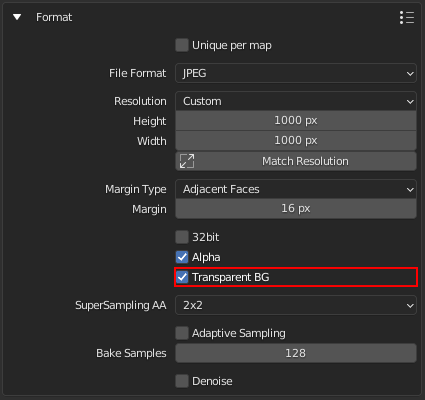
Transparent BG
Create image texture with a transparent background instead of solid black.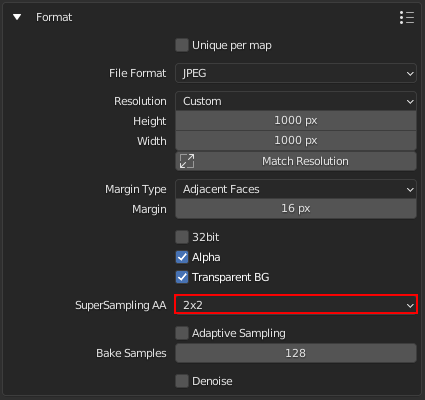
SSAA
Supersample anti-aliasing. Improve image quality by baking at a higher resolution and then downscaling to a lower resolution. Helps to remove stepping, jagging, and dramatic color difference near color area edges.(read more about SSAA)
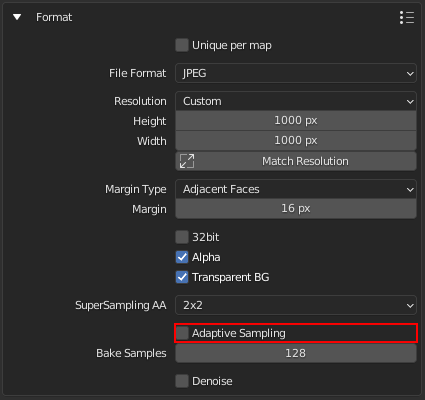
Adaptive Sampling
Automatically reduce the number of samples per pixel based on the estimated noise level.(read more about samples)
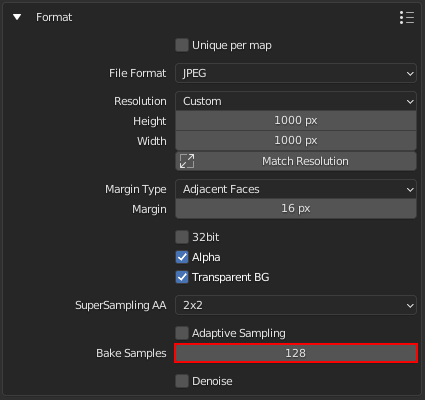
Bake Samples
Number of samples to render per pixel.(read more about samples)
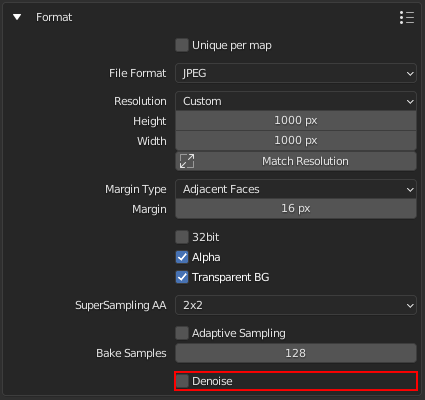
Denoise
Denoise and descpeckle baked maps as a post-process filter.(read more about denoising)
Map Unique Settings
You can make High to Lowpoly, UVs and Layers, or Format Settings unique for each map. For this, turn on “Unique per map” in these panels. Then, select a map and customize the settings.
Hit Bake
Start the Bake
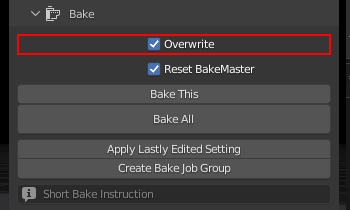
Overwrite
If checked, old bake files in the output directory will be overwritten by the new ones if they have the same name.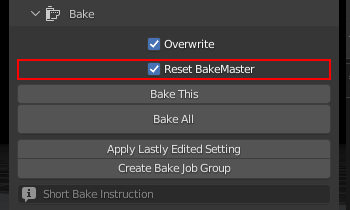
Reset BakeMaster
Remove baked objects from BakeMaster Table of Objects after the bake.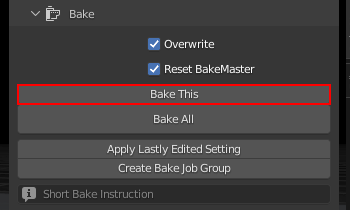
Bake This
Bake maps only for the current object or container.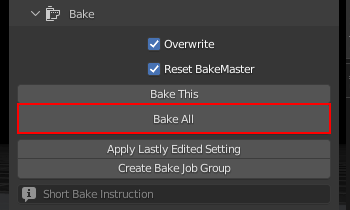
Bake All
Bake maps for all objects added.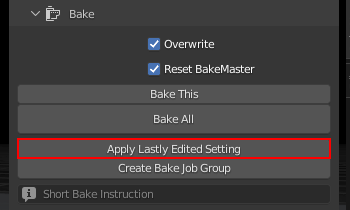
Apply Lastly Edited Setting (read more)
Select maps or objects to apply value of lastly edited property for.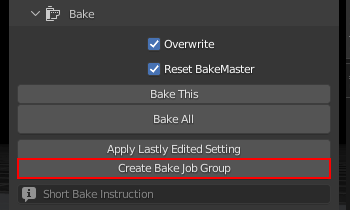
Create Bake Job Group (read more)
Group objects into a Bake Job Container, where all settings can be set at once for all.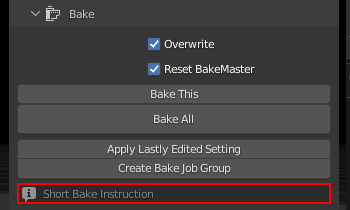
Bake Instruction (read more)
Short Bake Instruction.
BakeMaster Bake won’t block anything, so you can continue creating while it’s doing its magic.
While waiting

Control the baking process from your keyboard or Blender Console. All keybindings are present below and under the “Bake Instruction” field in the Bake panel.
- Press “BACKSPACE” to cancel baking all next maps
- Press “ESC” key to cancel baking the current map
- Press “BACKSPACE + ESC” to cancel baking
Tip: Blender Console
By opening the Blender Console you’ll see more precise bake process feedback and be able to press “Ctrl + C” or “⌘ Cmd + C” (Mac) to abort the bake.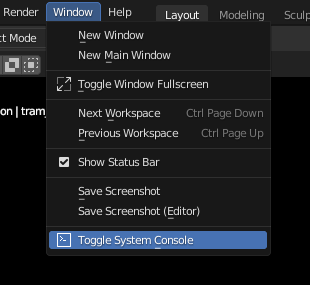
Caution
Blender freezes are expected when handling meshes with large amounts of geometry, baking map results to modifiers, Denoising baked results, or UV unwrapping and packing. Please be patient, BakeMaster will notify you if any error occurs.
Supercharge your 3D creation workflow with premium selection of Blender Add-ons. Whether you are modeling intricate characters, sculpting realistic environments, or animating cinematic sequences, the right add-on can transform how you work inside Blender. Our curated collection includes powerful tools for UV unwrapping, procedural texture generation, rigging automation, rendering optimization, and more—each rigorously tested for compatibility with the latest Blender versions. Eliminate tedious manual processes and unlock advanced functionality that lets you focus on what matters most: bringing your creative vision to life. Explore our full range of professional Blender plugins today and take your 3D projects to the next level.
➡️ ➡️ For more Blender Plugins 😀 😀
Reviews
There are no reviews yet.