
Camera Pie Menu for Blender
Camera Pie Menu v1.2.4 for Blender – The Ultimate Fast Camera Navigation & View Switcher
Versions: v1.2.4
File Size: 1.3 MB
Download Camera Pie Menu v1.2.4 for Blender on Windows and Mac, a streamlined addon that replaces slow menu navigation with an intuitive, radial pie menu for instant camera control. With one-click access to view switching, camera locking, framing, and rendering shortcuts, Camera Pie Menu transforms how you navigate your scene, eliminating the need to memorize complex hotkeys or hunt through the viewport header for essential camera tools.
Key Features of Camera Pie Menu v1.2.4:
Instant View Switching: Radial menu segments for Front, Right, Top, Perspective, and Camera views, allowing you to jump between angles in a fraction of a second
Smart Camera Locking: Toggle “Lock Camera to View” on/off directly from the pie, enabling seamless navigation while staying inside the active camera frame
One-Click Framing: Automatically frame selected objects or the entire scene within the camera view with a dedicated menu segment, ensuring perfect composition instantly
Render & Playblast Shortcuts: Dedicated slices for quick Render Image, Render Animation, and OpenGL Playblast actions without leaving the 3D viewport
Customizable Layout: Fully editable pie menu structure allows you to add, remove, or reorder segments to match your personal workflow preferences
Context-Aware Options: Menu adapts based on selection (e.g., shows “Frame Selected” only when objects are chosen) to keep the interface clean and relevant
Visual Feedback: Clear icons and labels for each segment ensure you never misclick, even when working quickly under deadline pressure
Enhanced Stability v1.2.4: Fixed issues with menu appearing in wrong locations on multi-monitor setups, improved compatibility with Blender 4.x keymap systems, and smoother animation for menu fade-in/out
Cross-Platform Support: Works flawlessly on both Windows and Mac systems including Apple Silicon M1/M2/M3 chips
Perfect For:
Architectural visualizers needing rapid switches between plan, elevation, and perspective views
Animators frequently toggling between camera lock and free navigation
Generalists who want to speed up their viewport workflow and reduce mouse travel
Beginners struggling to remember standard Blender camera hotkeys
Anyone tired of clicking tiny icons in the top-right viewport header
System Requirements:
Blender 3.6, 4.0, 4.1, 4.2, 4.3+ (Latest LTS recommended)
Windows 10/11 (64-bit) or macOS 10.15+
4GB RAM minimum (8GB+ recommended for large scenes)
No external dependencies required
Installation:
Open Blender and go to Edit > Preferences > Add-ons:
Click “Install…” and select the downloaded .zip file for Camera Pie Menu
Enable the checkbox next to “Interface: Camera Pie Menu”
Access by pressing the assigned shortcut (default: ‘C’ or Right-Click in Camera View, customizable in preferences)
Note: Version 1.2.4 introduces a new “Quick Bookmark” segment that lets you save your current camera angle to a slot directly from the pie menu, bridging the gap between navigation and camera management.
Camera Pie Menu
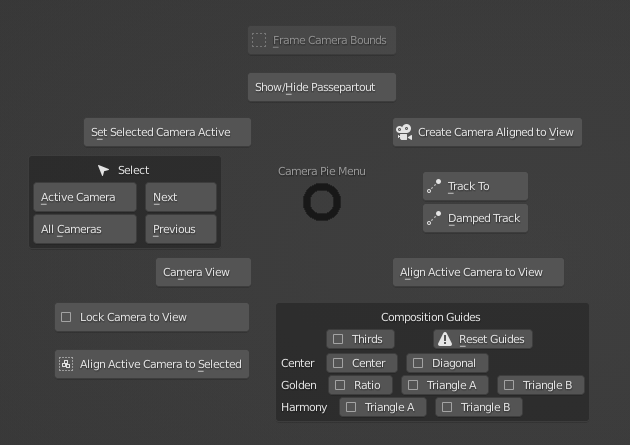
This add-on is a menu that summarizes some camera operations.
日本語のドキュメント
How to use
On the 3D viewport, press Ctrl + W (default)
The available functions differ depending on whether a camera is selected or not.
Functions
- Camera View
- Align Active Camera View
- Lock Camera to View
- Select Active Camera
- Select All Camera
- Select Next Camera
- Select Previous Camera
- Set Selected Camera Active
- Create Camera Aligned to View
- Show / Hide Passepartout(you can change passepartout alpha value in addon preferences).
- Frame Camera Bounds
- Track To / Damped Track
Add “Track To” or “Damped Track” constraint to active camera.
Select the target and then the camera, and then press the button to set the target automatically. - Composition Guides
Preferences
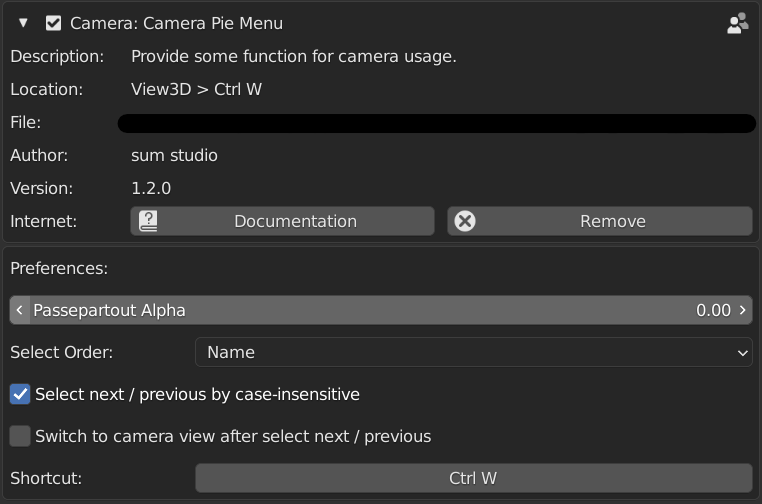
In Preferences, you can change some settings for this addon.
- Passepartout Alpha
- Select Order: Selecting order when you pressing Next or Previous.
- Select next / previous by case-insensitive:
If true and Select Order is Name, it select cameras by case-insensitive. - Switch to camera view after select next / previous: If true, automatically sets the camera active and goes to camera view when you pressing Next or Previous.
- Shortcut: You can change shortcut key.
Installation
For Blender4.2 or higher
- download zip file, do not unzip it.
- go to Blender’s user preference,open the “Add-ons” tab
- click “Install from Disk” from downward arrow at right up and select the zip file.
For Blender4.1 or lower
- download zip file, do not unzip it.
- go to Blender’s user preference,open the Add-ons tab
- click Install and select the zip file.
- check the box next to its name to enable it.
Supercharge your 3D creation workflow with premium selection of Blender Add-ons. Whether you are modeling intricate characters, sculpting realistic environments, or animating cinematic sequences, the right add-on can transform how you work inside Blender. Our curated collection includes powerful tools for UV unwrapping, procedural texture generation, rigging automation, rendering optimization, and more—each rigorously tested for compatibility with the latest Blender versions. Eliminate tedious manual processes and unlock advanced functionality that lets you focus on what matters most: bringing your creative vision to life. Explore our full range of professional Blender plugins today and take your 3D projects to the next level.
➡️ ➡️ For more Blender Plugins 😀 😀
Reviews
There are no reviews yet.