
Camera Plane for Blender
Camera Plane v1.5.0 for Blender – The Ultimate Perspective-Aligned Projection Tool
Download Camera Plane v1.5.0 for Blender on Windows and Mac, a specialized addon that instantly creates geometry perfectly aligned to your active camera’s perspective for accurate projection mapping, match moving, and 2.5D compositing. With one-click plane generation, automatic UV unwrapping based on camera view, and dynamic tracking updates, Camera Plane transforms how you integrate 2D images into 3D space, eliminating the tedious manual math required to align planes with vanishing points.
Key Features of Camera Plane v1.5.0:
Instant Perspective Alignment: Generates a mesh plane that automatically matches the exact angle, focal length, and sensor size of your active camera, ensuring perfect pixel-to-world alignment
Automatic UV Unwrapping: Creates a pre-unwrapped UV map projected directly from the camera view, allowing you to paint or project textures onto the plane without distortion
Dynamic Camera Tracking: Option to link the plane to the camera so it automatically updates its position and rotation if you move or animate the camera later
Grid & Guide Overlays: Displays customizable grid lines and horizon guides on the plane to help align architectural features or match perspective lines in reference photos
Resolution Matching: Automatically scales the plane dimensions to match your render resolution or specific image aspect ratios for precise matte painting setups
Multi-Plane Support: Quickly stack multiple planes at different depths to create complex 2.5D parallax scenes for animation or VFX shots
Projection Material Preset: Includes a ready-to-use shader setup optimized for “Project from View” texture mapping, saving time on node configuration
Enhanced Precision v1.5.0: Improved calculation for extreme wide-angle lenses and fisheye cameras, better handling of non-square pixels, and faster generation for 4K/8K workflows
Cross-Platform Support: Works flawlessly on both Windows and Mac systems including Apple Silicon M1/M2/M3 chips
Perfect For:
VFX artists performing match moving and inserting 2D elements into 3D scenes
Matte painters creating 2.5D environments with parallax effects
Architectural visualizers projecting concept sketches onto simple geometry for client presentations
Animators setting up quick background layers for 2D/3D hybrid projects
Anyone struggling to manually align planes to complex camera angles
System Requirements:
Blender 3.6, 4.0, 4.1, 4.2, 4.3+ (Latest LTS recommended)
Windows 10/11 (64-bit) or macOS 10.15+
4GB RAM minimum (8GB+ recommended for high-resolution texture projection)
Active Camera object required in the scene
Installation:
Open Blender and go to Edit > Preferences > Add-ons:
Click “Install…” and select the downloaded .zip file for Camera Plane
Enable the checkbox next to “Mesh: Camera Plane”
Access via the Add Menu > Mesh > Camera Plane or the 3D Viewport Sidebar (N-panel) > Camera Plane Tab
Note: Version 1.5.0 introduces a new “Depth Offset” slider that allows you to push the generated plane forward or backward along the camera Z-axis instantly, making it easy to place objects behind or in front of your projection surface without breaking alignment.
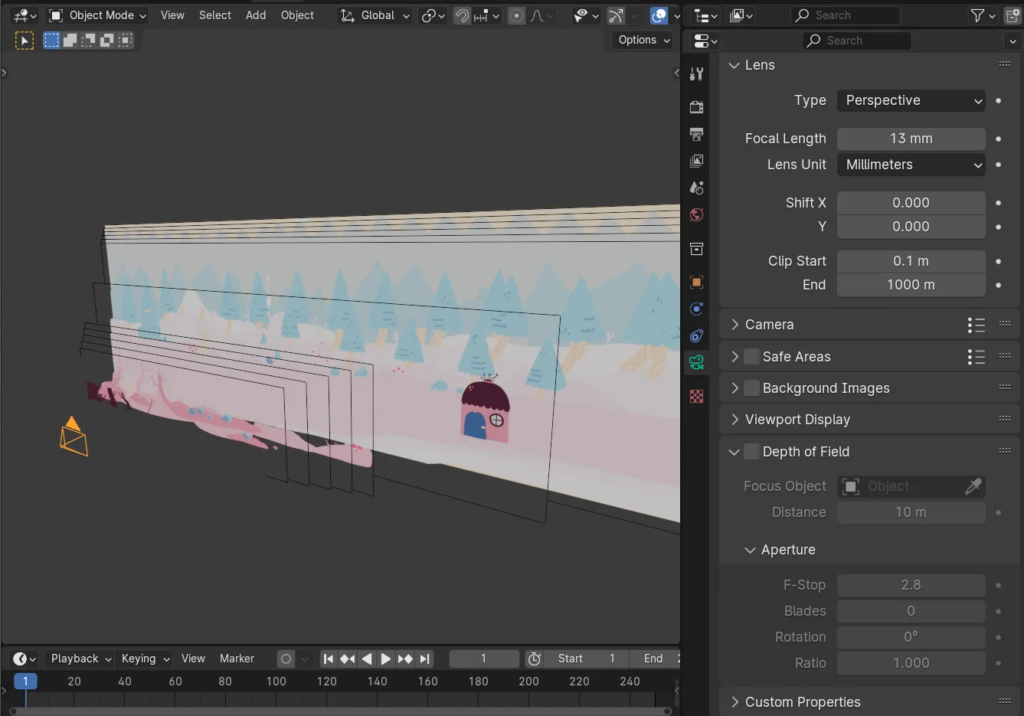
Import images and parent them to the camera. You can then set the distance and width from the image object’s or the camera’s properties. The plane will adjust to the camera’s FOV or focal length.
You can easily import several images at once, which will be equally spaced in depth. This is useful when creating painted stage-like sets which need to stick to a camera.
Workflow
Importing
- Select the camera
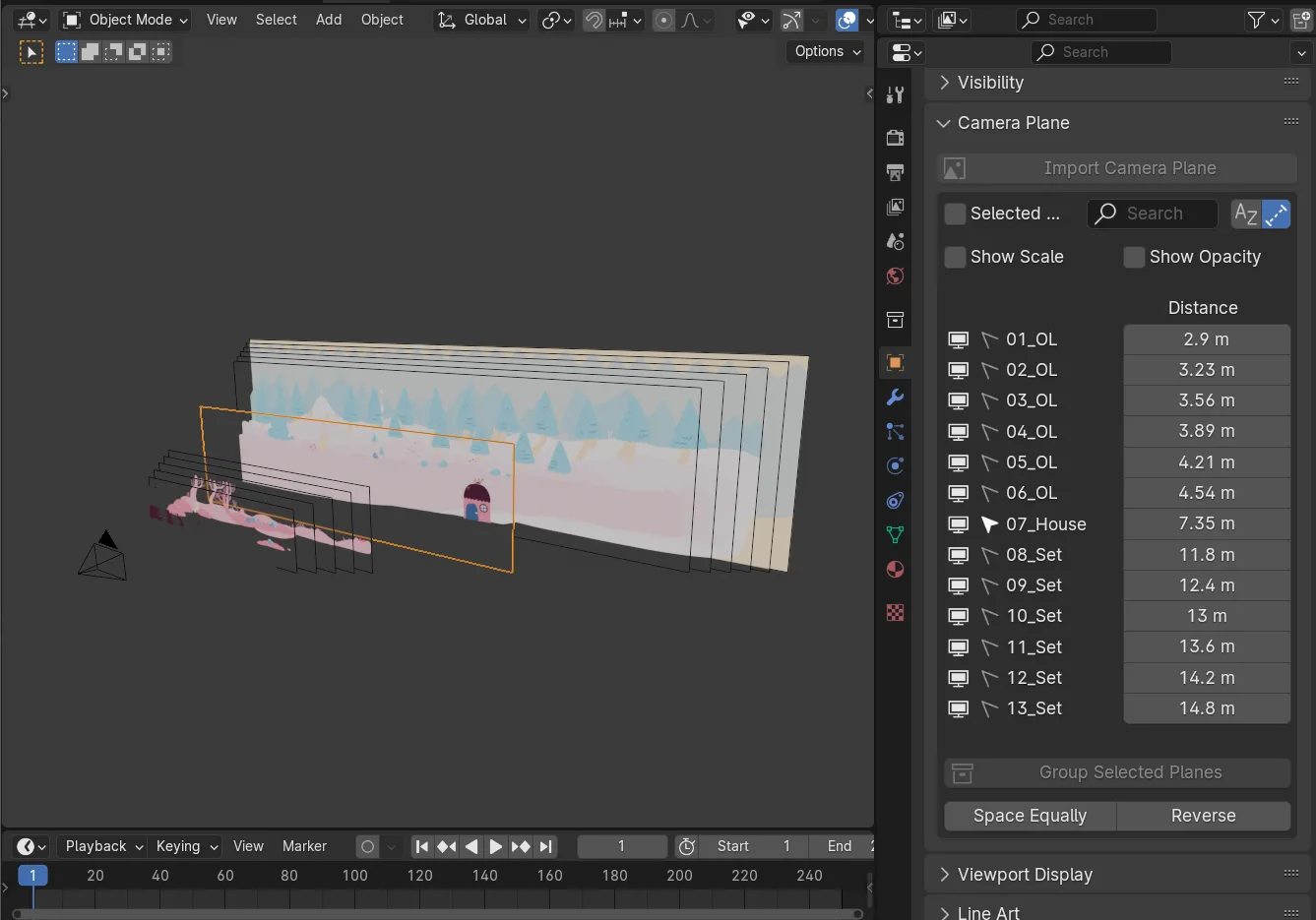
- Click Import Camera Planes from the object properties
- Select images to import
- The panel now extends to show a list of images.
- Those images can be filtered, and they can be displayed either in alphabetical order, or by increasing distance from the camera.
Image settings
From the Camera Plane panel, you can reorder the planes by setting their distance from the camera. Like other properties in Blender, you can click on a distance, drag up or down to include the distance from other planes, and then drag left or right to change the distance, and thus move several planes at once.
The scale and opacity of each image can likewise be tweaked by clicking Show Scale and Show Opacity, respectively.
Icons to the left of each layer can be used to change their visibility (both viewport and render at the same time), selectability, and to lock and unlock their transforms.
Operators
Some operators are available in the arrow menu to the top right to manipulate the planes.
Group Selected
This allows creating a sort of “precomposition” from the selected planes. It is useful when your sets have a lot of layers, not all of which should be placed individually.
Space Evenly
This will change the selected planes’s distances so that they all have the same distance between them.
Apply Selected
This will ungroup selected planes if necessary, and apply their drivers so they no longer need the Camera Plane add-on to be placed.
Setup Layers
This will create view layers for each of the planes, and assign them to collections. That way, they can be rendered to their own render pass and composited individually.
Convert to Camera Mapping
This operator, available in the viewport’s context menu (right-click / W), will set up the selected objects so they can be edited for camera mapping, with a UV project modifier and a Geometry Nodes setup that fixes UVs so that they are perspective correct. If no camera is selected, a new one will be created, so make sure to select the camera you want to use as projection.
Supercharge your 3D creation workflow with premium selection of Blender Add-ons. Whether you are modeling intricate characters, sculpting realistic environments, or animating cinematic sequences, the right add-on can transform how you work inside Blender. Our curated collection includes powerful tools for UV unwrapping, procedural texture generation, rigging automation, rendering optimization, and more—each rigorously tested for compatibility with the latest Blender versions. Eliminate tedious manual processes and unlock advanced functionality that lets you focus on what matters most: bringing your creative vision to life. Explore our full range of professional Blender plugins today and take your 3D projects to the next level.
➡️ ➡️ For more Blender Plugins 😀 😀
Reviews
There are no reviews yet.