

CircuitFX v1.75 Script for Building an Electronic Circuit in After Effects
This section includes the CircuitFX version 1.75 script for After Effects, which is available for download along with a video tutorial. With the help of this script, you can create an electronic circuit in After Effects. For most different teasers, you can create an electronic circuit effect. This script is very simple to work with, and you can quickly build this circuit board.
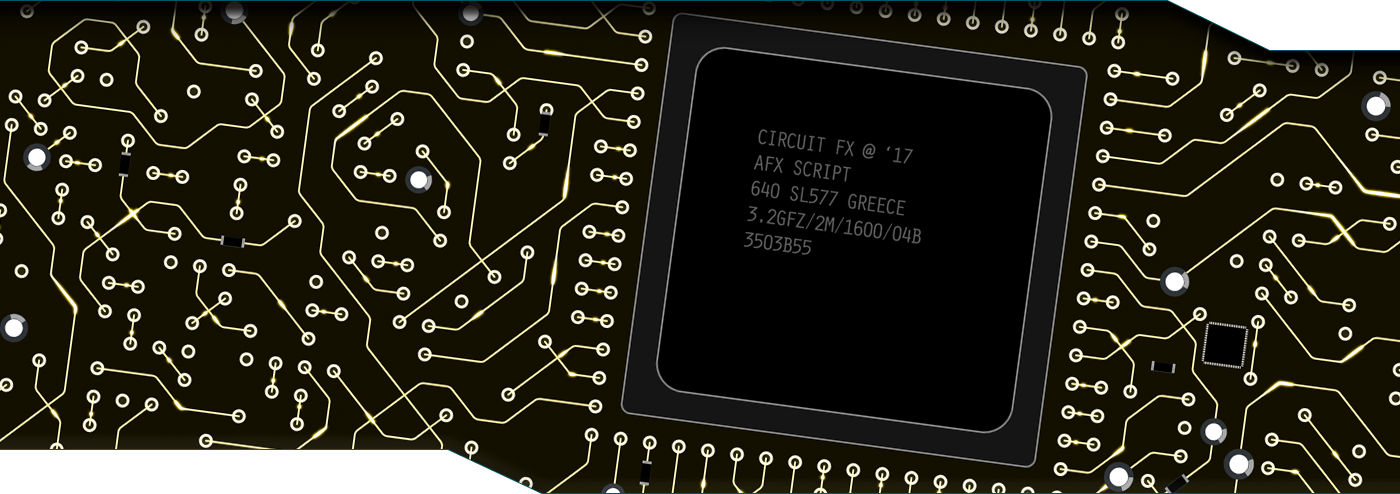
circuitFX is a tool for After Effects designed to create graphical circuit boards. The circuit pattern is generated randomly with every button press. Apart from the circuit lines and circles, circuitFX also creates, chips, resistors, and capacitors. It has the ability to put all of the needed parts in a single shape layer or create separate shape layers for each part of the board. Its ideal for technology or sci-fi related projects, animated backgrounds, HUDs, etc.
| https://www.youtube.com/embed/7MBv37PfyUQ?rel=0&autohide=1&modestbranding=1&showinfo=0&theme=light&color=white |
 ADD BUNDLE TO CART ADD BUNDLE TO CART |
https://www.youtube.com/embed/cHdc5YGEaBI?rel=0&autohide=1&modestbranding=1&showinfo=0&theme=light&color=white  |
| circuitFX is an exciting new tool for After Effects designed to create graphical circuit boards. The circuit pattern is generated randomly with every button press. Apart from the circuit lines and circles, circuitFX also creates, chips, resistors and capacitors. It has the ability to put all of the needed parts in a single shape layer or create separate shape layers for each part of the board. |
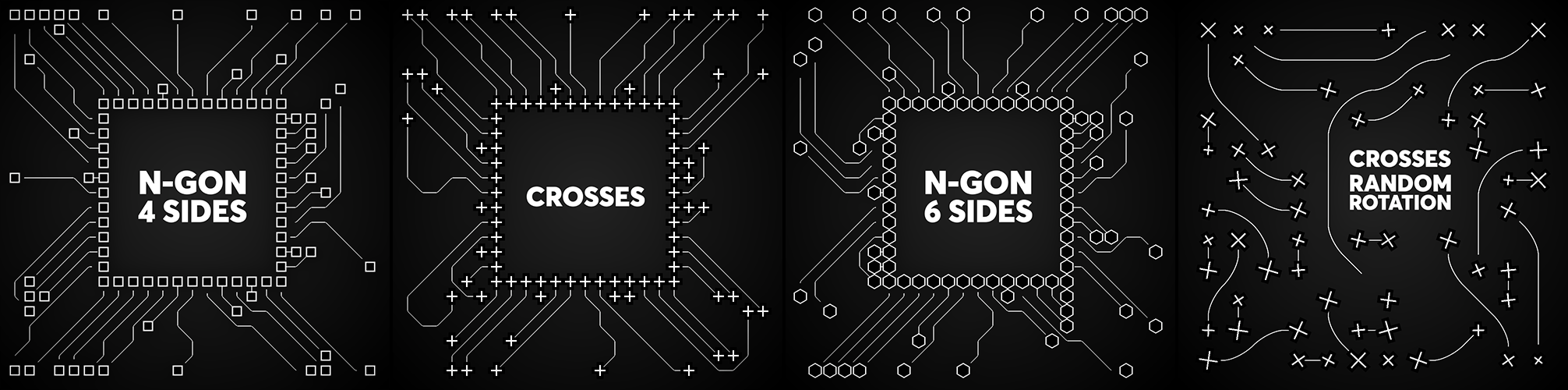
The latest update of circuitFX brings two new types of shapes for the start & end of each circuit line.You can now select between Cross, N-Gon and the default Circle. With the N-Gon shape you can create triangles, squares, hexagons etc. Below are a few examples: |
 |
The latest update also adds support for the “Difference” mask mode. circuitFX apart from the “Add” and “Subtract”, it now supports the “Difference” mask mode. This is an important addition if you are converting text-to-masks in order to generate a circuit inside each letter of a word |
 |
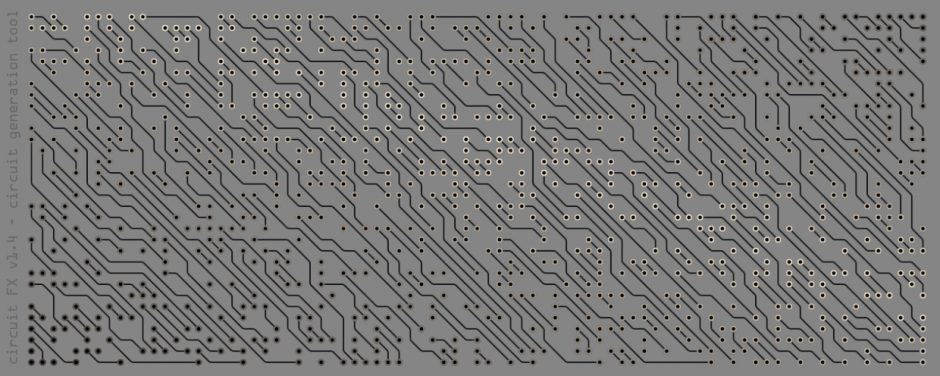
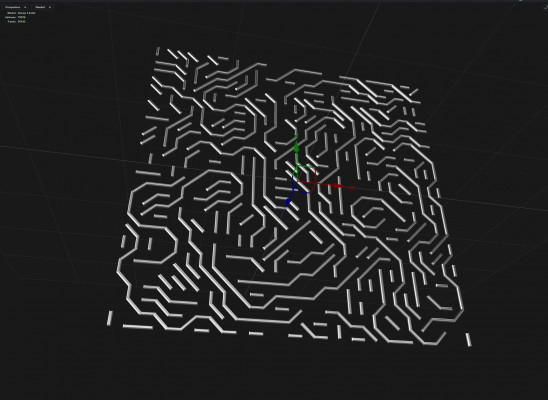
There are ten (10) circuit direction options to choose from. |
 |
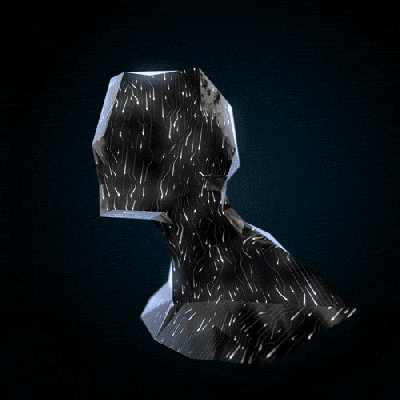
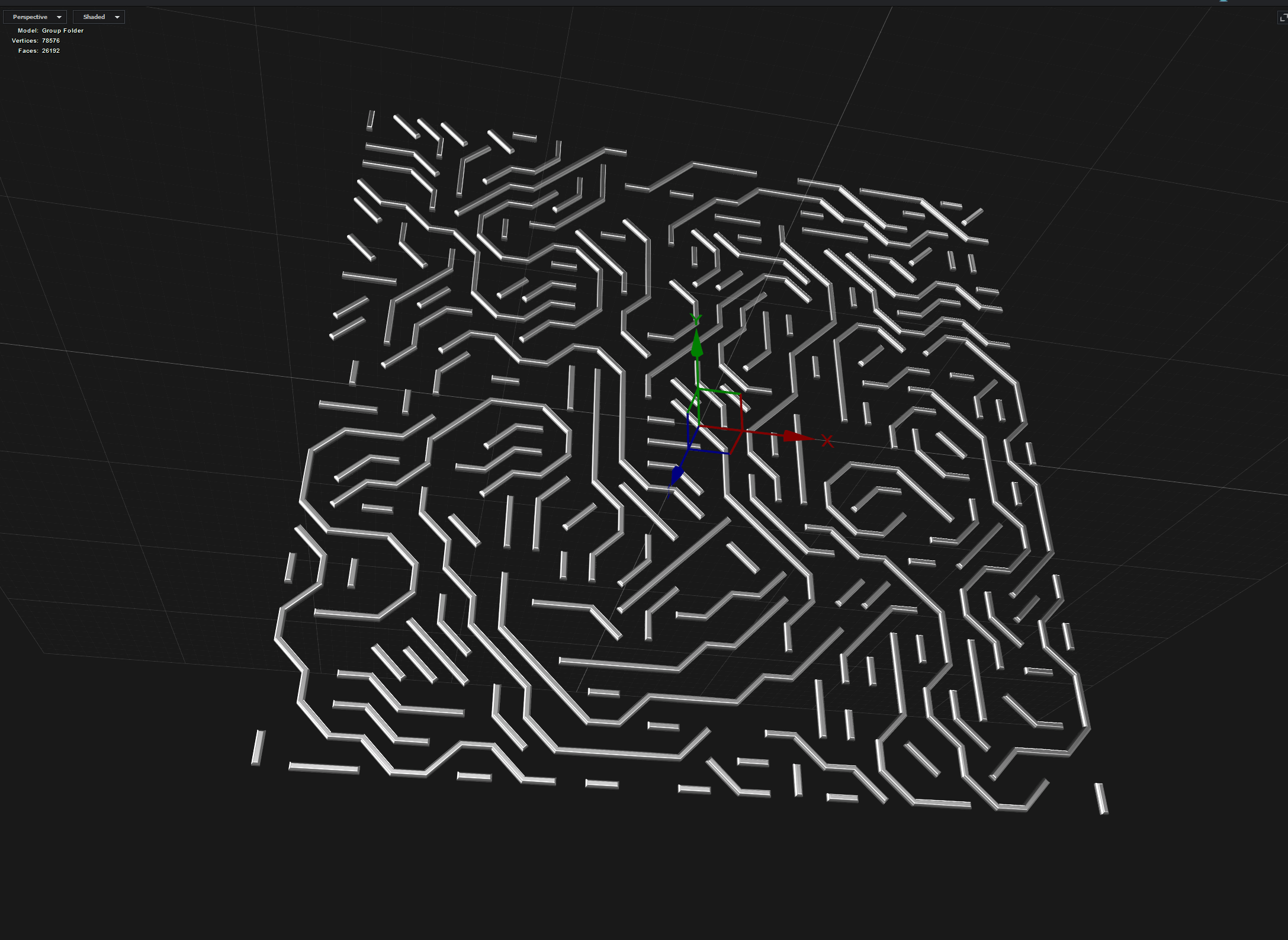 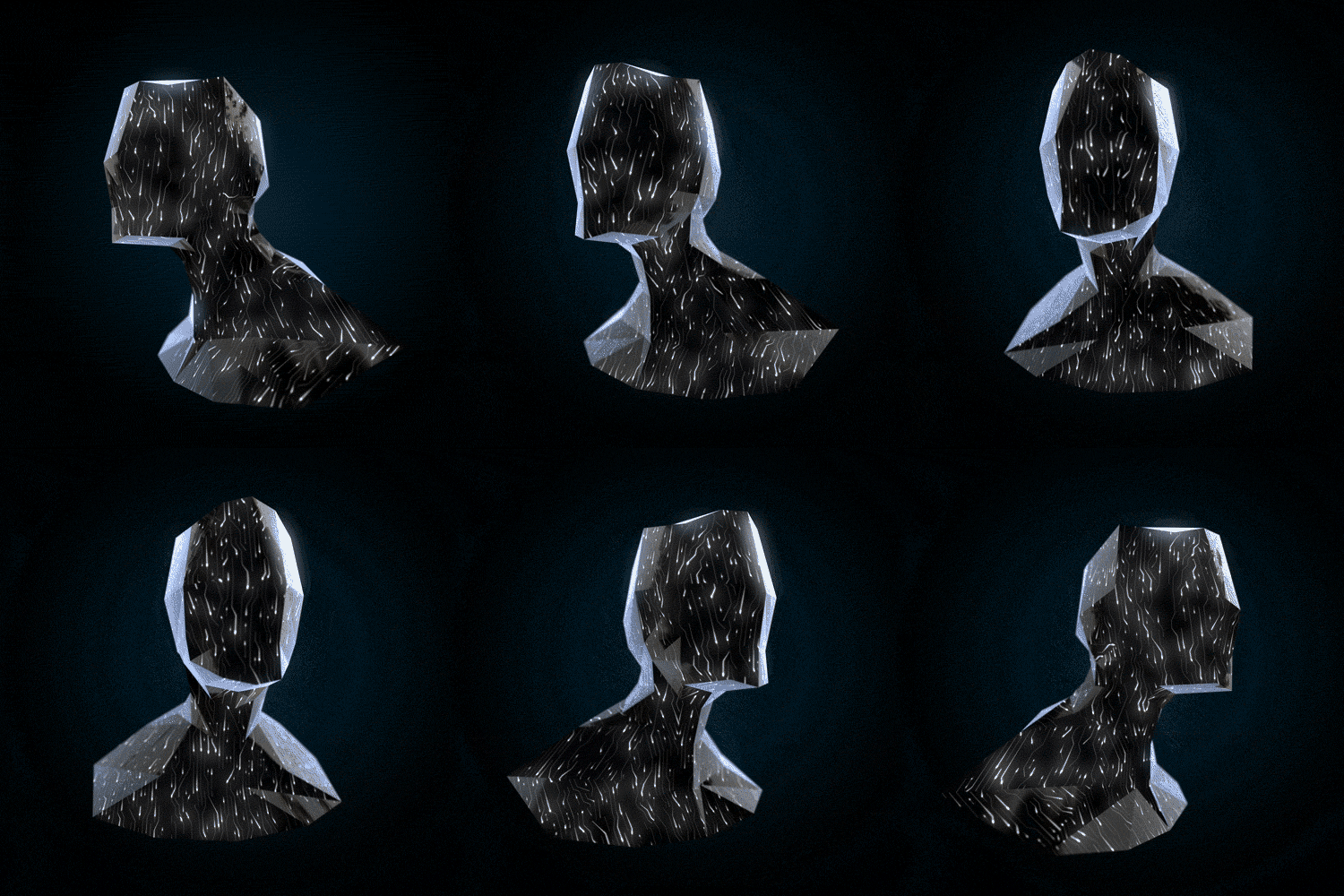 circuitFX can create a layer with the circuit lines as masks, which can be circuitFX can create a layer with the circuit lines as masks, which can beused as a source with 3rd-party plug-ins (such as Element3D)circuitFX can also be used as a texture map layer |
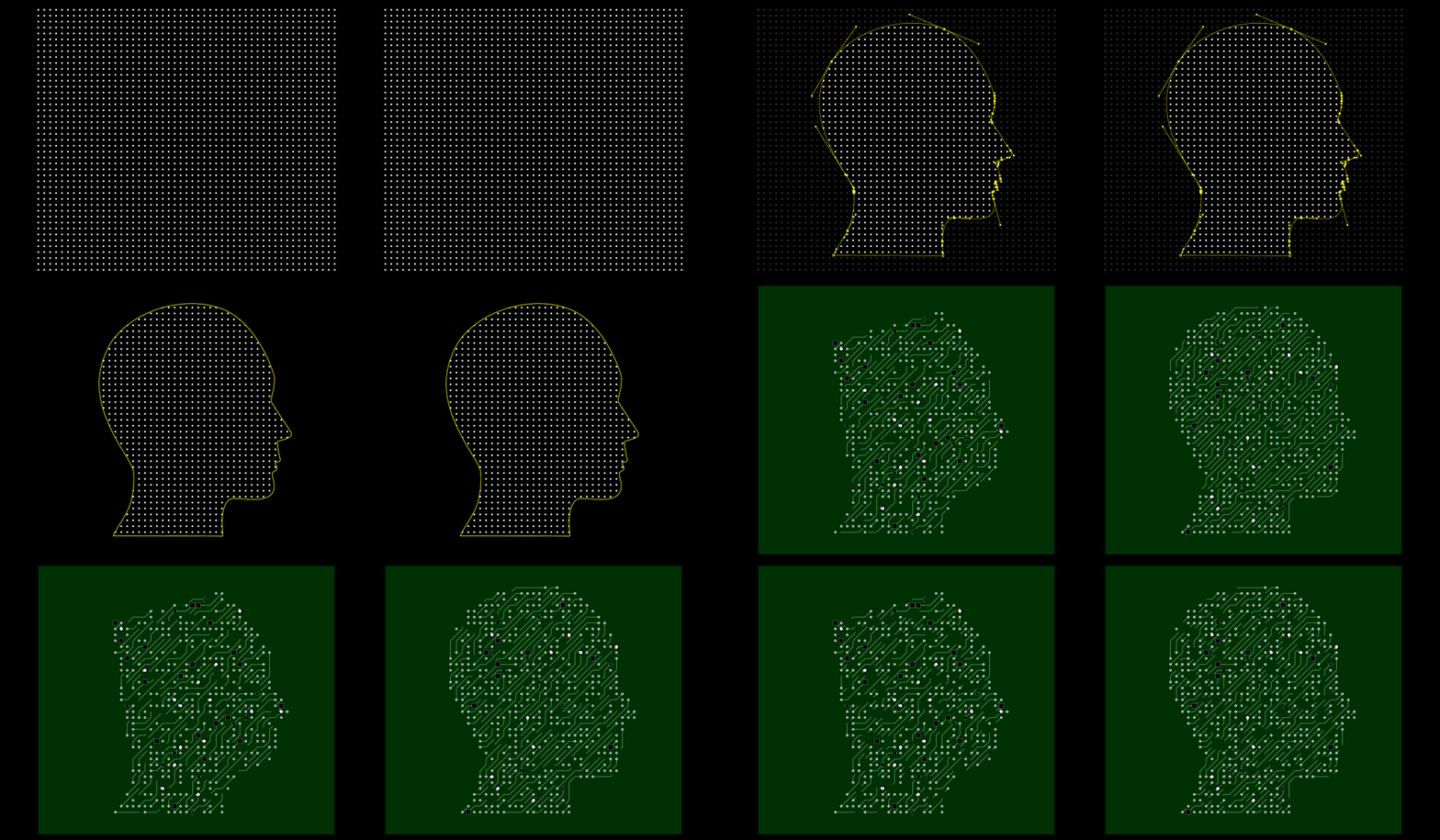
| Version 1.6 of circuitFX brought the ability to use bezier masks |
 |
| older versions version 1.6 and newer |
| circuitFX features three generation modes: • Fill out: fills the whole composition with the circuit board and its components. • Center-out: leaves a user defined center square empty (simulating a CPU socket). • Using Masks: uses masks from the grid guide layer to mask in/out parts of the circuit. |
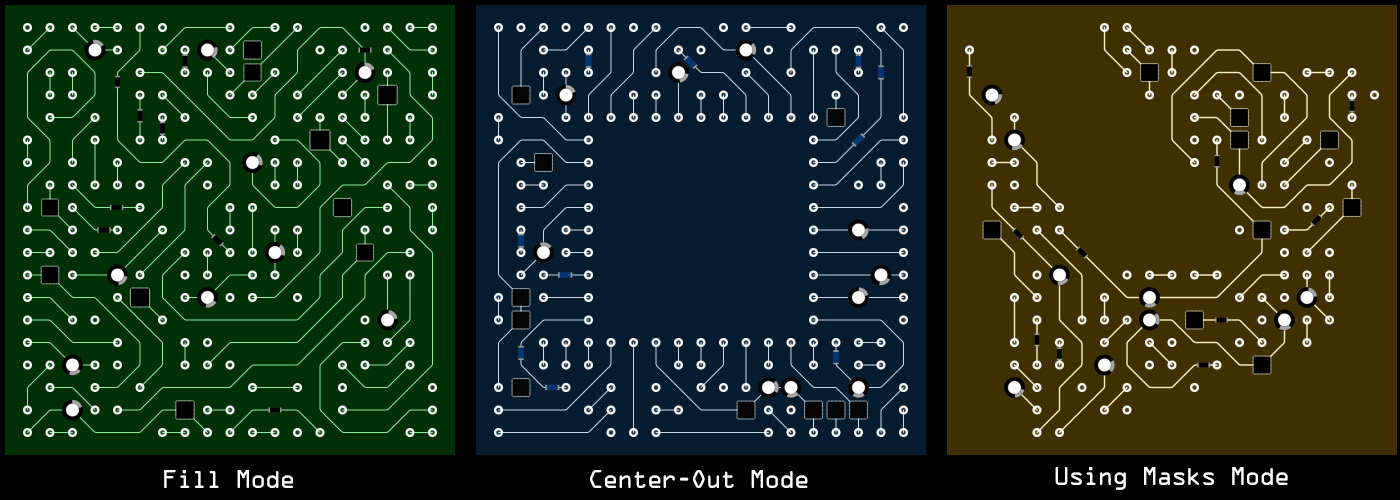 |
 |
You can easily adjust the the X and Y grid dimensions, for a more dense or scattered pattern. |
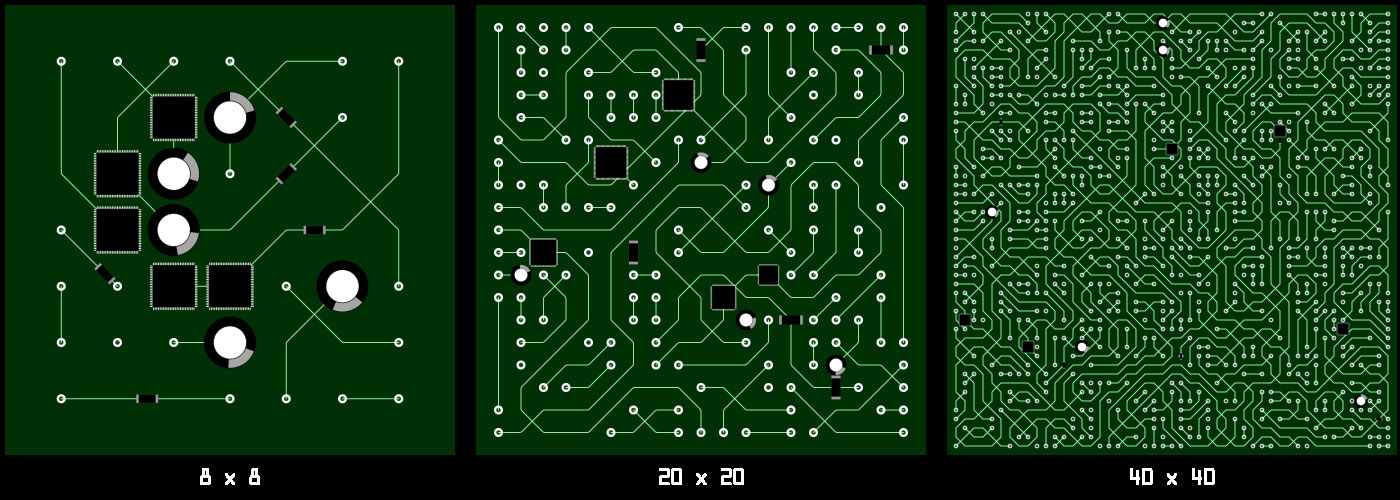 |
The populate slider adjusts the percentage of the grid points that are going to be used. |
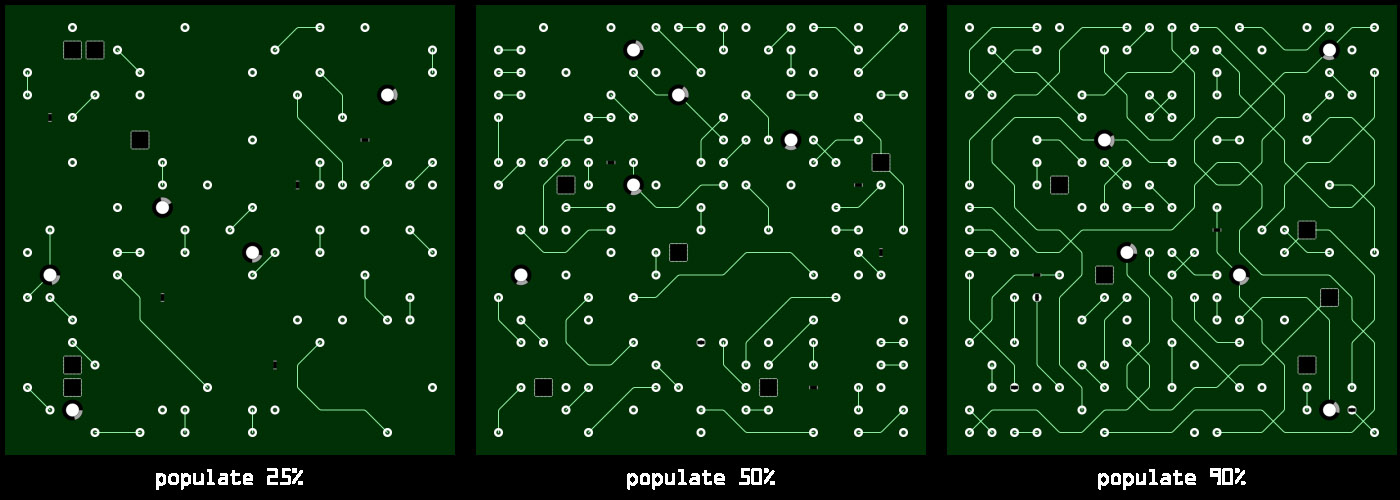 |
| You can adjust the minimum and maximum number of vertices of each circuit line. |
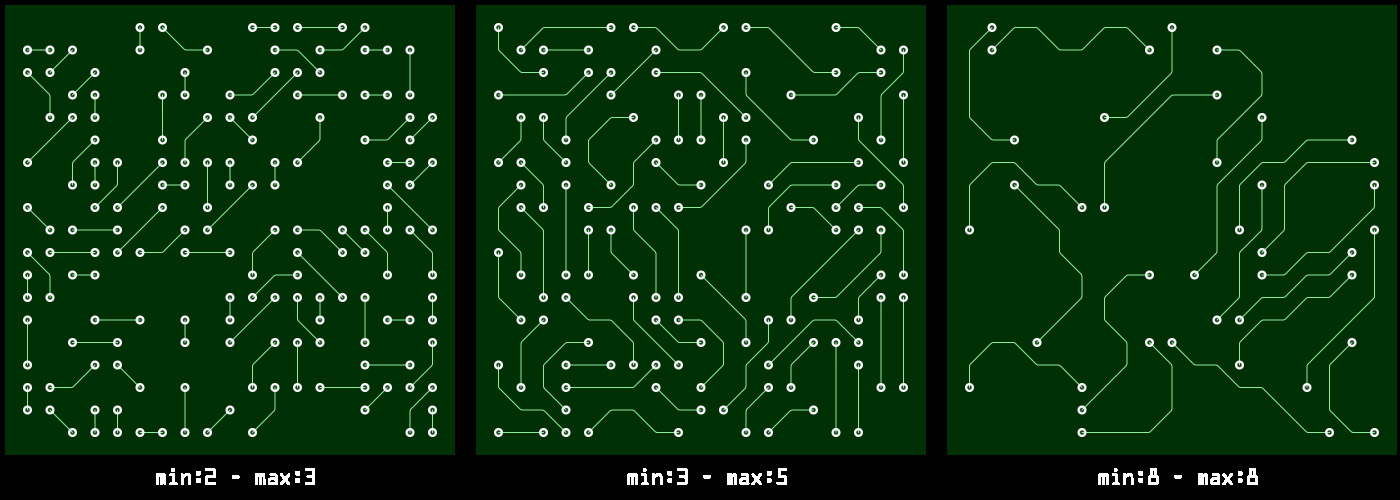 |
In the Center-Out mode, you can use the radius % slider, to adjust the size of the empty center rectangle. |
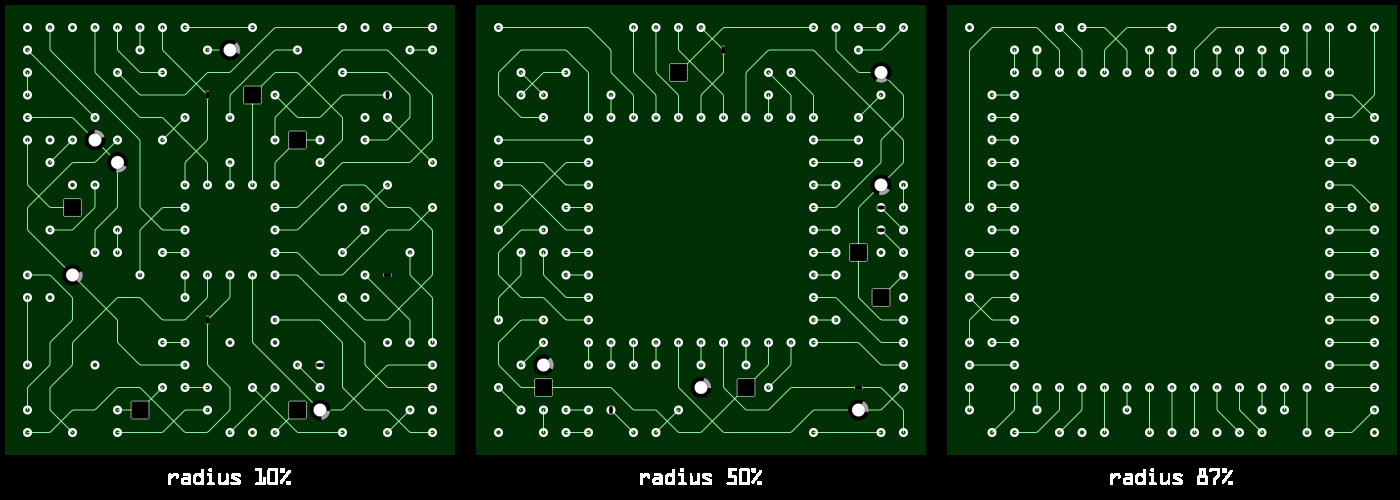 |
| The orientation of the circuit lines is also adjustable. |
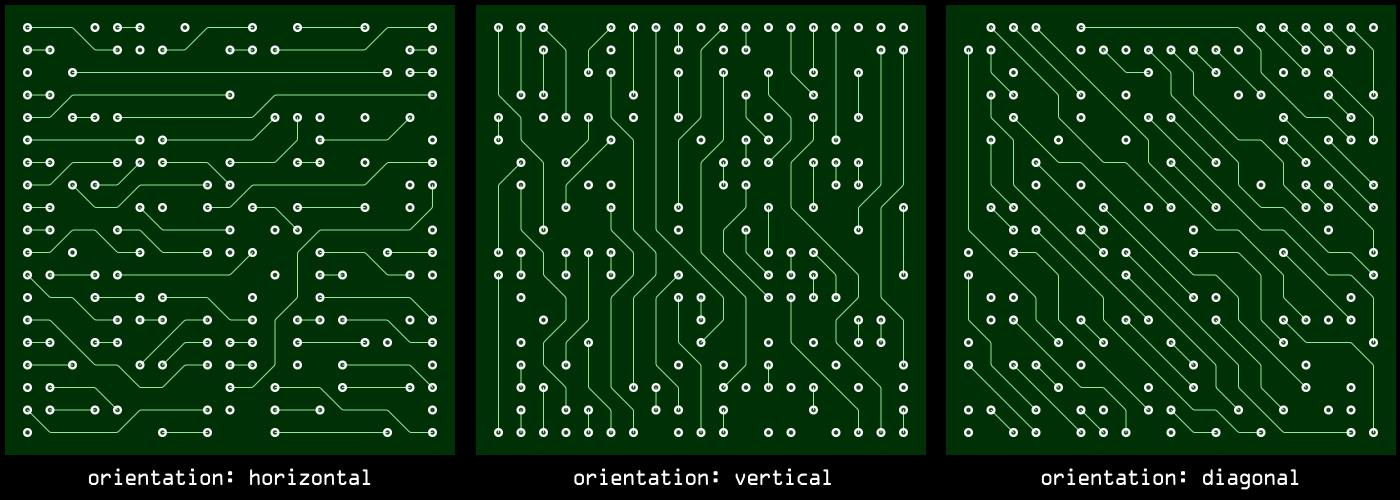 |
| You can also adjust the direction strength bias (for the examples below, orientation is set to “diagonal”). |
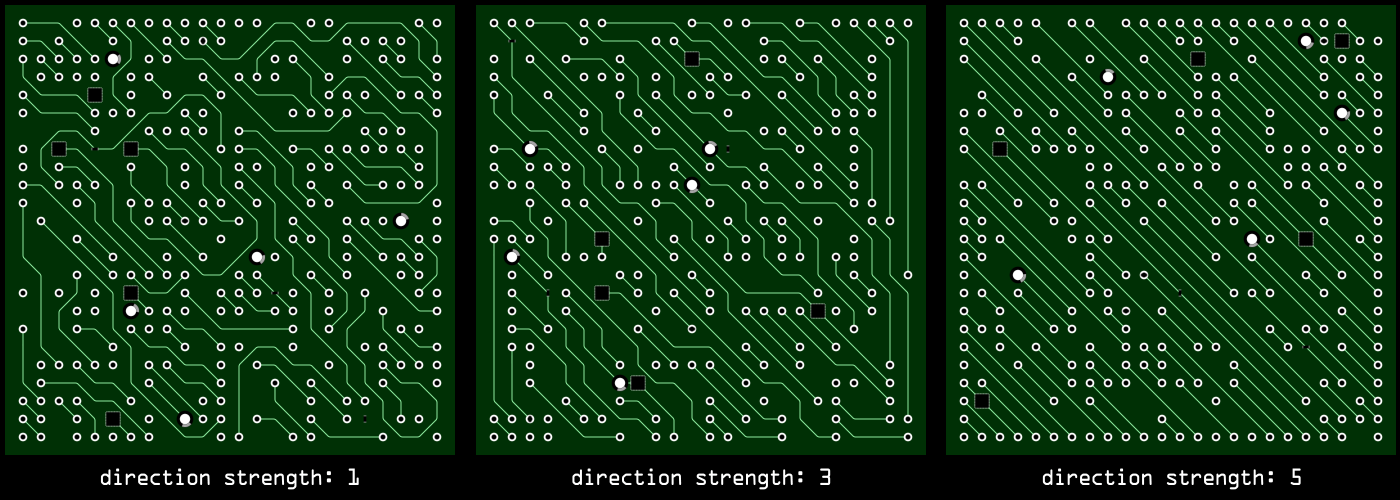 |
You can now add clusters to the circuit lines. Clusters are circuit lines with multiple offsets applied, to simulate parallel circuit paths. 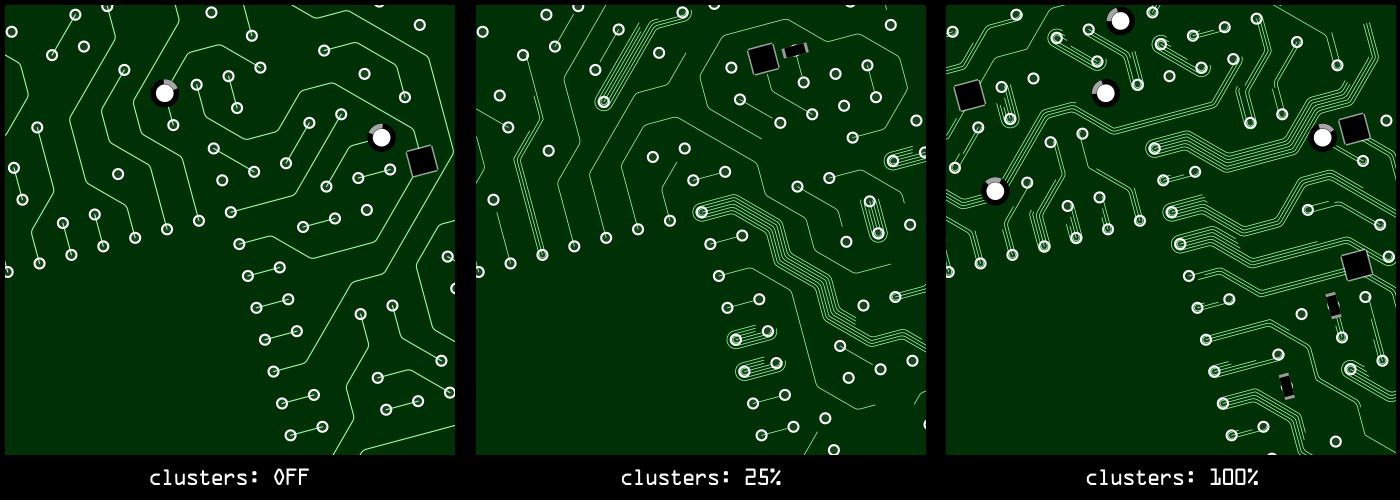 |
| There is a also a generation mode that uses masks from a grid guide layer to mask in/out points. Here is how the process works: |
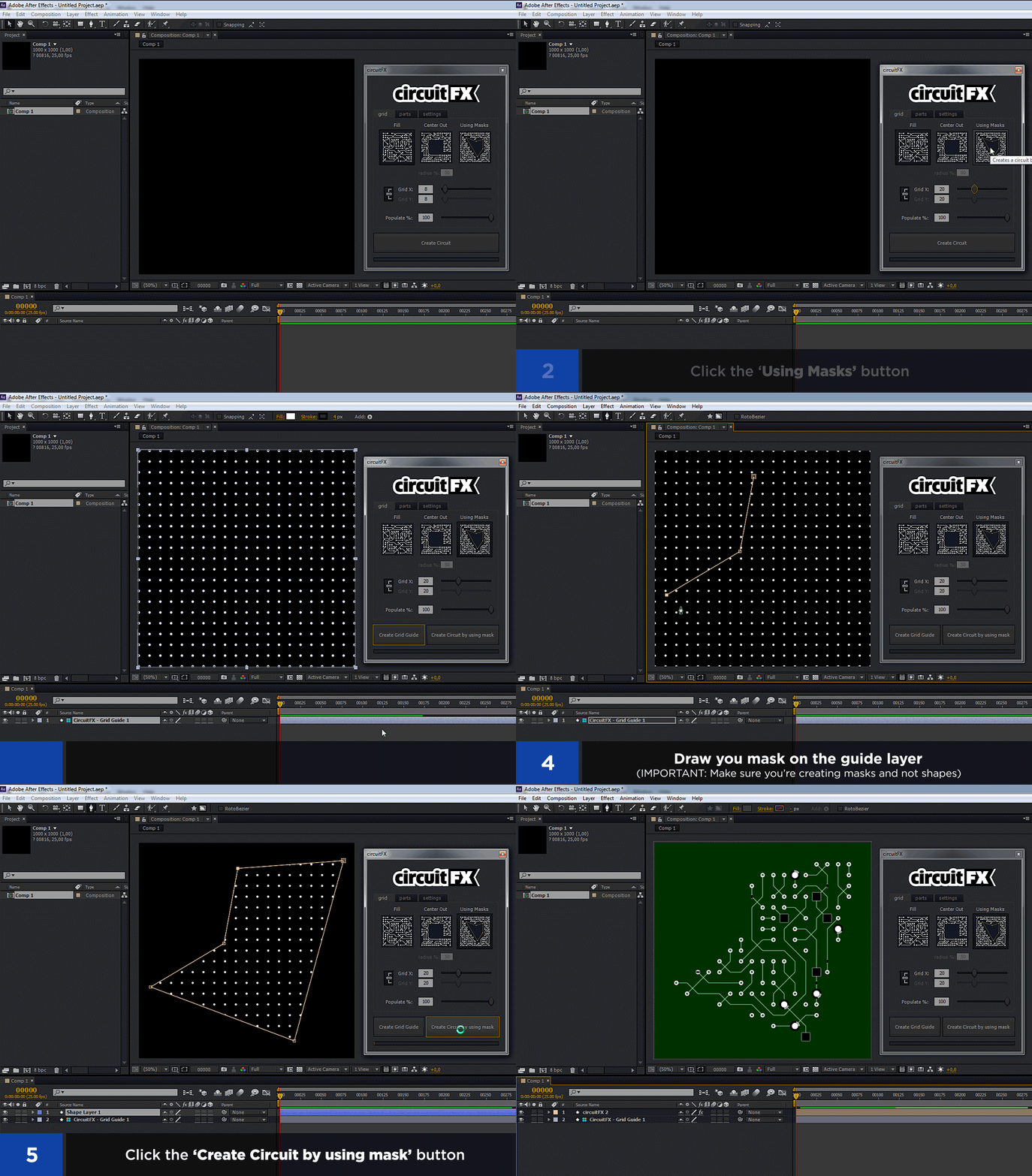 |
| The Using Masks mode is a five-step process: You adjust the “Grid X and Grid Y” number (this adjusts the density of the grid guide points and your final circuit)Select the “Using Masks” mode Click the “Create Grid Guide” button to make the gridDraw a mask(s) on the grid guide layer (be sure you are creating a mask and not a shape) With the grid guide layer selected in the timeline, you press the “Create circuit by using masks” button You can draw as many masks as you want on the grid guide layer. circuitFX uses all the masks in the grid guide layer as long as they are set on the Add or Subtrack mask path mode. You don’t have to create the grid guide layer every time you want to generate a circuit. If you are happy with the density of the grid points (Grid X and Grid Y values) you just select an already created grid guide layer and create new circuits. |
 |
You can easily adjust the number, size, size randomness, color of the chips, resistors and capacitors.You can also easily adjust the lines and circles color and width.There is also an option to avoid circuit lines from crossing each other.Finally, you can adjust the trim start, trim end and trim offset of the lines to easily create complicated animations, like electric current flowing through the board. circuitFX is compatible with:After Effects CS6After Effects CCAfter Effects CC 2014After Effects CC 2015After Effects CC 2017After Effects CC 2018After Effects CC 2019After Effects 2020After Effects 2021After Effects 2022After Effects 2023After Effects 2024on both Windows and macOS (with Intel or Apple Silicon) platforms. |
Below is an excellent example of implementing circuitFX in a commercial production. The 2018 Game Developers Choice Awards by Kert Gartner.https://player.vimeo.com/video/261656955?portrait=0 |
 |

Reviews
There are no reviews yet.