
CM Plush Brush 40 Graphic AI Brushes
Illustrator brushes with various decorative borders 4.61 MB | ABR & PDF format
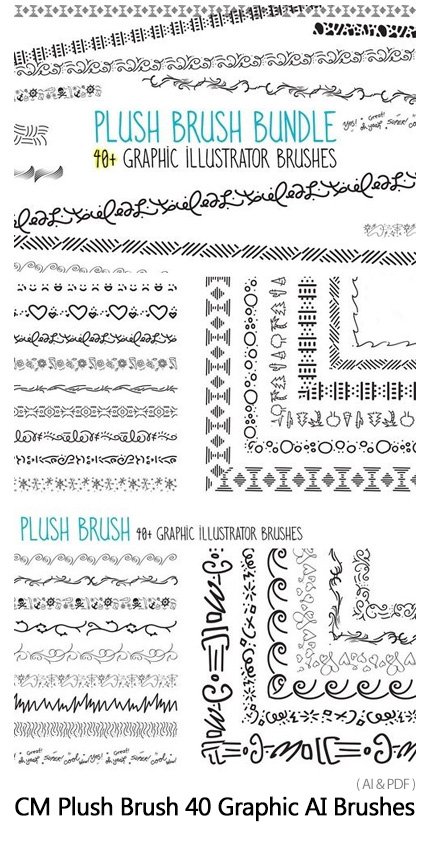
This collection includes 40 examples of various decorative border brushes for Illustrator, which are available for download in AI and PDF format on the site.
CM Plush Brush 40 Graphic AI Brushes
Plush Brush is a bundle of over 40 fully custom line art brushes for Adobe Illustrator. This collection is a nice variety of thin and thick; graphic and abstract; and casual and formal designs.
All elements have been drawn from scratch and do not contain automatic tracings. Only clear, custom, one-of-a-kind vectors are included. Download package includes preview PDF and .ai brush plug-in file.
List of brushes:
- Sugarsock Wave
- Sugarsock Hatch
- Sugarsock Lines & Dots
- Sugarsock Forest
- Sugarsock Bubbles
- Sugarsock Navajo
- Sugarsock Smileys
- Sugarsock Hearts
- Sugarsock Cursive
- Sugarsock Blooms
- Sugarsock Grain
- Sugarsock Robot Bits
- Sugarsock Cursive 2
- Sugarsock Cursive 3
- Sugarsock Snowflakes
- Sugarsock Cursive 4
- Sugarsock Tribal
- Sugarsock Hearts 2
- Sugarsock Ammonite
- Sugarsock Confetti
- Sugarsock Scribble
- Sugarsock Swirls
- Sugarsock Tribal 2
- Sugarsock Booty
- Sugarsock Winter Berry
- Sugarsock Scrolls
- Sugarsock Midcentury
- Sugarsock Heartbeat
- Sugarsock Linguini
- Sugarsock Yes
- Sugarsock Shoes
- Sugarsock Squiggles & Dots
- Sugarsock Inkpen
- Sugarsock Inkpen 2
- Sugarsock Braille
- Sugarsock Scroll Pen
- Sugarsock Hatch 2
- Sugarsock Giraffe
- Sugarsock Lightning
- Sugarsock Ribbons
- Sugarsock Cross Stitch
- Sugarsock Scroll Pen 2


The Brush tool allows you to paint on any layer, much like a real paintbrush.
It’s easy to use the Brush tool to paint in your document. Simply Import The Brushes, locate and select the Brush tool from the Tools panel, then click and drag in the document window to paint. You can also press the B key on your keyboard to select the Brush tool at any time.
Brush Size: If you want to make the brush larger or smaller, click the Brush Picker drop-down arrow in the Control panel, then adjust the Size slider. You can also press the bracket keys [ ] to quickly increase or decrease the brush size at any time.
Hardness: If you want to make the edges of the brush harder or softer, you can adjust the hardness from the same drop-down menu. A harder brush will have clear, defined edges, whereas a softer brush will have blurry, less-defined edges. For most situations, we recommend setting the hardness to 50% or less because it will help to make individual brush strokes less obvious.
Brush Tip: If you want to create a unique effect, there are different brush tips to choose from in the same drop-down menu. Some of these are designed to mimic real-life drawing tools like pens and markers, while others are simpler.
Opacity: By default, the opacity of your brush is set to 100%, meaning the brush will use the highest intensity. However, you can reduce the opacity of your brush to make it less intense.
➡️ ➡️ For More Brushes Products 😀 😀
System Requirement For Photoshop CC


Reviews
There are no reviews yet.