
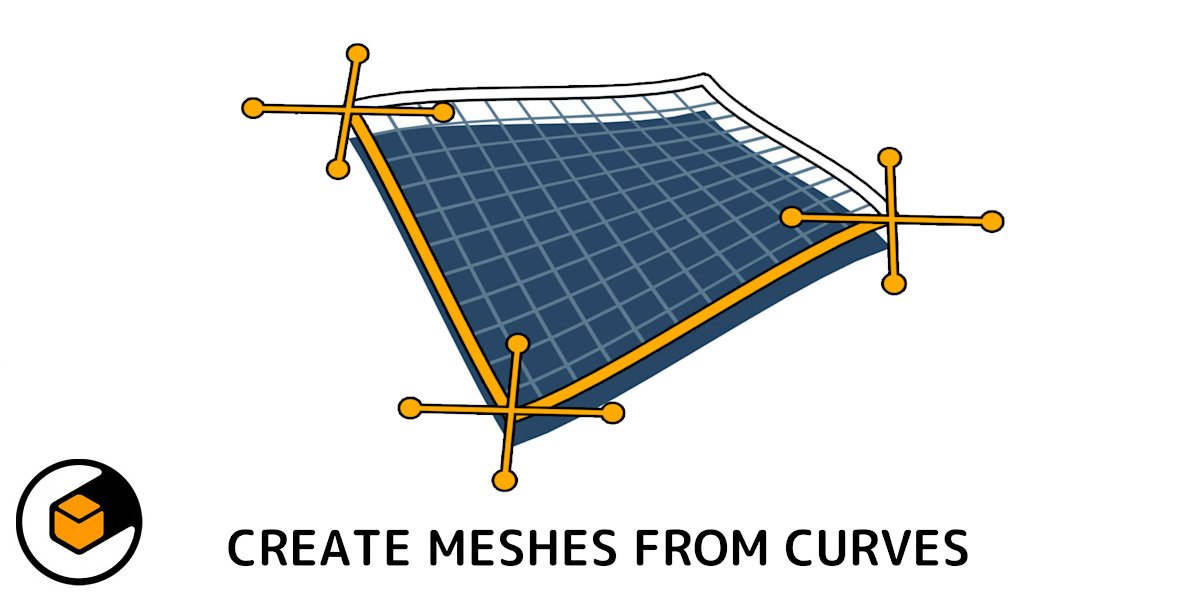
Curves To Mesh for Blender
curves to mesh addon
Curves To Mesh v2.8.1 for Blender – Advanced Curve-to-Mesh Conversion Tool
Version: V2.8.1
File Size: 10 MB
Download Curves To Mesh v2.8.1 for Blender on Windows, Mac, and Linux, a powerful add-on that converts bezier curves, paths, and splines into clean, editable meshes with advanced profile and bevel controls. Perfect for creating pipes, cables, rails, ribbons, and custom extrusions from curve paths.
Key Features of Curves To Mesh v2.8.1:
- Profile Extrusion: Extrude custom profiles along curve paths for pipes, rails, and cables
- Multiple Profile Shapes: Circle, square, rectangle, triangle, and custom profile curves
- Bevel Control: Adjust bevel depth, resolution, and shape for smooth edges
- Taper Control: Scale profiles along curve length for tapered extrusions
- Twist Control: Add twist rotation along extruded geometry
- Cap Options: Add end caps to open extrusions
- UV Generation: Automatic UV mapping for extruded geometry
- Real-Time Preview: See conversion results update instantly
- v2.8.1 Updates: New profile options, enhanced UV generation, and Blender 4.0+ compatibility
Perfect For:
- Hard-surface modelers creating pipes, cables, and tubing systems
- Product designers generating extruded product shapes
- Motion graphics artists creating 3D ribbons and flowing forms
- Architectural modelers designing railings and trim
- Anyone needing curve-to-mesh conversion with profile control
System Requirements:
- Blender 3.6, 4.0, 4.1, 4.2, 4.3
- Windows 10/11 (64-bit), macOS, or Linux
- 4GB RAM minimum (8GB+ recommended)
- 15MB available disk space
Installation:
- Download the add-on zip file
- In Blender, go to Edit > Preferences > Add-ons
- Click “Install” and select the downloaded zip file
- Enable the add-on by checking the box next to “Curves To Mesh”
Note: Curves To Mesh v2.8.1 provides professional curve-to-mesh conversion for Blender, allowing you to create pipes, cables, rails, and ribbons from any curve path with custom profile extrusion. The bevel, taper, and twist controls make it essential for hard-surface modelers, product designers, and motion graphics artists. Designed for Blender 3.6 and above.



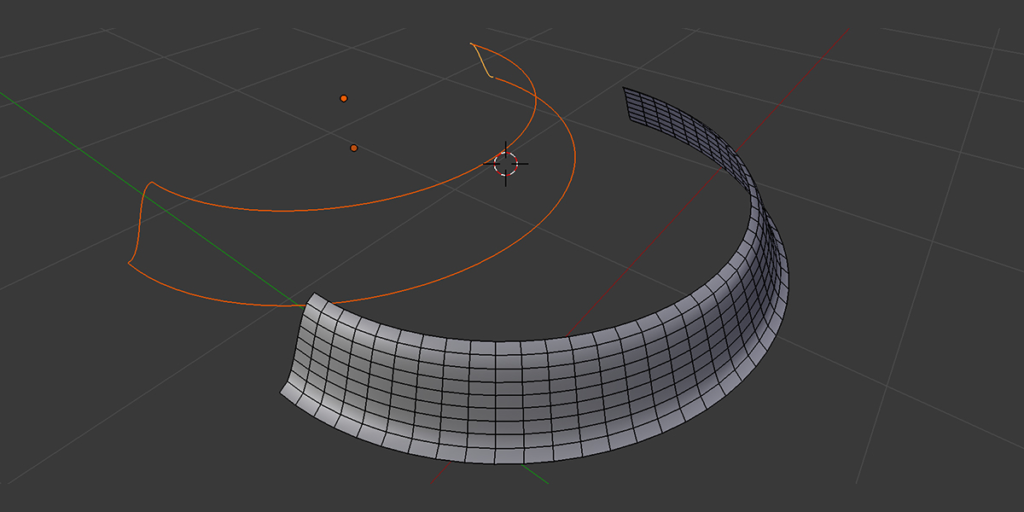
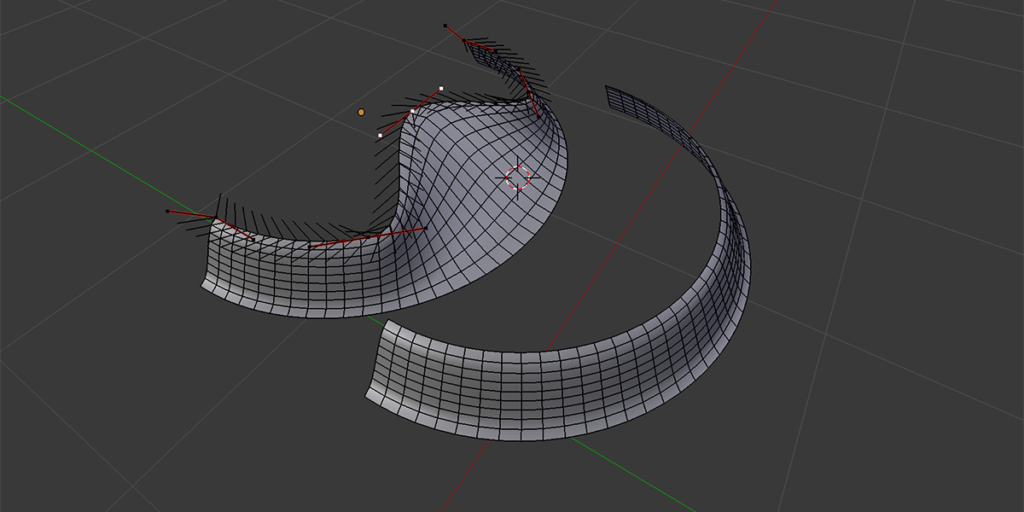


What is Curves to Mesh?

Curves to Mesh is an add-on for 3D modellers who want to create mesh surfaces from a network of bezier curves. Once created, these can then be used alongside Blender’s core modelling tools to create more complex shapes.
Workflow
- Create a set of bezier curves in Blender. There are three modes to choose from:
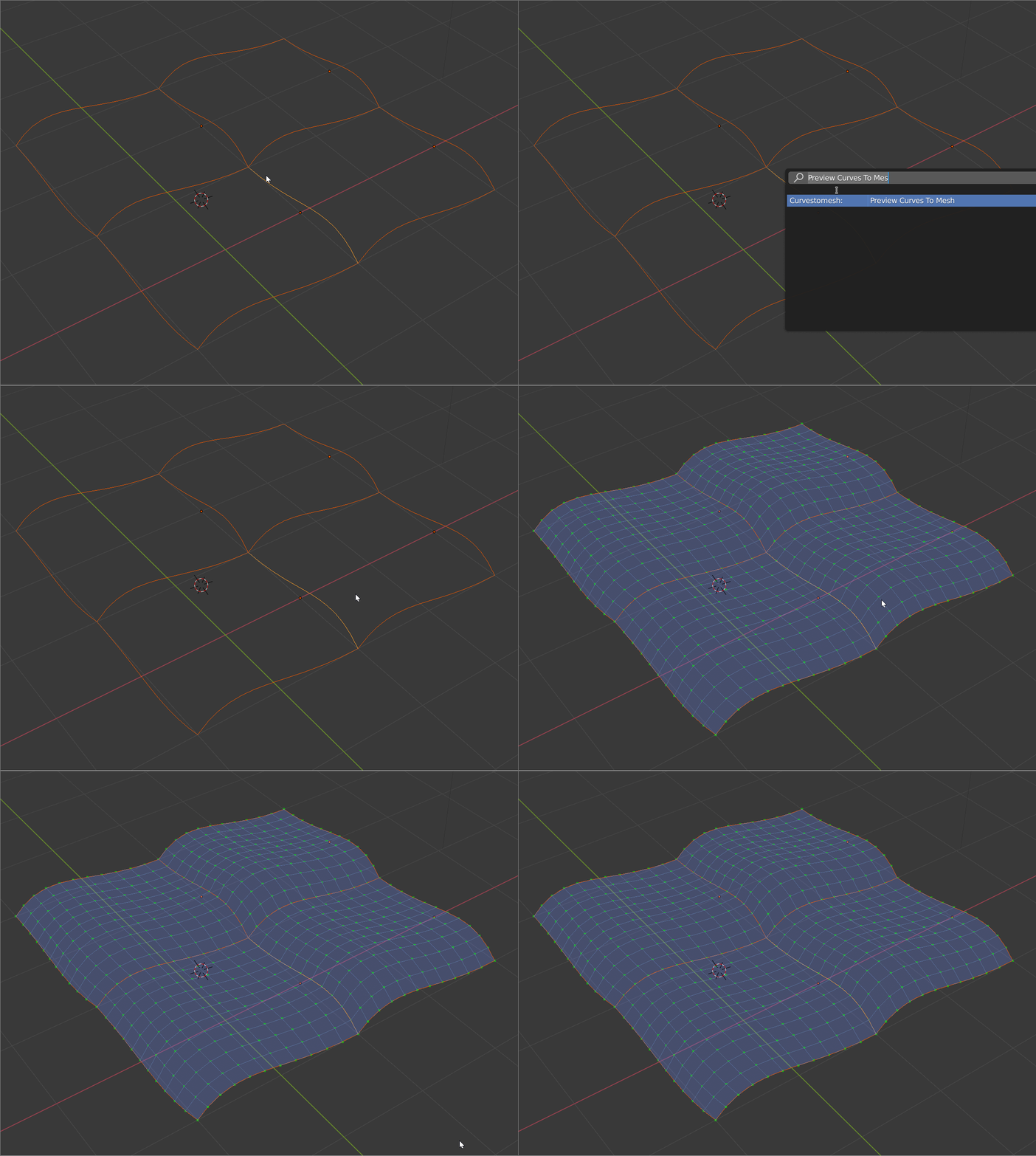
- Surface to Mesh: Form a network of four separate curve segments to define a single quad-based surface. These four separated curve segments can then be connected together with other curve segments to create a whole network of patches.💡 Important: The add-on detects corners where curves meet. A single closed curve (like a rectangle or polygon) won’t be recognised as a surface. For best results, split closed shapes into four separate curves before generating the mesh.

- Profiles to Mesh: Create a set of curve cross sections to loft 3D shapes.

- Sweep to Mesh: Create a set of curves along another curve to loft 3D shapes.

- Surface to Mesh: Form a network of four separate curve segments to define a single quad-based surface. These four separated curve segments can then be connected together with other curve segments to create a whole network of patches.💡 Important: The add-on detects corners where curves meet. A single closed curve (like a rectangle or polygon) won’t be recognised as a surface. For best results, split closed shapes into four separate curves before generating the mesh.
- Preview the mesh in real-time as you edit the curves.
- Convert the curves into a normal Blender mesh surface.
- Use this regular mesh surface like any other alongside Blender’s traditional mesh modelling techniques to create more complex objects for export or rendering.
Features
- Additional options including mirroring, smoothing and control point snapping.

- Works on a variety of bezier handle types (Vector, Aligned, Free).
- Compatible with my other popular add-ons such as Flowify, Quad Maker and Conform Object.
Comparison: Loft Curves vs Curves to Mesh
You may wish to consider the Loft Curves add-on as an alternative to Curves to Mesh which comes in the form of an interactive modifier:
| Feature/Workflow | Curves to Mesh (C2M) | Loft Curves (LC) |
| Core Focus | Patch based mesh generation (rectangular patches) | Loft/extrusion between 2+ curves |
| Modifier based | No | Yes |
| Creation Process | Preview -> Apply | Add Modifier through Loft Curves Panel |
| Guide Curves | No: Patch based | Yes: between profiles |
| Sweep/Profile Tools | Yes | Yes |
| Smoothing / interpolation | More advanced smoothing options | Basic Smoothing Options |
| Side-panel UI | Yes | Yes (for initial set up) |
| Best use case | Quad based surfaces from split curve patches | Organic, flowing shapes and flexible lofting |
| UV Map | Partial | Yes |
| Architecture | Python | Python + Geometry Nodes |
Please Note!
- This add-on is not intended to be a full CAD tool and should be used with Blender’s existing modelling toolkit.
- The add-on assumes an understanding of using bezier curves, subdivision surface modelling and a working knowledge of Blender.
How are the meshes created?
Meshes can be created from:
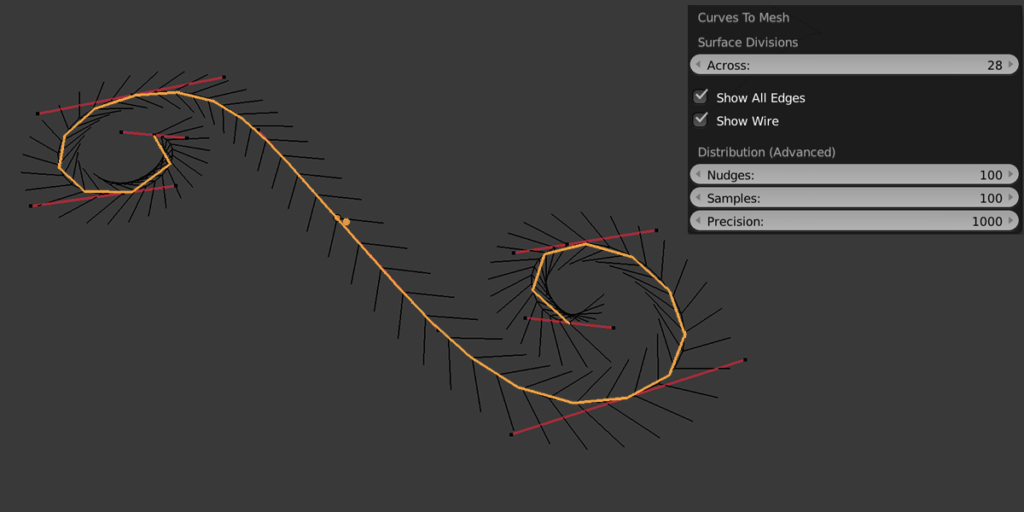
Single Curves:
An unfilled edge-loop mesh can be created from a singular curve. Curves can be cyclic (joined up in a loop) or non-cyclic.

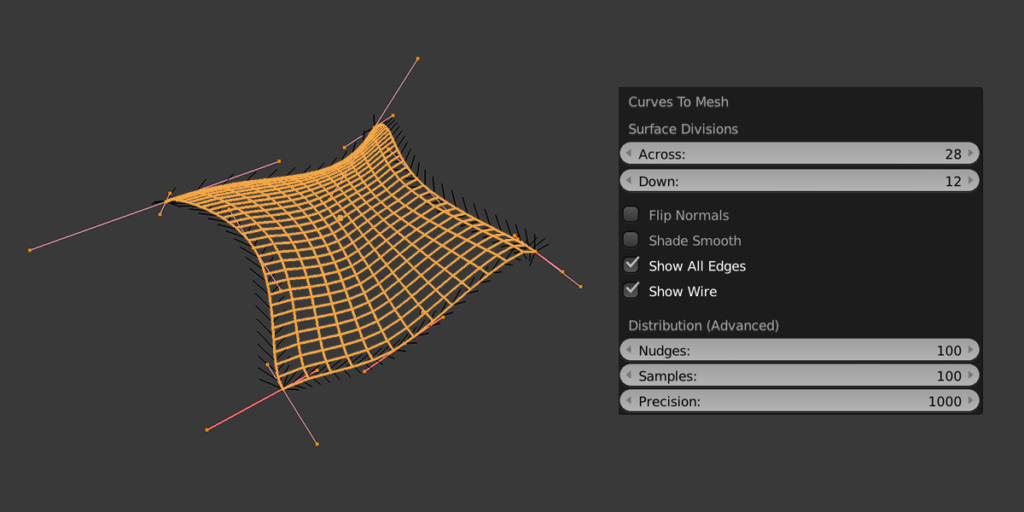
4 sided Curve Surfaces:

A surface can be created by making a set of 4 curves that have their end points snapped to one another:
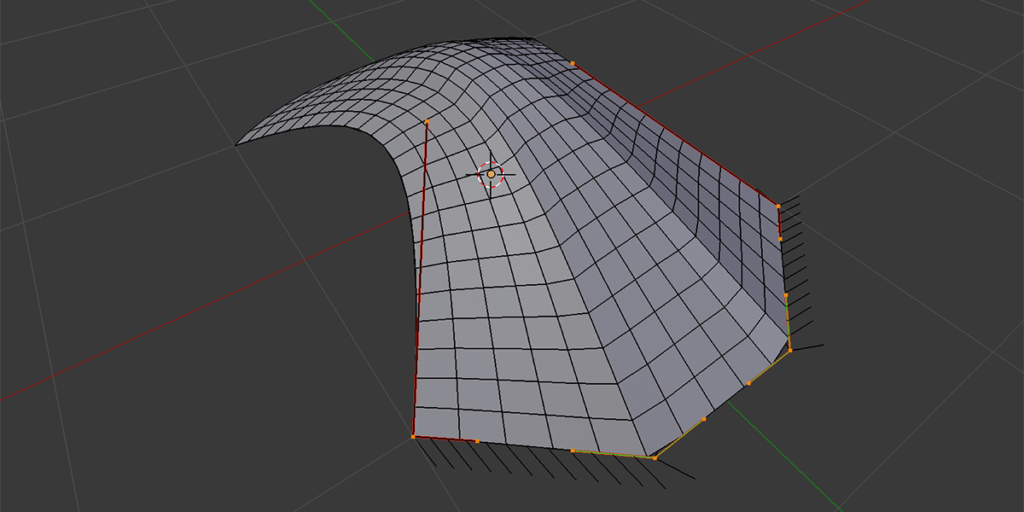
Curve Cross Sections:
A mesh surface can be created by joining curves together. Curves can be cyclic (joined up in a loop) or non-cyclic:
“Profiles to Mesh” mode:

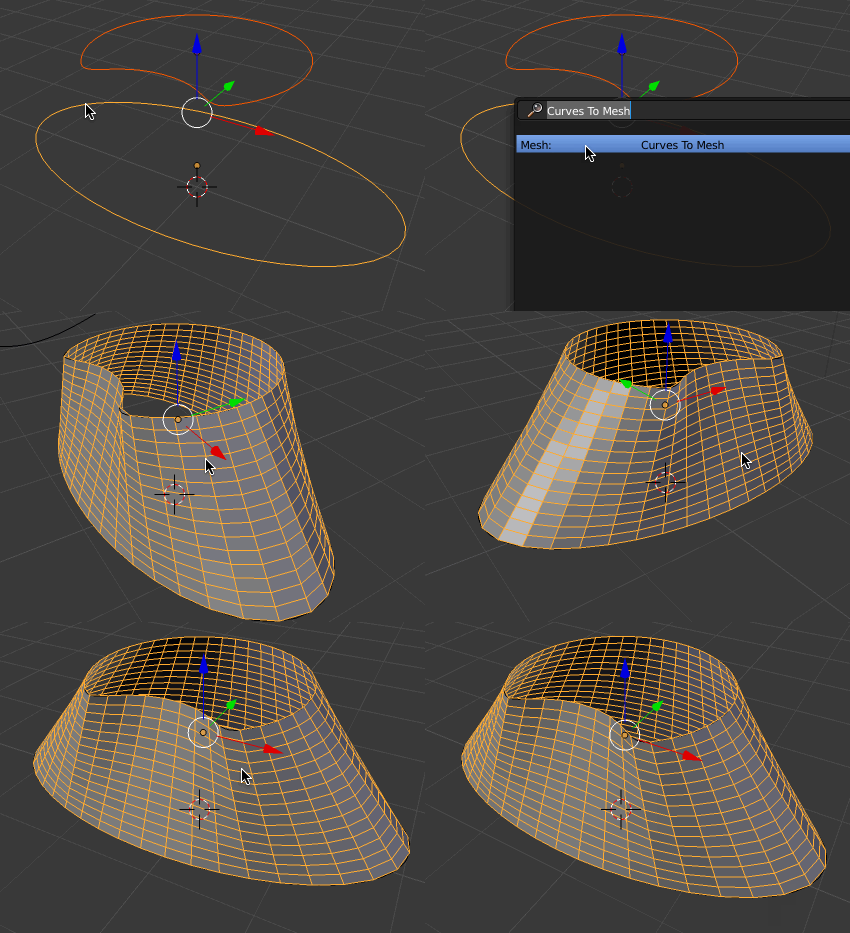
“Sweep to Mesh” Mode:

Example Files
Example files include:
Any Questions?
Do not hesitate to get in touch with me if you have a question, a new feature suggestion, or an image you’d like to share. You can contact me by clicking the ‘Contact Creator’ link on this page or by emailing info@configurate.net.
Updates
Version 2.5.x: Curve ordering in Profiles to Mesh
By default, when in Profiles to Mesh mode, the order in which the curves are joined together is determined by how close they are to one another. There is a new option where you can instead order the curves by Curve Name, which gives you finer control over the order in which the curves are joined.
The new option, called Bridge Ordering, is described in the documentation:
Ordering by Position (the default):

Ordering by Curve Name: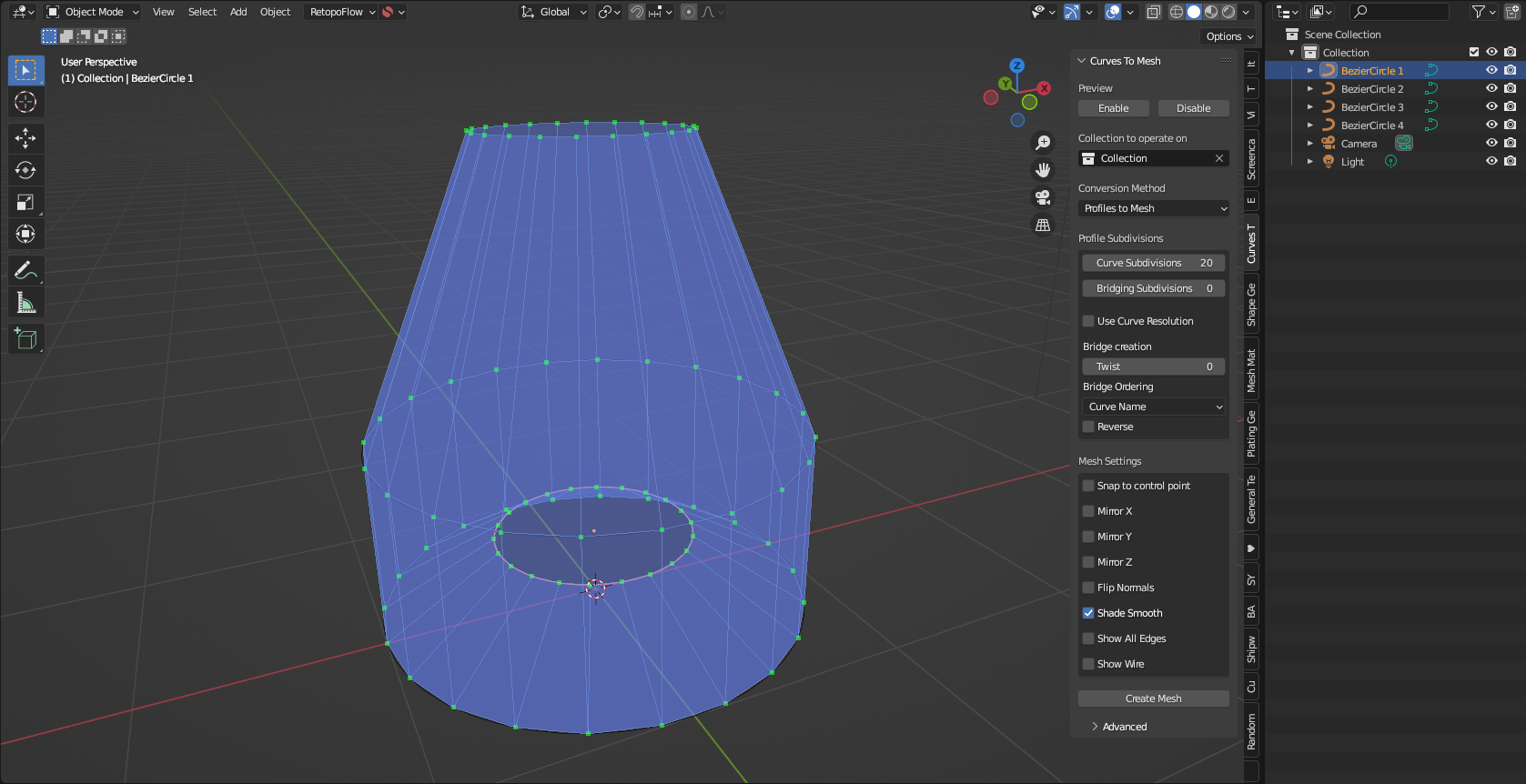
Reversed: When ordering by Curve Name, this reverses the order of the curves, in case the results appear incorrect (a minor Blender bug)
Version 2.5: Sweep Mode
The new “Sweep to Mesh” mode allows you to set up multiple curve cross sections and then extrude them along a guiding curve:
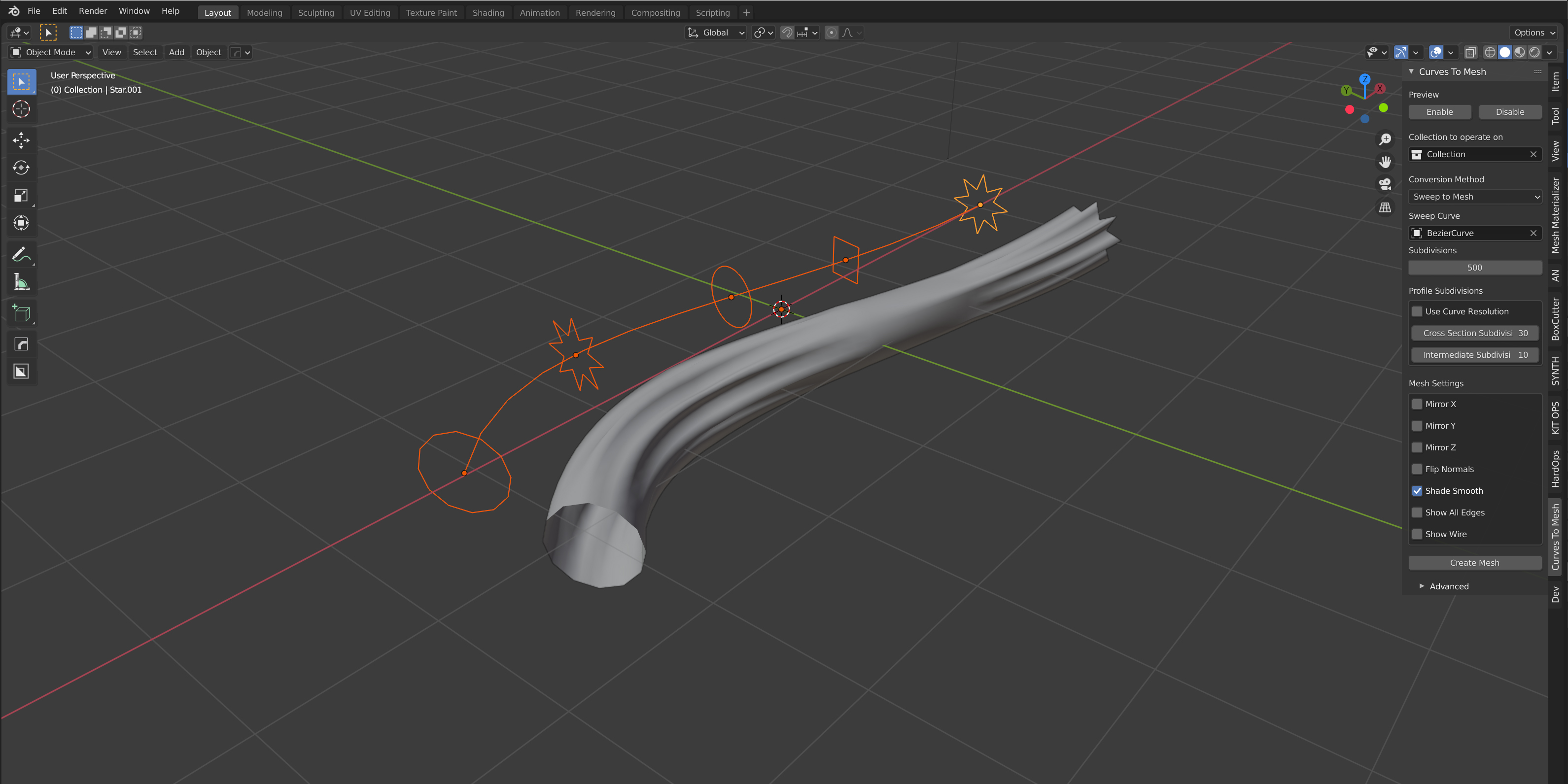
You can then create more sophisticated objects like rings and pipes:

Version 2.4: Performance improvements and UI tweaks
- This version should improve performance by clustering intersecting points together during calculation, rather than finding the distances between each point.
- There are also some minor changes to the UI, where I have moved some of the more advanced parameters into a separate section on the side panel, imaginatively called ‘Advanced’.
Version 2.3: Continuous curves
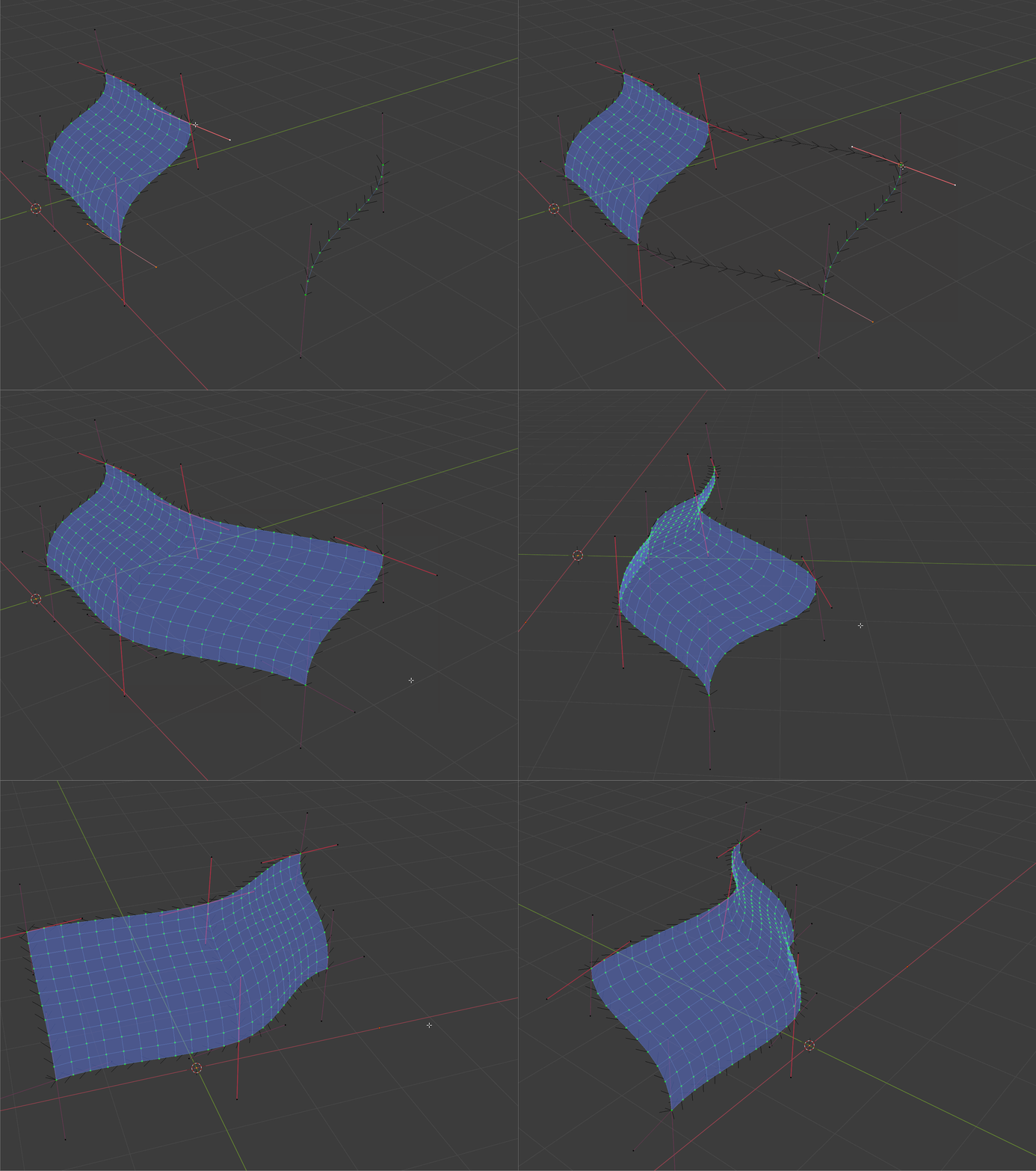
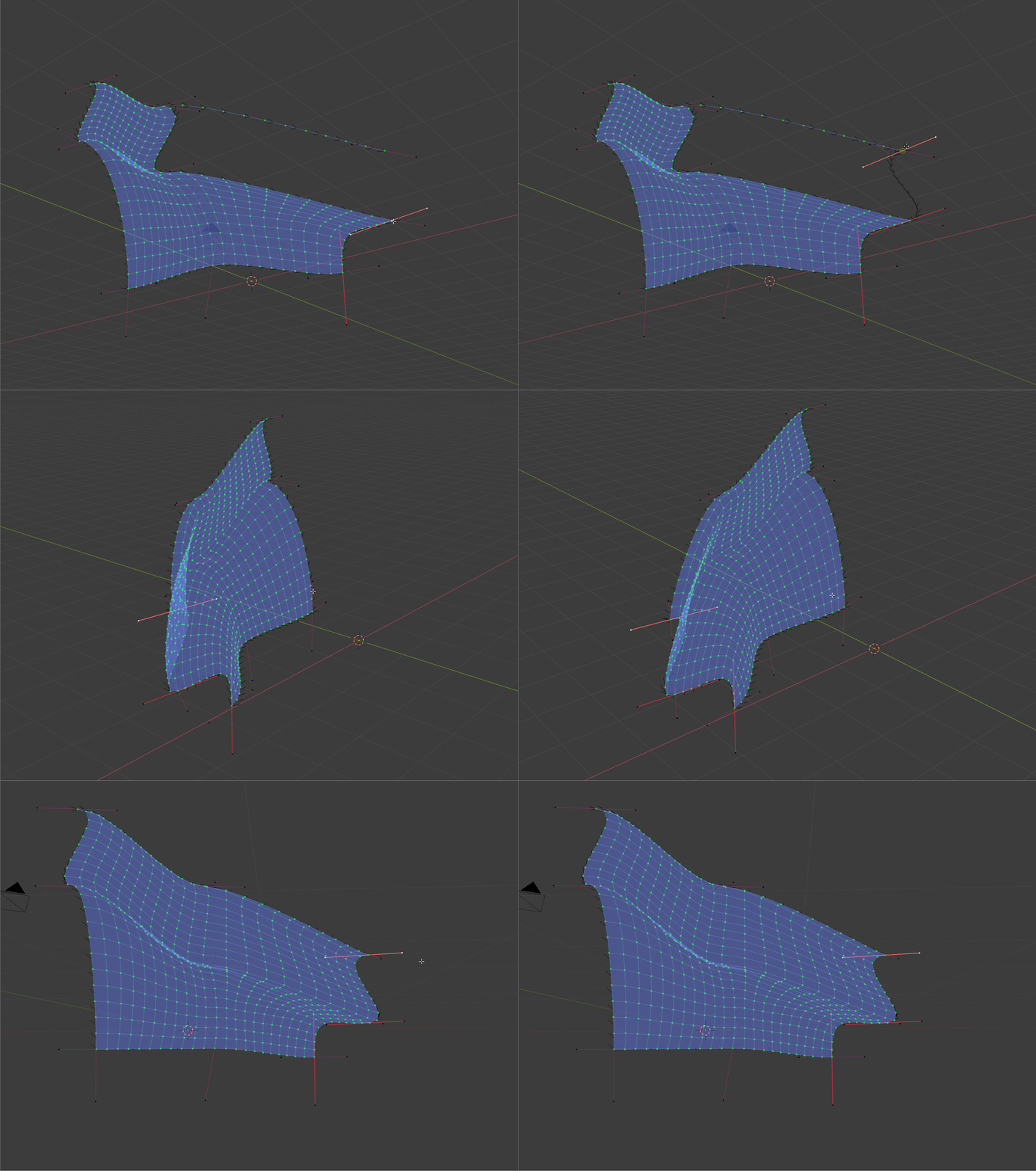
Now you no longer have to go through the trouble of splitting each curve at an intersection: Curves to Mesh will do this for you.
Version 2.2: Animation Nodes
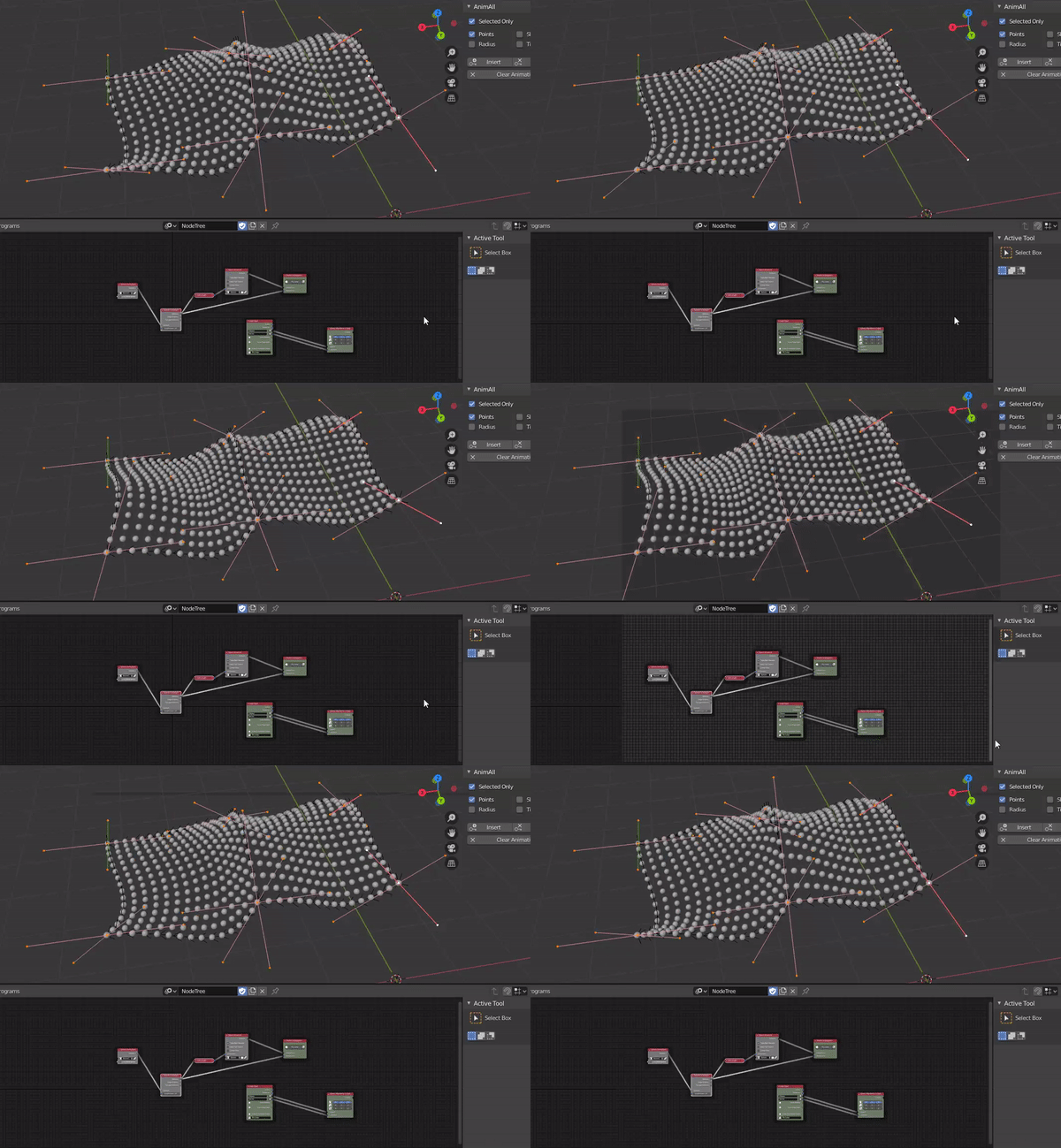 There is now an additional feature that will allow you to use Curves to Mesh as a node in the freely available Animation Nodes Blender framework.
This will allow you to do the following key things:
- Dynamically edit the curves in realtime, which can be used as an alternative to the ‘Preview’ mode.
- Animate all the parameters for creating curve surfaces.
Also included is a zip file in the downloads section that contains a set of sample .blend files demonstrating this feature.
Version 2.0
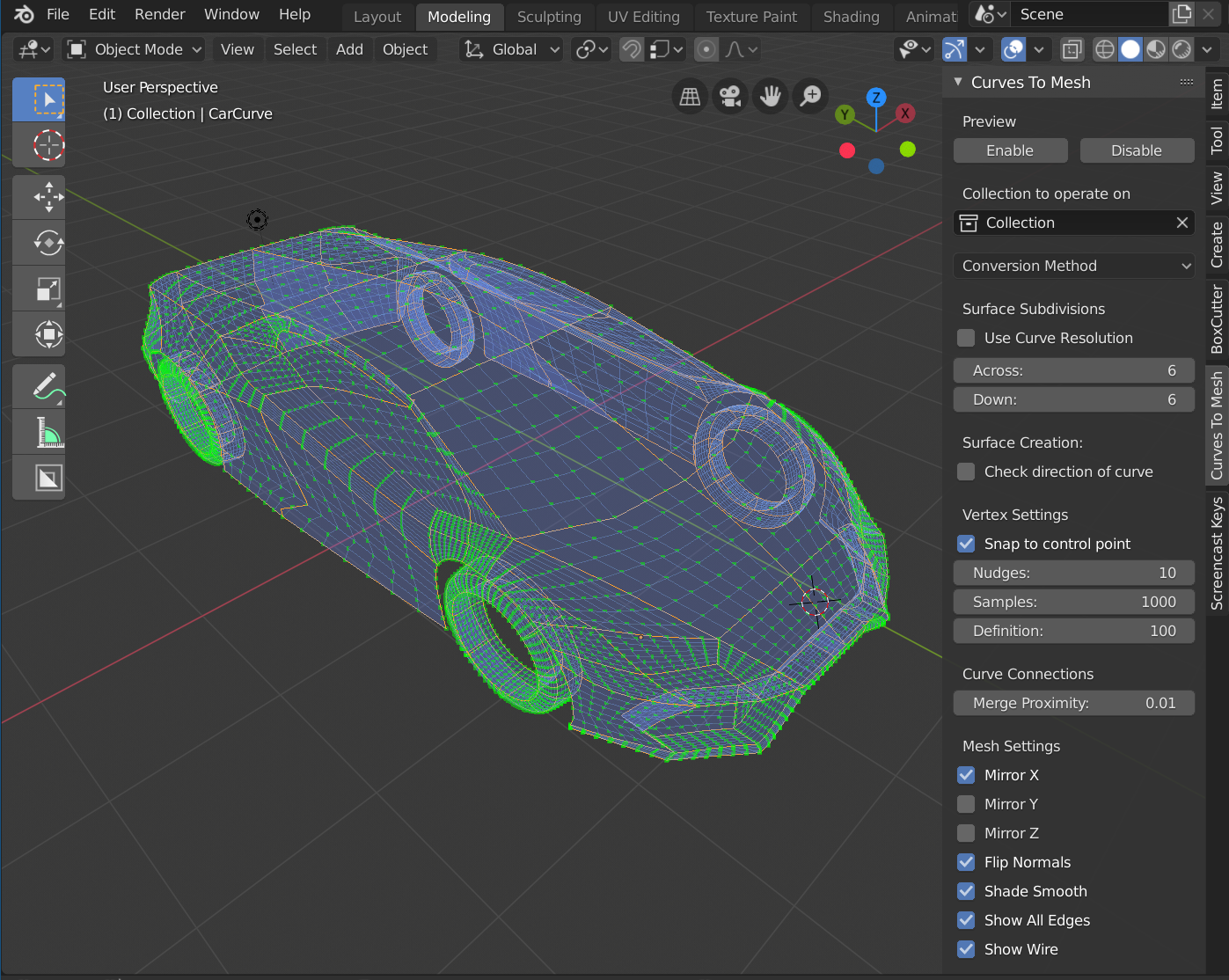
This is a significant update which allows:
- The ability to create more sophisticated meshes such as cars, machine parts and even heads. Please note however that we do not recommend doing this instead of Blender’s existing toolset, as managing the curves can get quite complex.
- An interactive preview mode to work with the mesh as it is created in real time.
- The ability to mirror the curves.
- The option to control the resolution of the mesh from the curves.
- Automatic snap options that move the nearest vertices to control points.
The add-on is now exclusively integrated into Blender 2.8.
Please see the video tutorial here:
Version 1.0.3: Blender 2.8 Beta
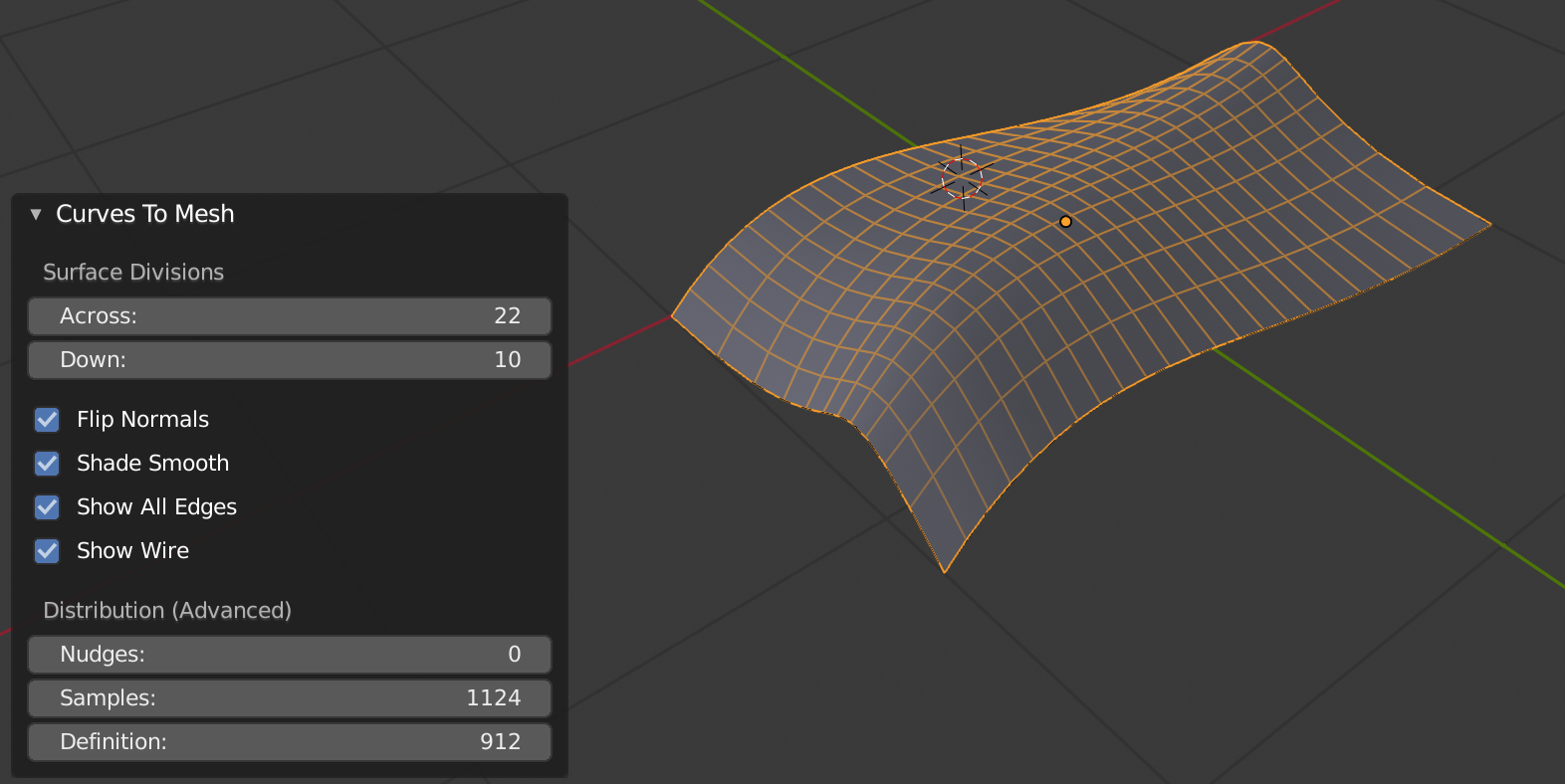
I have now upgraded the add-on for 2.8 beta and put it ready for download alongside the 2.7 version. You will be able to tell the 2.8 zip file version because it ends in 2.8! I’ll be updating the documentation once 2.8 becomes the main Blender release.
Blender 2.8 is still in beta, so if you have any problems with the add-on let me know.
Version 1.0.2
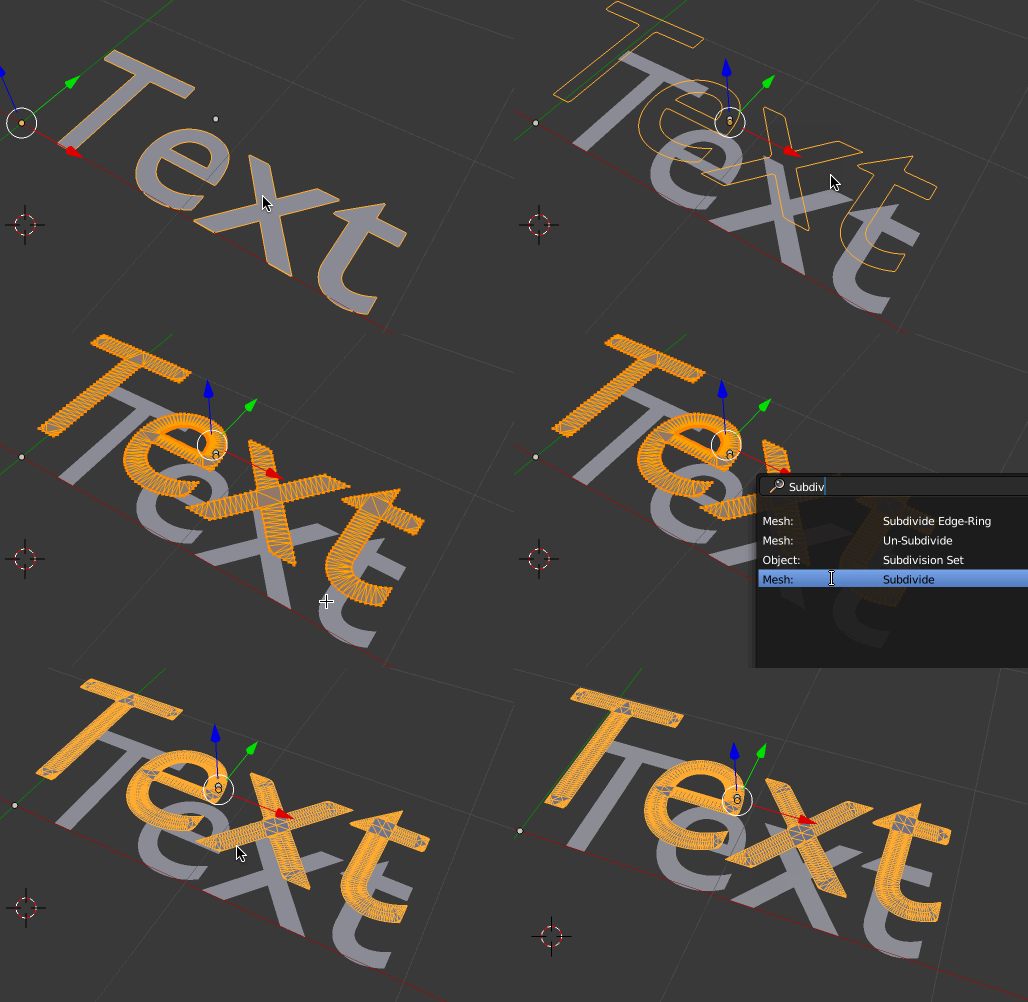
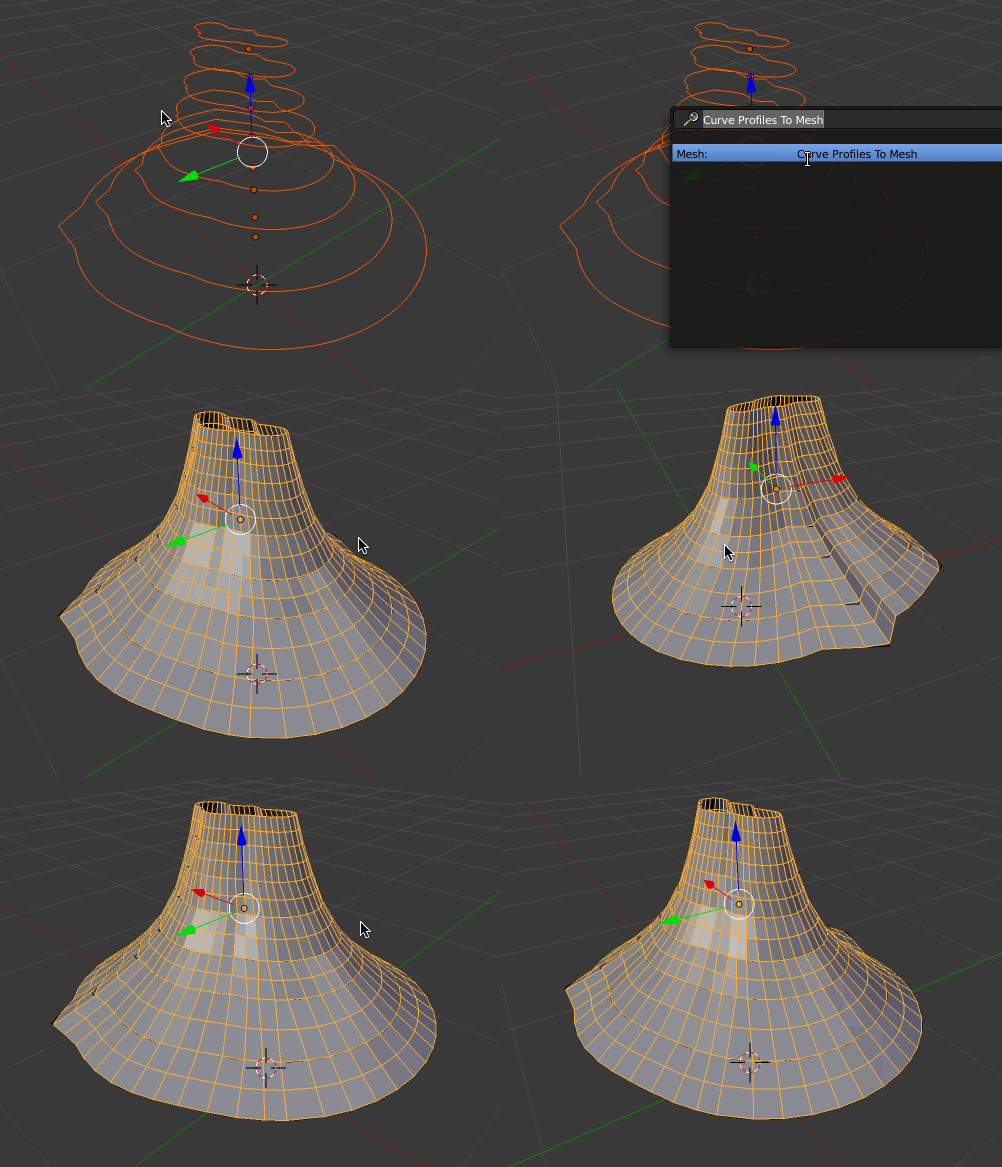
New Feature: You now have an additional option called Curve Profiles To Mesh which will allow you to select multiple curves and create a mesh from the edge loops. See the documentation for instructions.
Fixes: When selecting a curve that has multiple splines, such as the figure 8, the add-on did not create all the shapes. This has now been fixed when selecting one curve object.
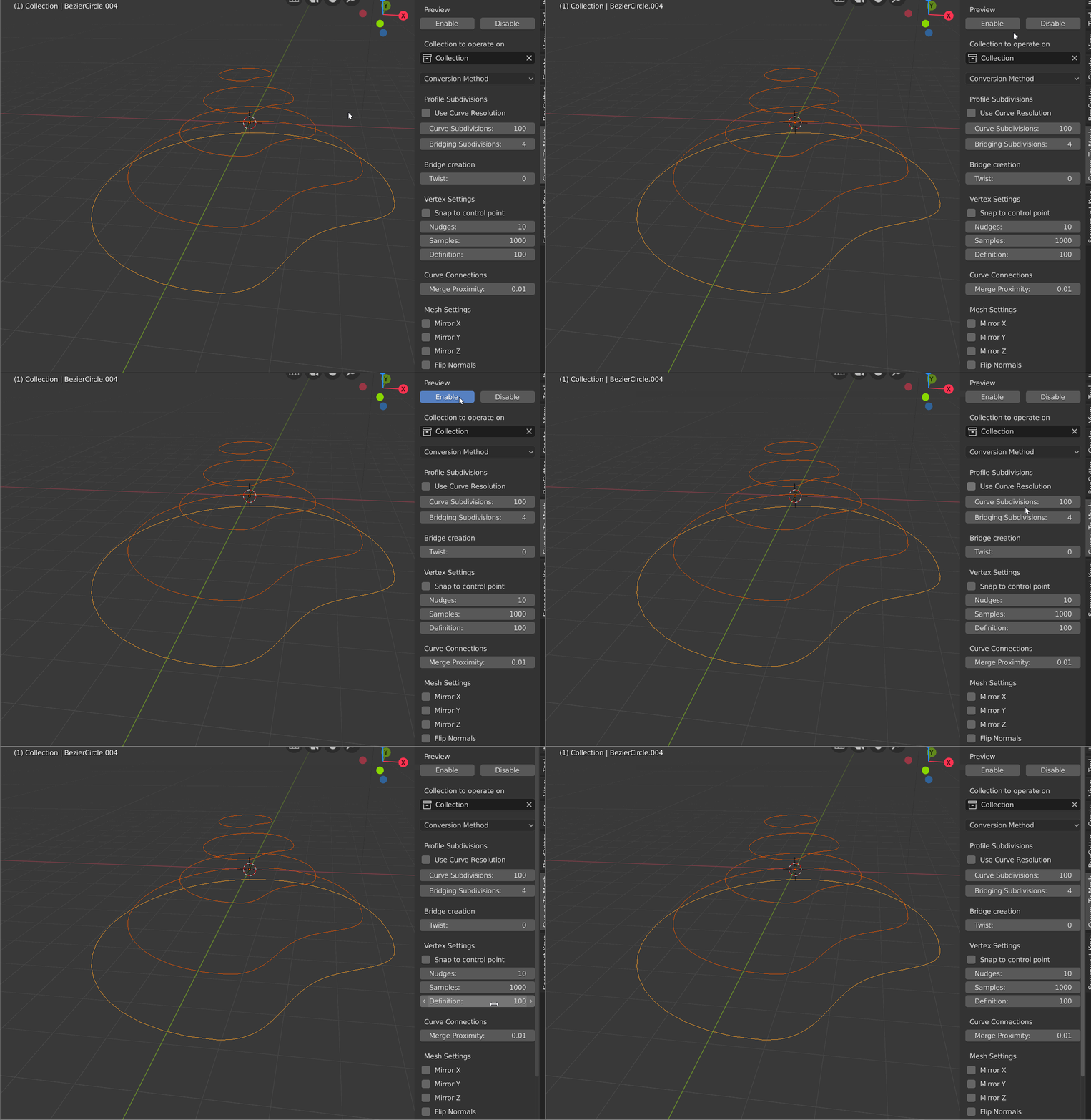
Before Update:
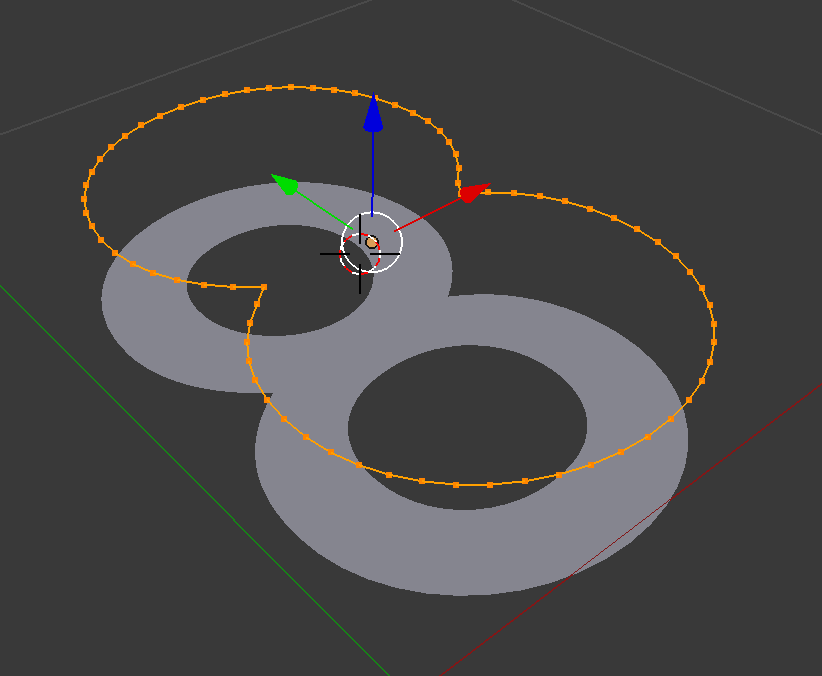
After Update:

Supercharge your 3D creation workflow with premium selection of Blender Add-ons. Whether you are modeling intricate characters, sculpting realistic environments, or animating cinematic sequences, the right add-on can transform how you work inside Blender. Our curated collection includes powerful tools for UV unwrapping, procedural texture generation, rigging automation, rendering optimization, and more—each rigorously tested for compatibility with the latest Blender versions. Eliminate tedious manual processes and unlock advanced functionality that lets you focus on what matters most: bringing your creative vision to life. Explore our full range of professional Blender plugins today and take your 3D projects to the next level.
➡️ ➡️ For more Blender Plugins 😀 😀
Reviews
There are no reviews yet.