
Draw Xray for Blender
Draw Xray v4.2.3 for Blender
The Ultimate X-Ray Drawing Tool
Download the Draw Xray v4.2.3 addon today. Therefore, you can draw directly through meshes instantly. Because retopology and model marking require visible-through-surface strokes, you need proper tools. However, standard drawing tools hide behind geometry, taking many frustrating hours of workarounds. Consequently, this powerful addon solves that problem completely. Furthermore, it provides a fast, visual workflow. Thus, you can annotate and guide your modeling in seconds.
Fast X-Ray Stroke Generation
First, the core of this addon is visibility. Specifically, it renders drawing strokes on top of all geometry instantly. Furthermore, you can adjust stroke width and color easily. Additionally, the tool applies surface-snapping seamlessly. Thus, you can build endless annotation variations quickly. Moreover, you can customize opacity and depth perfectly. Consequently, your 3D modeling process will become highly efficient.
Advanced Drawing Management Features
Ultimately, complex projects require advanced drawing control. Therefore, this addon includes smart stroke tools. Specifically, you get easy multi-color layer features. Furthermore, the algorithms preserve stroke visibility across all viewports perfectly. Additionally, the tools simulate realistic pen pressure and tapering. Consequently, your annotations will look incredibly clean. Thus, the workflow reacts beautifully to your input.
Real-Time Optimization and Performance
However, heavy drawing data can slow down viewports. Therefore, the addon is perfectly optimized for performance. Specifically, it utilizes efficient native Blender Grease Pencil and GPU drawing systems. Consequently, you can render thousands of strokes easily. Meanwhile, your viewport frame rate remains completely stable. Ultimately, this ensures a smooth and fast workflow.
Perfect for Retopology and Concept Artists
Additionally, this addon is ideal for retopology artists. Furthermore, it suits concept modelers and technical directors perfectly. Moreover, character artists will love the rapid edge-flow marking. Ultimately, it accelerates your entire 3D production pipeline.
System Requirements and Formats
Specifically, the addon requires Blender 3.6 or newer. Furthermore, it supports all standard mesh and sculpting workflows. Additionally, you get regular free updates from the developer. Therefore, it works across all major operating systems. Moreover, you will need a standard workstation. Thus, 16GB of RAM is highly recommended. Consequently, a modern GPU ensures smooth viewport playback.
Installation and Usage Guide
First, download the zip file from your library. Next, open Blender and go to Edit Preferences. Then, select Add-ons and click Install. After that, enable the Draw Xray addon. Finally, activate the X-ray drawing mode from the toolbar. Thus, your visible-through-mesh annotations will be ready quickly.
What is Included Inside?
Specifically, the pack contains multiple brush presets. Furthermore, it includes smart X-ray rendering algorithms. Additionally, you get several color and opacity variants. Moreover, there are detailed video tutorial guides. Ultimately, you receive everything for professional drawing creation.
Final Thoughts on the Addon
Ultimately, precise X-ray drawing evokes profound professional quality. Therefore, this addon provides the ultimate creative foundation. Furthermore, you can build detailed retopology guides. Alternatively, you can create complex model annotations. Consequently, your modeling vision becomes a stunning reality.
Pros compared to build-in Blender retopo overlay:
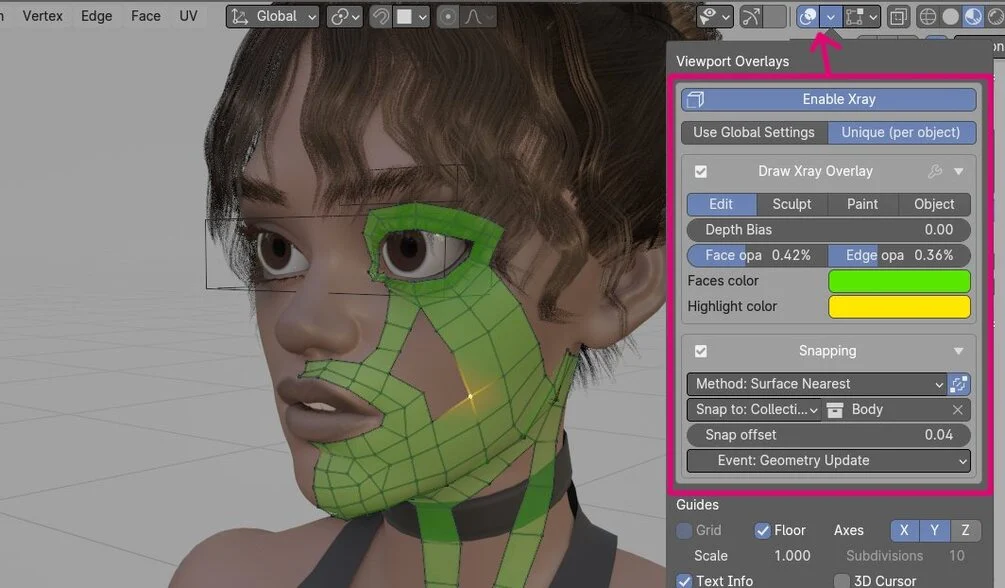
- This tool allows for clearer visualization of how your retopo mesh interacts with your high-poly model. You can easily identify which areas of the retopo mesh protrude beyond the high-poly surface and which areas lie beneath it (unlike built-in retopo overlay, which obscure this information)
- customizable: faces overlay color, opacity,
- supports drawing in: Sculpt, Edit, Paint, Object modes
- option draw with-or without modifiers applied
Cons:
- slower – it is coded in python, so it wont be as fast as native C++ code.
How to use:
- Install DrawXray like any other Blender add-on – see Blender docs
- In 3D View Top Bar > Viewport Overlays > ‘Enable Xray‘ – if you go to mesh edit mode, you will se new overlay rendered on top of your mesh
- Xray Overlay can be enabled in following modes: Edit, Sculpt, Paint, Object (Shift+Click to select multiple modes).
- Paid version has Snapping section, where you can set snap target (All scene objects, single target or collection)
Paid version (extension)
comes with custom snapping engine and retopo tool:
https://cdn.iframe.ly/api/iframe?url=https%3A%2F%2Fwww.youtube.com%2Fembed%2FpGXXljQAWsQ%3Fsi%3DGvZ8Vu5trxb5lhnz&key=31708e31359468f73bc5b03e9dcab7da
- Xray snap engine takes into account mesh curvature: sink lowpoly mesh into valleys, push outside on peaks. See this YouTube video below for details
- Xray will negate mesh shrinking effect caused by subdivision modifier (see same video above),
- Quad stroke – draw and extrude single edge strip (new in 4.0)
- Strip Wrap around joints feature (new in 4.1)
- Strip Stroke – draw and extrude multiple edges at once (new in 4.2)
- paid version comes with built-in auto-updater (new in 4.0)
https://cdn.iframe.ly/api/iframe?url=https%3A%2F%2Fyoutu.be%2FjH9cFuWIugM%3Fsi%3DN9y9OKSdW3L2avHc&key=31708e31359468f73bc5b03e9dcab7da
Video above focuses mostly on retopo Quad tools. At the very end I show demo retopology of character head.
Second video where I show improved snapping algorithm for: concave vs convex mesh parts, and subdivided vs non-subdivided mesh.
Studio vs Standard license: if you are company with above 180k $ income, please purchase Studio version. Both licenses (Studio and Standard) can be used commercially
Note: I included fixed version of F2 add-on (mesh_f2_xray.py) – which wont crash when using F2 together with DrawXray. To use patched F2 addon: disable the build-in F2 version and replace it with fixed version (it is named ‘F2 Xray Fix‘). For your information, I provided patch to blender devs, with the fix, but it got ignored…
Updates History
Update 2.3 Blender 2.8 only (23.08.2019)
- fixed crashes on scripts reload, and other bugs.
- by default per object snapping is now set to ‘Global’ . Saves few clicks: when you enable global snapping, all objects will use now global target. You can still change it per object in: ‘Object Viewport’ panel to: Disabled or Local (different snap target for each object)
Update 2.7 Blender 2.8 and 2.9 (19.11.2020)
- addon draws more uniform edges now
- more snapping options (based on shrink wrap modifier)
- Simplified UI (there is no longer separate panel in object properties)
Update 2.8 for Blender 2.93 and 3.0 (01.12.2021)
- Added compatibility with Blender 3.0
Update 2.9 for Blender 2.93 and 3.x (12.09.2022)
- Added compatibility with Blender 3.3
- remade snapping – only selected vertices will snap (in past – whole mesh would be snapped to high-poly obj)
Update 3.0 for Blender 2.93 and 3.x (17.02.2023)
- Code refactor. Hopefully it will fix some random issues people are experiencing
Update 3.1for Blender 2.93 and 3.x (1.04.2023)
- added compatibility with blender 3.5
Update 3.3 for Blender 3.5 and up only! (1.04.2023)
- moved whole open-gl drawing to new GPU module in blender 3.5
Update 3.4 for Blender 3.6 and up only! (8.08.2023)
- option to draw in Edit mode and/or Sculpt Mode and/or Object Mode and/or Paint Mode
- Xray will show now shapekeys on object correctly
Update ver 3.6 (for version with snapping (24.11.2023) :
- improved snapping behavior on concave areas
- nicer results when using subdivision modifier on your retopo mesh,
- ability to snap to any object (not just mesh types)
- new – snap to: selected object, collection of objects, all objects
- ability to affect neighbors of selected geometry, for nicer retopo mesh interpolation
- added new – projected snapping method
Update ver 3.8 (for version with snapping (2.3.2024):
- Fixed ‘Projected snapping’ method when using Orthographic view
- fixed not being able to snap in mesh edit mode, when Xray overlay Mode was set to Sculpt only display method,
- other fixes and tweaks
Update 4.0.0 for Blender 4.2+ (version with snapping only – Released 9.10.2024)
- Added Draw Quad Strips option,
- addon converted to extension,
Update 4.1.0 for Blender 4.2+ (version with snapping only – Released 21.10.2024)
- Added Wrap Limbs – Shift+W,
- improved searching for adjacent snap edges,
Update 4.1.1 for Blender 4.2+ – Released 24.10.2024,
- Added ‘Screen Space’ Wrap option,
- improve generation of last quad face (support more cases),
- smoother first quad generation (thanks to introduced warmup period – help in calculating smoother stroke tangent)
Update 4.2.0 for Blender 4.2+ – Released 12.1.2025 (for version with snapping)
- You can resample drawn quads with MMB+Scroll,
- you can extrude multiple edges now,
- added ‘2d Matching’ for screen space calculations and detection of valid face edges,
- Wrap Strip – you can resample it now in both directions,
- Shift+Q – is used now for smoothing selected geometry,
- undo is broken into stroke welded/non-welded segments now,
- Brush uses multiple samples to pick smoother normal from highpoly mesh,
Update 4.2.1 for Blender 4.2+ – Released 13.1.2025 (for version with snapping only)
- Fix: prevent snapping on Undo/Redo,
- Fix for extending wire edges in Wrap Strip tool,
- Fix for finding closest edge not always working,
- added button to manually reload snap cache,
Update 4.2.2 – for Blender 4.2+ – Released 23.3.2025,
- Blender 4.4 compatibility fixes,
Update 4.2.3 – for Blender 4.2+ – Released 15.4.2025,
- Hidden faces are no longer drawn by DrawXray overlay,
- Xray overlay drawing should be faster up to 3 times,
Supercharge your 3D creation workflow with premium selection of Blender Add-ons. Whether you are modeling intricate characters, sculpting realistic environments, or animating cinematic sequences, the right add-on can transform how you work inside Blender. Our curated collection includes powerful tools for UV unwrapping, procedural texture generation, rigging automation, rendering optimization, and more—each rigorously tested for compatibility with the latest Blender versions. Eliminate tedious manual processes and unlock advanced functionality that lets you focus on what matters most: bringing your creative vision to life. Explore our full range of professional Blender plugins today and take your 3D projects to the next level.
➡️ ➡️ For more Blender Plugins 😀 😀
Reviews
There are no reviews yet.