

Pluck for After Effects
Pluck V1.6.1 for After Effects
The Ultimate Cross-Project Composition Extraction and Packaging Tool
Download Pluck V1.6.1 today. Consequently, you can pull any composition from any After Effects project file without ever opening the source project, eliminating the tedious multi-step workflow of importing entire projects and manually cleaning up afterwards. Because motion designers regularly reuse work, share scenes, and deliver tidy project files to clients or teams, having a dedicated composition extraction tool is absolutely essential. Nevertheless, the traditional method for getting a single comp from an old project is painfully inefficient—you either import the whole project and clean up by hand, or run a five-step round trip of opening the project, selecting the comp, reducing the project, saving as, and importing . Fortunately, Pluck eliminates this bottleneck completely. Moreover, it replaces all of that with a simple drag-and-drop panel where you can preview every composition before deciding what to bring in . In short, you can stop importing whole projects and just grab the scenes you need.
Instant Project Reading and Comp Browsing
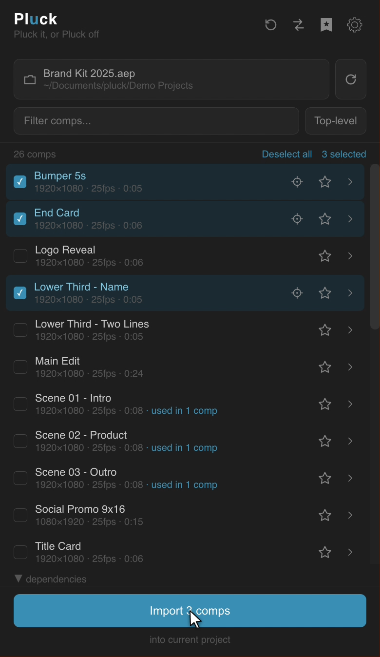
The core of this plugin lies in its ability to read .aep files without opening them in After Effects. For instance, you simply drop any .aep file onto the Pluck panel, and it instantly displays every composition inside, complete with dimensions, frame rate, and duration . Furthermore, you can search and filter compositions by name, making it easy to locate specific scenes in even the largest project files. Additionally, you can select one comp or many, and see everything before you import anything . Since the entire process happens without loading the source project, you avoid the performance hit and clutter that comes with opening large files. Consequently, your workflow becomes significantly faster and more organized.
Automatic Dependency Resolution and Smart Organization
Professional workflows demand that imported comps arrive complete and ready to use. Therefore, Pluck automatically pulls in everything your selected comps depend on, including precomps and footage. Furthermore, it deduplicates footage, relinking to items already in your project rather than creating duplicates . Additionally, the plugin flags broken expression references before you import, so you are not surprised by issues after the fact . You can choose to mirror the source project’s folder structure, auto-sort by asset type, import everything into a flat folder, or specify a custom subfolder name. Label colors are applied to imported items, and you can opt to open the comp in the timeline immediately after import . Thus, your project stays clean and well-organized regardless of how complex the source file was.
Pluck Off for Clean Project Delivery and Archiving
Pluck works in both directions, making it equally valuable for exporting as it is for importing. For instance, you can drop any comp or multiple comps from your current project onto the Pluck panel to export them as standalone .aep files with all assets collected . Furthermore, you can export as a fully contained .zip ready for sharing or archiving, with token-based file naming using {comp}, {project}, and {date} to keep exports organized . Additionally, batch exports can be bundled or kept separate, and the plugin handles image sequences as a unit so After Effects still recognizes them correctly . Consequently, you can deliver clean, self-contained project files to clients or archive your best work with confidence.
Perfect for Motion Designers, Studios, and Freelancers
This plugin is particularly well-suited for motion designers who maintain reusable libraries of scenes, titles, and animation setups across multiple projects. Similarly, studios and teams will appreciate the ability to share work between artists without the overhead of importing entire projects. Additionally, freelancers delivering to clients will find Pluck Off invaluable for producing tidy, self-contained deliverables that open correctly on any system. Ultimately, Pluck V1.6.1 accelerates your entire motion design and project management workflow.
System Requirements and Compatibility
Pluck supports After Effects 2026, 2025, 2024, 2023, and 2022 on both Windows and macOS operating systems . The plugin is available as a CEP extension for easy installation. You will need a standard workstation with at least 8GB of RAM.
Installation and Usage Guide
To install, first download the extension folder from your library. Next, close Adobe After Effects if it is running. Then, copy the com.mooviemakers.pluck folder to your CEP extensions directory: on Windows, this is C:\Program Files (x86)\Common Files\Adobe\CEP\extensions\, and on macOS, it is /Library/Application Support/Adobe/CEP/extensions/ . After that, ensure “Allow Scripts to Write Files and Access Network” is enabled in After Effects Preferences under Edit > Preferences > Scripting & Expressions. Finally, launch After Effects, navigate to Window > Extensions > Pluck, and begin dragging your .aep files onto the panel to extract the comps you need . Thus, your cross-project composition workflow will be ready instantly.
Final Thoughts on the Plugin
Effortless cross-project composition extraction evokes profound creative freedom. Therefore, this plugin provides the ultimate foundation for your project management and asset reuse workflows. You can pull exactly what you need from any project and deliver clean, self-contained files with unprecedented speed and simplicity. Consequently, your creative vision becomes a stunning reality.
Pull any comp, or just the layers you need, from any After Effects project.
- Drag and drop to import comps or single layers from other projects.
- Export selected comps as clean, self-contained projects with all dependencies.
- Favourites and libraries put the comps you use most one click away.
5steps
The round trip
- Save your project and open the old one
- Find the comp in the Project panel
- File › Dependencies › Reduce Project
- Save As, somewhere it can’t hurt
- Reopen your project and import it
Every time you need a comp. Or import the lot and clean up by hand.
1drop
With Pluck
- Drop the .aep on the panel
- Tick the comps you want
- Import
3 comps importedwith their precomps and footage, nothing else
Only those comps land, with their precomps and footage, in a tidy Plucked folder. Your project never closes.
New in 1.7
Find the finals. Land them on the playhead.

Top-level
A 400-comp template, down to its finals.
One chip beside the filter hides every comp that is used inside another comp. Precomps say where they are used: hover “used in 3 comps” to see which.

Into timeline
Straight into the comp you’re cutting.
With a comp open, a second button imports as usual, then adds each comp as a layer at the playhead. Alt-click Import does the same.
Pluck It
See every comp before you import anything.
Drop an .aep on the panel, or Browse. Pluck reads the file directly and lists every composition in it, without opening it in After Effects.
- Size, frame rate and duration on every row, and the folder it lives in if you want it
- Search and filter by name, then select one comp or many
- Same name, different folder? Pluck keeps the two apart
- Old projects welcome: reads files saved by much older versions of After Effects
- Any language: full Unicode comp, folder and footage names

Dependencies, resolved
Every precomp and footage item the comp needs comes with it. Nothing it doesn’t.
Footage reused
Footage already in your project from the same file is relinked, not duplicated.
Expressions kept working
Controller comps linked by comp("…") come along; broken references are flagged first.
Folders mirrored
The source’s folder structure inside a Plucked folder, or sorted by type, flat, or your own.
Per-layer import
Need less than a comp? Take the layers.
Click the arrow on any comp to see its layers, tick the ones you want, and Pluck brings in a slimmed-down copy of the comp with just those. What they depend on comes along by itself:
Parents
the whole chain
Track mattes
with their matte type
Effect layer targets
a Displacement Map’s map
Expression links
layer("Name") and comp("Name")

Ask first, if you like.
Switch the setting to Ask first and Pluck shows exactly which extra layers will come along, and why, before anything is imported. Or choose Selected only to take just what you ticked.

Into a comp you already have.
Pick an existing comp under Into: and the layers land at its top in their original order, with parenting and track mattes rebuilt. No staging comp to tidy up.
Duplicates and targets
Already have one? You decide.
When an imported comp or footage item already exists in your project, pick what happens, per item or for all. Set a default in Settings and you are never asked.
Replace
Everything that used yours now uses the import. It takes your item’s folder, and the old one is removed.
Use current
Keep yours. Precomps and footage inside the import point at your items, so nothing extra comes along.
Keep bothDefault
Import alongside, inside the Plucked folder. No questions asked.
Footage that points at the same file on disk is always reused, whichever you choose.

Ask
See every clash before it lands.
Choose Ask and Pluck checks your selection before importing: one decision for everything, or one per item. Tick Always do this and it never asks again.

Target Picker
Put it exactly where it belongs.
Press ⌖ on a selected comp to replace any comp or footage item you choose, whatever its name, and everything that used it follows. Or send it into one of your own folders.
Swap Source
Re-skin a character in one move.
Got a rig built from a layered PSD or Illustrator file, and a new version of it? Point Pluck at the new file and every layer in every comp moves to the matching layer of the new one.
- 1Drop the new file.psd, .psb or .ai, or press ⇄
- 2Choose the file it replacesevery layered file in your project is listed
- 3Swapand Undo takes it back
- Matched by layer name, with sizes and positions kept
- New items take the old ones’ folder and label
- New layers with no match are parked in a “no match” folder; nothing is lost
- Optionally copies the new file into your project folder first

Pluck Off
And back out again.
Drop comps from your Project panel onto Pluck to export them as standalone projects, with every dependency collected. Ready to hand over, archive or reuse.
.aep
Files
A clean project with its footage alongside.
.aep + .zip
Files + ZIP
Both, side by side.
.zip
ZIP only
One file, ready to send.
{project} {comp}Brand Kit 2025 Logo Reveal.aep
- Controller comps linked by expressions are collected too, so nothing breaks at the other end
- One project per comp, or bundled into one when you export several
- Your project is safe: saved first, reopened after, and never written over

Favourites and libraries
Your best comps, one click away.
Star any comp to keep it. Click a favourite and it imports, without loading its project first.
- Libraries: group favourites, then switch between one library or everything
- Rename, reorder, relink. If a project moves, relink all its favourites at once
- Recent projects: your last ten sources, one click to reload
- Update watcher: a blue dot when a source has been saved since you last used it. Handy on shared drives
- Reload picks up the new save and keeps your selection


Settings
Lands the way your project likes it.
Choose where imports go and how they are tagged, and whether their footage should come with them.
Asset copy
Copies the footage into your project folder and relinks it, so you can edit artwork without touching the original. Off until you want it.
Smart folders
Copies find your own ARTWORK or AUDIO folders, or mirror the source, or go flat.
Collisions
Rename with your own prefix or suffix, skip, or overwrite, with a summary after.
Folders and labels
Mirror, sort by type, flat or a custom sub-folder, and a label colour on every item.
Open in timeline after import · Solids tidy-up · Folder paths in the list · Heavy-project warning

Watch the tutorial
Pluck It, large files, Pluck Off and Settings, step by step.
The full list.
Pluck It
- Reads any .aep without opening it in After Effects, including projects saved by much older versions
- Every comp listed with size, frame rate and duration before you import anything
- Search and filter by name; select one comp or many
- Top-level filter: hide every comp used inside another, with “used in N comps” on precomps
- Pluck into timeline: add the imported comps to the active comp at the playhead
- Import individual layers, with parents, track mattes, effect targets and expression-linked layers resolved
- Layers straight into an existing comp, with order, parenting and track mattes rebuilt
- Optional dependency preview: Always include, Ask first or Selected only
- Automatic dependency resolution: precomps and footage included
- Expression-linked controller comps imported automatically
- Footage deduplication: same-file footage relinked, not duplicated
- Duplicates: Replace, Use current or Keep both, per item or for all
- Target Picker: replace a chosen comp or footage item, or place into a chosen folder
- Expression warnings flag broken references before they surprise you
- Mirror source folders, auto-sort by type, flat, or a custom sub-folder
- Optional asset copy with smart folder matching, collision handling and a summary
- Label colour, open in timeline, solids tidy-up
- A warning before unusually heavy source projects
Swap Source
- Replace every layer of a layered PSD, PSB or AI across the whole project with the matching layer of a new file
- Same import mode as the original, so sizes and positions are kept; unmatched layers parked, never lost
Pluck Off
- Export selected comps as standalone projects with every dependency collected
- Files, Files + ZIP, or ZIP only; one project per comp or bundled
- File names from {comp}, {project} and {date}
- Expression-linked controller comps collected, so nothing breaks at the other end
Favourites and recents
- Favourites with one-click import, organised into libraries
- Rename, reorder and relink favourites; relink a moved project’s favourites at once
- Recent projects: your last ten sources
- Update watcher and Reload for projects that change on shared drives
Elevate your motion graphics workflow with premium collection of After Effects plugins. Whether you are a seasoned professional or just starting your VFX journey, powerful tools designed to streamline complex tasks, unlock creative possibilities, and save you hours of rendering time. From stunning glitch effects and seamless transitions to advanced 3D extrusion and text animation tools, each plugin in our library is rigorously tested for compatibility with the latest versions of Adobe after Effects. Enhance your video production value today and download industry-leading plugins that help you create breathtaking visuals without the technical headaches. Browse our full range and find the perfect extension to supercharge your editing suite now.
➡️ ➡️ For more after effects Plugins 😀 😀
➡️ ➡️ System requirements AE
Reviews
There are no reviews yet.