Pro Align Tools for Blender
Pro Align Tools v2.1.11 for Blender
The Ultimate Professional Object Alignment and Layout Tool
Download the Pro Align Tools v2.1.11 addon today. Therefore, you can align, organize, and position multiple objects in your 3D scenes with unparalleled precision and efficiency instantly. Because architectural visualization, motion graphics, and complex scene layouts require precise object placement, you need proper tools. However, manually aligning objects using standard transform tools or repetitive snapping operations takes many frustrating hours . Consequently, this powerful addon solves that problem completely. Furthermore, it provides an interactive, real-time alignment system with a visual gizmo interface. Thus, you can achieve perfect object arrangements and scene organization in seconds.
Interactive Real-Time Alignment
First, the core of this addon is alignment efficiency. Specifically, it introduces an interactive gizmo directly in the 3D viewport that calculates bounding boxes on the fly, allowing you to align objects based on their extreme edges rather than just their origin points . Furthermore, you can press Ctrl+Alt+A to activate the tool instantly and see a real-time preview of where objects will land before you commit to the action . Additionally, the tool supports one-click Auto-Alignment with intelligent preset combinations for rapid workflow . Thus, you can align objects with confidence and precision quickly. Moreover, you can customize every alignment parameter perfectly. Consequently, your scene layouts will maintain professional quality and visual harmony.
Advanced Alignment and Projection Features
Ultimately, complex alignment scenarios require sophisticated control options. Therefore, this addon includes advanced alignment management features. Specifically, you get interactive projection plane placement by holding and dragging the mouse to set a plane at any offset distance . Furthermore, you can pick a custom plane directly from mesh geometry using Shift+P, which creates a draggable plane oriented to the mesh face normal for precise alignment to any surface . Additionally, the tools support multiple coordinate systems including global, local, view, and custom orientations, along with flexible origin point selection from bounding boxes, vertices, or the 3D cursor . Consequently, your alignment workflow remains flexible and precise. Thus, the workflow reacts beautifully to your creative input.
Real-Time Preview and Performance
However, precise alignment can be challenging without proper visual feedback. Therefore, the addon includes comprehensive real-time preview capabilities. Specifically, it displays dynamic colored projection planes, ghost previews of final positions, and visual feedback for invalid projections . Furthermore, the algorithms calculate bounding boxes efficiently even for complex, rotated, or imported CAD objects . Consequently, you can see exactly how your alignment will affect your objects. Meanwhile, your viewport performance remains completely stable. Ultimately, this ensures a smooth and accurate alignment experience.
Perfect for Architects, Designers, and 3D Artists
Additionally, this addon is ideal for architectural visualization artists and motion graphics designers. Furthermore, it suits product designers, game environment artists, and scene layout specialists perfectly . Moreover, anyone working with complex object arrangements or imported CAD data will love the intelligent alignment assistance. Ultimately, it accelerates your entire scene layout and production pipeline.
System Requirements and Formats
Specifically, the addon supports Blender versions 4.x and higher, with compatibility extending to earlier versions down to 2.79 . Furthermore, it works with all standard object types and mesh geometries. Additionally, you get regular updates from the developer. Therefore, it works across all major operating systems. Moreover, you will need a standard workstation. Thus, 8GB of RAM is highly recommended. Consequently, a modern GPU ensures smooth viewport previews.
Installation and Usage Guide
First, download the zip file from your library. Next, open Blender and go to Edit Preferences. Then, select Add-ons and click Install (for Blender 4.1 and above, select “Install from Disk” from the dropdown menu) . After that, enable the Pro Align Tools addon. Finally, select your objects, press Ctrl+Alt+A to activate the alignment tool, choose your alignment direction and reference points using the interactive gizmo or sidebar panels, preview the result, and press Enter to confirm . Thus, your perfectly aligned scene will be ready instantly.
What is Included Inside?
Specifically, the pack contains the complete alignment toolset with interactive gizmo support. Furthermore, it includes Auto-Alignment presets, custom plane picking, and flexible origin and projection controls. Additionally, you get support for all coordinate systems and bounding box calculation methods. Moreover, there are detailed documentation guides included . Ultimately, you receive everything for professional object alignment.
Final Thoughts on the Addon
Ultimately, precise object alignment evokes profound creative freedom. Therefore, this addon provides the ultimate scene layout foundation. Furthermore, you can build detailed architectural visualizations with perfect object arrangements. Alternatively, you can create complex motion graphics and product presentations with professional precision instantly. Consequently, your alignment vision becomes a stunning reality.
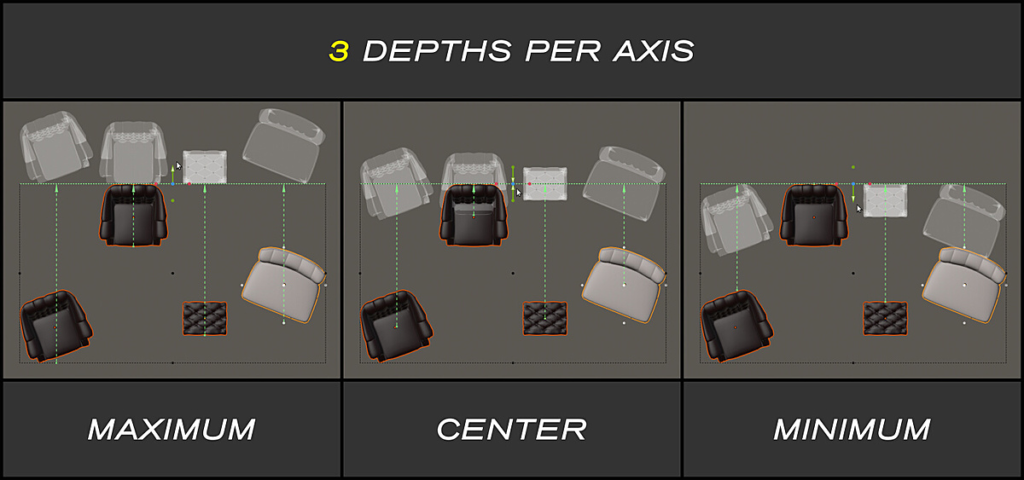
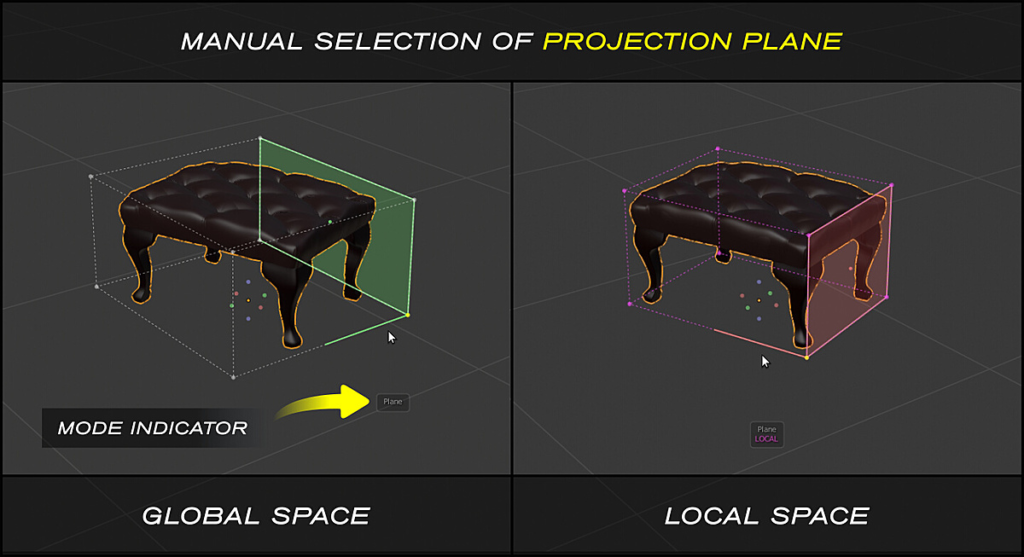
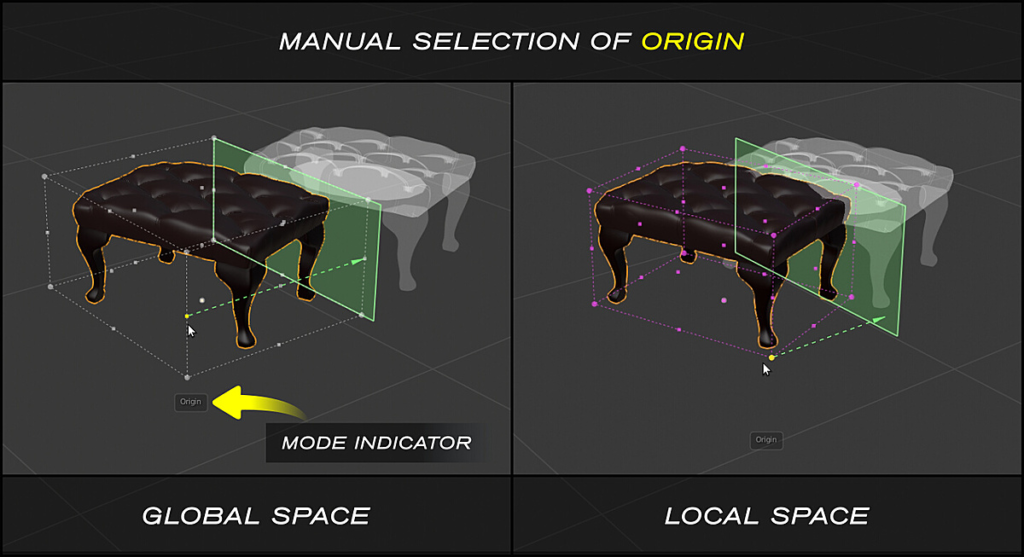
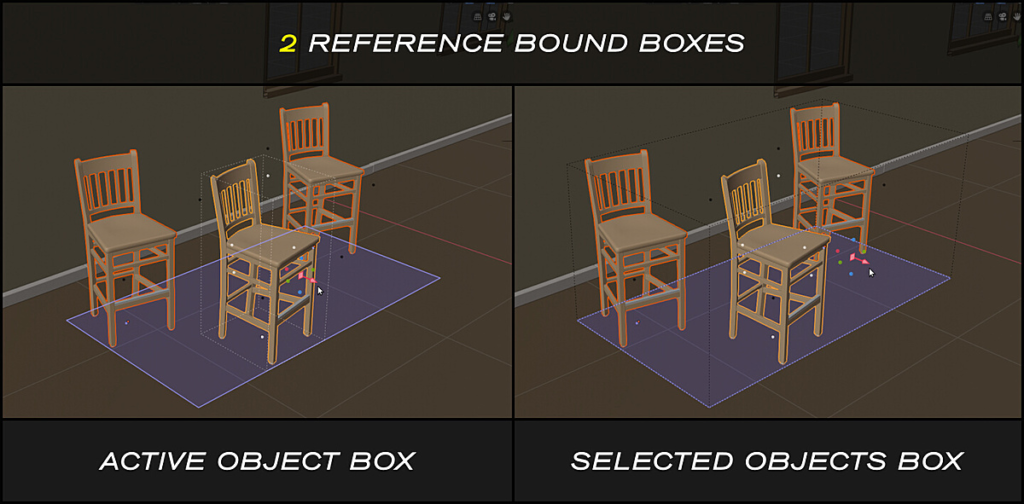
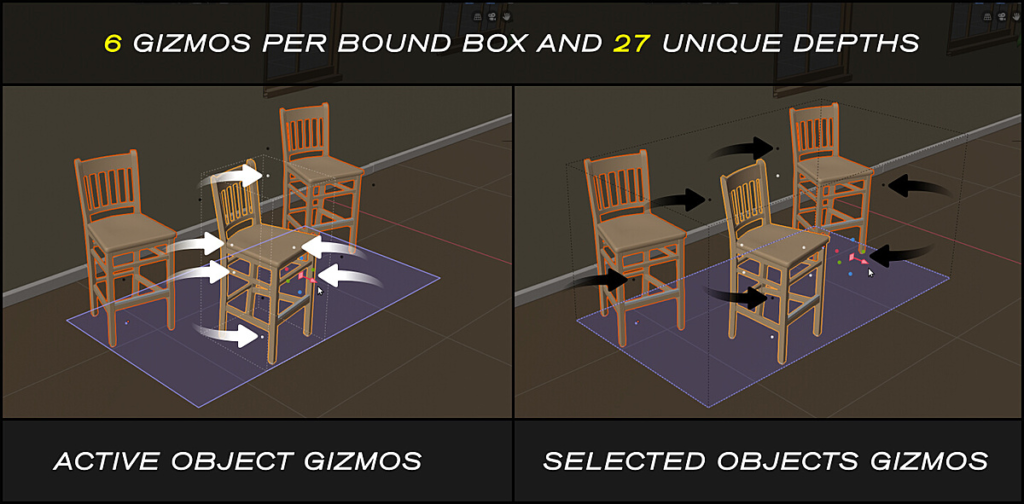
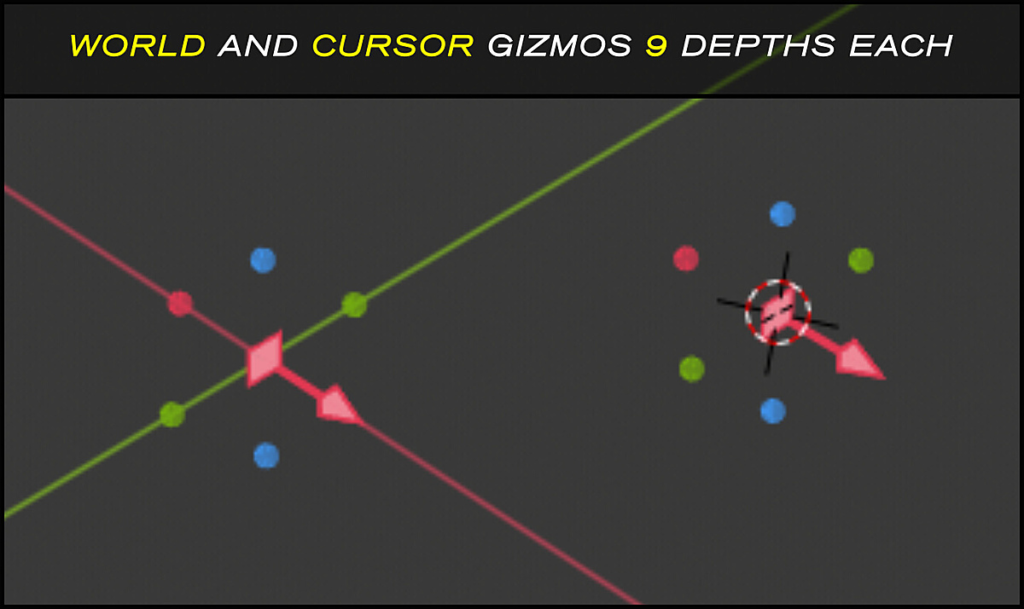
Pro Align Tools lets you align lots of objects at once interactively in the 3D viewport.
The Tool is designed to bring you flexible alignment options, taking advantage of the different geometric relations that exists between objects.
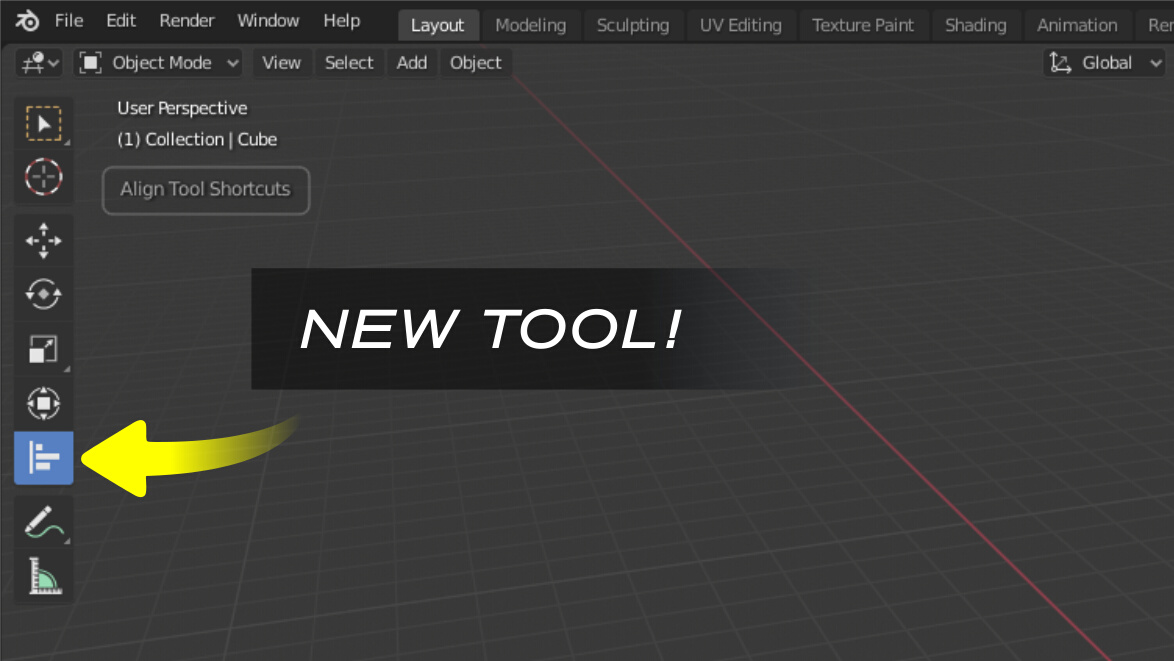
Workflow
- Select your objects
- Pick a projection plane
- Press Align Objects or hit Enter!
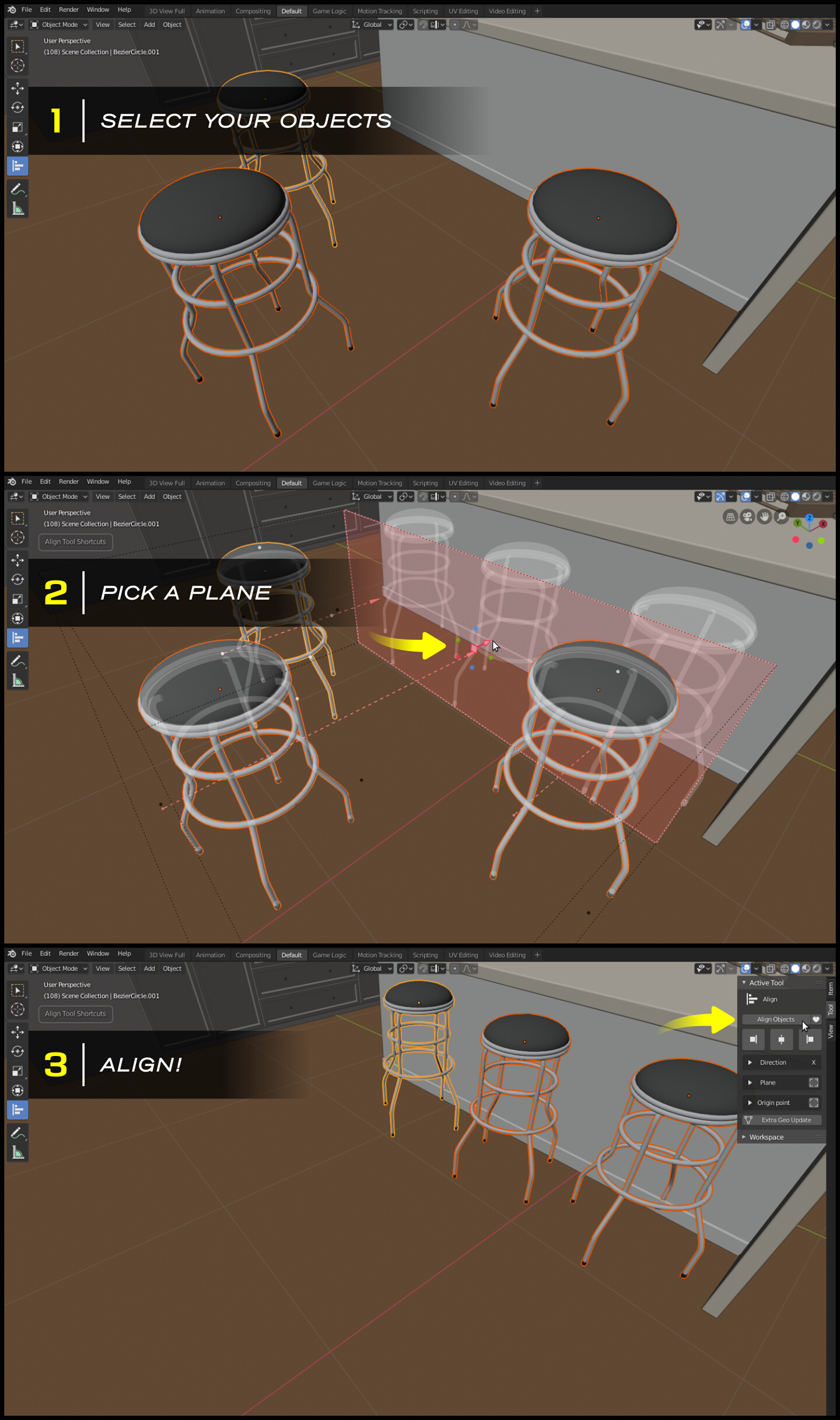
Overview
Pro Align Tools is intended to be used in Object Mode.
Interactivity is the natural state of the Tool, previewing in realtime where will objects sit after alignment while navigating, selecting, moving, rotating and scaling your objects.
Auto-Alignment
The predetermined mode of operation is Auto-alignment, a fast way of picking automatically a combination of projection plane, origins, direction, orientation and depth to align your objects with a single click.
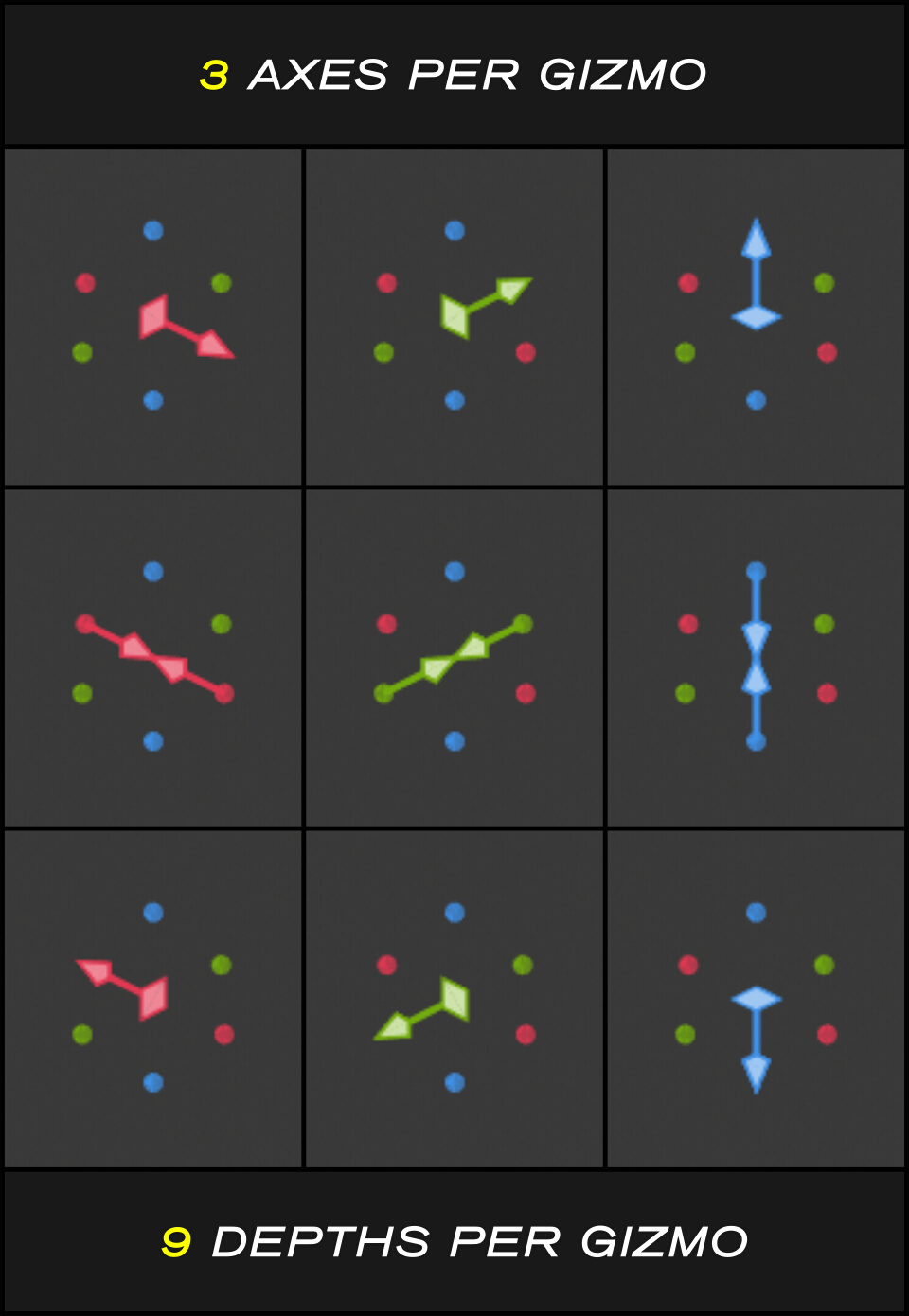
By using the gizmos, you can change the side (depth) of alignment relative to the projection plane, by selecting it directly in the 3D View.
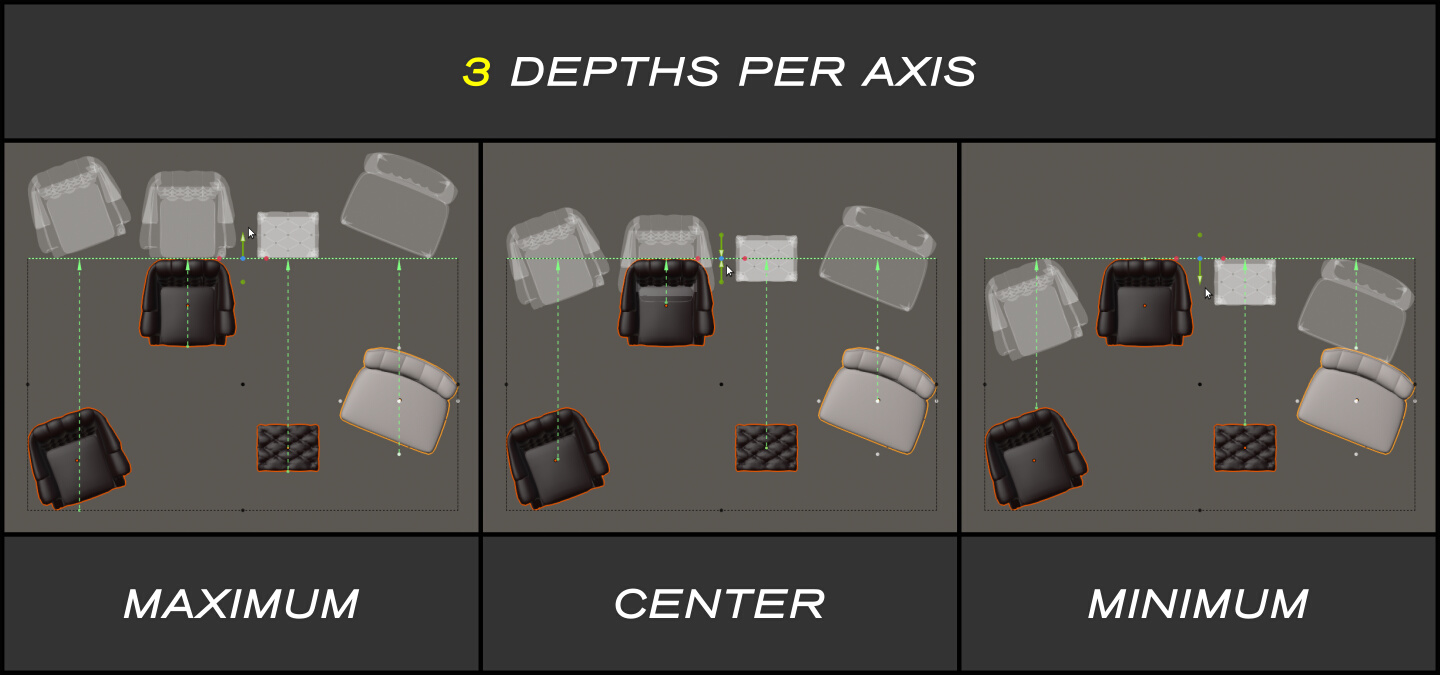
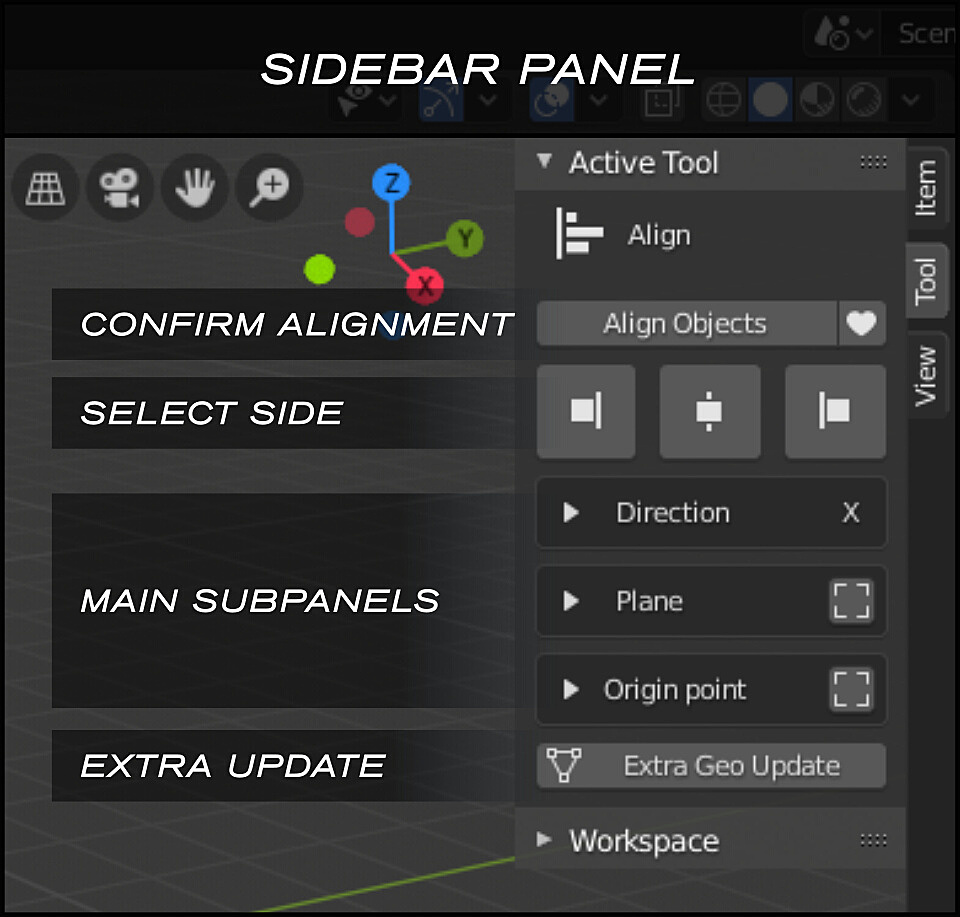
You can also change the side by using the Tool buttons in the Sidebar. These button are similar to those in 2D applications. They just mean the negative, center and positive direction of plane normal.

Gizmos
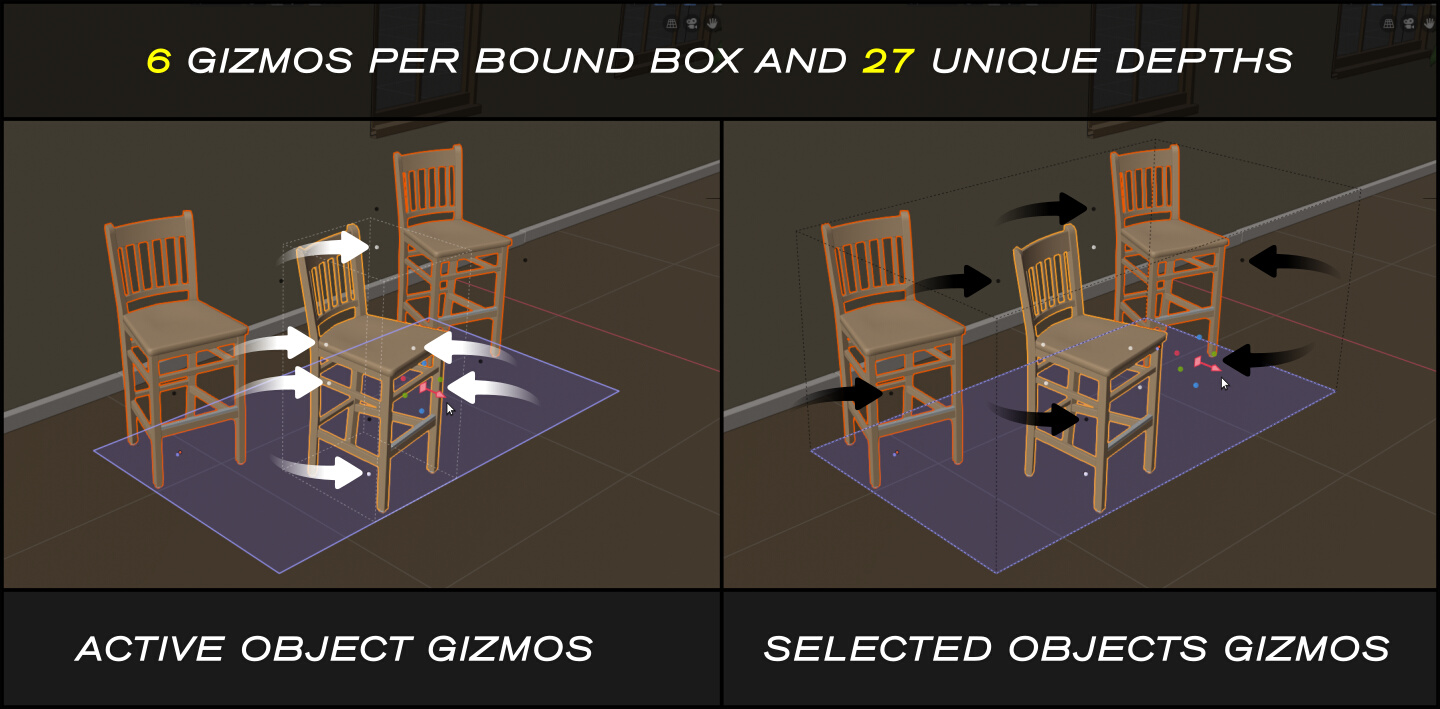
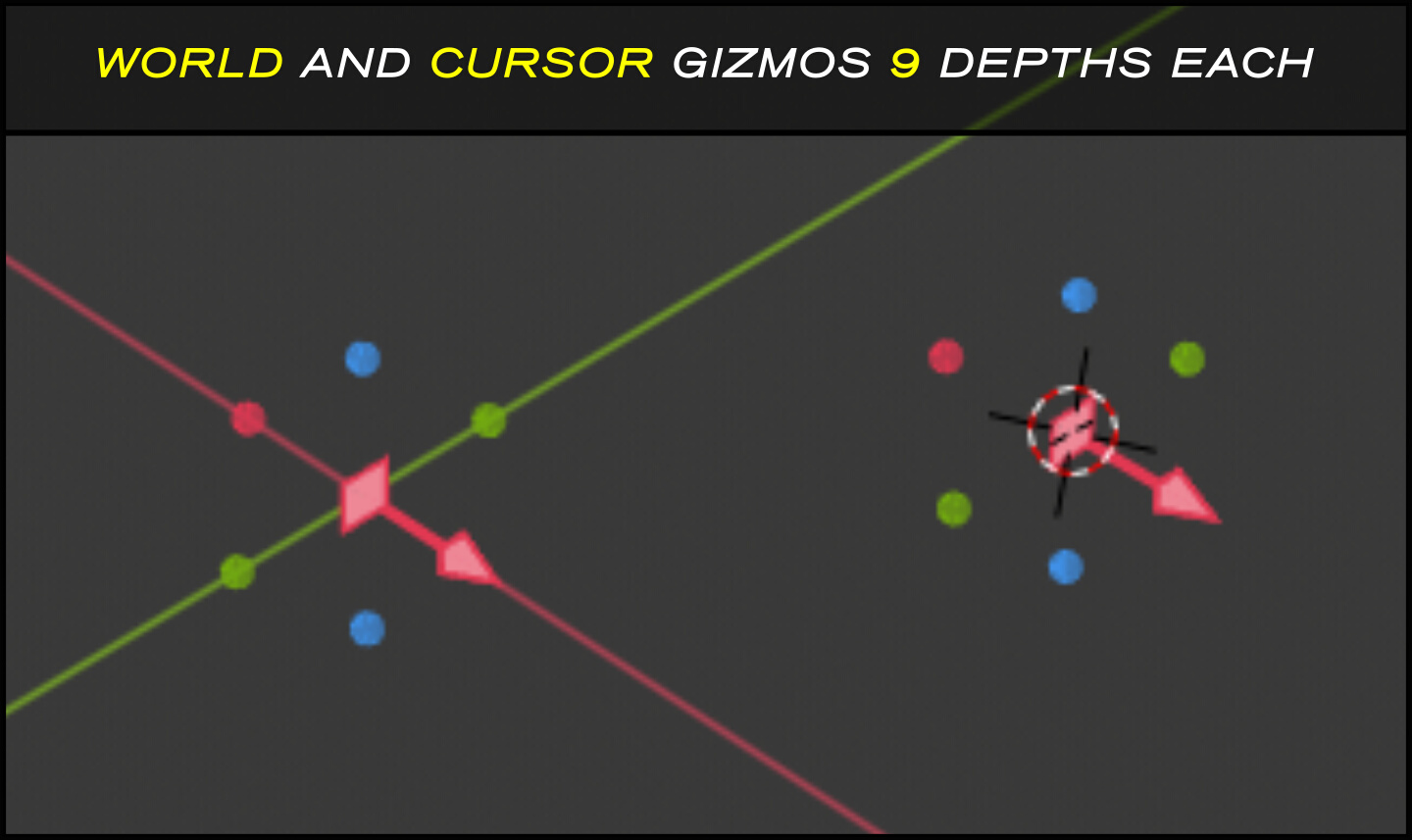
The auto-alignment gizmos are a combination of 3 axes, providing an easy selection of the alignment side, and the base point.
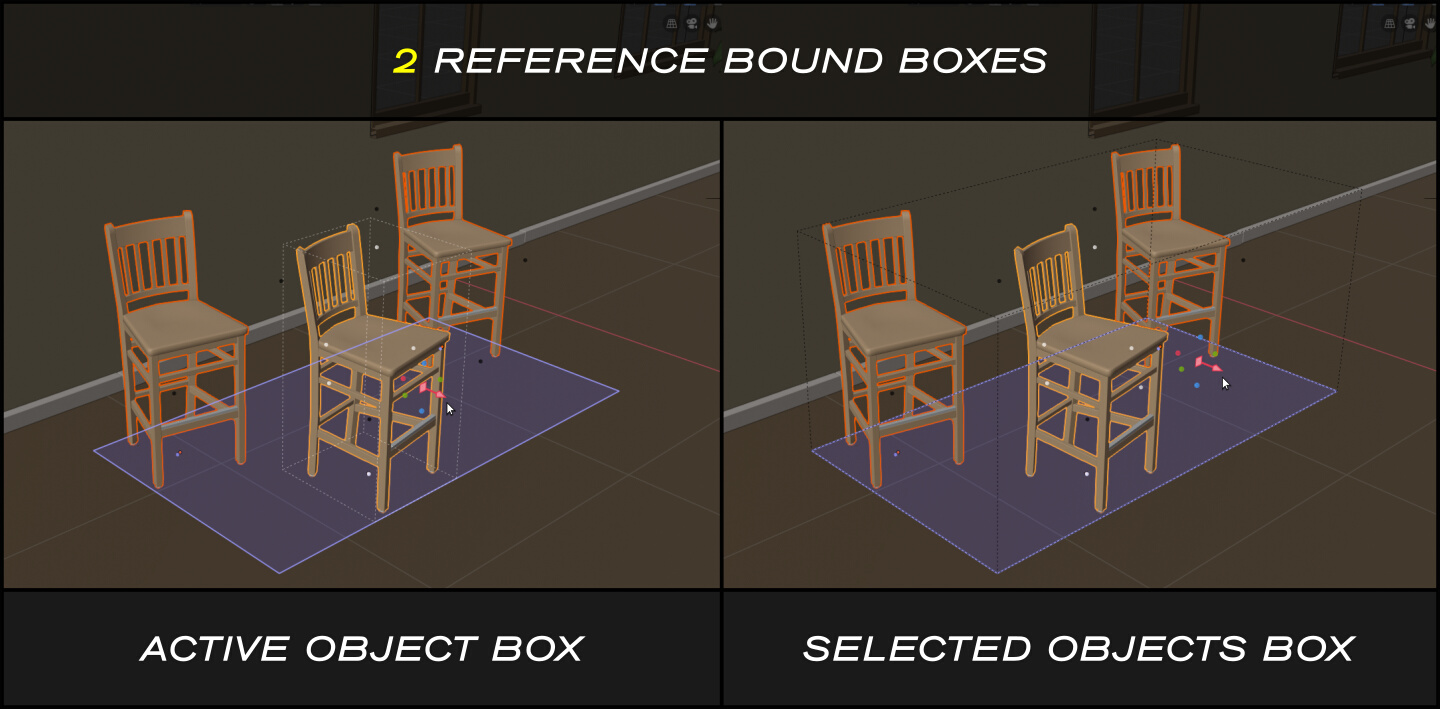
Reference points for Gizmos
The Gizmos have different convenient base points, referring to the selected objects and the possible places at which the plane can be set.
Finer control
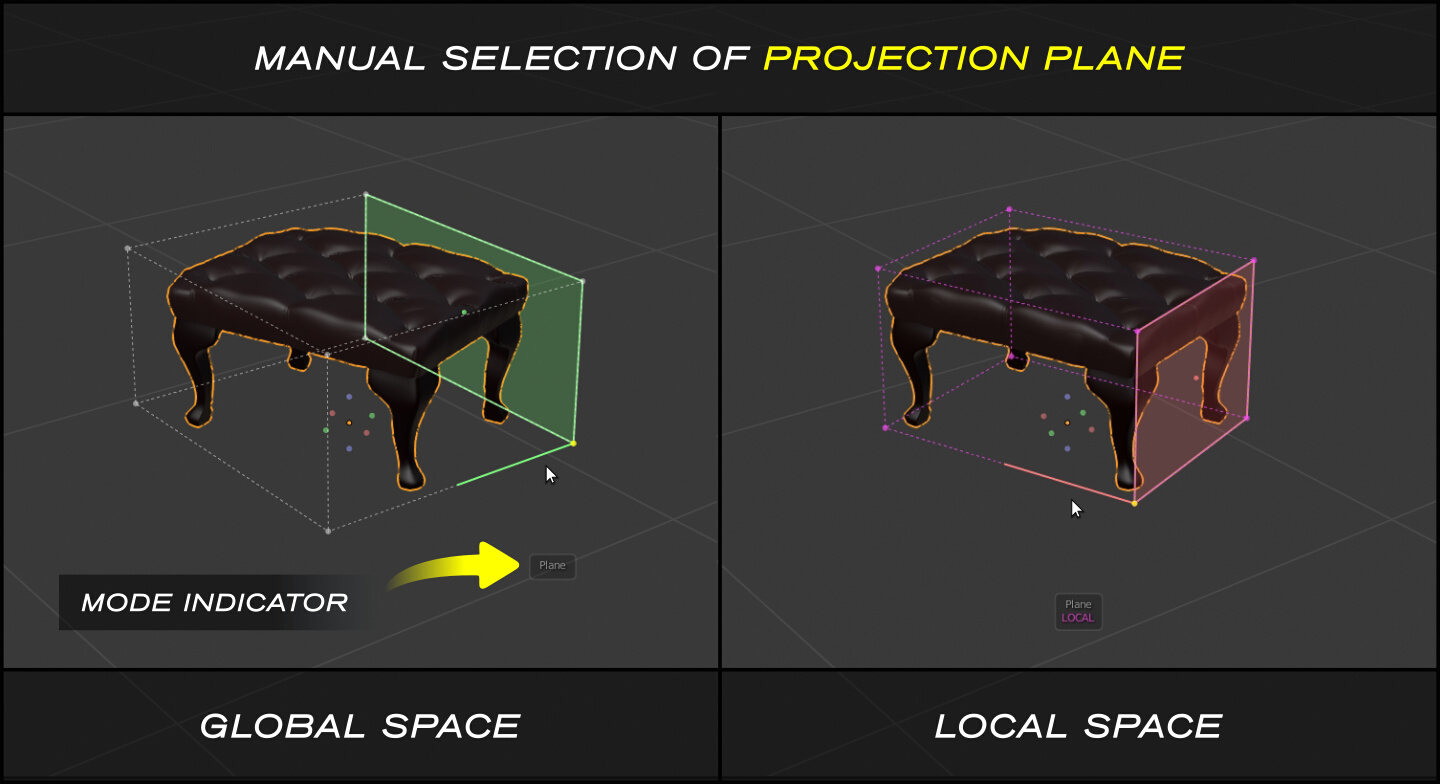
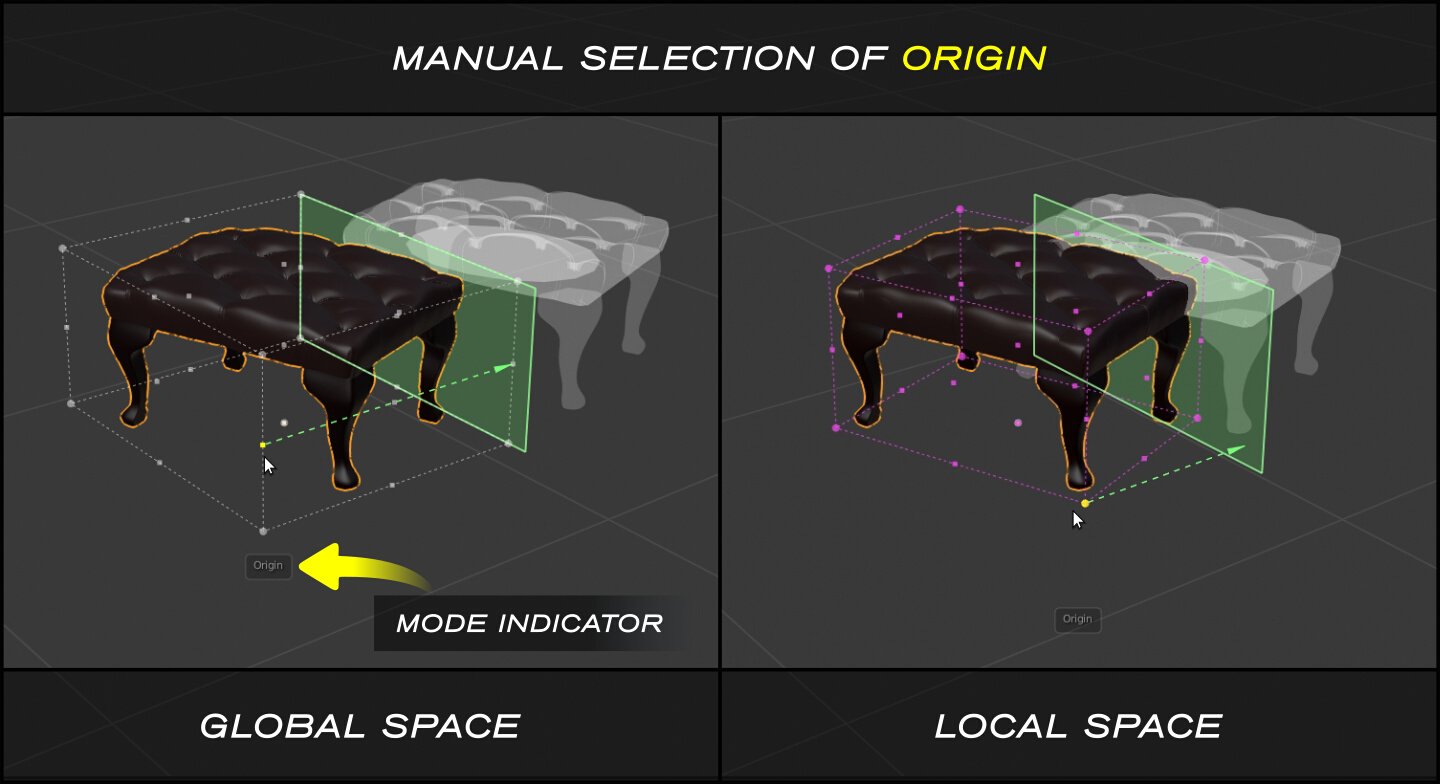
You can pick any projection plane and origin point of your choice at any time.
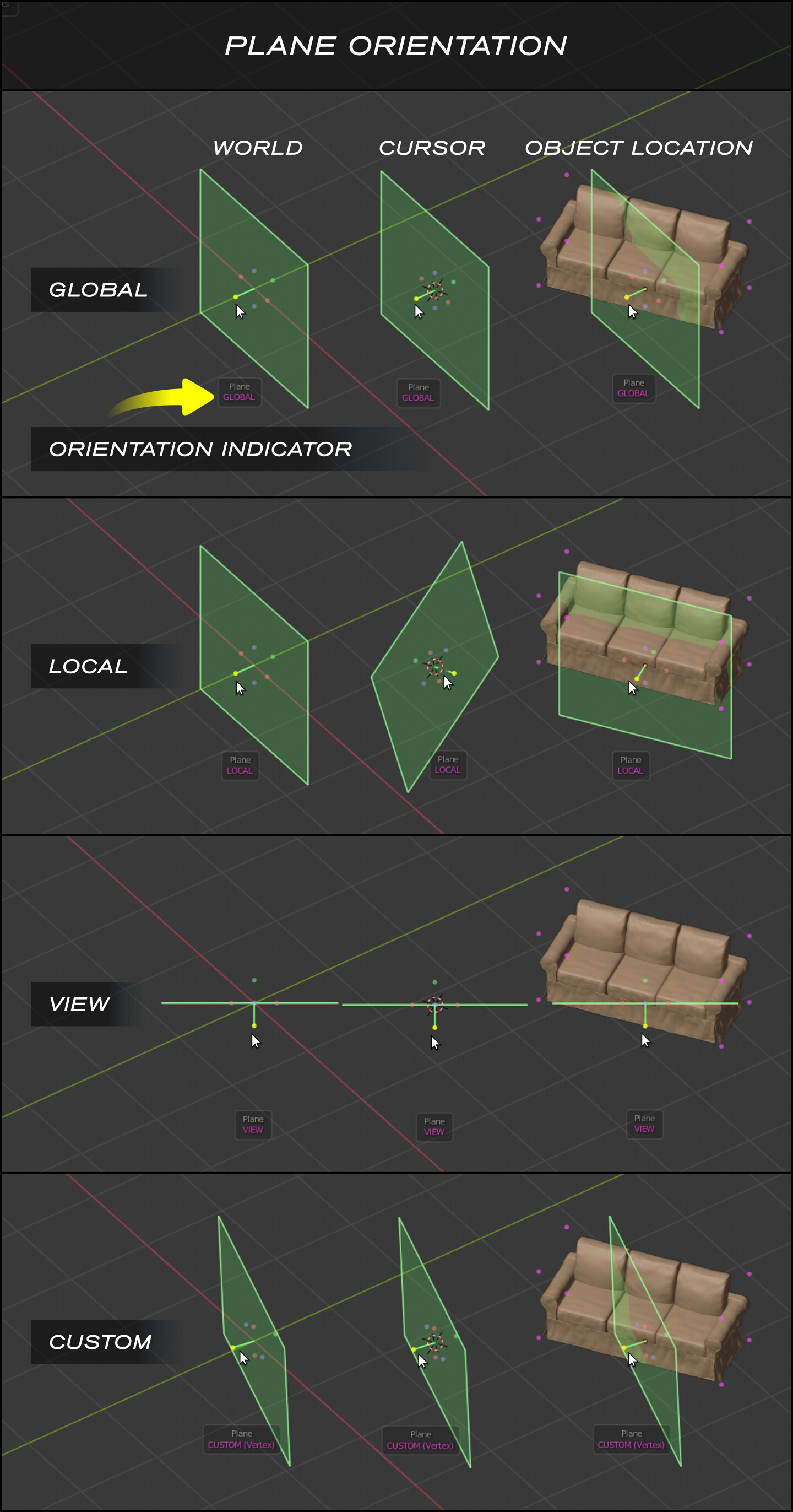
Orientation control
In 2D applications you can normally align objects in 2 main directions fixed to the screen.
With Pro Align Tools you can align objects in global, local, view coordinates, and any other user-defined orientation.
Pick from geometry
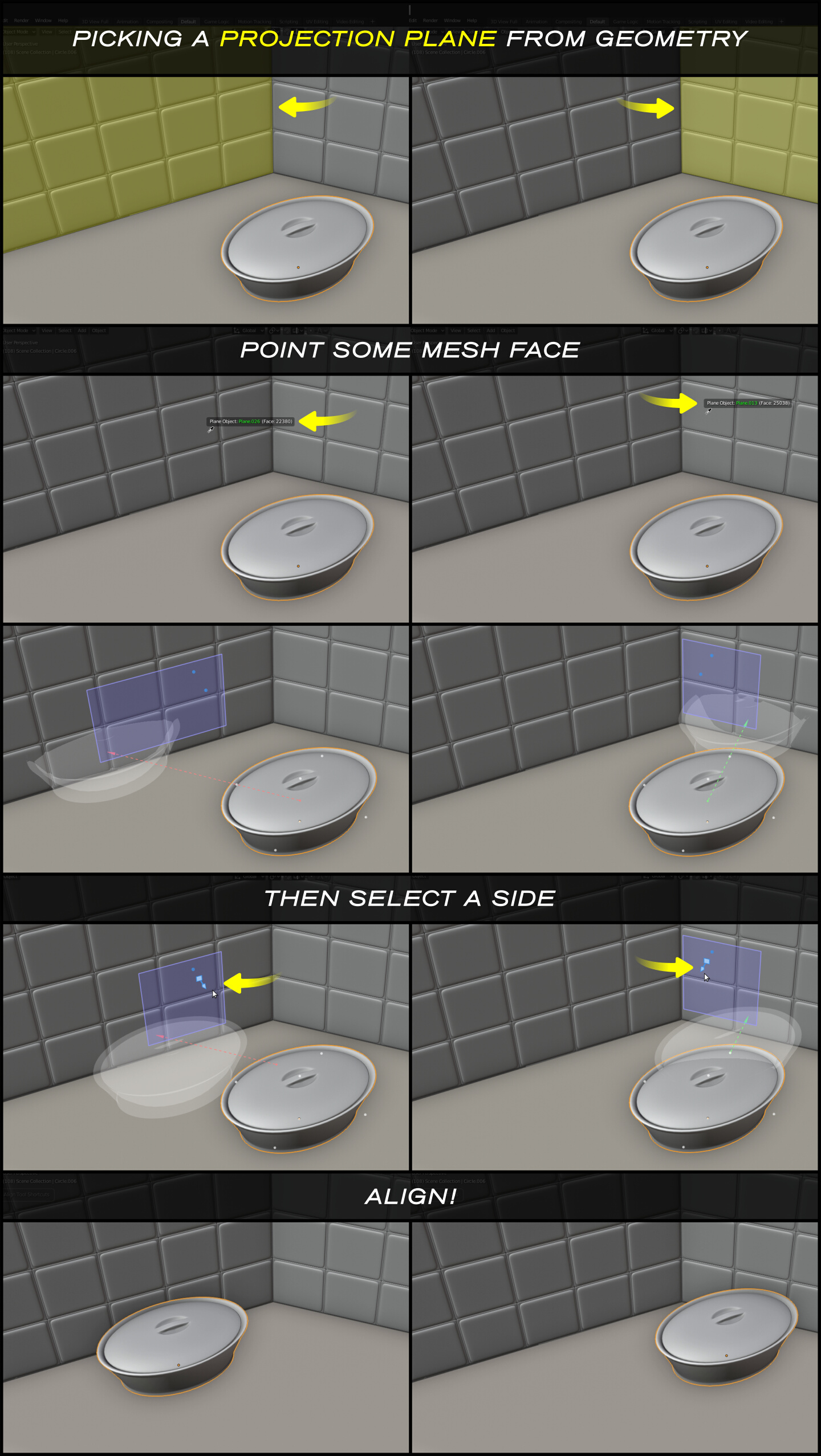
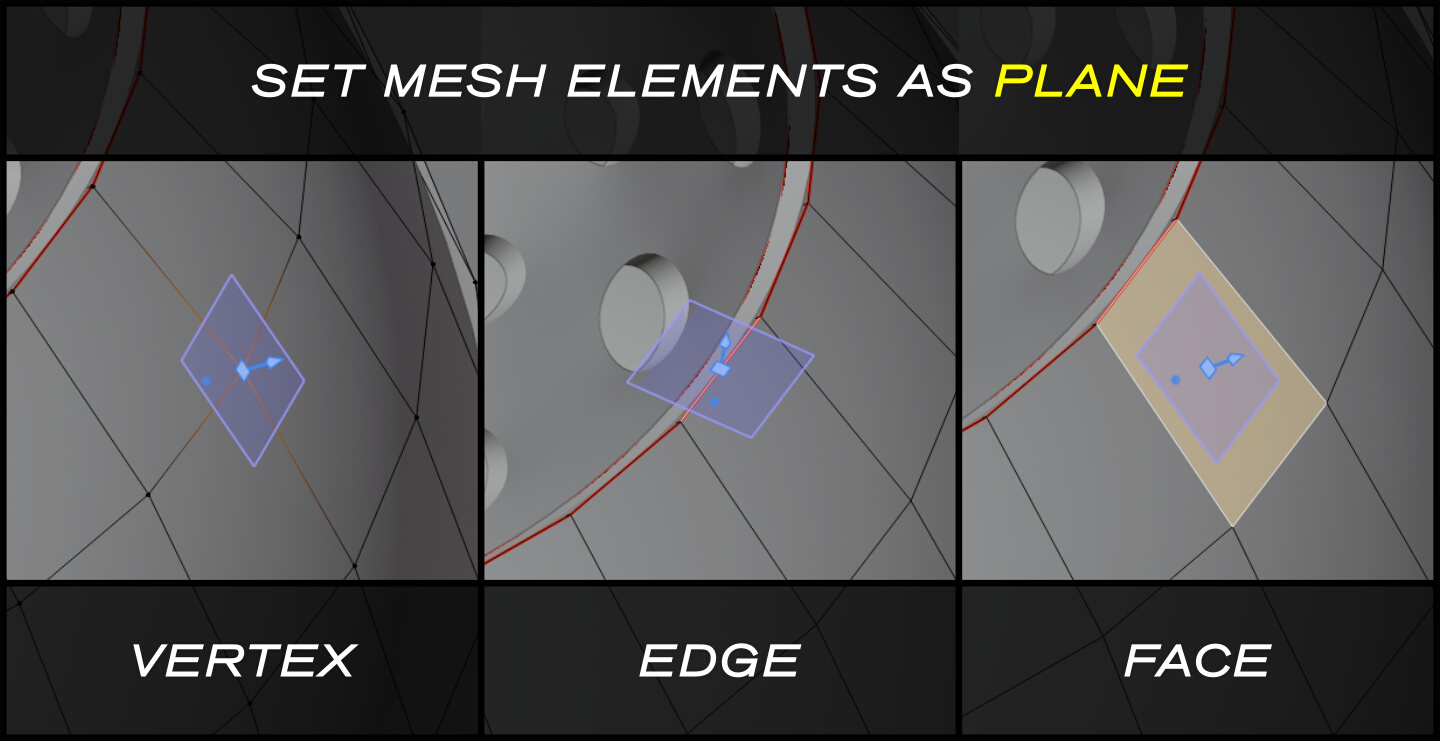
If you want to take a projection plane from the geometry of meshes, you can also do it directly in the 3D view, by pressing Shift + P, pointing to a face and clicking.
Then selecting the side you are interested in.
Features
- Align lots of objects at once
- Call the tool with the shortcut: Ctrl + Alt + A
- Align faster using the shortcuts: Return / Enter
- Use Auto-alignments to select very fast a preset combination of origin points, projection plane and plane depth, all with the ease of a single click
- Ease your ArchViz and MoGraph works by aligning very easily in global coordinates
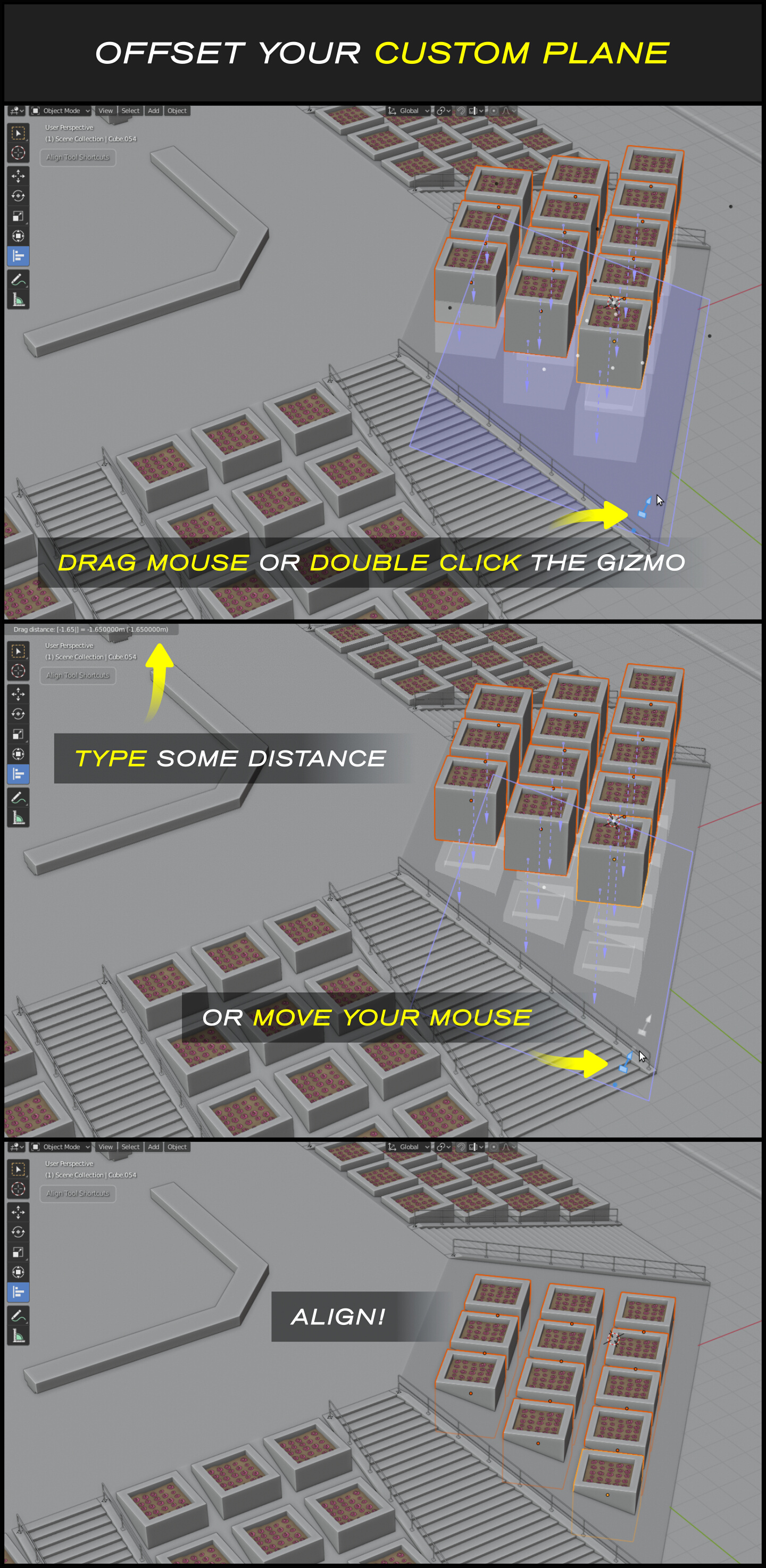
- Hold, drag and release the mouse to place a projection plane at an offset distance along its normal
- Type an exact offset distance (units allowed) to move your projection plane along its normal
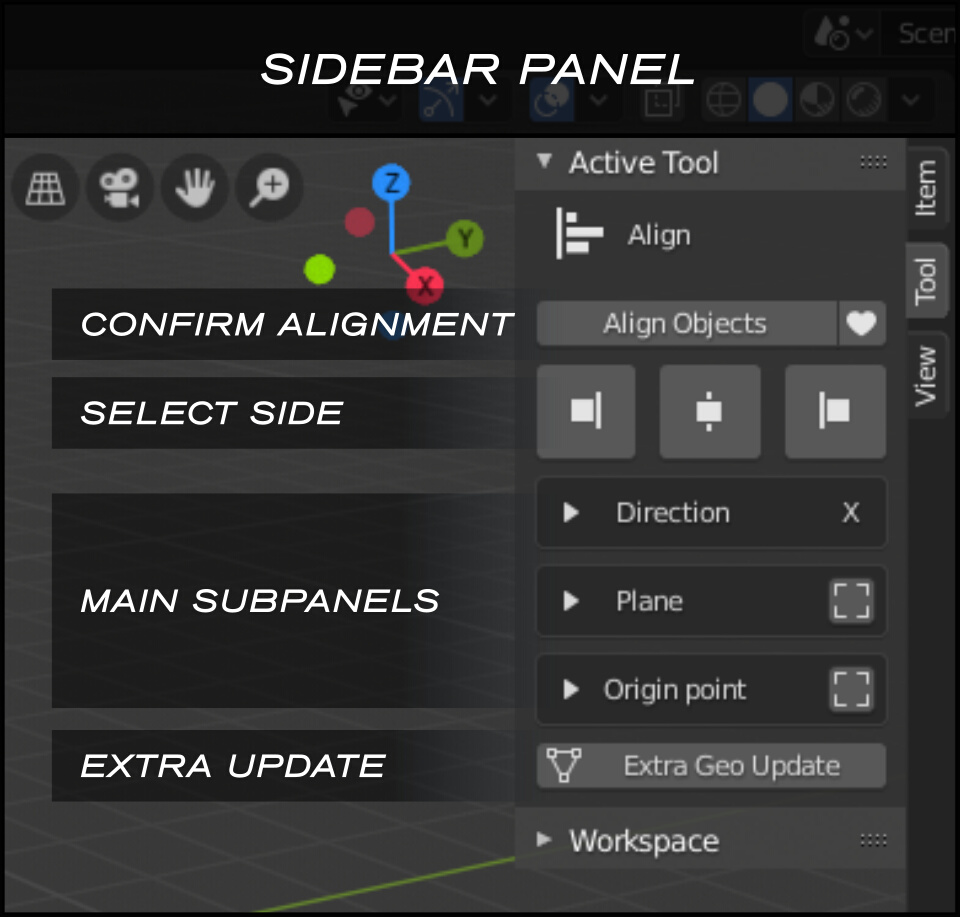
- Use the dedicated panel at the Sidebar to tune up your alignment configuration at detail
- Use 3 different panels to customize options for Direction, projection Plane and Origin point
- Project objects individually or as a group
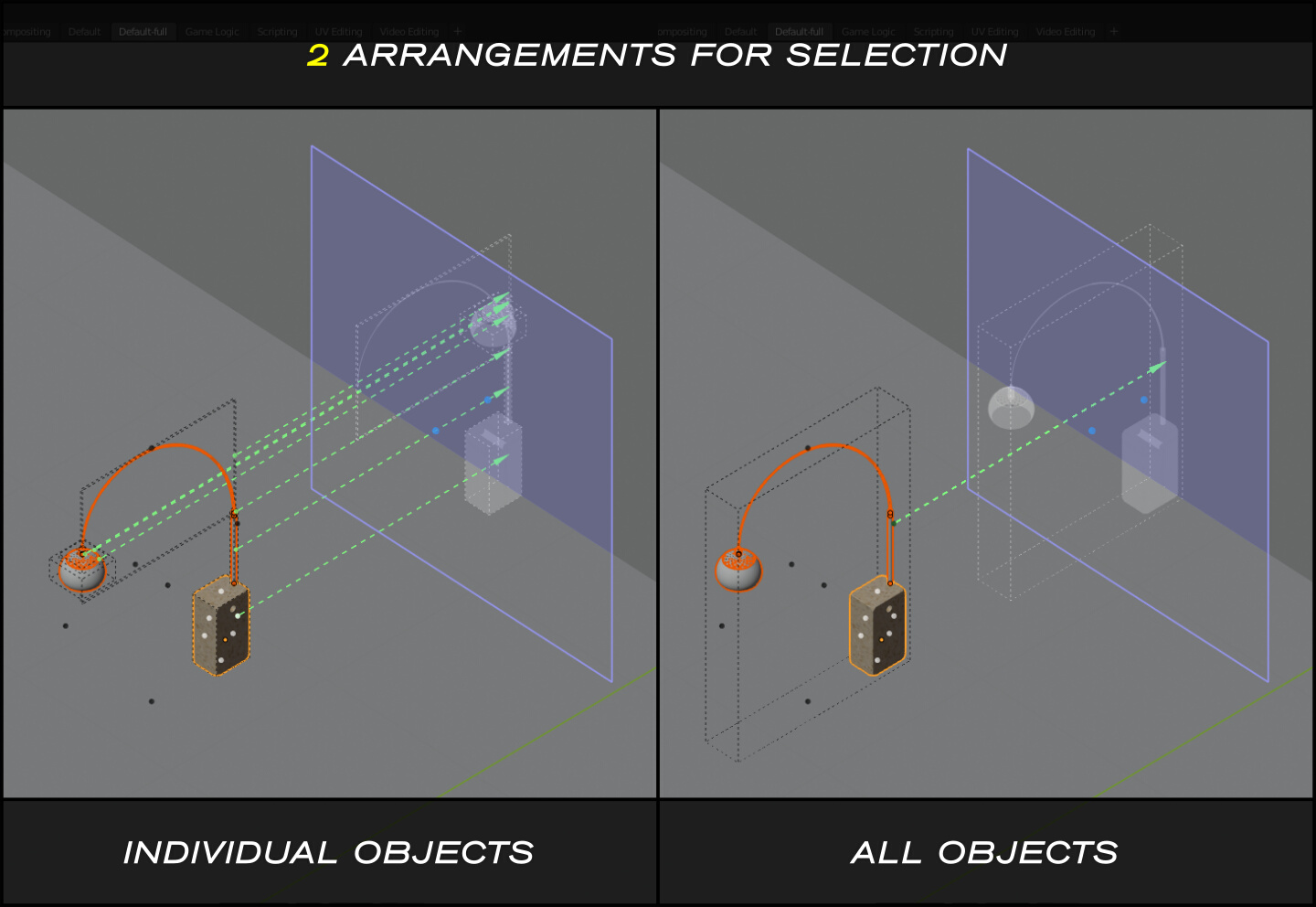
- Get realtime feedback with a dynamic projection plane following your objects and colored with the axis in use
- Change the alignment orientation directly in the 3D view
- Choose between the axes X, Y and Z for direction and the projection plane
- Set the projection plane up to 3 levels of depth within the bounding box
- Use the following key spots to define your projection plane or origin point:
- Origin of the World
- Cursor
- Location of Active/Custom Object
- Global/Local Bounds of Active/Custom Object
- Global/Local Bounds of Selected Objects
- Use up to 5 orientations for direction: Global, Local, View, Perpendicular and Custom
- Use up to 4 orientations for projection plane: Global, Local, View and Custom
- Use the eyedropper to pick a Custom Object outside the selection
- Switch between using bounds or geometry when fitting your objects to the plane
- Pick any vertex of a mesh as the origin point
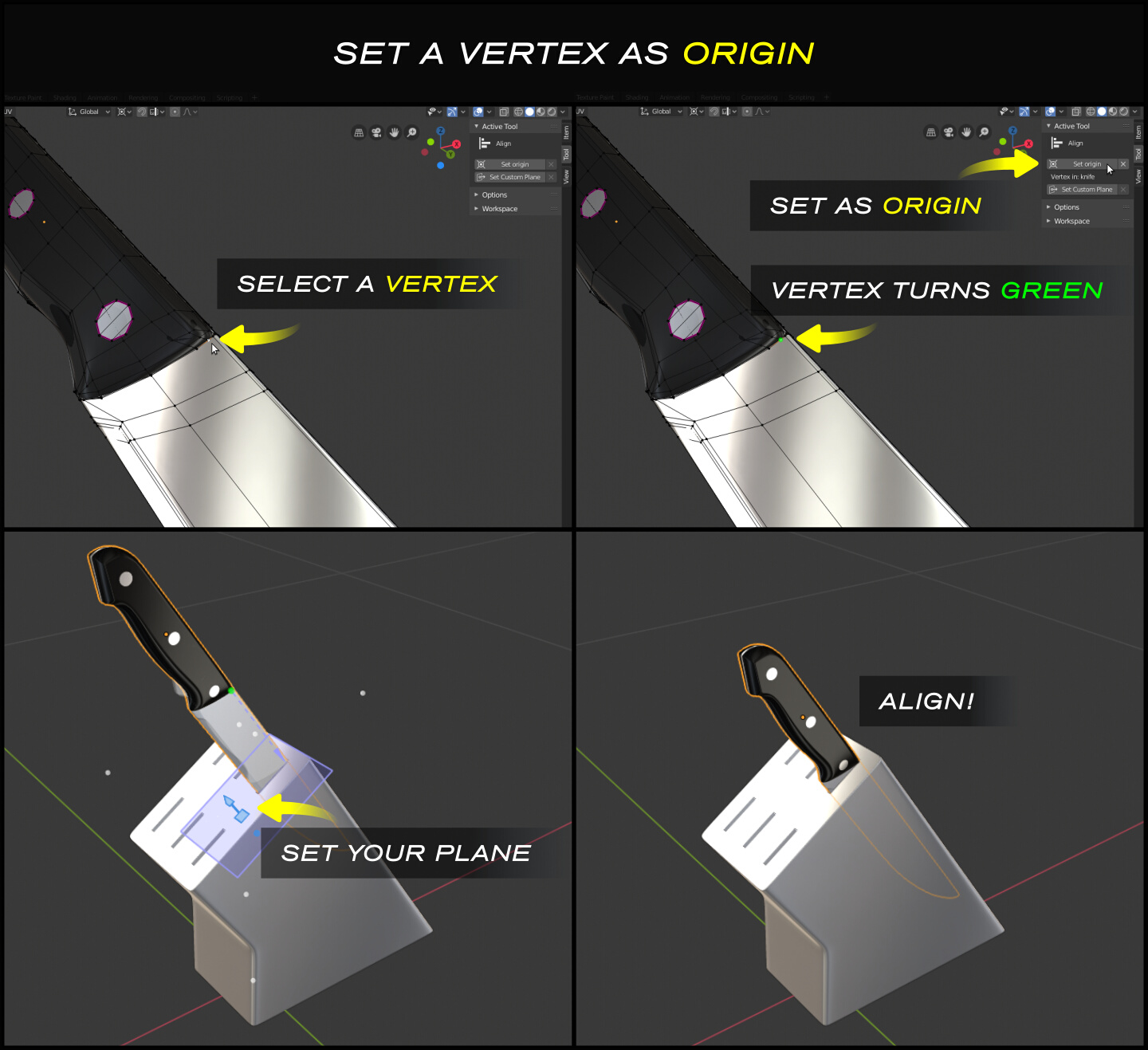 Select an individual vertex as the origin point
- Pick any combination of vertices/edges/faces to define a custom plane
- Draw helper bounding boxes to better appreciate the spatial relation between objects
- Invalid projections such as parallel ones are highlighted in red and won’t move the affected objects
- Take advantage of the possible combination of axes at your disposal to align in tricky situations
- Use the perpendicular direction to align at the closest distance to the plane
- Enjoy a seamless experience when having hierarchies of several parented objects
Shortcuts
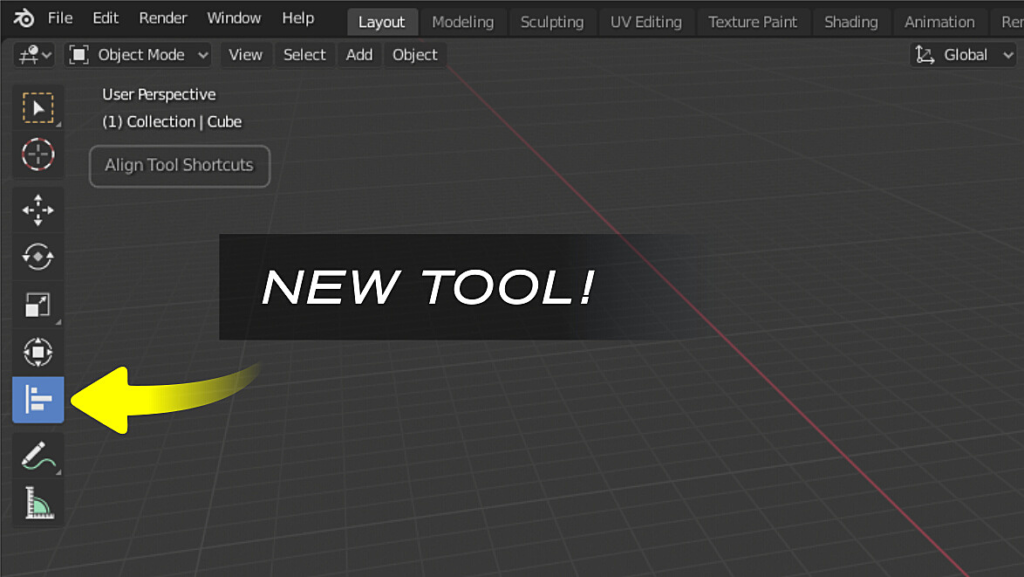
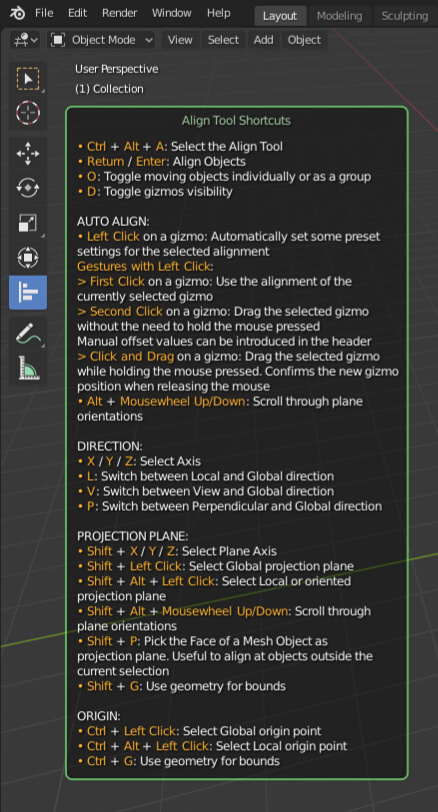
Pro Align Tools provides its own set of shortcuts that will become visible once you select the Tool. Use this as a reminder of keys or as a cheatsheet.
You can expand this list of shortcuts directly in the 3D view by clicking in the label located at the top left corner of the 3D View.
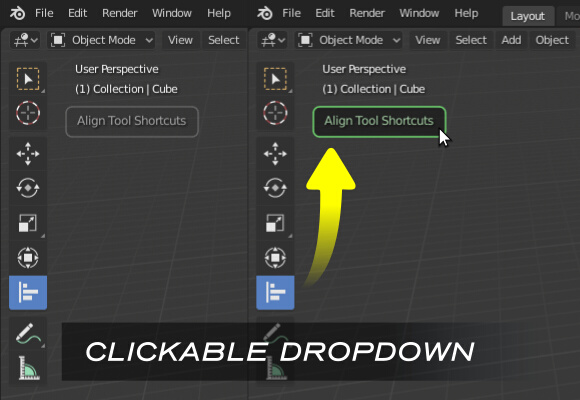
The shortcuts button at the top left corner of the 3D View.
Supercharge your 3D creation workflow with premium selection of Blender Add-ons. Whether you are modeling intricate characters, sculpting realistic environments, or animating cinematic sequences, the right add-on can transform how you work inside Blender. Our curated collection includes powerful tools for UV unwrapping, procedural texture generation, rigging automation, rendering optimization, and more—each rigorously tested for compatibility with the latest Blender versions. Eliminate tedious manual processes and unlock advanced functionality that lets you focus on what matters most: bringing your creative vision to life. Explore our full range of professional Blender plugins today and take your 3D projects to the next level.
➡️ ➡️ For more Blender Plugins 😀 😀
Reviews
There are no reviews yet.