
QOL MaterialsPanel for Blender
QOL MaterialsPanel v1.2.4 for Blender
The Ultimate Material Management and Workflow Enhancement Tool
Download QOL MaterialsPanel v1.2.4 today. Consequently, you can manage all your Blender materials through a clean, intuitive interface that transforms your daily workflow. Because effective material management is essential for efficient 3D production, having access to the right tools makes a significant difference. Nevertheless, Blender’s default material system can become cumbersome when working with complex scenes containing dozens or hundreds of materials. Fortunately, this powerful addon addresses these challenges elegantly. Moreover, it serves as the largest and most comprehensive tool within the QOL Tools suite, offering a wide range of utilities while maintaining a minimal and unobtrusive footprint . In short, you can organize, apply, edit, and clean up materials with unprecedented efficiency.
Flexible Panel Layout and Visual Indicators
The cornerstone of this addon lies in its adaptable interface design. For instance, users can choose to display the panel either as an N-panel in the sidebars or as a properties panel, depending entirely on personal preference and workspace requirements . Additionally, version 1.2.4 introduces a clever usage indicator system that displays hollow or filled circles next to each material, providing an immediate visual cue showing exactly which materials are being used by the currently selected objects . Furthermore, the underlying functionality remains intact, meaning these indicators still allow you to select all objects using a particular material with a single click. Consequently, navigating complex scenes with numerous materials becomes significantly faster and more intuitive.
Smart Material Application and Selection
Professional material workflows demand speed and precision. Therefore, this addon includes one-click material application that allows you to assign materials to selected objects instantly, with the option to either overwrite existing materials or preserve them as needed . Similarly, the Grab function enables direct selection of all objects in your scene that use a specific material, automatically handling objects with multiple material slots by setting the active slot appropriately . Moreover, the Ctrl+Click duplicate feature lets you create immediate material copies for quick variations, saving valuable time when experimenting with different looks . Consequently, your material assignment workflow becomes remarkably streamlined.
Intelligent Material Creation and Color Management
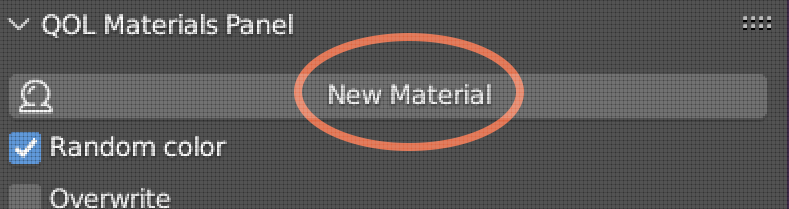
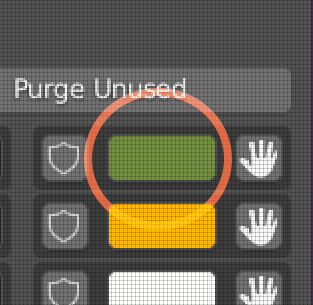
Creating new materials has never been more straightforward. For example, the New Material function generates a fresh material on your object while simultaneously assigning a CSS3-compliant initial color with proper gamma and color correction . Additionally, the addon intelligently names new materials with descriptive titles, eliminating the confusion of generic names like “material.037” . Furthermore, direct color editing capabilities allow you to adjust colors on multiple materials from a single panel, making it significantly easier to coordinate and match colors across your entire scene . Thus, your material creation and color management workflow becomes faster and more cohesive.
Comprehensive Cleanup and Scene Optimization
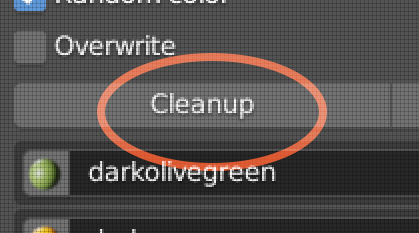
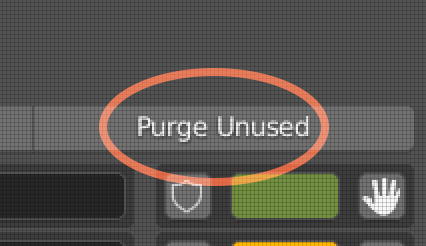
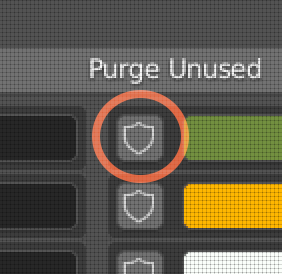
Scene maintenance is often overlooked but critically important for production efficiency. Therefore, the Cleanup tool removes unused material slot data from individual objects, clearing out redundant slots that clutter your workspace . Additionally, the Purge Unused function scans your entire scene and eliminates all materials that are not referenced anywhere, reducing file size and improving performance . Moreover, the Protect/Fake User feature allows you to mark specific materials as protected, ensuring they are preserved even when running cleanup operations . Consequently, your scenes remain clean, organized, and optimized at all times.
Perfect for Texture Artists and Scene Layout Specialists
This addon is particularly well-suited for texture artists managing complex material libraries. Similarly, environment artists building large scenes with numerous assets will appreciate the organizational capabilities. Additionally, team members collaborating on projects can maintain consistent material naming and structure through the intelligent tools provided. Ultimately, whether you are a beginner seeking simplicity or a professional requiring advanced material control, QOL MaterialsPanel accelerates your entire material management workflow .
System Requirements and Compatibility
The addon supports Blender versions 3.0 through 3.6, with compatibility extending to version 4.2 through related QOL Tools extensions . Furthermore, it works across all major operating systems including Windows, macOS, and Linux. You will need a standard workstation with at least 8GB of RAM, though system requirements are minimal given the addon’s lightweight nature.
Installation and Usage Guide
To install, first download the zip file from your library. Next, open Blender and navigate to Edit Preferences. Then, select Add-ons and click Install. After that, locate and select the downloaded zip file, then enable the QOL MaterialsPanel addon. Finally, open the panel from the sidebar or properties area, and begin managing your materials efficiently. Thus, your optimized material workflow will be ready instantly .
What is Included Inside?
The pack contains the complete MaterialsPanel addon with all features from v1.2.4. Furthermore, it includes the usage indicator system, duplicate material function, and comprehensive filtering capabilities . Additionally, you receive all application, cleaning, and purging tools. Ultimately, you receive everything needed for professional material management .
Final Thoughts on the Addon
Effortless material management evokes profound creative freedom. Therefore, this addon provides the ultimate foundation for your material workflows. You can organize and apply materials with remarkable speed and efficiency. Alternatively, you can maintain clean, optimized scenes through intelligent cleanup tools. Consequently, your material management vision becomes a stunning reality.
Materials Panel
The Materials Panel is an elegant complement to Blenders standard materials features, adding an overview of all available materials and a range of user-friendly utilities. The QOL range of tools are designed to be intuitive and unobtrusive. To give you access to “every day useage” features in a minimal footprint. The Materials Panel is (to date) the largest of the QOL tools, with a comprehensive range of tools, but in an elegant fashion.
Updates!
Version 1.1.7 now includes:
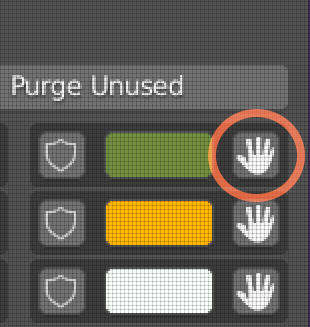
• “Used in selection” indicator. The “hand” button has a different appearance now, displayed as a hollow or filled circle. This shows an immediate indication of which materials the current object(s) are using! While visually acting as a usage indicator, it still performs the same function of selecting all objects with the material.
• Duplicate material. CTRL-Clicking the shaderball of any material makes an instant duplicate for adding variations.
• Filter. Scenes populated by great numbers of materials no longer require looking for the material in question.
Features:
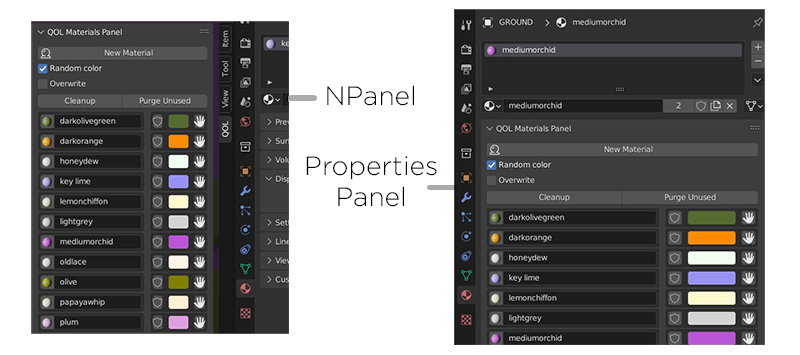
Flexibility: The Panel can either be displayed as an NPanel, or properties panel via the addon preferences. Your choice!
Apply: one-click application of material to selections with the choice of whether to overwrite or preserve existing.
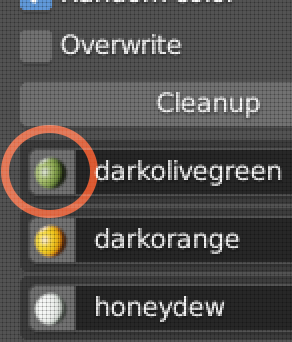
Grab: Directly select all objects in your scene using a material. If the selection contains multiuple materials it automatically sets the active slot of the object(s) to the appropriate material.
New Material: Generates a new material on the object, and also gives it an initial CSS3 compliant color. All Gamma and color correct. As a bonus it also names the new material appropriately (how useful is “material.037” ?)
Direct color editing: So much easier to coordinate and match colors on multiple materials when they’re all directly present and editable.
Cleanup: Removes unused material slot data. Does your object have 15 materials on it, but only actually using one or two ? Cleanup! and the others are wiped off.
Purge unused: Universally travels the scene and removes reduntant materials that are cluttering things.
Protect/Fake user: Directly see and edit the protected status of materials. Useful if, for example, you want to purge unused, but retain x.
Supercharge your 3D creation workflow with premium selection of Blender Add-ons. Whether you are modeling intricate characters, sculpting realistic environments, or animating cinematic sequences, the right add-on can transform how you work inside Blender. Our curated collection includes powerful tools for UV unwrapping, procedural texture generation, rigging automation, rendering optimization, and more—each rigorously tested for compatibility with the latest Blender versions. Eliminate tedious manual processes and unlock advanced functionality that lets you focus on what matters most: bringing your creative vision to life. Explore our full range of professional Blender plugins today and take your 3D projects to the next level.
➡️ ➡️ For more Blender Plugins 😀 😀
Reviews
There are no reviews yet.