
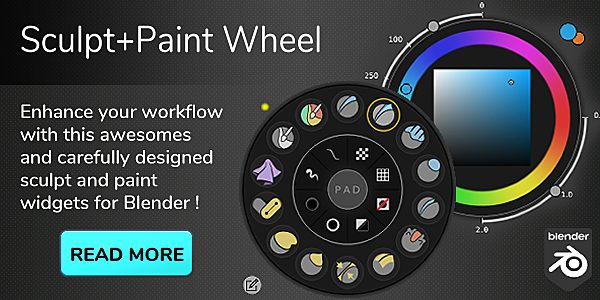
Sculpt Paint Wheel for Blender
Sculpt Paint Wheel v3.0.3 for Blender – The Ultimate Radial Menu & Brush Management Toolkit
Version v3.0.4
File Size: 3.5 MB
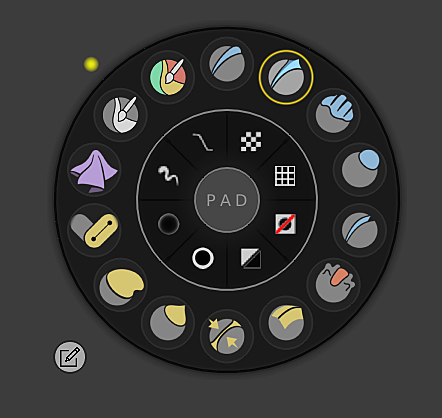
Download Sculpt Paint Wheel v3.0.3 for Blender on Windows and Mac, a revolutionary workflow enhancement addon designed to drastically speed up your sculpting and texture painting sessions. By replacing Blender’s traditional, scroll-heavy toolbars with a highly customizable, visual radial pie menu, Sculpt Paint Wheel puts every brush, alpha, mask, and setting right under your cursor. It eliminates the need to constantly move your mouse to the side panels, keeping your hands on the primary modeling keys and your focus entirely on the creative process.
Key Features of Sculpt Paint Wheel v3.0.3:
- Intuitive Radial Pie Menus: Instantly summon a beautiful, circular menu with a single hotkey (default
WorShift+W). Brushes are arranged in a logical, easy-to-remember circle, allowing for muscle-memory selection without looking at the screen. - Dual-Mode Support: Fully optimized for both Sculpt Mode and Texture Paint Mode. Seamlessly switch between 3D sculpting and 2D painting with dedicated wheel layouts for each workflow.
- Visual Brush & Alpha Previews: Every slot on the wheel displays a high-quality thumbnail of the brush stroke or the alpha texture, so you know exactly what you are selecting before you click.
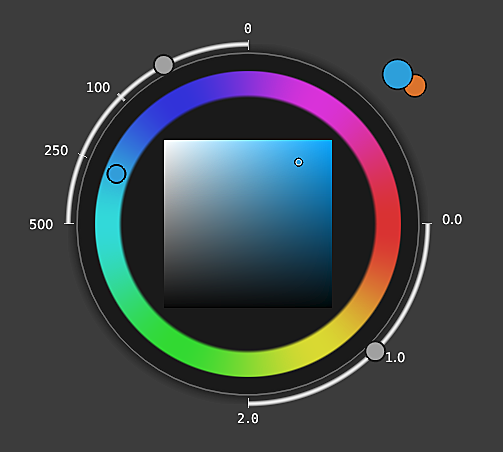
- Quick Settings Popups: Access critical brush settings like Radius, Strength, and Falloff directly from the wheel or via a secondary quick-popup, allowing for on-the-fly adjustments without opening the properties panel.
- Custom Alpha & Mask Management: Easily drag and drop your custom alphas and masks directly into the wheel. The addon automatically generates thumbnails and organizes them into custom categories.
- Color-Coded Categories: Group your brushes by function (e.g., Clay, Standard, Smooth, Masking, Inflate) and assign distinct colors to each category for instant visual recognition.
- Symmetry & Topology Toggles: Include quick-access buttons on the wheel to toggle Radial Symmetry, Face Sets, Dyntopo, Remesh, and Masking, keeping your workflow uninterrupted.
- Search & Filter System: If you have a massive library of hundreds of brushes, use the integrated search bar to instantly filter and find the exact tool you need.
- Fully Customizable Layouts: Resize the wheel, change the number of slots, adjust the inner and outer radii, and save multiple layout presets for different types of projects (e.g., “Character Sculpting,” “Hard Surface,” “Texture Painting”).
- Lightweight & Non-Destructive: Operates purely as a UI enhancement layer. It does not alter your mesh data or slow down Blender’s core evaluation engine.
Perfect For:
- Character & Creature Sculptors who need rapid access to dozens of anatomical and detail brushes without breaking their flow.
- Hard-Surface Modelers who rely on quick switching between masking, boolean, and smoothing tools.
- Texture Painters needing fast access to custom alphas, dirt masks, and color palettes while painting directly on 3D models.
- ZBrush Converts who miss the speed and efficiency of the ZBrush radial menu and Quick Menu systems.
- Concept Artists rapidly blocking out shapes and forms where speed and brush variety are paramount.
- Anyone who suffers from “menu fatigue” and wants to keep their mouse cursor in the center of the viewport.
System Requirements:
- Blender: 3.6, 4.0, 4.1, 4.2, 4.3, 4.4+ (Latest LTS recommended).
- OS: Windows 10/11 (64-bit) or macOS 10.15+.
- RAM: 4GB minimum (8GB+ recommended for generating thumbnails for massive brush libraries).
- No external dependencies required.
Installation:
- Download the Sculpt Paint Wheel v3.0.3
.zipfile. - Open Blender and go to Edit > Preferences > Add-ons.
- Click Install…, select the downloaded file, and enable the checkbox next to 3D View: Sculpt Paint Wheel.
- Access via the designated hotkey (default
Win Sculpt/Paint mode) or configure your preferred shortcut in Preferences > Keymap. Settings are located in the 3D Viewport Sidebar (N-panel) under the Sculpt Paint Wheel tab.
What’s New in v3.0.3?
- Blender 4.4 Full Compatibility: Updated all UI drawing APIs and Asset Browser integrations to ensure flawless stability, correct scaling on 4K monitors, and perfect compatibility with the latest Blender 4.4 release.
- Faster Thumbnail Generation: Rewritten the image processing backend for alpha previews, reducing the time it takes to generate thumbnails for hundreds of custom alphas by 70%.
- New “Brush Stats” Overlay: Added an optional, unobtrusive HUD that displays real-time vertex/polycount changes and brush impact radius while you sculpt.
- Smoother Menu Animations: Refined the opening and closing animations of the radial wheel, making the UI feel snappier and more responsive.
- Texture Paint Opacity Fix: Resolved a bug where brush strength and alpha opacity would occasionally desync when switching between Texture Paint slots.
- Drag-and-Drop Reordering: You can now click and drag brush icons directly within the wheel to reorder them on the fly, without needing to go into the settings menu.
Note:
Sculpt Paint Wheel v3.0.3 is all about ergonomics and speed. In traditional Blender workflows, selecting a brush requires moving your mouse all the way to the top toolbar, scrolling down a list, and clicking. Sculpt Paint Wheel keeps your cursor exactly where it needs to be: in the center of your 3D viewport. The visual nature of the radial menu means you are selecting based on the look of the brush stroke or alpha, rather than trying to remember its name. By drastically reducing the micro-interactions required to change tools, this addon helps you stay in the “zone,” making your sculpting and painting sessions more fluid, enjoyable, and productive than ever before.
Important Note for Mac users!
Due to an incompatibility with Macs with new dedicated hardware/software (apple silicon, Metal…), I don’t recommend by any means to acquire the addon as you may have drawing artifacts, install issues or unable to use the addon correctly.
Important Note for NEWCOMERS!
This addon does not support Blender 4.3 or greater!
A new addon brand may come in the future with an extended set of features and MacOS support again. No ETA for a release as it heavily depends on the Blender core development as some API features that were available in older versions is now not available anymore, and that makes impossible for Sculpt-Paint Wheel to update and come back.
We recommend to not buy current addon unless you need a working version for 4.2 or lower, as there is a chance you may be required to re-purchase the new addon.
NEW EXTENDED DOCUMENTATION !
> Read Documentation <
FAQ
Which is the lastest supported Blender version?
(Usually lastest release version)
- Version 3.0.X, with support for Blender 3.6.5 and 4.0
I can’t activate the addon!
- There is no support over alpha/beta versions as they are in-development and experimental. As you can read in the official website when downloading those versions:
They can be unstable and mess up your files. Use at your own risk.
- If some “bad magic number” error appears to you, that means somehow you changed the Python version of the Blender python environment, consider cleaning it up and download/install Blender again.
- If some other error pop-up to you please contact me.
Where can I find the tool?
[ for SculptWheel case ]
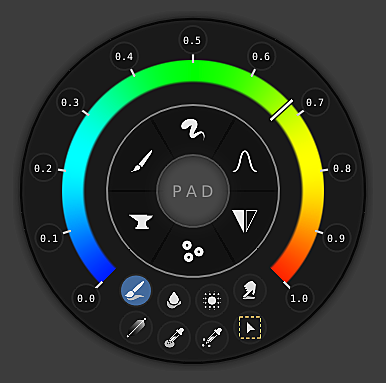
- HOLD ‘Space’ key to trigger it on Sculpt mode, release so it goes away! It will be filled with default brushes and tools for you (you can change them later or create other toolset).
- Addon panel can be found in 3D Viewport’s sidebar > ‘Sculpt’ tab > ‘Sculpt Wheel’ panel
[ for PaintWheel case ]
- HOLD ‘Space’ key to trigger it on Texture Paint and Vertex Paint modes, release so it goes away! But you can configure this to keep open and close when pressing again the hotkey. Note you can configure this key but by default is the spacebar.
- For both paint modes, panel can be found in 3D Viewport’s sidebar > ‘Paint’ tab > ‘Paint Wheel’ panel
How can I update the addon?
To update it in a safe way:
1. Disable it (uncheck the addon in the preferences).
2. Click at ‘Remove’ to remove the addon from Blender.
3. Close Blender and open it again.
4. Install new addon version.
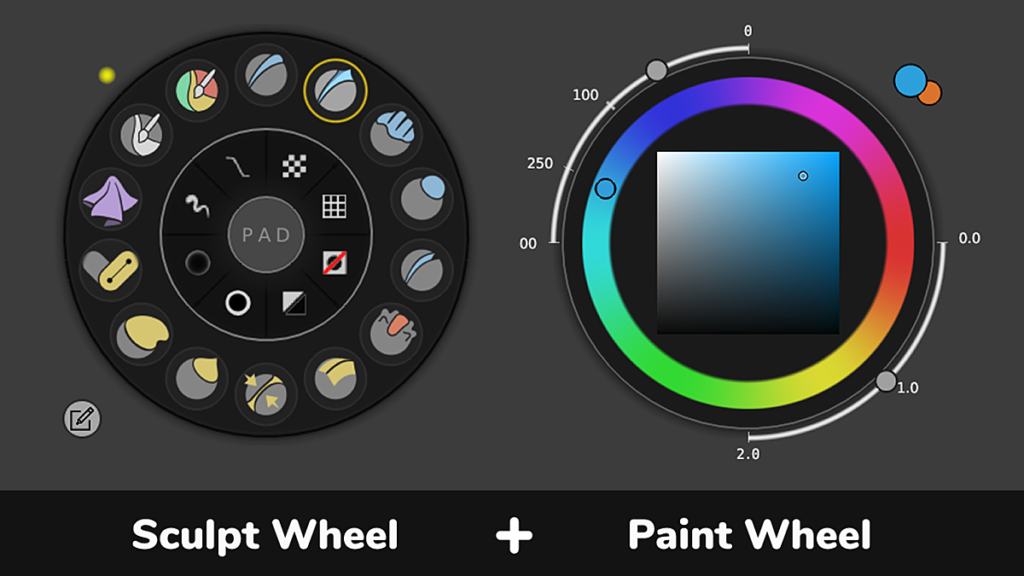
Sculpt Wheel
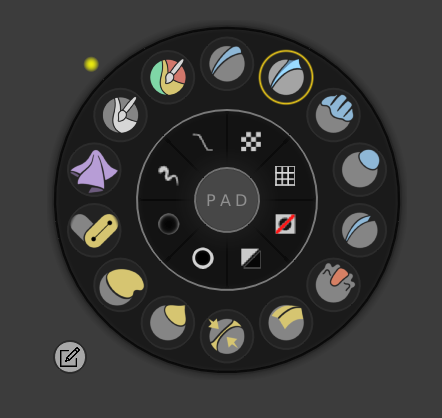
Paint Wheel
(supported modes: Texture Paint, Vertex Paint, GreasePencil Draw, GreasePencil Vertex)
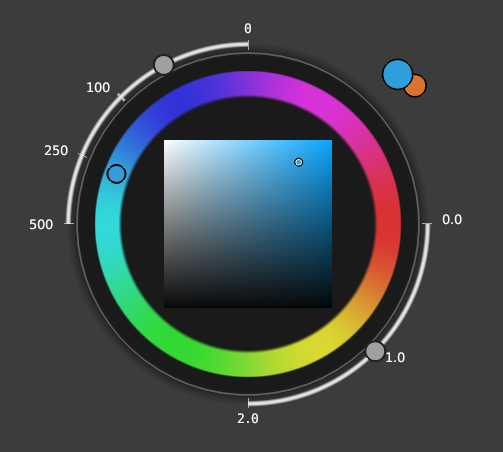
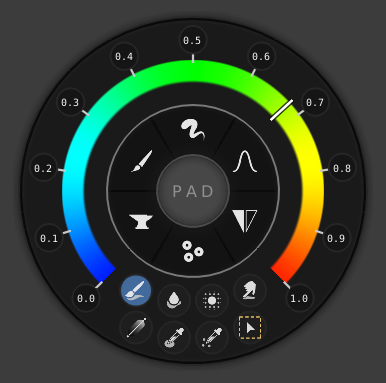
Weight Wheel [NEW!]
(supported modes: Weight Paint, GreasePencil Weight)
Reviews:
AskNK: (review based on v0.4)
https://cdn.iframe.ly/api/iframe?url=https%3A%2F%2Fyoutu.be%2F0vIHHAKEvVg&key=31708e31359468f73bc5b03e9dcab7da
Review by ijigen (based on v0.4)
https://cdn.iframe.ly/api/iframe?url=https%3A%2F%2Fyoutu.be%2FxSmTN6j-MXg&key=31708e31359468f73bc5b03e9dcab7da
Steven Scott: (review based on v0.3)
https://cdn.iframe.ly/api/iframe?url=https%3A%2F%2Fyoutu.be%2F5UFigV-r_dw&key=31708e31359468f73bc5b03e9dcab7da
RELEASE NOTES:
LATEST VERSION (3.0.3)
28th April
- Small fixes in shaders.
- Now the wheel data is unified and shared across multiple scenes on the same .blend
3th April 2023
- Fixes in the toolset libraries IO.
- Support Blender 3.5
3.0 – Sculpt Wheel improvements!
14th December 2022
- Custom Buttons now are saved and loaded !!!
- Greatly improve and fixes over global toolsets and weird behaviour with default toolset marked as global.
- Display tweaks in Sculpt Wheel.
- Supports double line of tools for the Sculpt Wheel when there are so much brushes
- UI Panel for toolsets is simplified.
- Now toolset panel and custom buttons panel will show up buttons to load global toolsets and saved custom buttons – if there is any – otherwise initialize default toolsets / custom buttons. Before it was messy and provoked to load defaults everytime even when it is not desired.
- Some bugfixes here and there.
v.2.2 – 2.93 and GreasePencil
- [PaintWheel] Now supported in GreasePencil ‘Draw’ and ‘Vertex’ modes. Note that in ‘Draw’ mode, Color Picker will work only if using vertexcolor instead of Material option.
- [WeightWheel] Now supported in GreasePencil ‘Weight’ mode.
- Support with 2.93.
v.2.1 – Fixes and Requests!
- [PaintWheel] New preferences block for Color Picker, featuring a new option to lock Saturation/Lightness of ring color picker for Hue.
- [WeightWheel] New option so that the paint brush tool acts as a toggle between ADD and SUBTRACT brushes!
- [PaintWheel] Fixed a positioning bug of the gizmo in the SV color picker that was actually really visible on very high dpi screens.
- [PaintWheel] Fixed scaling issues of color picker and size/strength handlers/gizmos for higher dpi screens.
- [WeightWheel] Fixed scaling issues of overall things (texts, PAD, pie buttons… etc) for higher dpi screens.
v2.0 – BIG UPDATE!
- New widget for Weight Paint, including: gesture pad and pie buttons (as for SculptWheel), visual slider for weight value, tools and weight markers with quick-snap to value action.
- BIG REFACTOR: Note that because of this you may lose old configurations/toolsets/custom buttons. This was something needed as the addon was getting bigger and bigger from only one mode to 4 and still growing! So this refactor is meant to improve development and support.
- Renewed preference settings. Now all it’s better organized.
- Improved panels, specially the Toolsets subpanel for Sculpt Wheel that is was completely renewed.
- Can import and export active toolset brushes to a library .blend file.
- Can export all (or filtered) toolsets to a library .blend file.
- Can do backups of all addon data. (importer to restore data will be next subversion).
- Can mark toolsets as GLOBAL to share them across all .blend files. Global toolsets are loaded directly when you open up any .blend file.
- Can save and reload global toolsets to export changes to source or re-import from source and discard changes.
- Can do daily backups.
- Added missing tooltips to buttons and properties.
- THEMES! Now you can tweak some wheel colors in the preferences!
- Added missing tooltips to buttons and properties. Please report if you see some without tooltip.
- UX: Strenght value in gesture pad had a noticeable horizontal jumping while sliding it.
- Fix: It was impossible to add custom Menus as custom buttons in SculptWheel.
- Much much more!
v1.0a – Release Hot-Fix. MacOS issue, not being able to enable addon.
v1.0 – BIG UPDATE! New Widget for Painting!
- New widget for texture paint and vertex paint, including an SV+H cool color picker, brush size+strenght radial sliders and color preview.
- Move most properties to preferences so they are shared across all your projects and you don’t have to tweak them each time you create a new project.
- Fix: missing icon for cloth filter.
- Fix: glitchy icons starting from Blender 2.90+.
- Now custom icons are auto-crop to fit well inside the circles.
- More feedback when entering edit mode. Edit button behaves as a toggle now.
- Support relative paths for custom brush icons.
- Supports Blender 2.91, including icons for new tools.
- Some tweaks in the SculptWheel style.
v0.5 – Regression fixes !
- FIX: Regression. Custom operators don’t work.
- FIX: Regression. Some brushes (multi-plane scrape and slide-relax) cause error when invoking Sculpt Wheel.
v0.4a – Update hotfix!
v0.4 – Fan-service Update !
- Added support with custom colors for tools + 2 modes: outline and background.
- Support MacOS.
- Added option to select tool on release.
- Solved some annoying bugs!
- Now by default the filepath to create custom buttons points up to a Blender icon library with more than 700 icons !!!
- Added support with custom keymap, you can change it directly from wheel settings and addon preferences.
- Added support to tools that are not brushes!
- Add option to keep wheel opened until you press and release your hotkey again.
- Created extended documentation!
v0.3
- Adaptive: Support higher/lower DPI screens based on Blender window size.
- More responsive and relative interface elements all around.
- Better text vertical alignment in pad for tooltip when hovering custom buttons and tools/brushes.
- Other small visual improvements.
v0.2 – Release Hotfixes
- ‘Show Tool Names’ option is disabling toolset indicators in widget. Also solved another issue causing a similar effect but in the pad.
- Can’t remove toolset. Functionality is not exposed, now near the active toolset name you have a ‘trash’ icon to remove active toolset.
- Now image path at Custom Buttons > Create section supports relative paths.
v0.1 – Release version
- Docs Sheet from 0.1 version :
Supercharge your 3D creation workflow with premium selection of Blender Add-ons. Whether you are modeling intricate characters, sculpting realistic environments, or animating cinematic sequences, the right add-on can transform how you work inside Blender. Our curated collection includes powerful tools for UV unwrapping, procedural texture generation, rigging automation, rendering optimization, and more—each rigorously tested for compatibility with the latest Blender versions. Eliminate tedious manual processes and unlock advanced functionality that lets you focus on what matters most: bringing your creative vision to life. Explore our full range of professional Blender plugins today and take your 3D projects to the next level.
➡️ ➡️ For more Blender Plugins 😀 😀
Reviews
There are no reviews yet.