
Spacing Sculptor for Blender
spacing sculptor addon
Spacing Sculptor for Blender – Advanced Mesh Spacing & Distribution Tool
Download Spacing Sculptor for Blender on Windows, Mac, and Linux, a powerful mesh distribution add-on that intelligently spaces, scatters, and arranges objects along surfaces, curves, or between boundaries. Perfect for hard-surface modelers, product designers, and environment artists who need precise control over object placement and spacing .
Key Features of Spacing Sculptor:
- Object Spacing: Evenly space objects along lines, curves, or surfaces
- Radial Arrays: Create circular arrays with adjustable radius and spacing
- Surface Distribution: Distribute objects across mesh surfaces with density control
- Gap Management: Maintain consistent gaps between objects regardless of shape
- Boundary Detection: Distribute objects within mesh boundaries or between edges
- Randomization Options: Randomize position, rotation, and scale within spacing constraints
- Real-Time Preview: See spacing results update instantly as you adjust parameters
- Non-Destructive: All operations remain editable without rebuilding
Perfect For:
- Hard-surface modelers creating repeating mechanical details
- Product designers spacing components on surfaces
- Environment artists distributing vegetation or props
- Architectural modelers placing repeating elements
- Anyone needing precise object spacing in Blender
System Requirements:
- Blender 3.6, 4.0, 4.1, 4.2, 4.3
- Windows 10/11 (64-bit), macOS, or Linux
- 4GB RAM minimum (8GB+ recommended)
- 10MB available disk space
Installation:
- Download the add-on zip file
- In Blender, go to Edit > Preferences > Add-ons
- Click “Install” and select the downloaded zip file
- Enable the add-on by checking the box next to “Spacing Sculptor”
Note: Spacing Sculptor provides precise object spacing and distribution tools for Blender, making it easy to create repeating patterns, radial arrays, and surface distributions . The real-time preview and non-destructive workflow make it essential for hard-surface modelers, product designers, and environment artists . Designed for Blender 3.6 and above . Perfect for precise object placement . Essential for any spacing workflow .
What’s new?
- favoring
- Transform collection
- Bug fixes
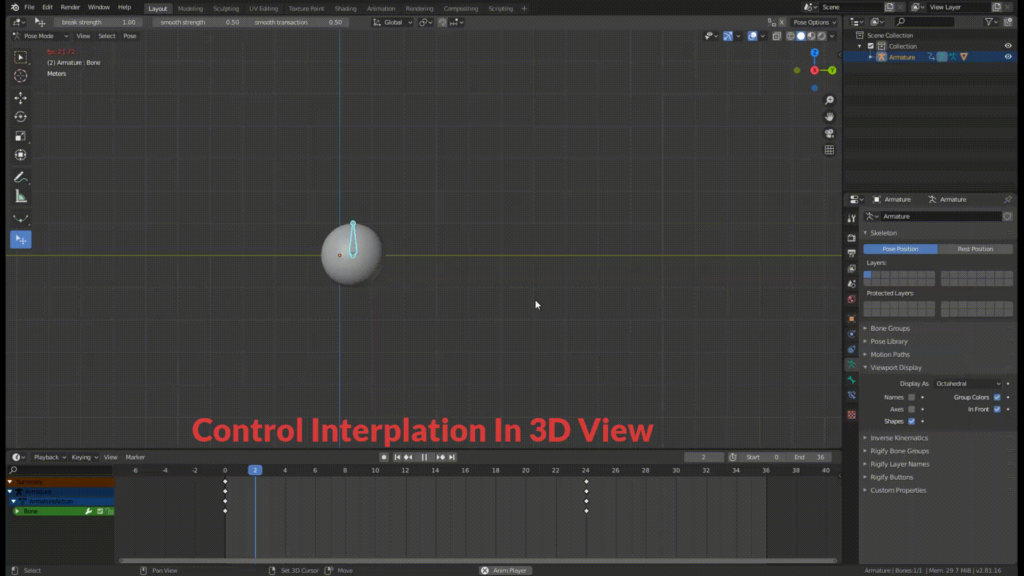
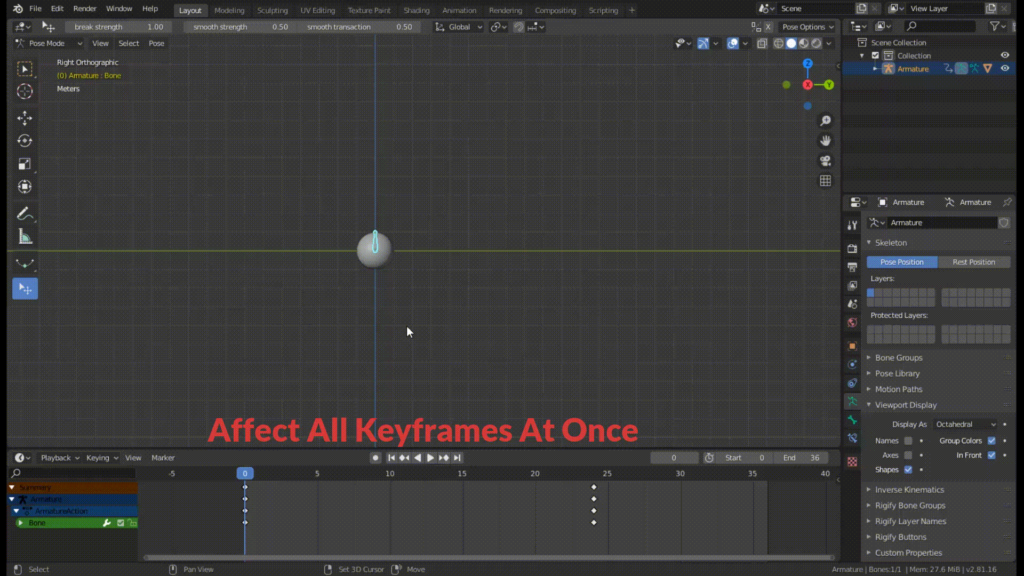
Spacing sculptor Gives you a set of tools that help you create animation faster and more effectively by depending on 3D view rather than curves in the graph editor Another limitation of the curve is editing one curve at a time and that comes with its own limitation which is affecting local space only.
TOOL INCLUDES
1 – Curve transformation
2 – Weight adjusting
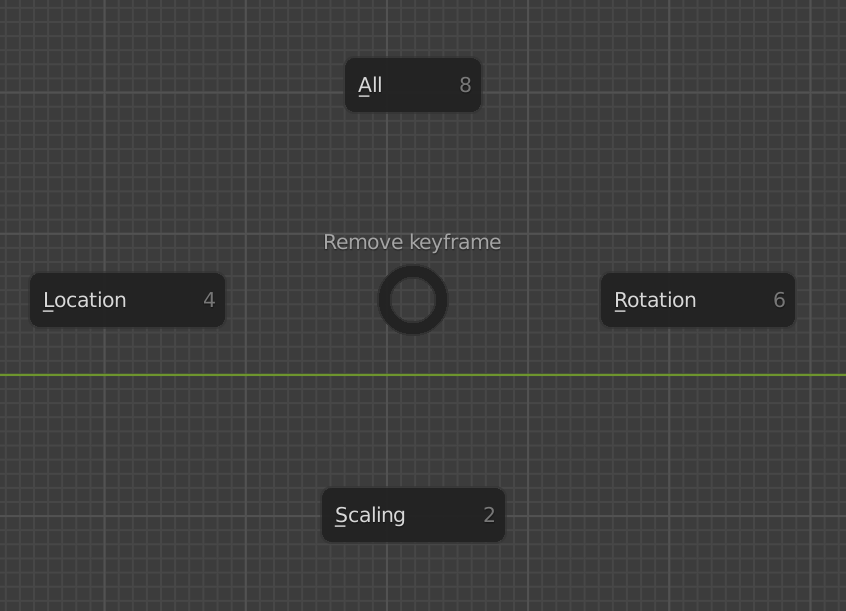
2.5 – key-frame removal
3 – Smoothing
4 – Transform offset
5 – Favoring
6 – Transform Collection
Curve transformation:
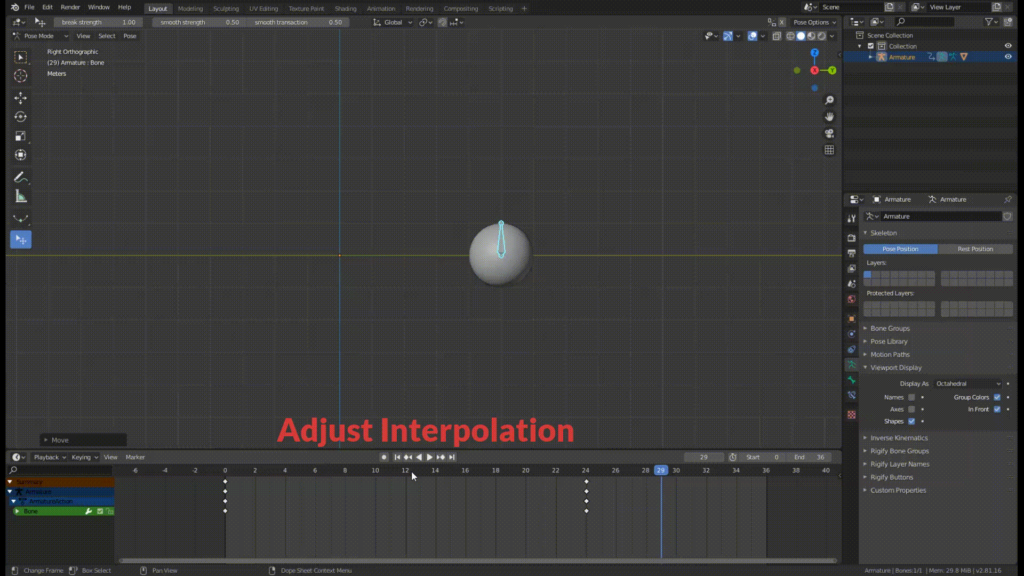
Transform a bone without adding keyframes which will make the blender happier since there will be fewer keyframes to worry about and will make retiming easier, but as an animator, you shouldn’t use this for extreme poses but rather only for spacing since this tool manipulates keyframe handles for you to fit your needs
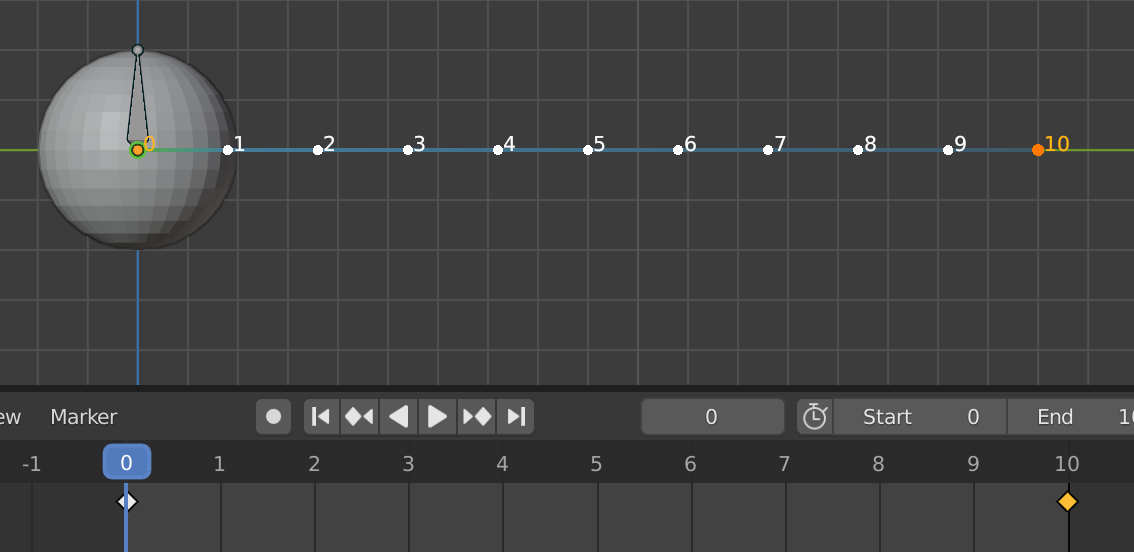
Moving Ball to left will cause it to slow down, in the beginning, all this without adding new keyframes just by moving the Ball in frame 5
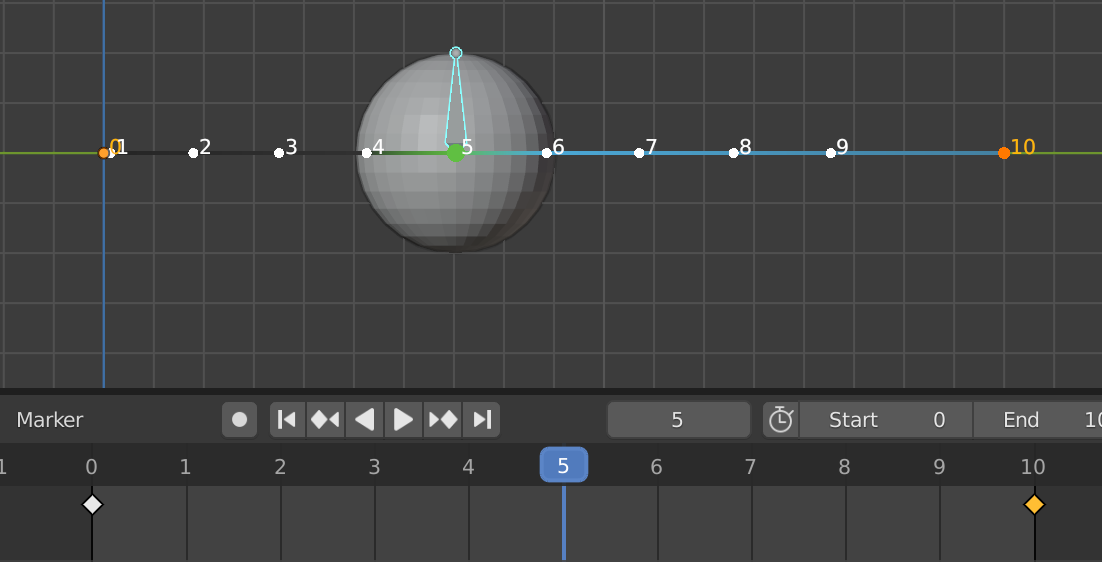
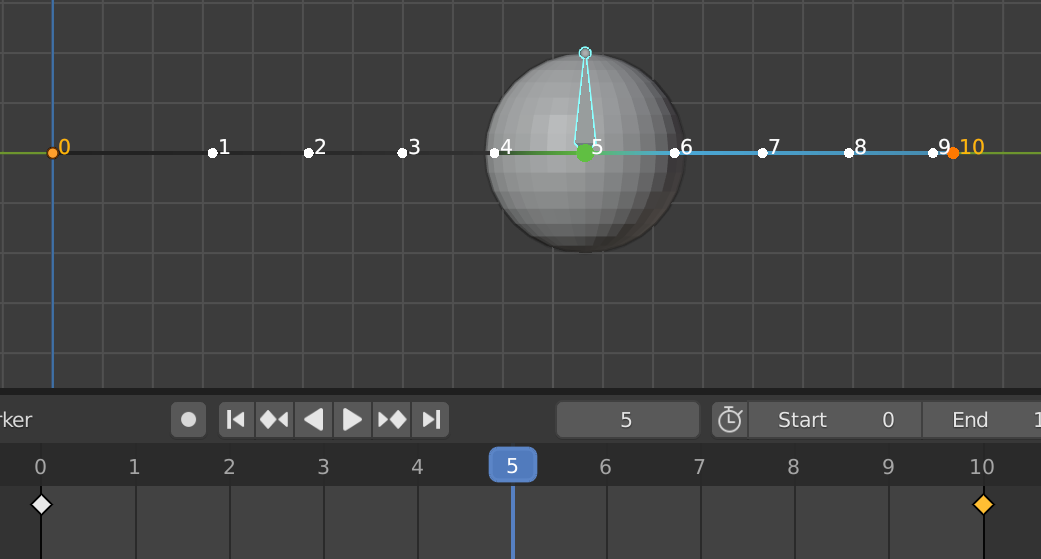
We can have the opposite effect if we move the ball right
Weight adjusting:
after using Curve transformation you might see it easy but limited and here is where Weight adjusting come to covers, Weight adjusting doesn’t make bone ease in or out but rather control how much to ease in or out
Key-frame removal:
This has the same effect as Weight adjusting but it removes Key-frame keeping bone’s transformation, this tool is used when you already have a key-frame and you want to remove the keyframe with minimal effect on animation
Smoothing:
Smoothing motion between 2 key-frame
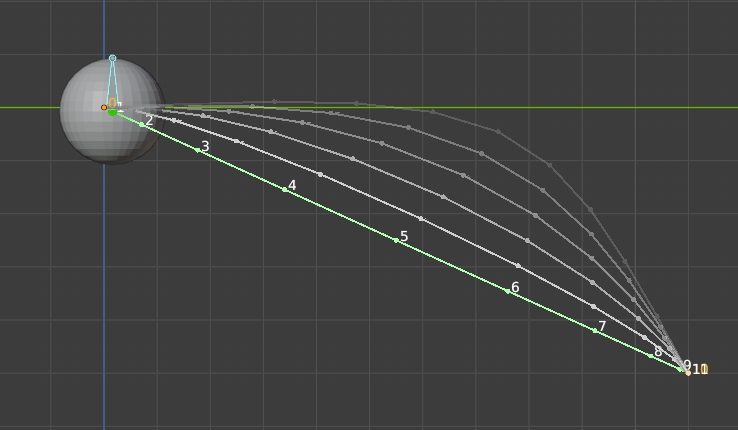
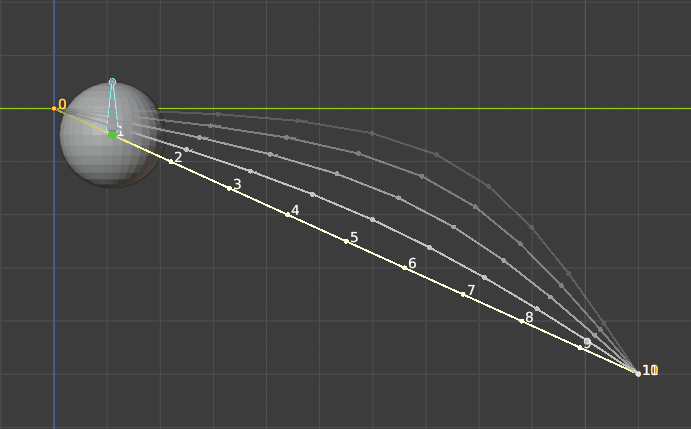
Ease Mode Linear Mode
Note how in linear mode spacing between all keyframes is even
Transform offset:
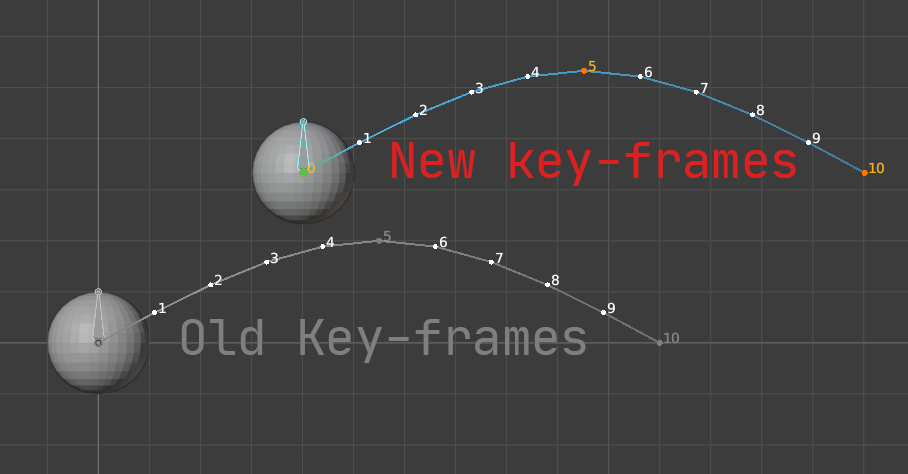
Any transformation(Move, Rotate, Scale) change you make will affect all existing key-frames, you are not constrained with one axis or local space, bone can be affected on multiple axes regardless of transformation ordination
just by moving Ball all key-frames moved at once
Favoring
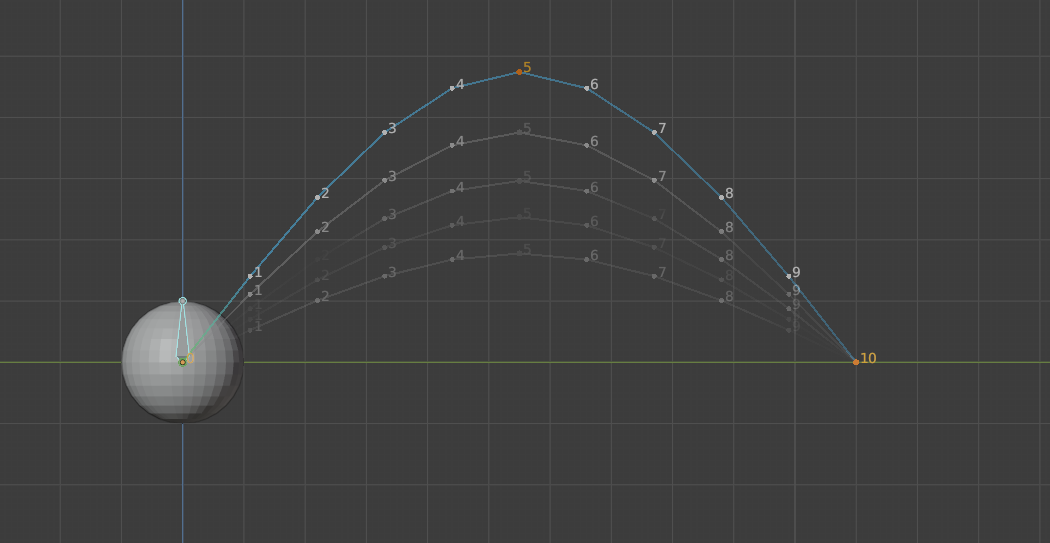
it emphasizes or de-emphasizes animation, when making an animation you usually want to push animation, if someone smiles make his/her simple wider, or maybe make the spacing between feet wider when walking,
in this example, the Ball that doesn’t jump high enough, choose a frame as a reference for other frames to exaggerate the base of, in this case, the frame where the ball touches the ground, if I have had chosen the highest point, the highest point wouldn’t change but lower points would go even lower
Transform Collection
Create a collection of Bone’s transformation or custom properties to be controlled by a gizmo all at once, also can be exported to be reused on similar rigs
Supercharge your 3D creation workflow with premium selection of Blender Add-ons. Whether you are modeling intricate characters, sculpting realistic environments, or animating cinematic sequences, the right add-on can transform how you work inside Blender. Our curated collection includes powerful tools for UV unwrapping, procedural texture generation, rigging automation, rendering optimization, and more—each rigorously tested for compatibility with the latest Blender versions. Eliminate tedious manual processes and unlock advanced functionality that lets you focus on what matters most: bringing your creative vision to life. Explore our full range of professional Blender plugins today and take your 3D projects to the next level.
➡️ ➡️ For more Blender Plugins 😀 😀
Reviews
There are no reviews yet.