
SpeedFlow Companion for Blender
SpeedFlow Companion v0.1.2 for Blender – The Ultimate Workflow Acceleration & Pipeline Companion
Versions: v0.1.2
File Size: 1.6 MB
Download SpeedFlow Companion v0.1.2 for Blender on Windows and Mac, a lightweight but incredibly powerful utility addon designed to eliminate menu diving, automate repetitive daily tasks, and keep your creative momentum flowing at top speed. Acting as a central command hub for your daily pipeline, SpeedFlow Companion provides instant access to essential scene management, quick export toggles, and workflow shortcuts. It is built for artists who want to spend less time clicking through Blender’s extensive menus and more time actually creating.
Key Features of SpeedFlow Companion v0.1.2:
- One-Click Scene Cleanup: Instantly purge orphan data, remove unused materials, clear custom undo history, and fix non-manifold geometry. Reclaim megabytes of RAM and reduce file bloat with a single button press before saving.
- Smart Quick-Export Hub: Bypass the complex export dialog. Instantly export your selection or entire scene to FBX, OBJ, glTF, or USD with pre-configured, optimized settings for Unity, Unreal Engine, or web viewers.
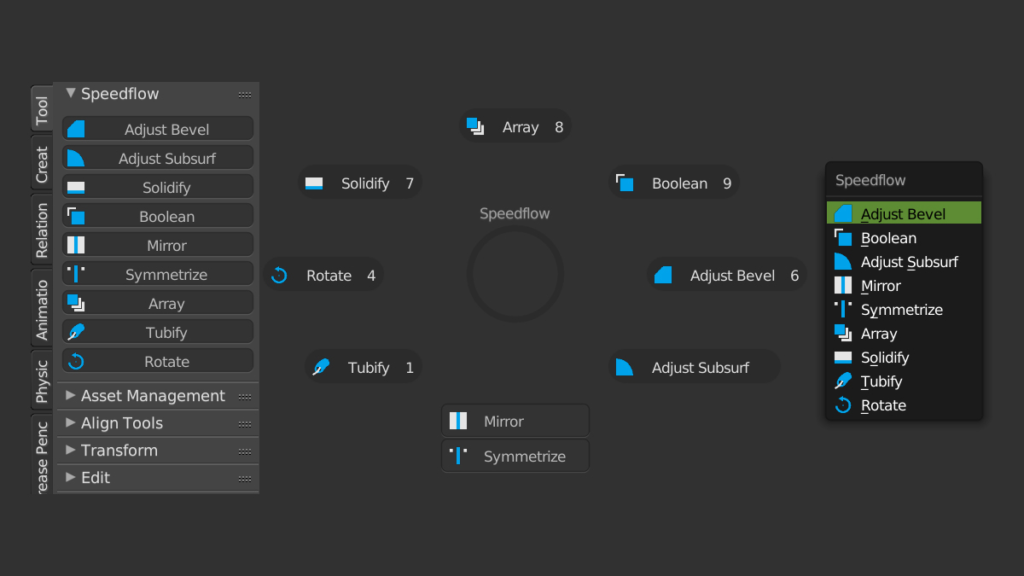
- Customizable Pie Menus: Access your most-used tools, modifiers, and snapping options via highly responsive, customizable radial pie menus. Keep your mouse cursor in the center of the viewport to maintain your spatial focus.
- Batch Processing Utilities: Quickly apply transforms, rename objects using smart regex patterns, randomize object colors, or apply scale to hundreds of selected items simultaneously.
- Material Quick-Swap: Instantly assign, swap, or clear materials across multiple objects. Includes a “Quick Assign” feature to map existing scene materials to untextured geometry without opening the Shader Editor.
- Viewport HUD & Performance Monitor: A lightweight, toggleable overlay that displays real-time scene statistics, including active polycount, draw calls, memory usage, and active modifiers, helping you keep an eye on performance.
- Render Engine Toggling: One-click buttons to instantly switch between Cycles and Eevee, automatically adjusting your denoiser and sample settings to match your preferred “Draft” or “Final” presets.
- Asset Browser Quick-Link: Seamlessly integrates with your local folders, allowing you to drag-and-drop assets directly into the viewport while automatically applying correct scale and rotation corrections.
- Non-Destructive Helpers: Includes tools to quickly add, reorder, or mute modifiers across multiple objects without permanently altering your base mesh.
- Hotkey Manager: A centralized panel to view, customize, and reset all the custom hotkeys introduced by the addon, ensuring it plays nicely with your existing keymap.
Perfect For:
- Generalists & Freelancers who juggle multiple software pipelines and need fast, reliable export and cleanup tools.
- Studio Artists looking to standardize daily tasks like file purging, batch renaming, and material assignment across a team.
- Game Developers needing rapid, one-click export presets for moving assets between Blender and game engines.
- Hard-Surface Modelers who want quick access to modifier stacks and boolean helpers without breaking their modeling flow.
- Beginners who find Blender’s native menu structure overwhelming and want a guided, centralized hub for common tasks.
- Anyone who suffers from “menu fatigue” and wants to reclaim hours of lost time over the course of a project.
System Requirements:
- Blender: 3.6, 4.0, 4.1, 4.2, 4.3, 4.4+ (Latest LTS recommended).
- OS: Windows 10/11 (64-bit) or macOS 10.15+.
- RAM: 4GB minimum (8GB+ recommended for scenes with high polycounts and complex batch processing).
- No external dependencies required.
Installation:
- Download the SpeedFlow Companion v0.1.2
.zipfile. - Open Blender and go to Edit > Preferences > Add-ons.
- Click Install…, select the downloaded file, and enable the checkbox next to 3D View: SpeedFlow Companion.
- Access via the 3D Viewport Sidebar (N-panel) under the SpeedFlow tab, or invoke the main pie menu via the designated hotkey (default
Shift+Q).
What’s New in v0.1.2?
- Blender 4.4 Full Compatibility: Updated all UI drawing APIs and mesh evaluation hooks to ensure flawless stability, correct scaling on 4K monitors, and perfect compatibility with the latest Blender 4.4 release.
- Faster Purge Algorithm: Rewritten the data-block cleanup logic, reducing the time it takes to purge massive, bloated files by 60%.
- New “Smart Scale” Tool: Added an automated tool that detects if your imported assets are in millimeters or inches and automatically scales them to match your Blender scene units.
- Enhanced Pie Menu Animations: Refined the opening and closing animations of the radial menus, making the UI feel snappier and more responsive.
- UI Polish: Grouped the batch processing and export tools into logical, collapsible panels for a much cleaner interface during complex operations.
- Bug Fix: Resolved a rare issue where the quick-export tool would occasionally fail to pack external textures if the file path contained special characters.
Note:
SpeedFlow Companion v0.1.2 is built on the philosophy that friction is the enemy of creativity. Every time you have to hunt through a sub-menu to find the “Purge All” button or navigate a complex export dialog, your creative flow is interrupted. SpeedFlow Companion acts as your personal pipeline assistant, bringing the most vital, time-consuming utilities to the surface. Because it is designed as a lightweight “companion” rather than a heavy, scene-altering generator, it adds virtually zero overhead to your viewport performance. Whether you are prepping a final delivery, cleaning up a messy inherited file, or just trying to model faster, SpeedFlow Companion ensures your workflow is as smooth and rapid as possible.
SPEEDFLOW
A complete suite of tools to help you in your daily work!
Speedflow is a group of modals that allows you to improve dramatically your workflow for modeling!
With the addon, you can manage modifiers directly in the 3D view as simple and fast as possible.
Select an object, launch a modal and add multiple modifiers on the fly, launch another modal, add other modifiers and make your modeling faster than if you had to create modifiers by yourself.
With Speedflow, you save a lot of time and energy
What is a modal?
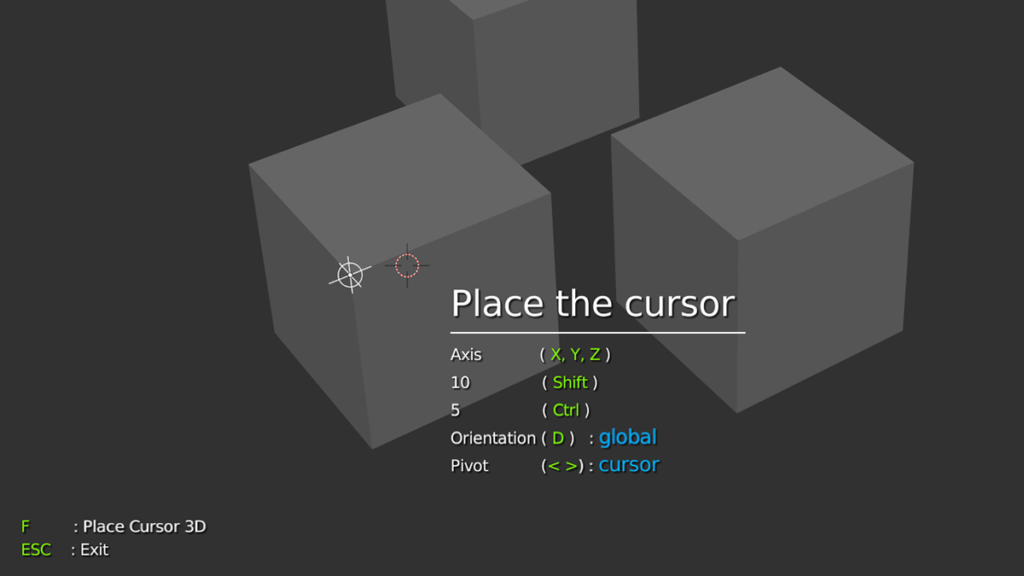
A modal is a mode where you can perform multiple actions. In Speedflow we created different modals and in each modal, you can make different things like creating a modifier, change settings of this modifier, add subdivisions, move the cursor, etc.
Blender use modals for the Knife, the Bevel, etc, this is really powerful and we made those really powerful modals to help you to speed up your workflow on Blender.
– CUTTER –
Speedflow is the only tool to allows you to do every type of modeling and we added a really fast and powerful cutter!
With the Cutter Modal, you can cut your object really fast.
You can:
- cut
- Make Union
- Make Rebool (make the reverse)
- Create lines
The cutter is really easy to use and really fast!
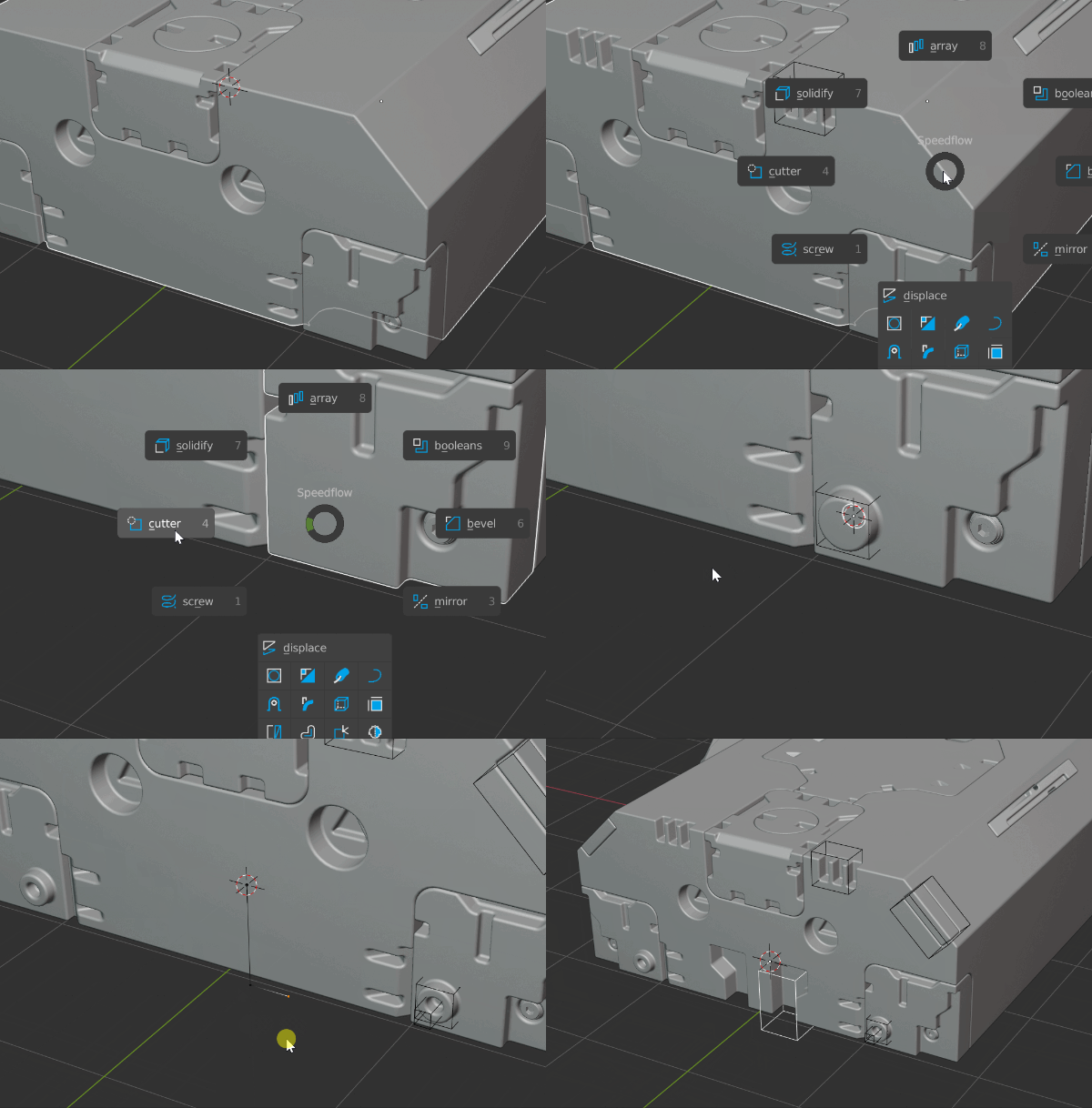
You can use all the possibilities of Speedflow.
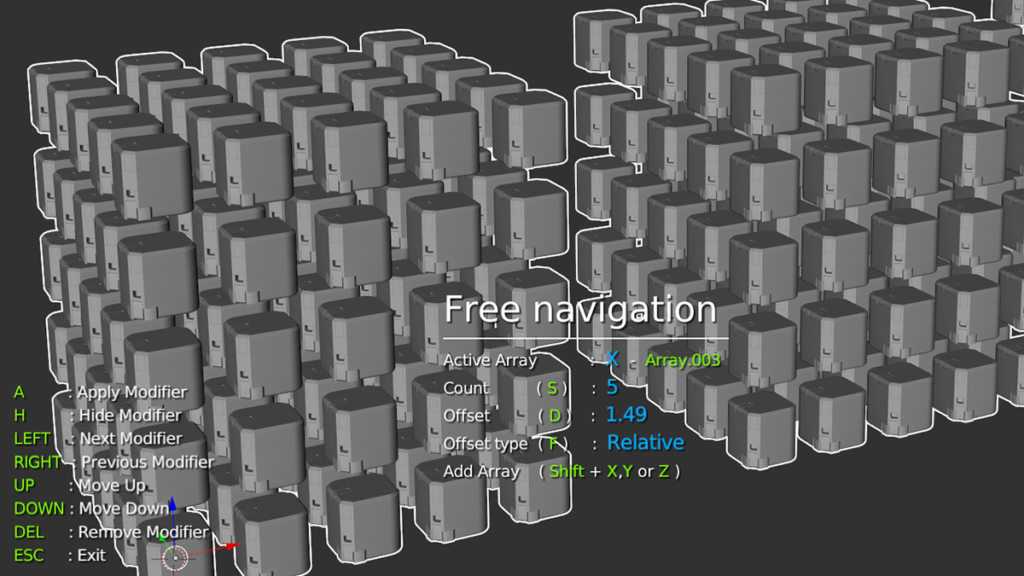
– ARRAY –
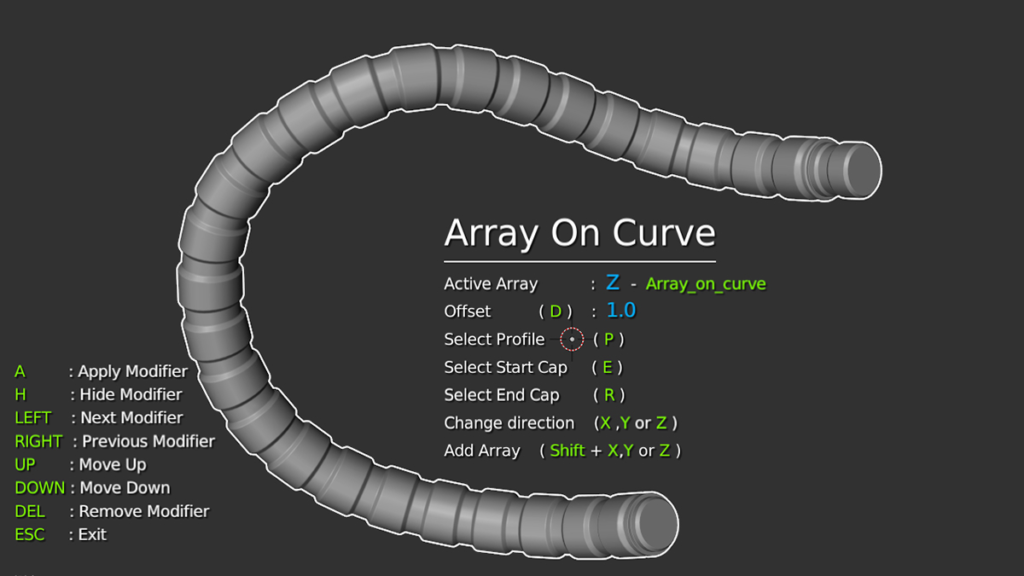
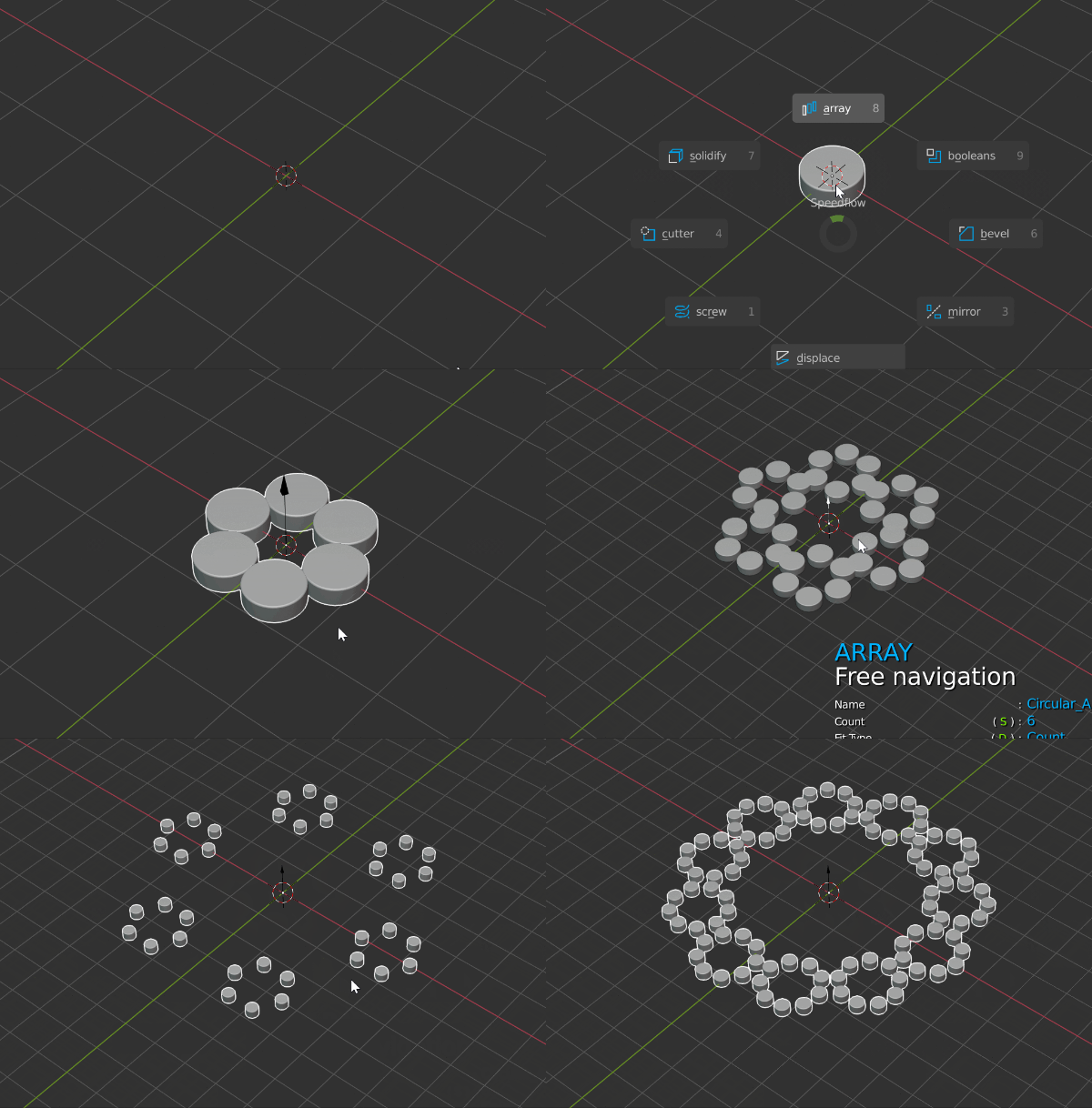
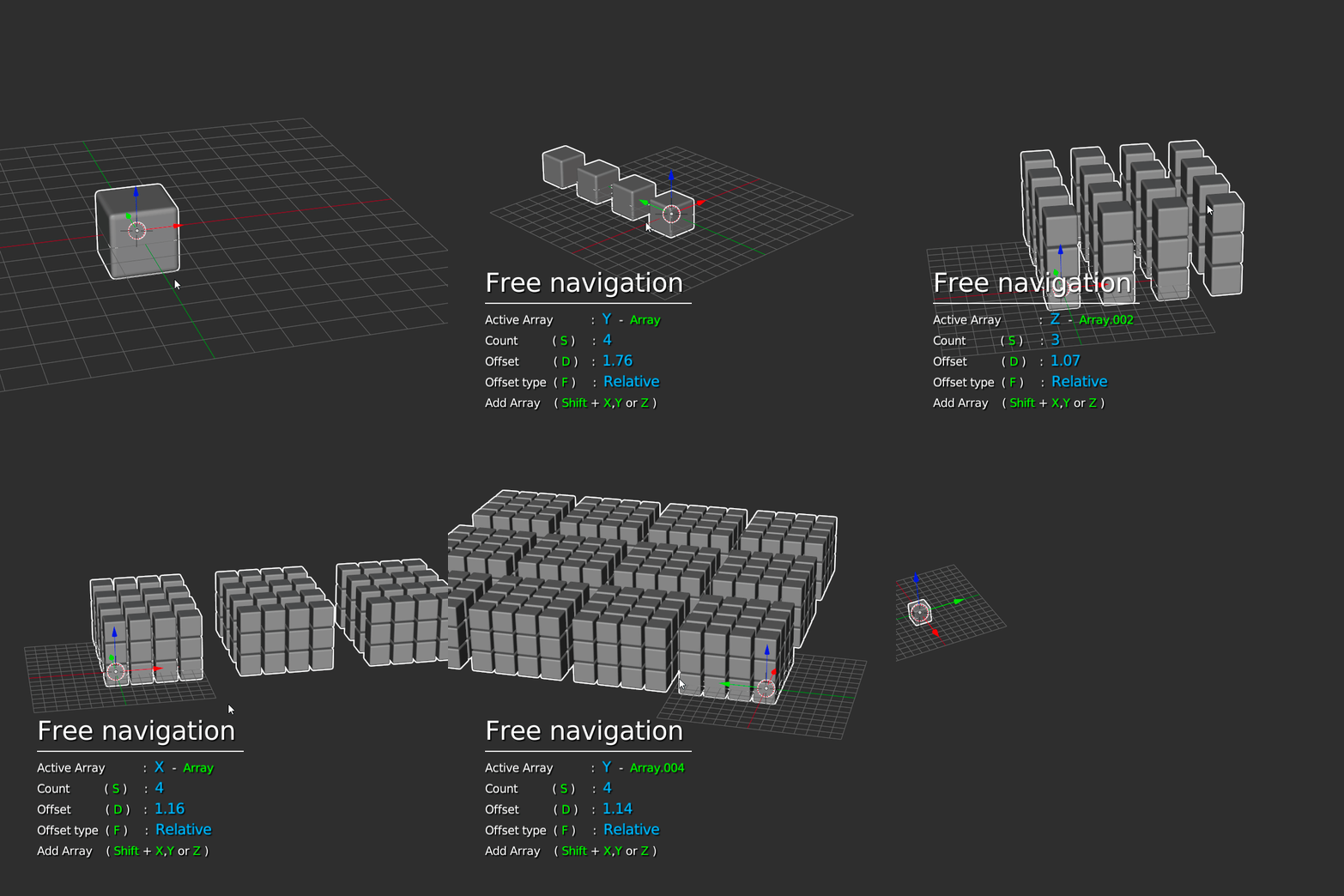
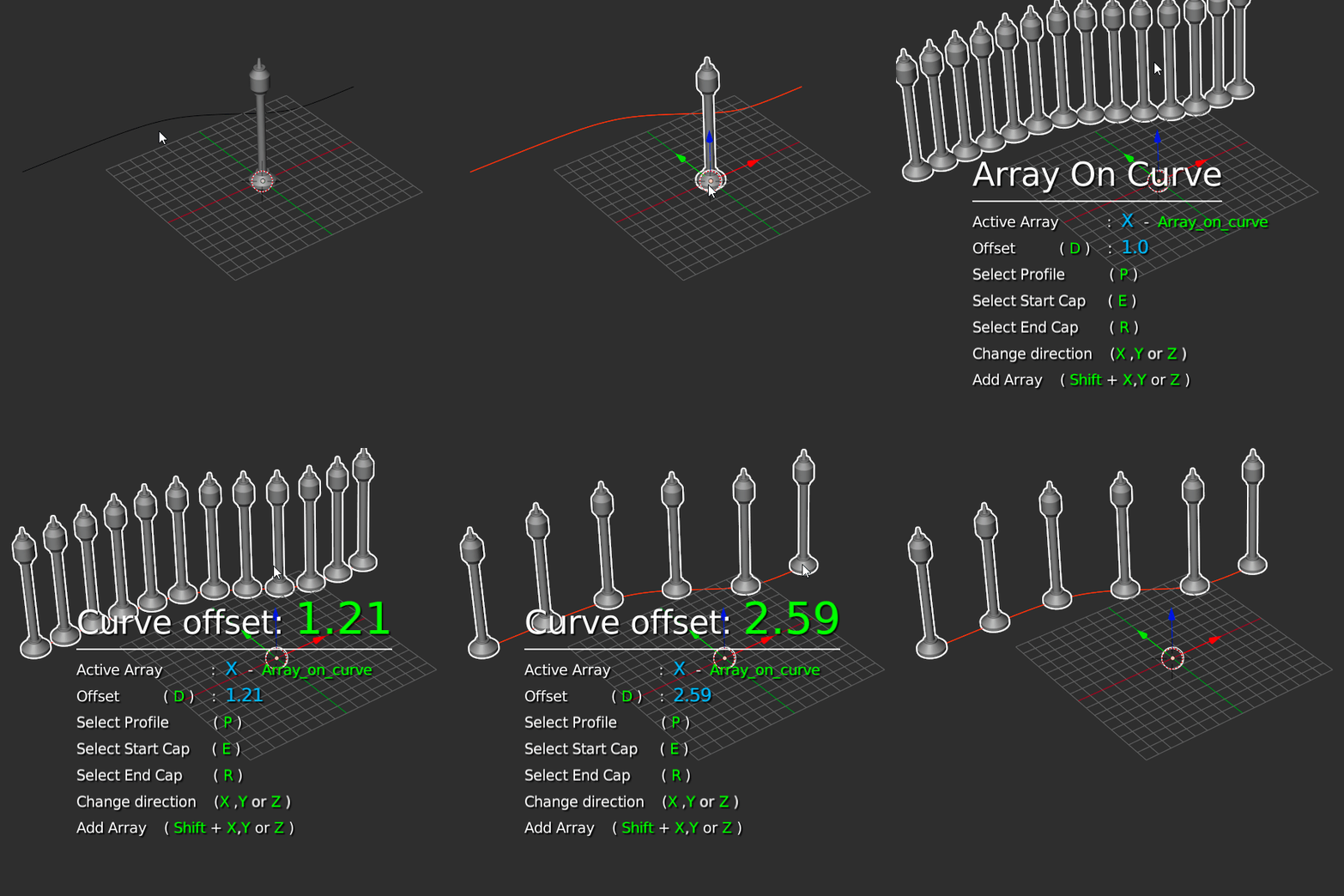
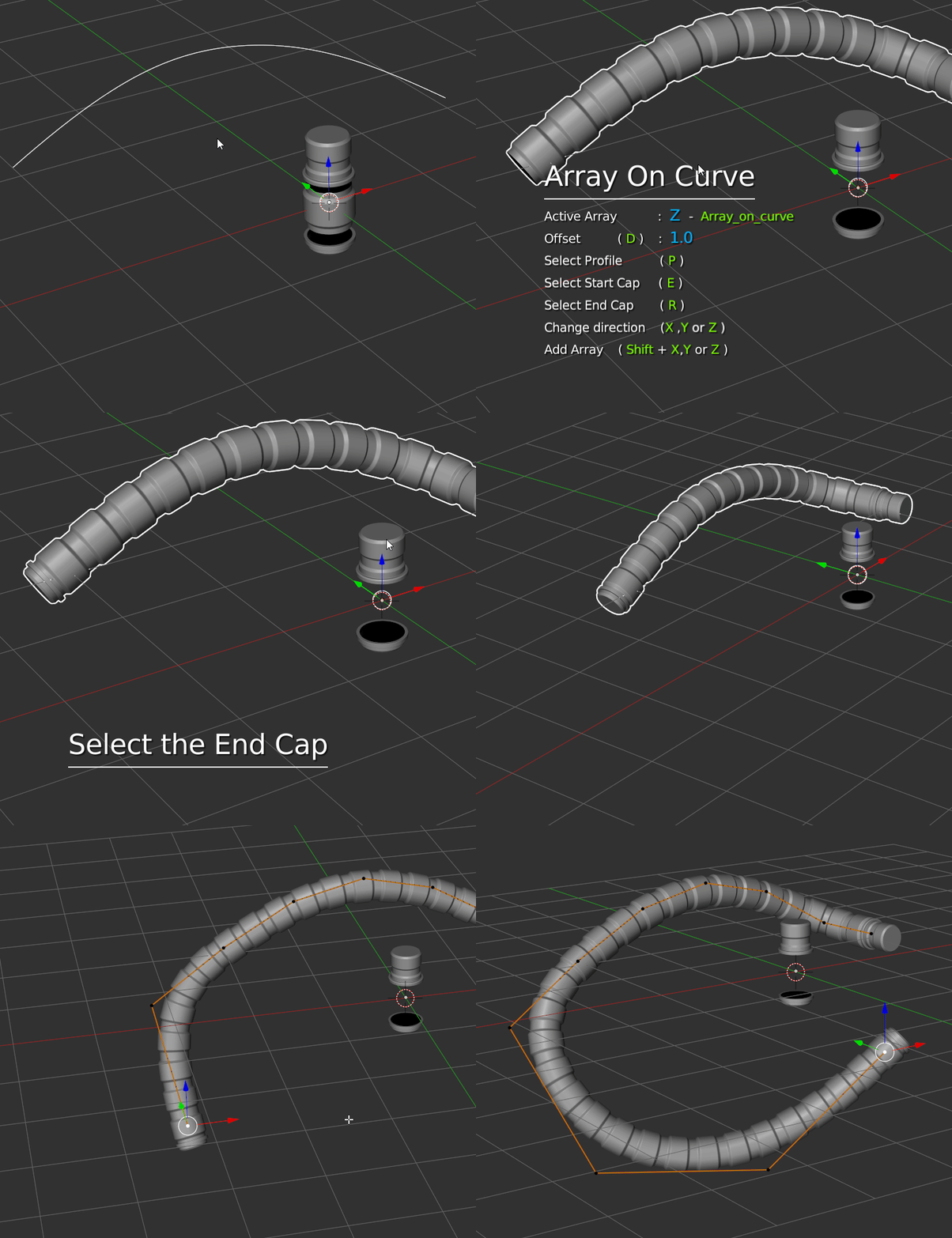
With the Array modal you can manage multiple Array Modifiers directly in the modal!
You can :
- Array Circular (2.8)
- Change the direction of the Array
- Add/Remove multiple Arrays
- Create Arrays on Curves
- Create cables easily with Start and End Caps
- Change the object on the curve
- Etc.
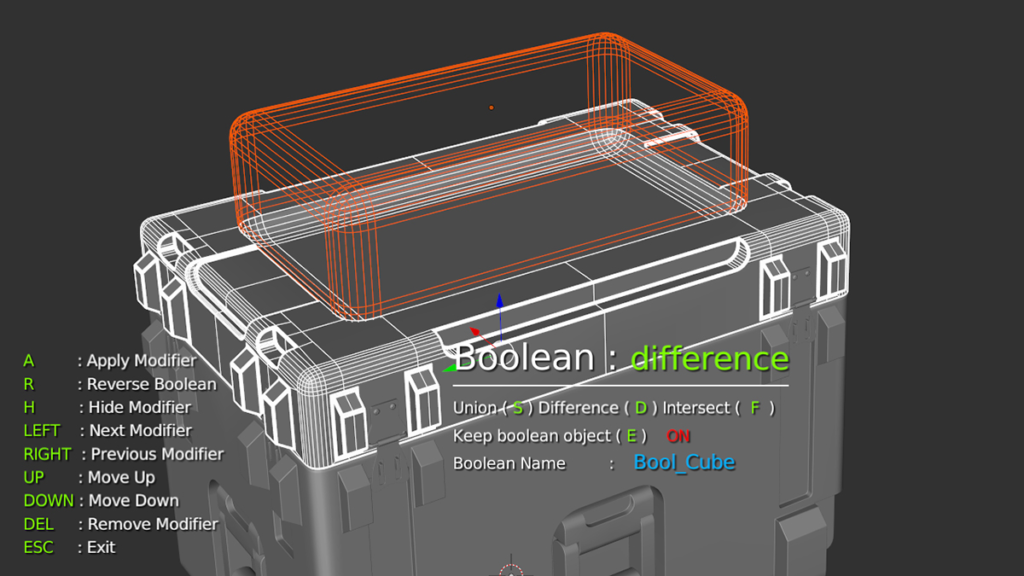
– BOOLEANS –
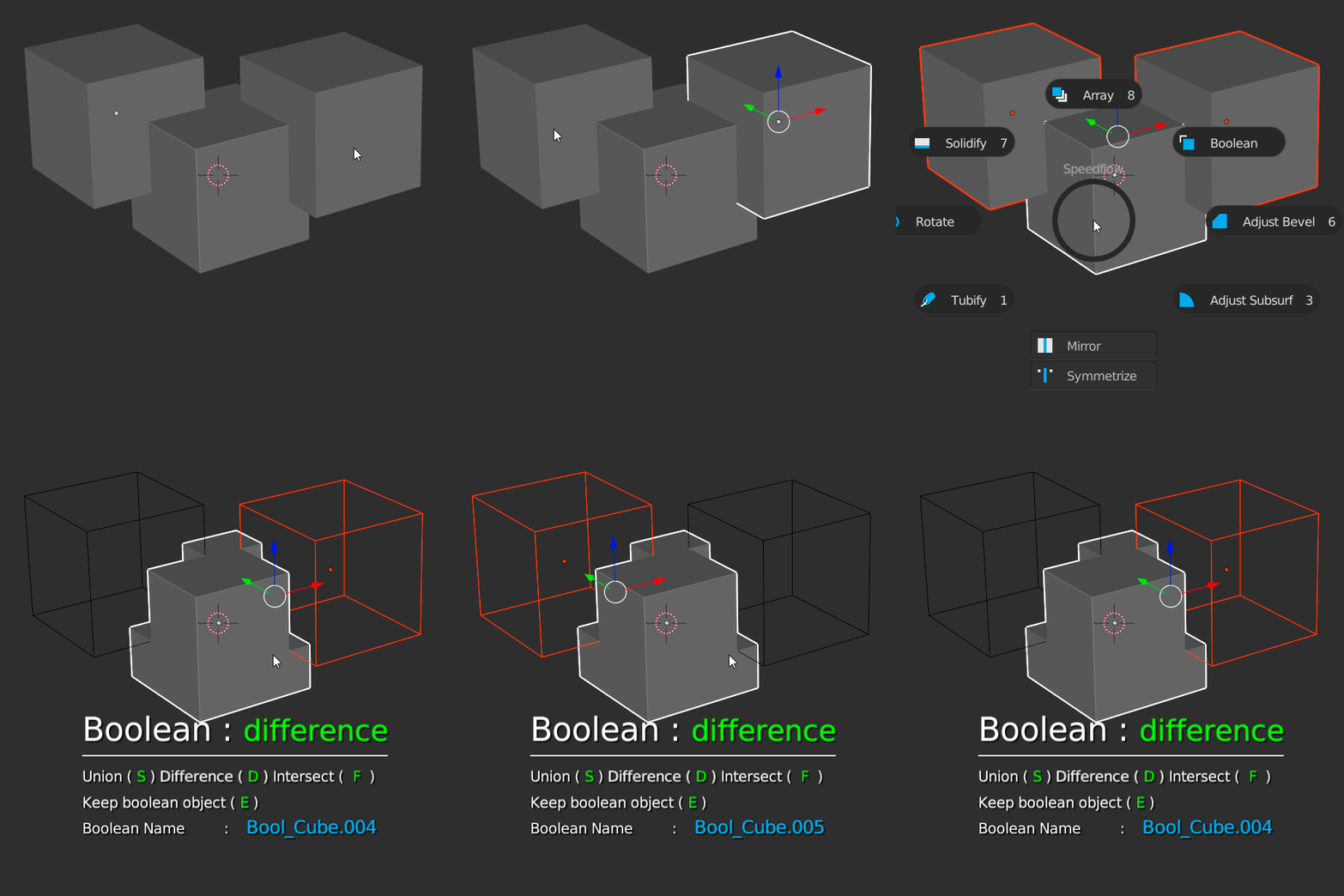
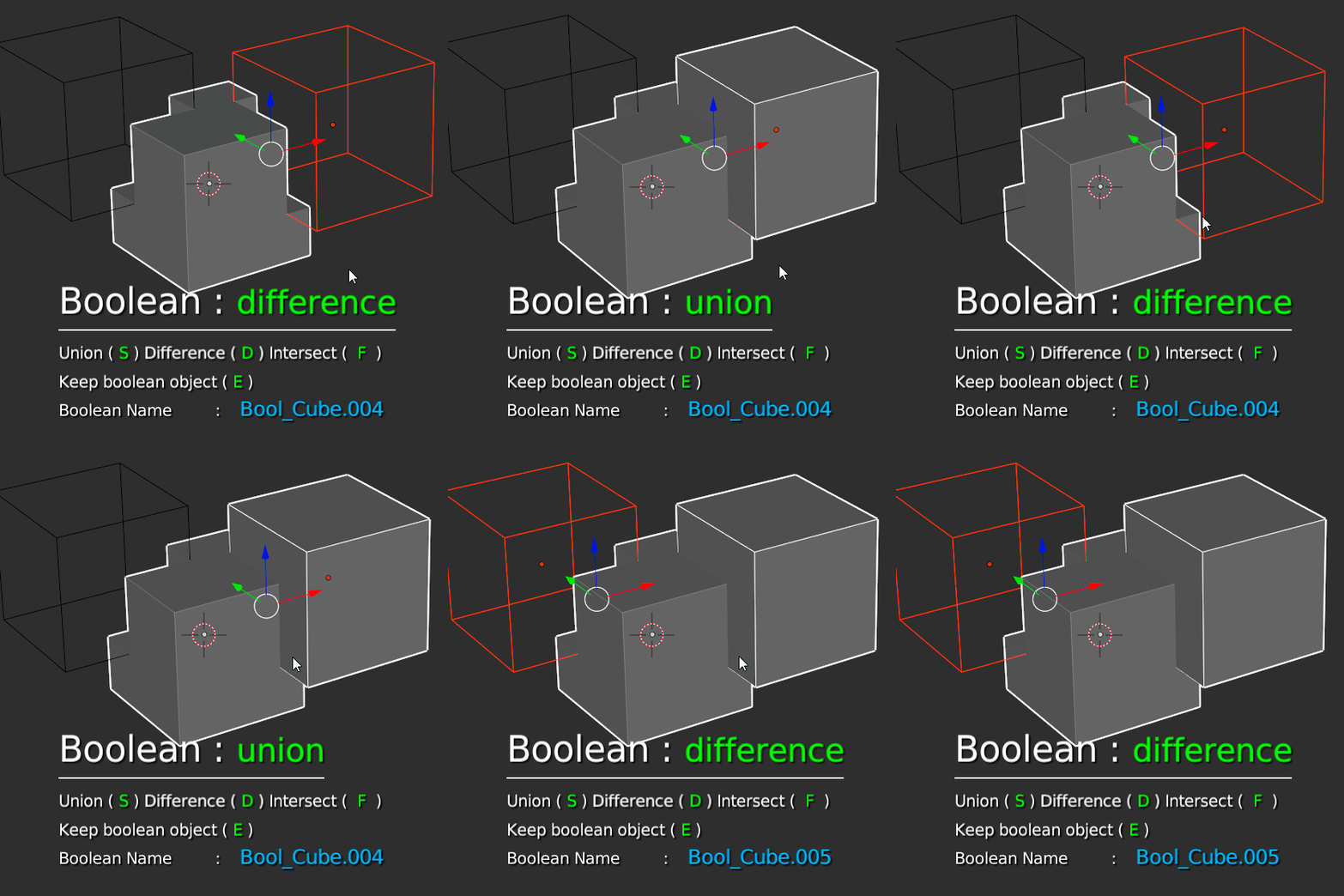
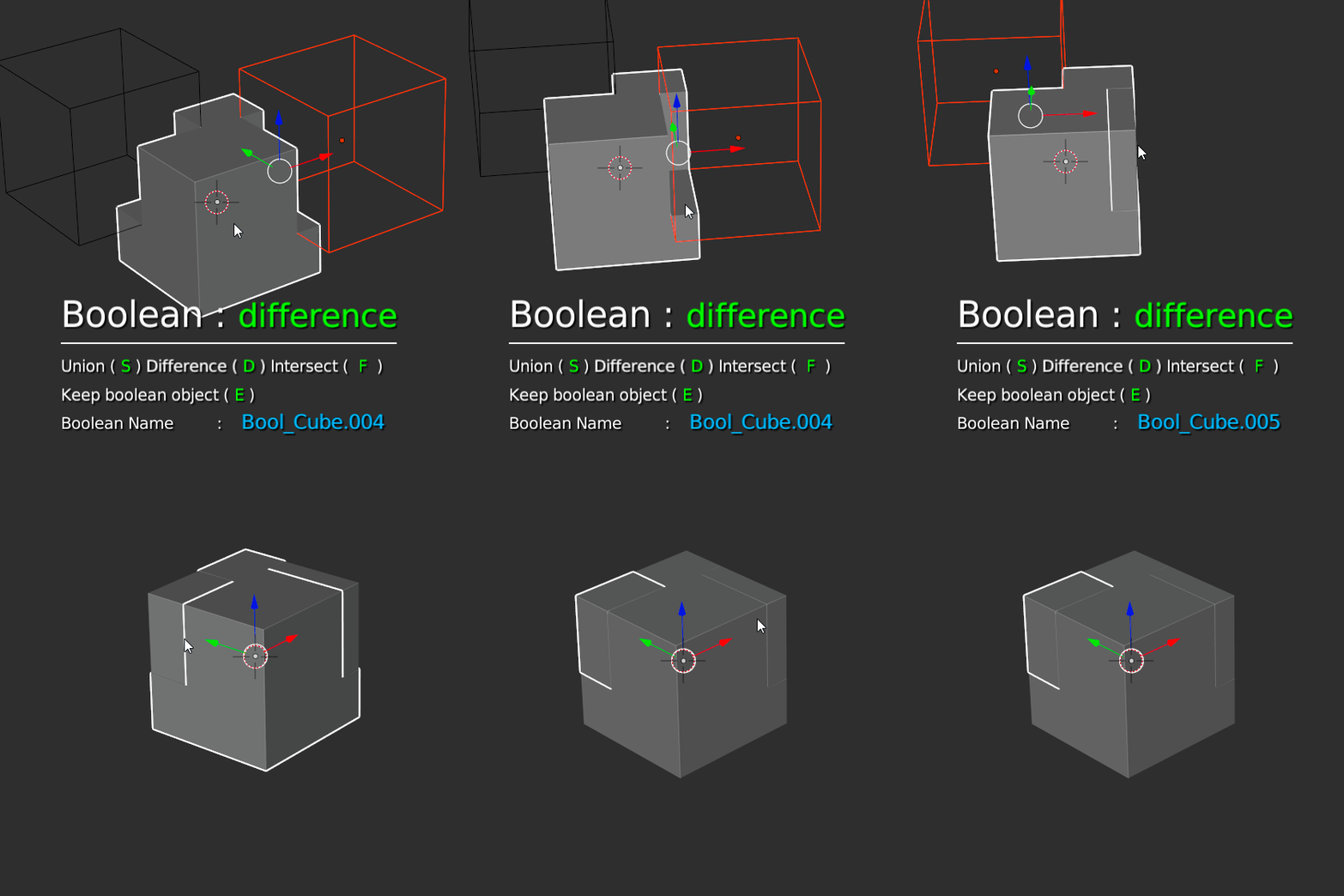
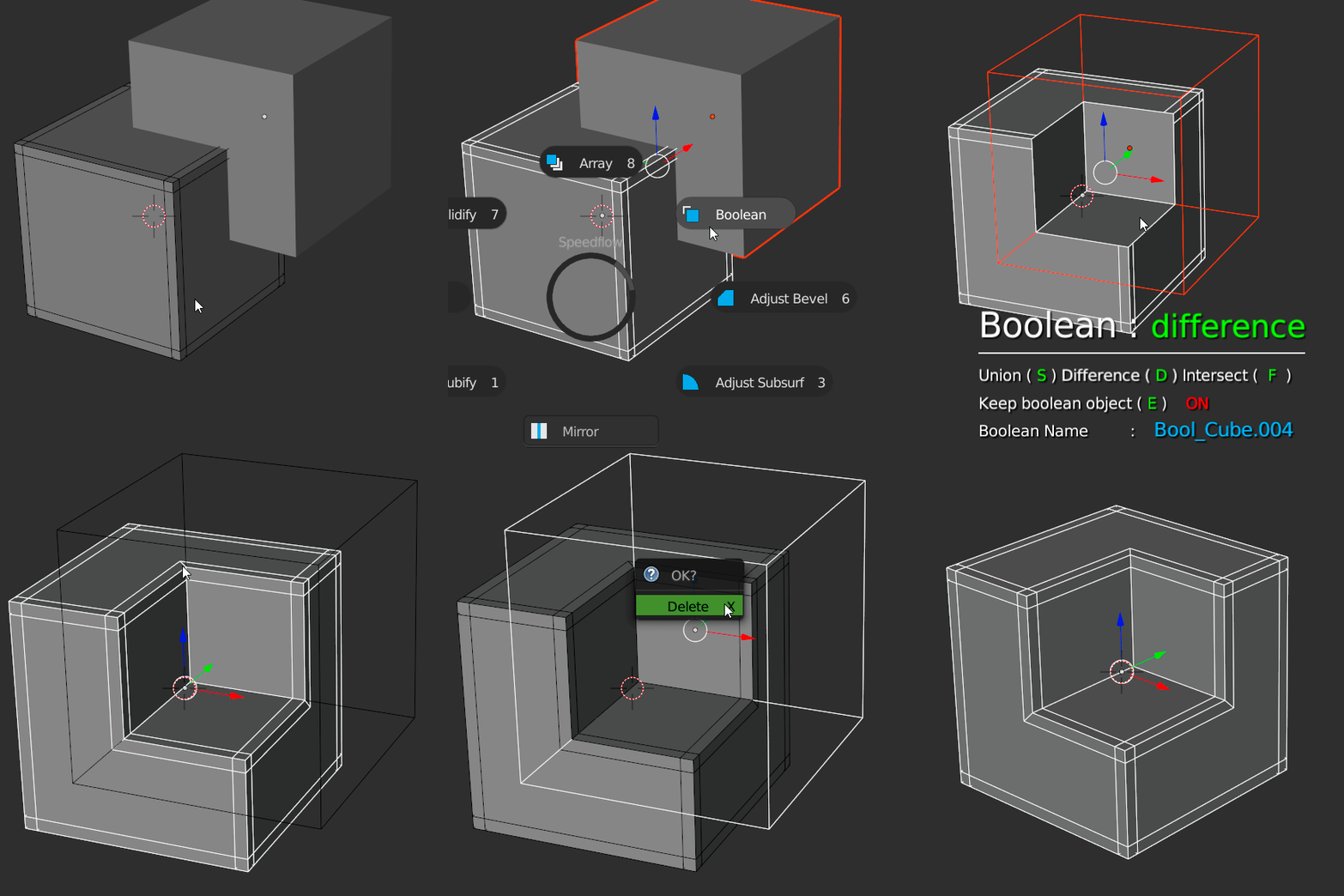
With the Boolean modal you can add multiple Boolean Modifiers to your selection!
You can :
- Change the operation of the boolean, Intersection, Difference, Union
- Add/Remove booleans
- Make a Rebool (inverse boolean)
- Switch between booleans with feedback
- You have an auto-update if you have a Bevel modifier
- Etc.
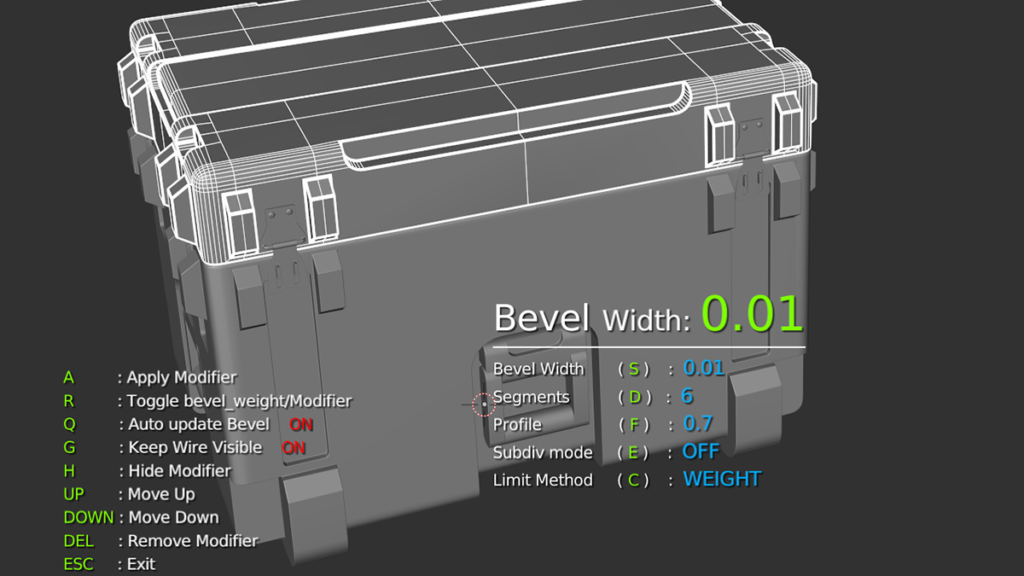
– BEVEL –
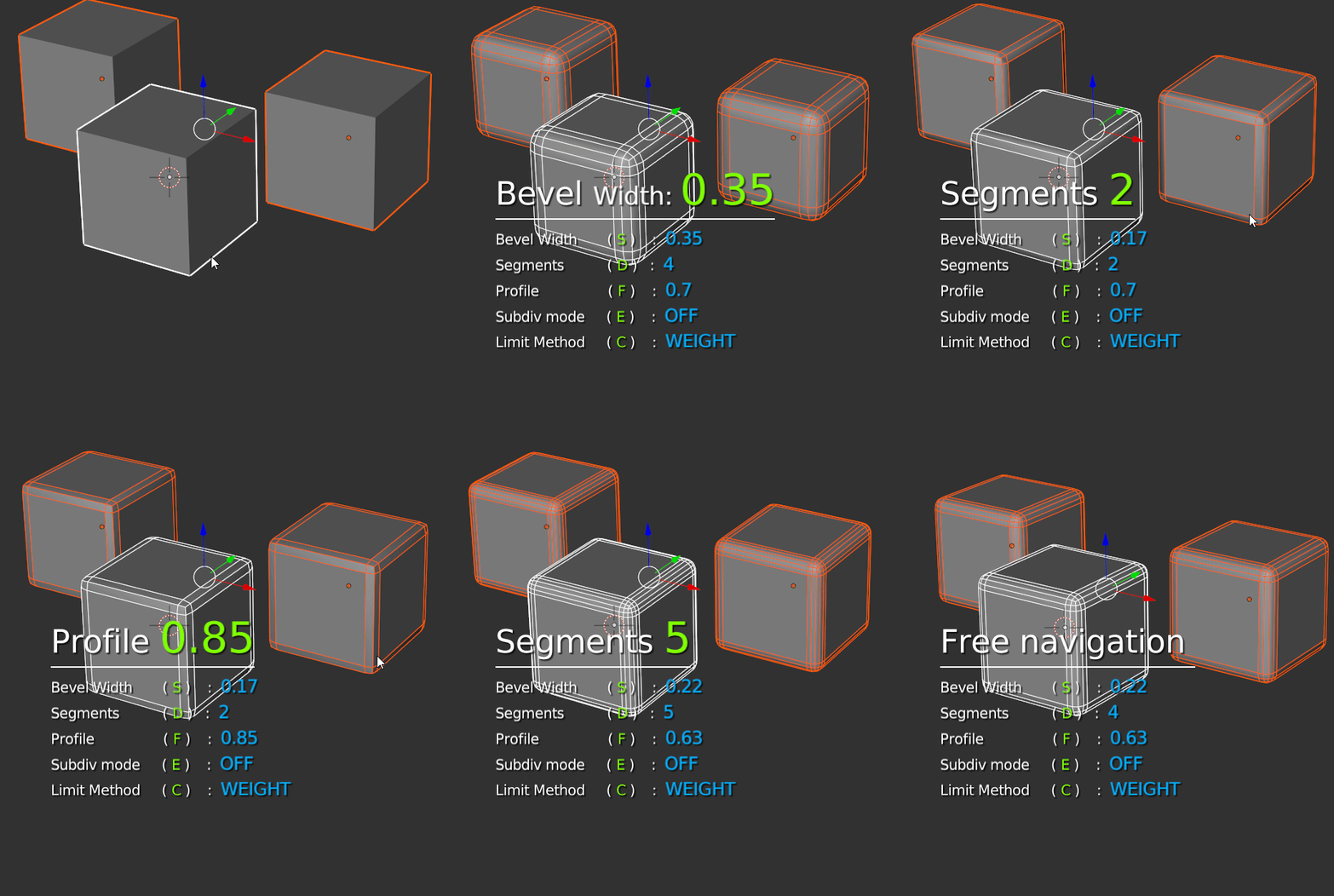
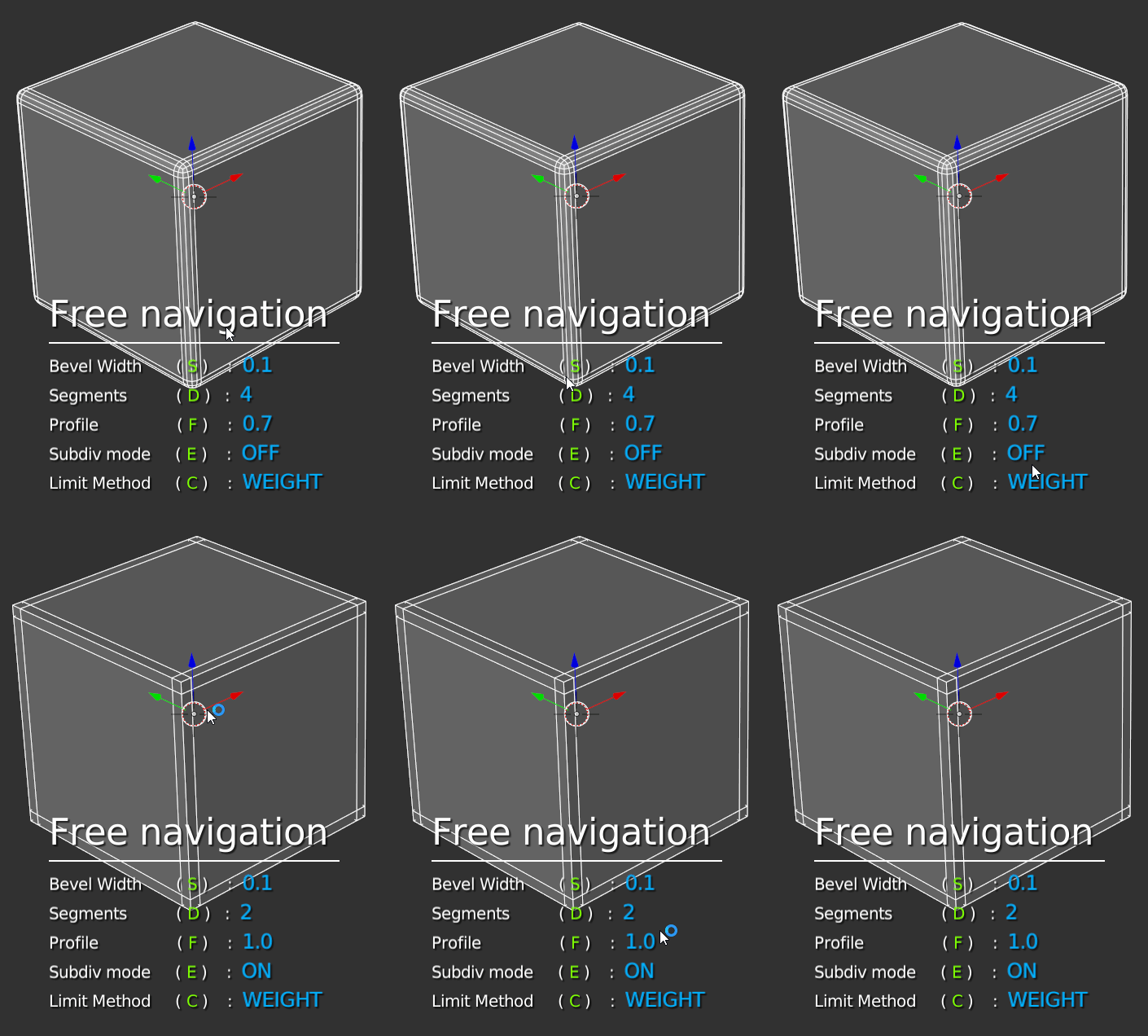
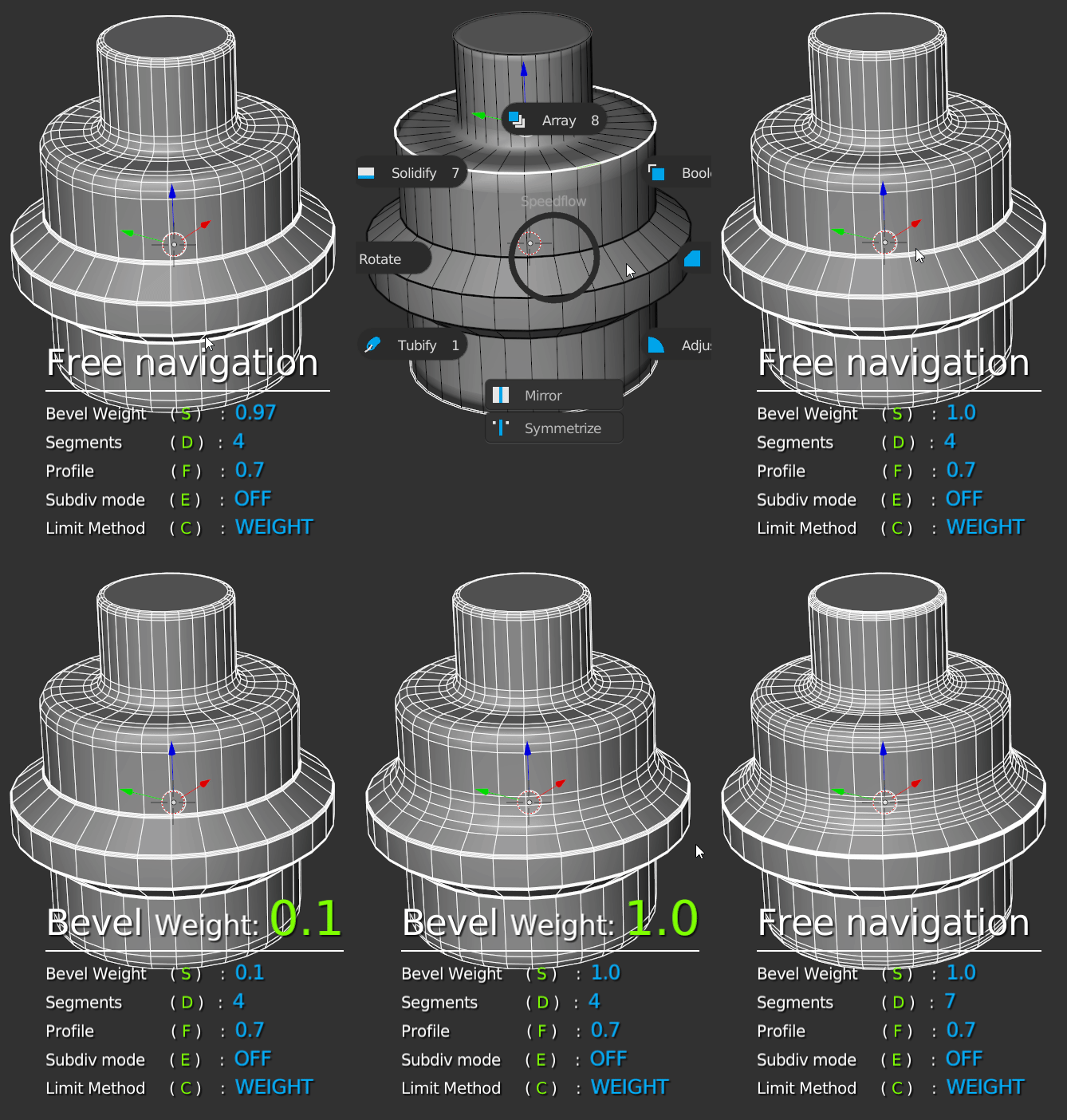
With the Bevel modal, you can add Bevel modifiers to your selection. This modal allows you to work on two modes, subdiv and Nosubdiv.
You can :
- Add a Bevel on multiple objects
- Works with Subdiv and Nosubdiv assets
- Each mode can be edited in the addon preferences
- The Bevel is updated by the booleans depending on the mode (Subdiv/Nosubdiv)
- Etc.
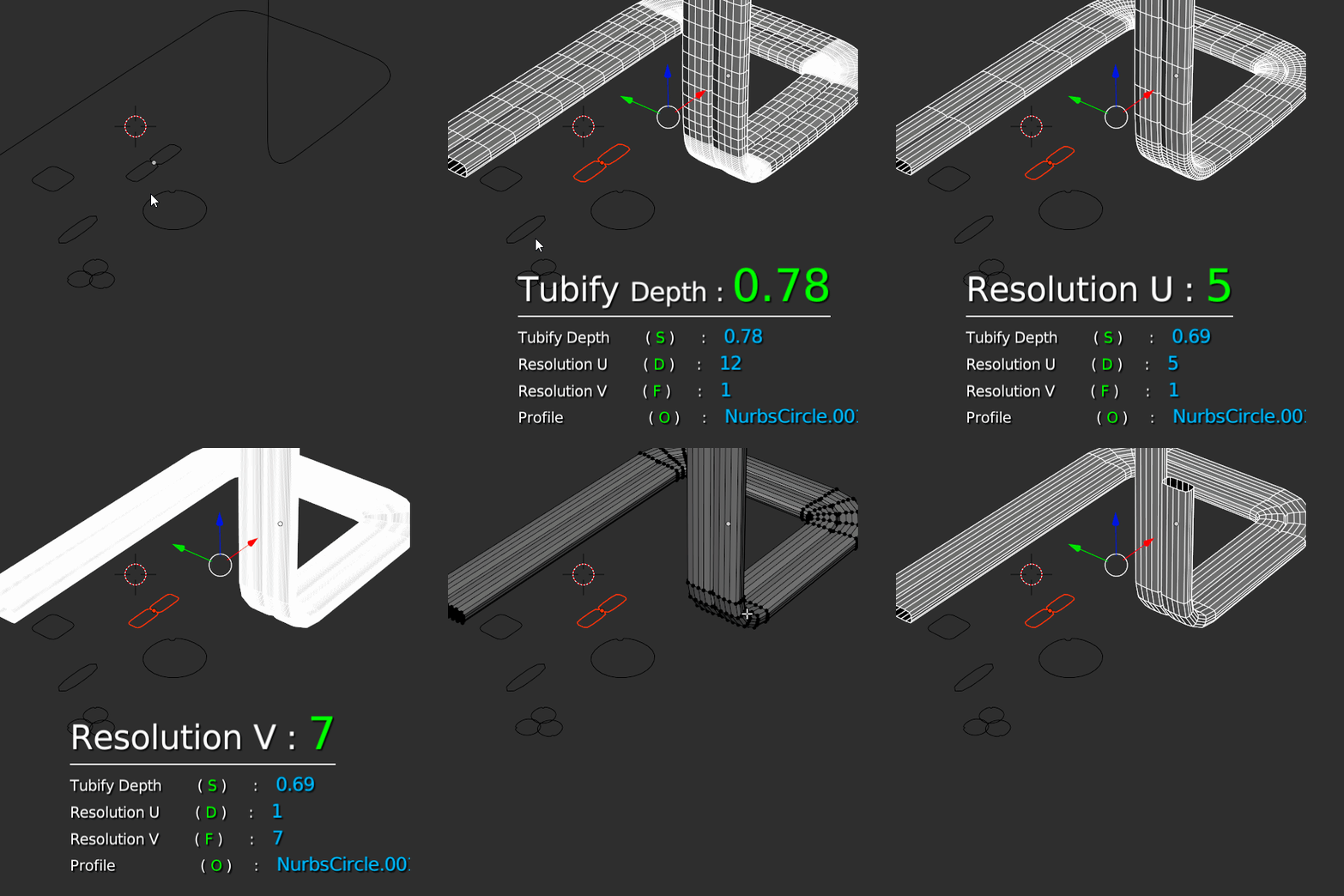
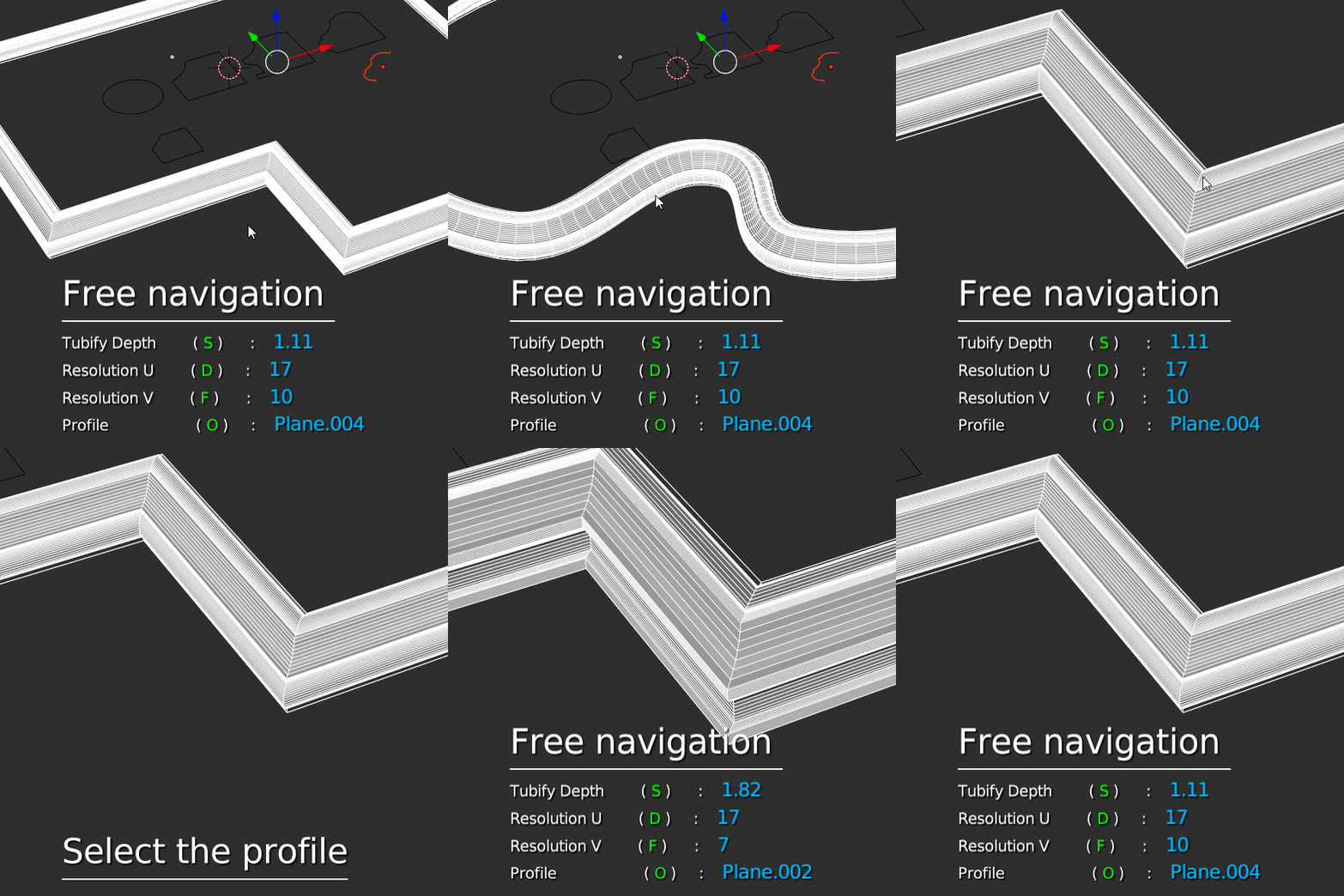
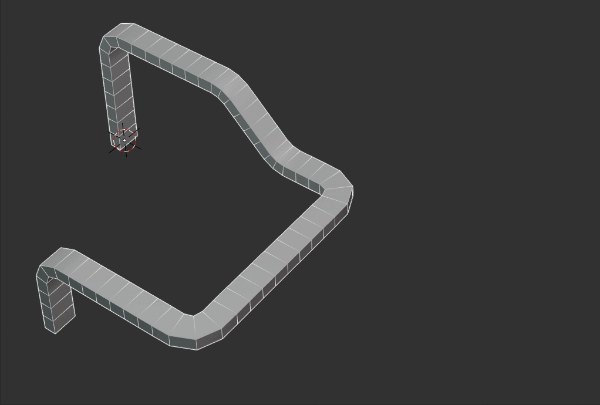
– TUBIFY –
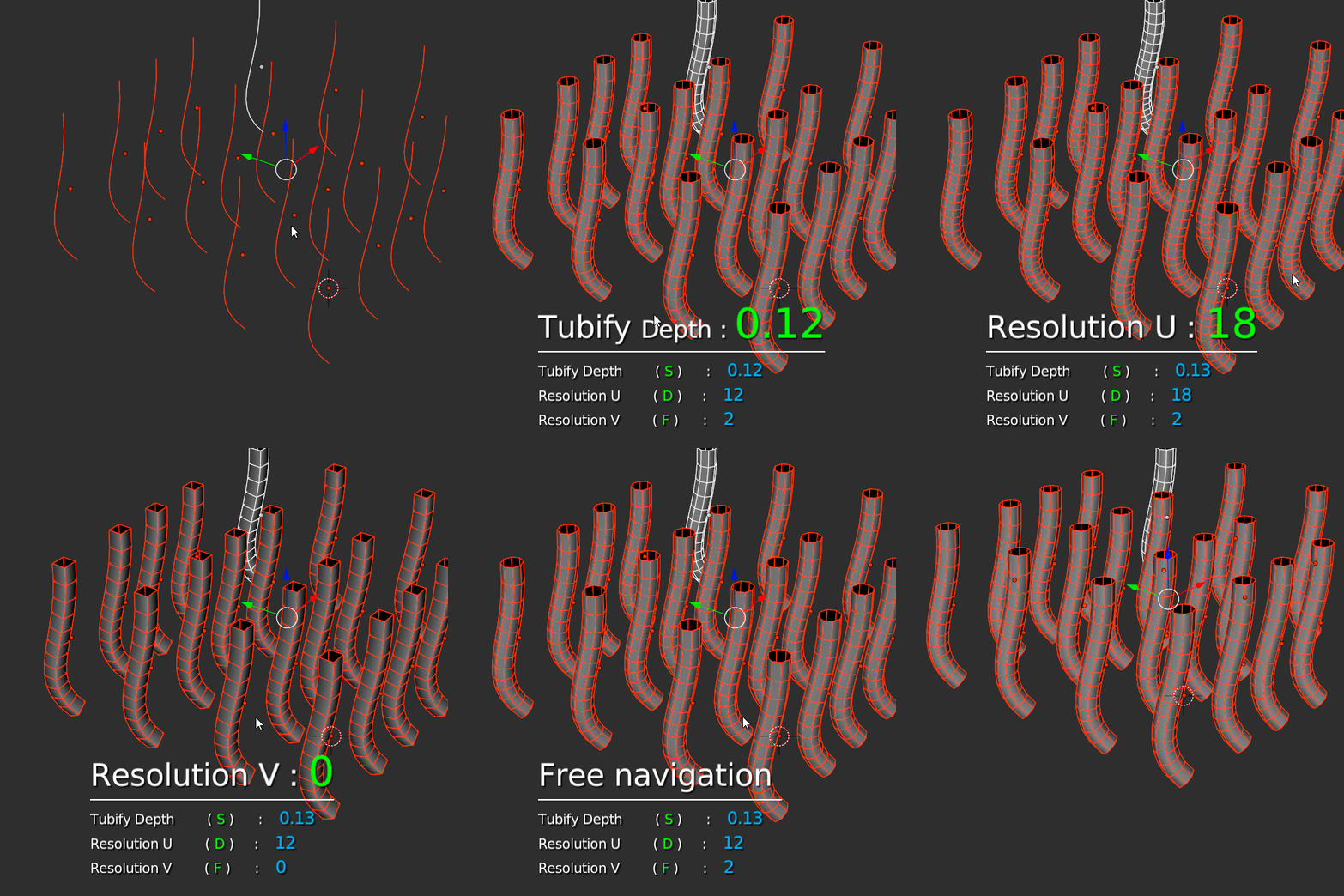
With the Tubify modal you can create cables in one click!
You can :
- Create a cable from a curve or a mesh with only edges
- Change the Depth, Resolutions U & V
- Convert the cable in polygon
- Use profiles
- Change profiles in the modal
- Etc.
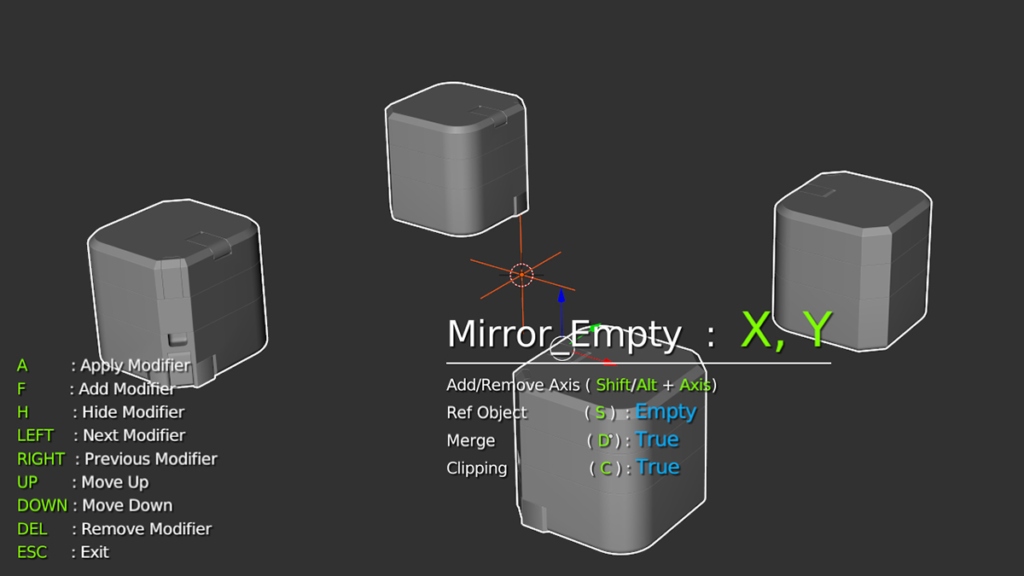
– MIRROR –
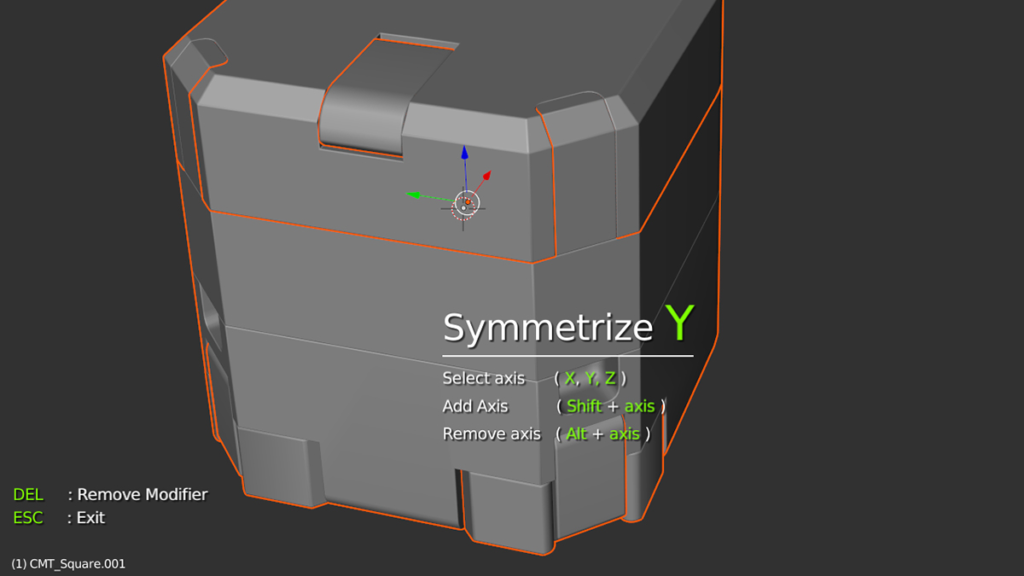
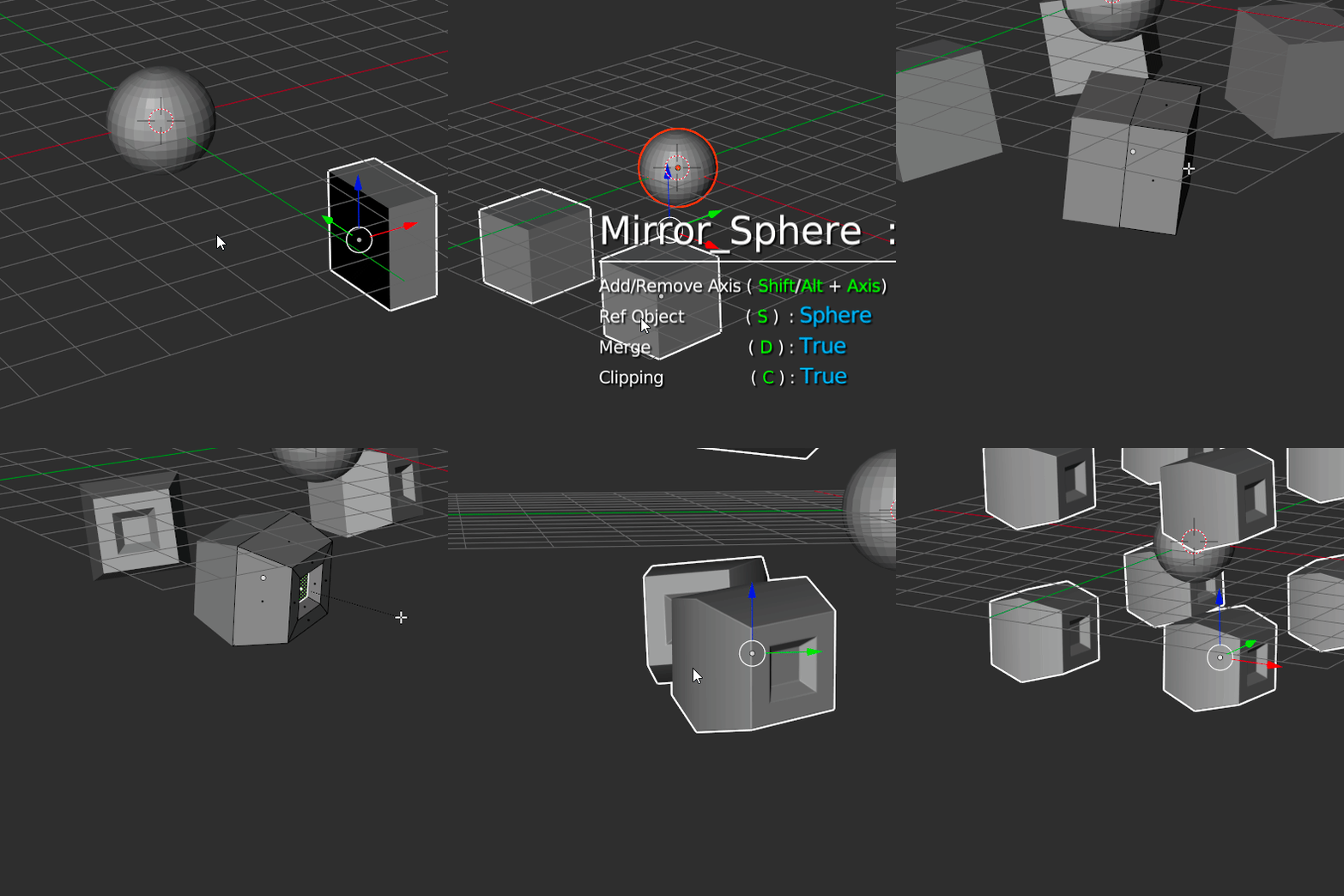
With the Mirror modal, you can create mirrors on your selection and add multiple mirror modifiers!
You can :
- Create a mirror and combine axes (X, Y, and Z)
- Create a mirror with an object as the reference
- Keep the transforms of the object
- Change the default axis in the preferences (+X or -X)
- Etc.
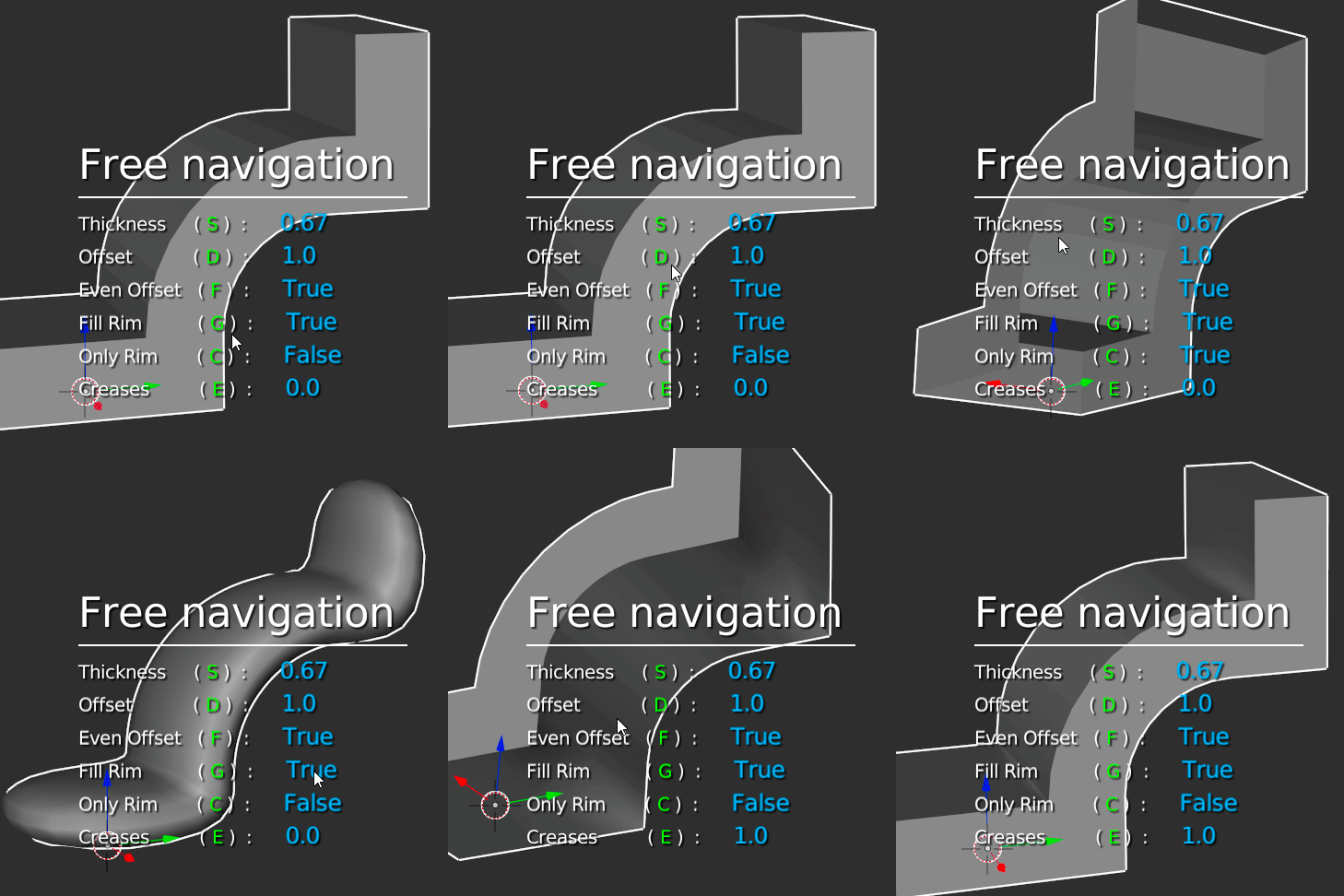
– Solidify –
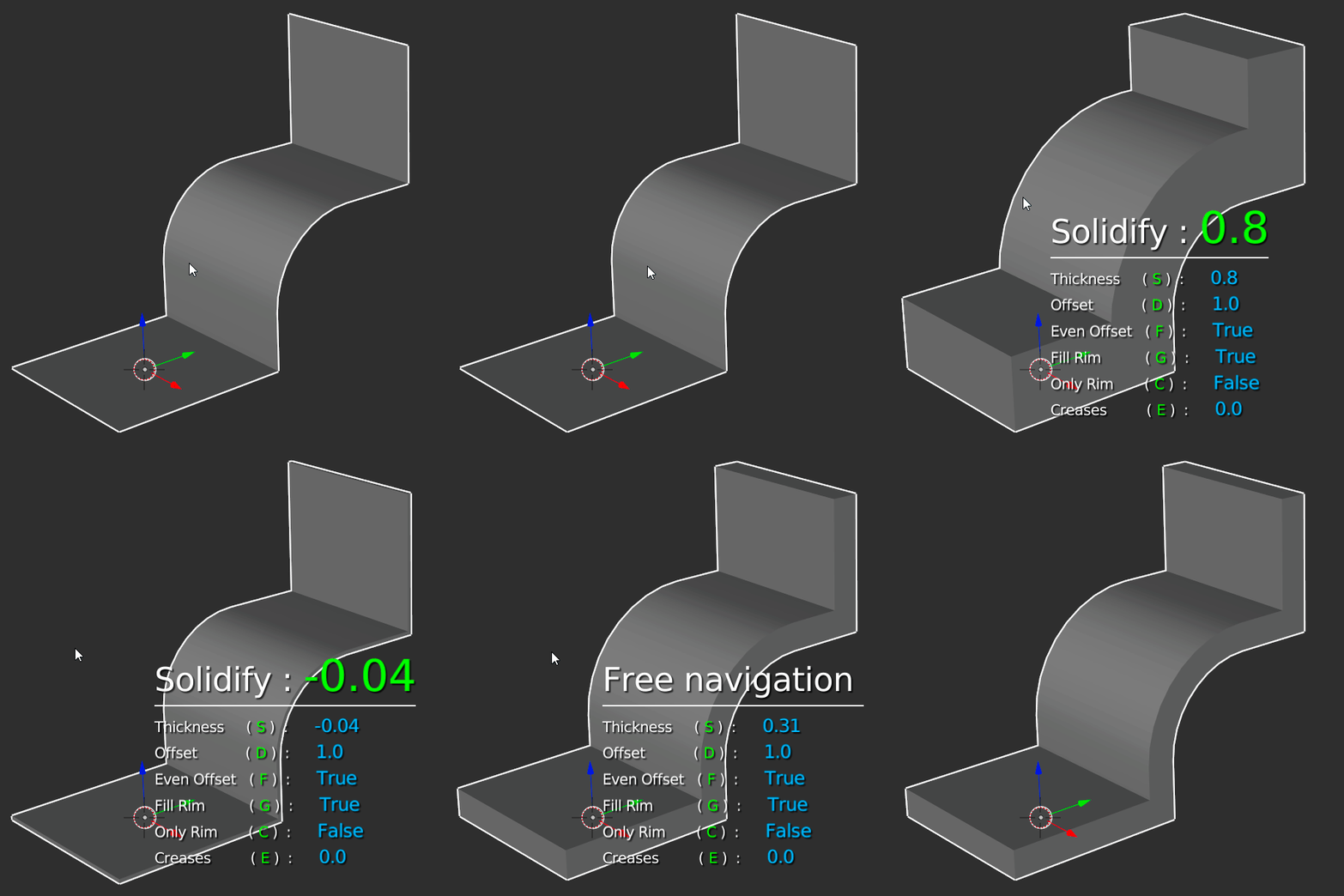
With the Solidify modal, you can add Solidify to your selection!
You can :
- Add a Solidify on multiple objects
- Change the settings, Offset, Even Offset, Fill Rim, etc
- Add Bevel and Subsurf directly in the modal
- Etc.
– SUBSURF –
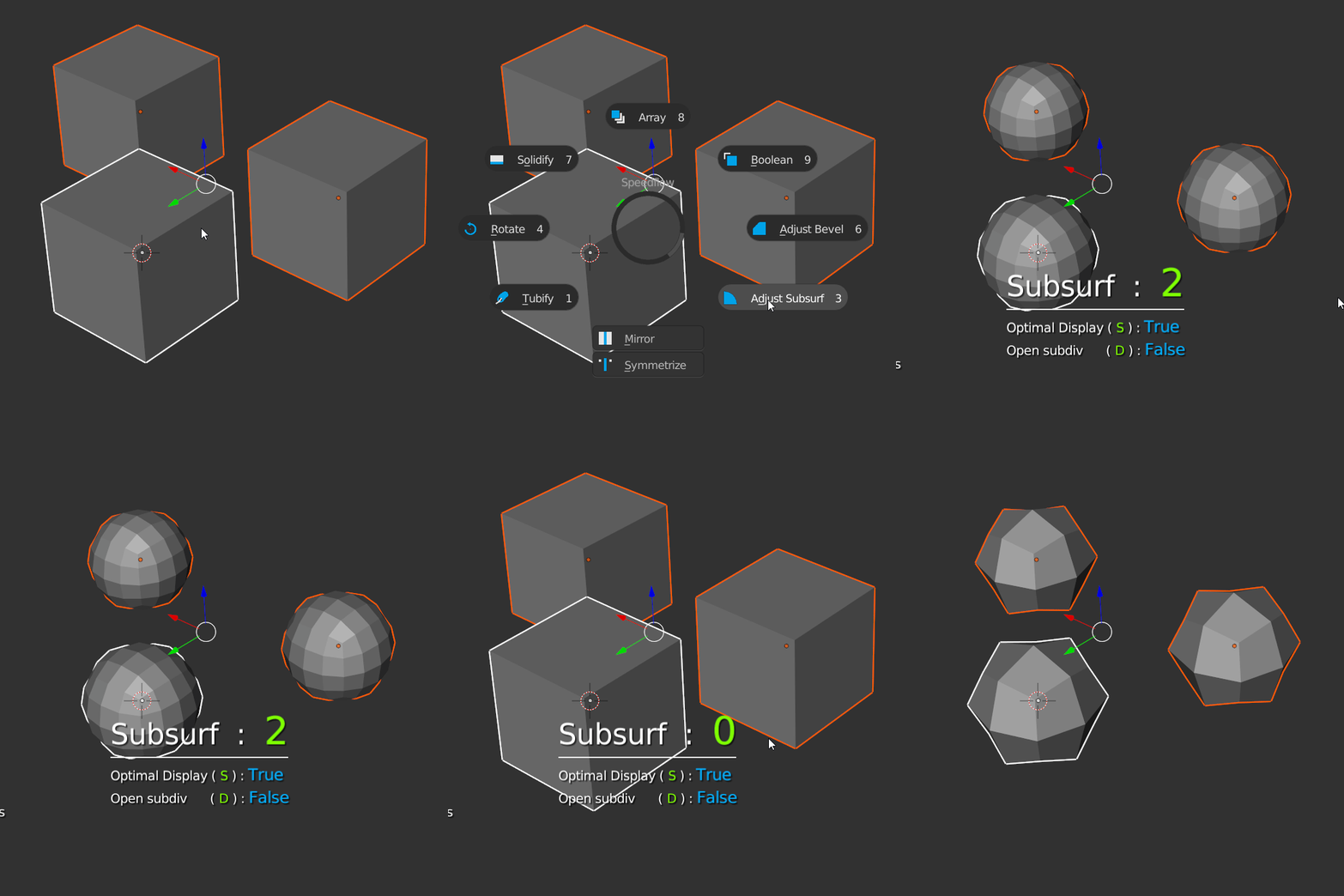
With the Subsurf modal, you can add a Subsurf modifier to your selection!
You can :
- Add a Subsurf on multiple objects
- Remove the Subsurf on multiple objects too, to clean your scene of Subsurf modifiers
- Change settings, Opensubiv, Optimal display
- Etc.
On Blender 2.8 you will have a lot more Modals!
- WEIGHTED NORMALS – Clean the normals of the mesh
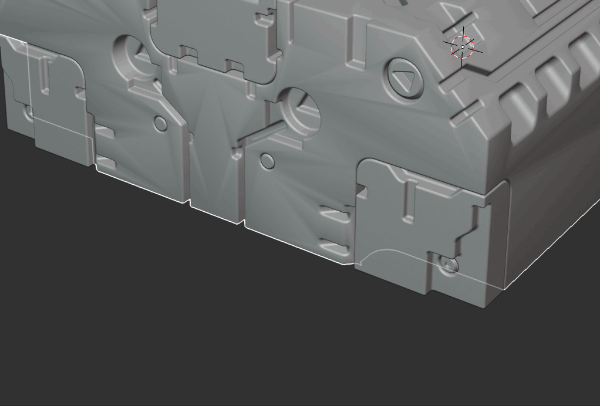
- CURVE – Add Curve modifier on your selection
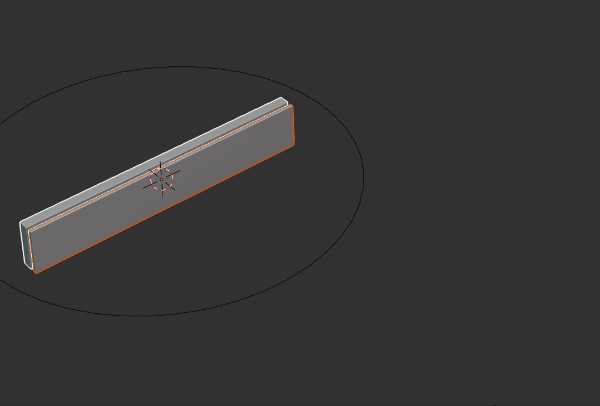
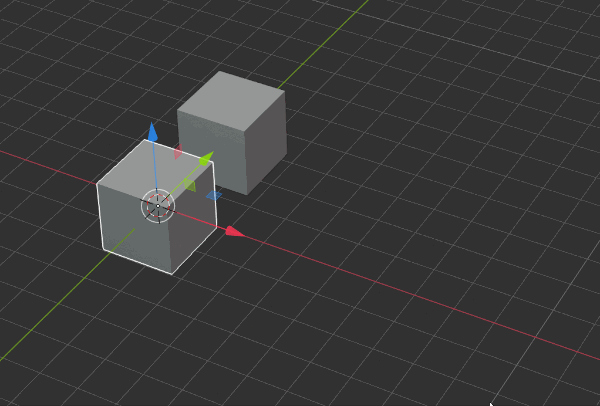
- DISPLACE – Displace on X, Y or Z-axis in Object and Edit mode
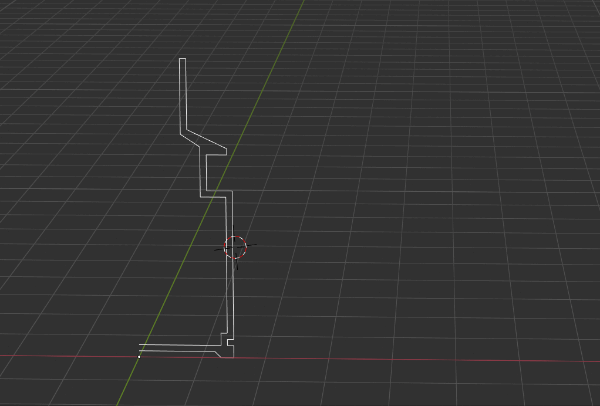
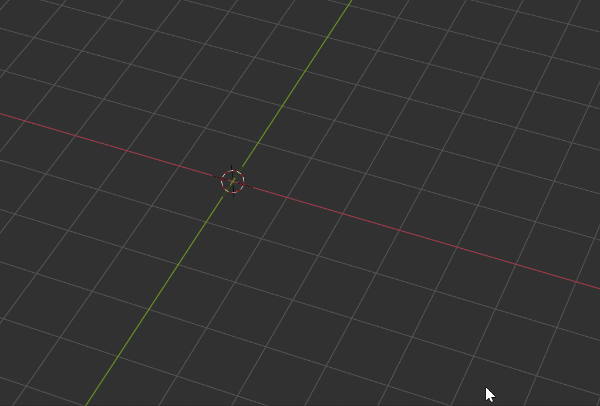
- SCREW – Revolve profiles, and combine Screw modifiers too
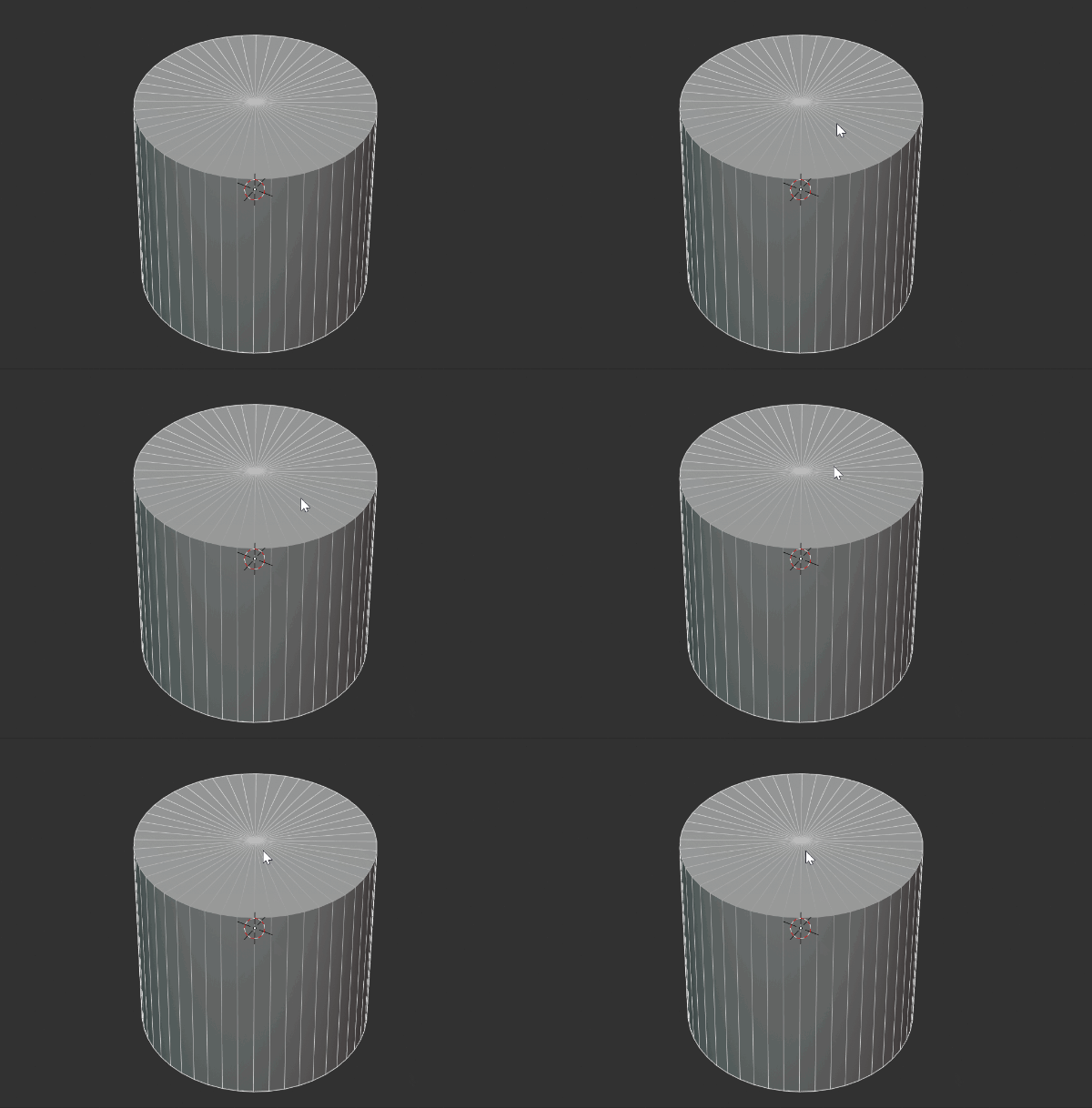
- DECIMATE – Clean the planar surfaces
- SIMPLE DEFORM – Bend your object
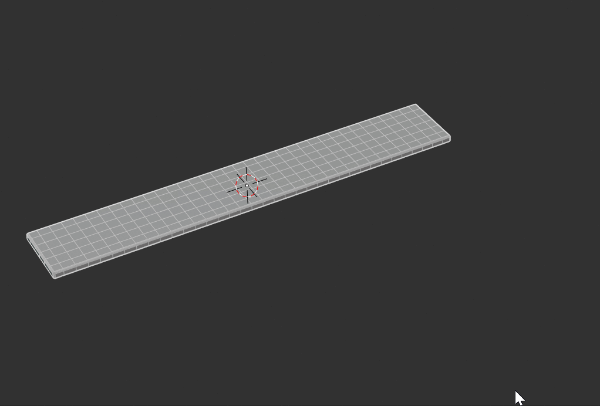
- EDGE SPLIT – Cut your object by adding sharp edges.
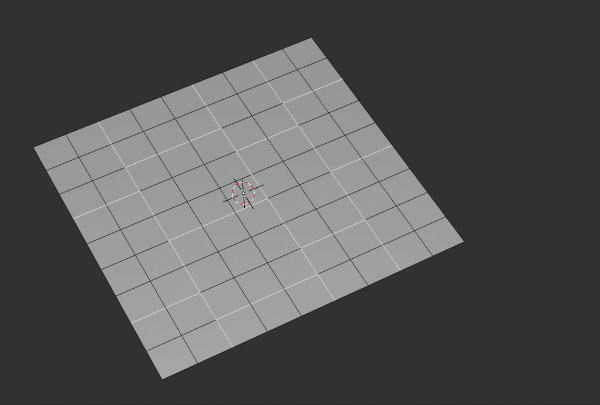
- TRIANGULATE – Triangulate on Ngons
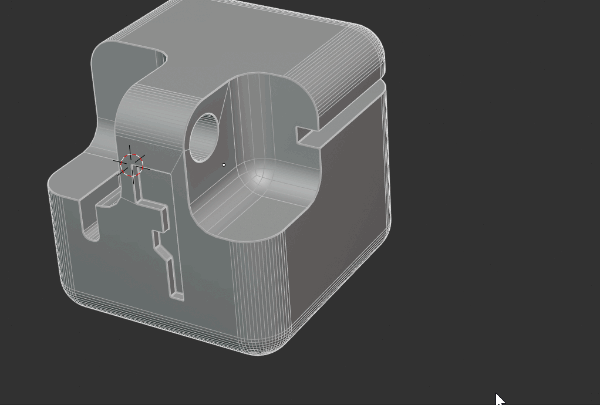
- SKIN – Add Thickness to Edges.
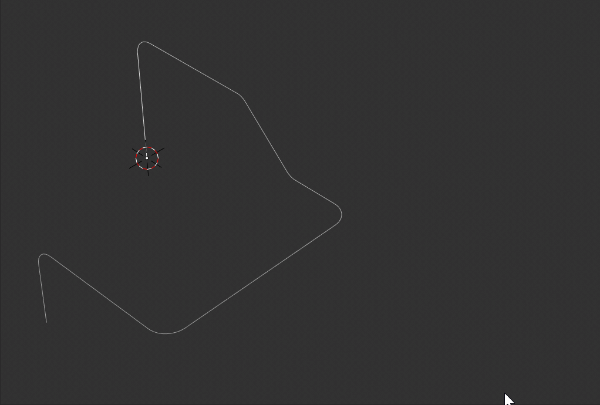
- WIREFRAME – Add Wire to your objects
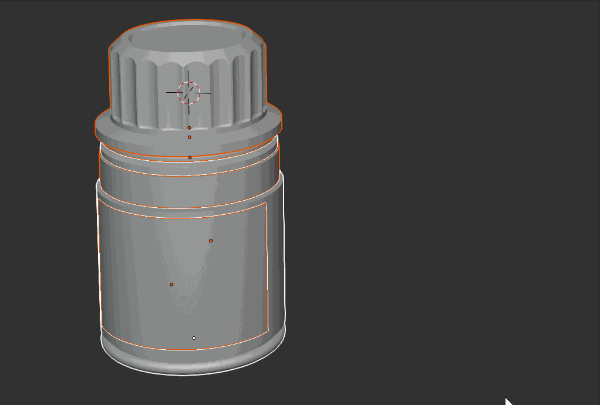
- MOD VISIBILITY – Show/Hide modifiers of your objects.
– FULLY CUSTOMIZABLE –
PREFERENCES SETTINGS :
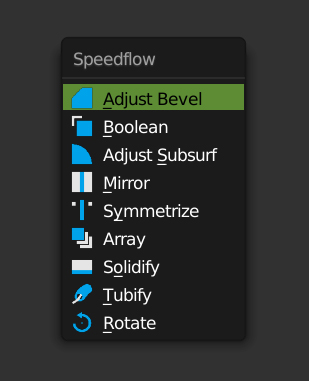
The Addon allows you to add custom settings to fit your workflow. You can choose which type of menu you want to use.
- Pie menu
- Normal menu
- Tab
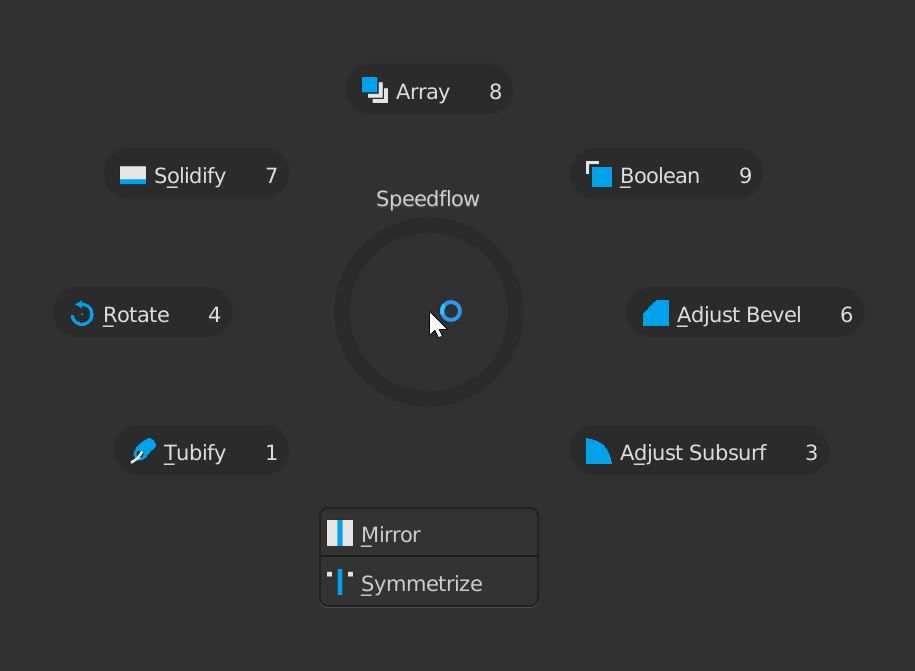
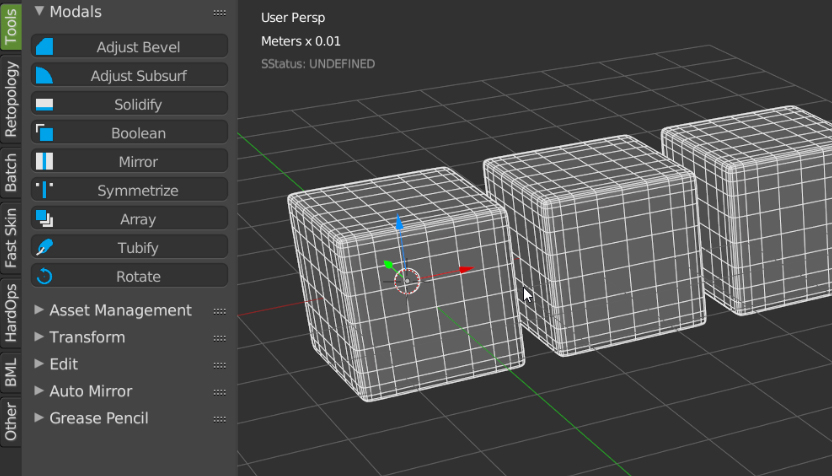
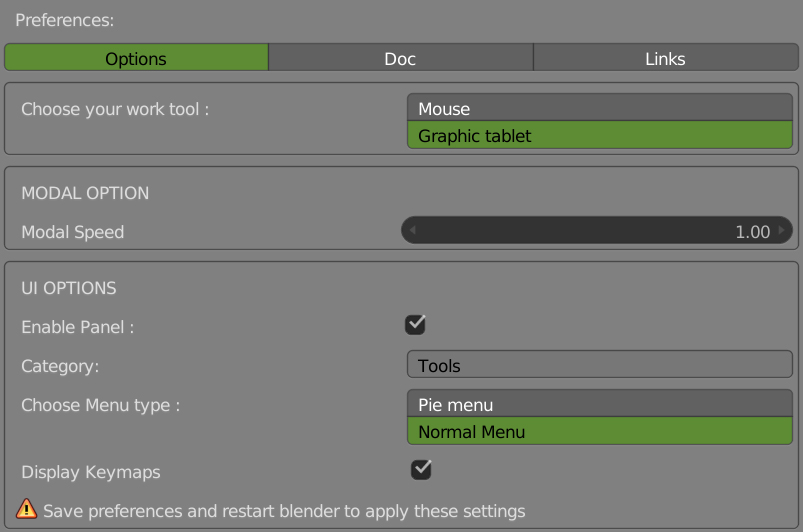
You can choose between a pen or mouse to work with. You can change settings from modals directly in the preferences.
- Choose the type of bevel (Subdiv or nor Subdiv) and change the settings
- Tubify options
- Array settings (Relative or constant)
- Symmetrize axis (+X or -X) depending on which side you work
- Boolean settings
- Rotate axis
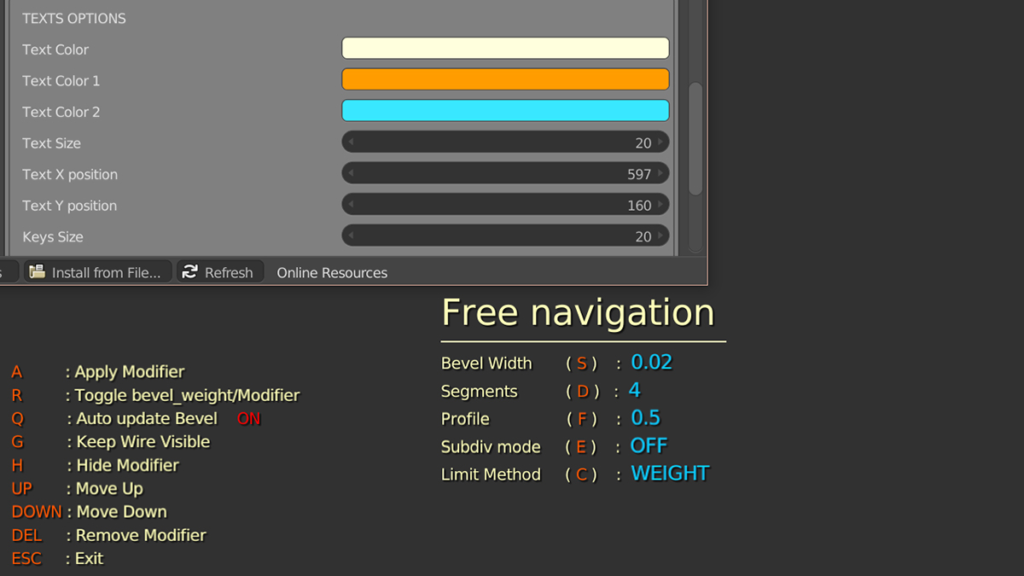
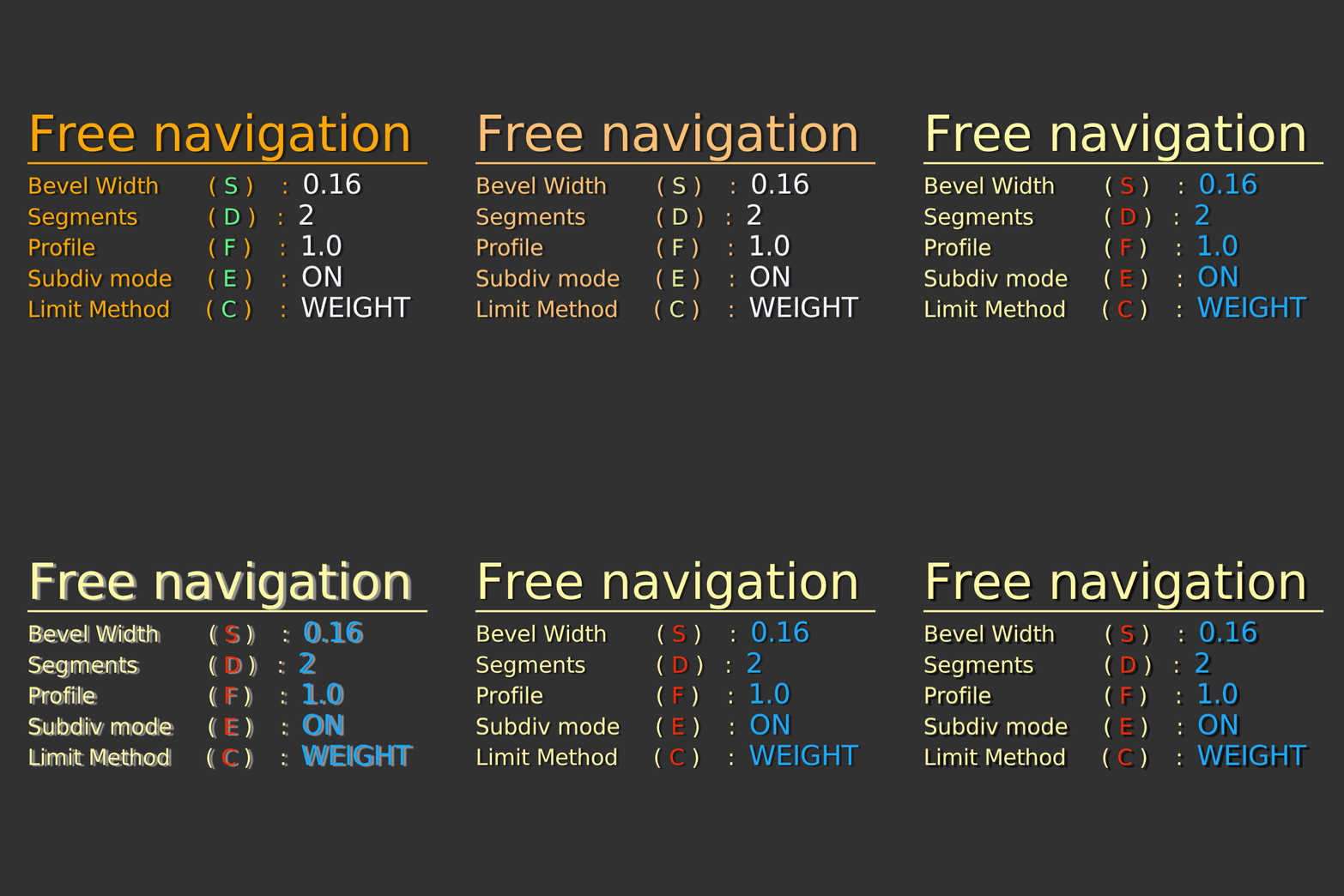
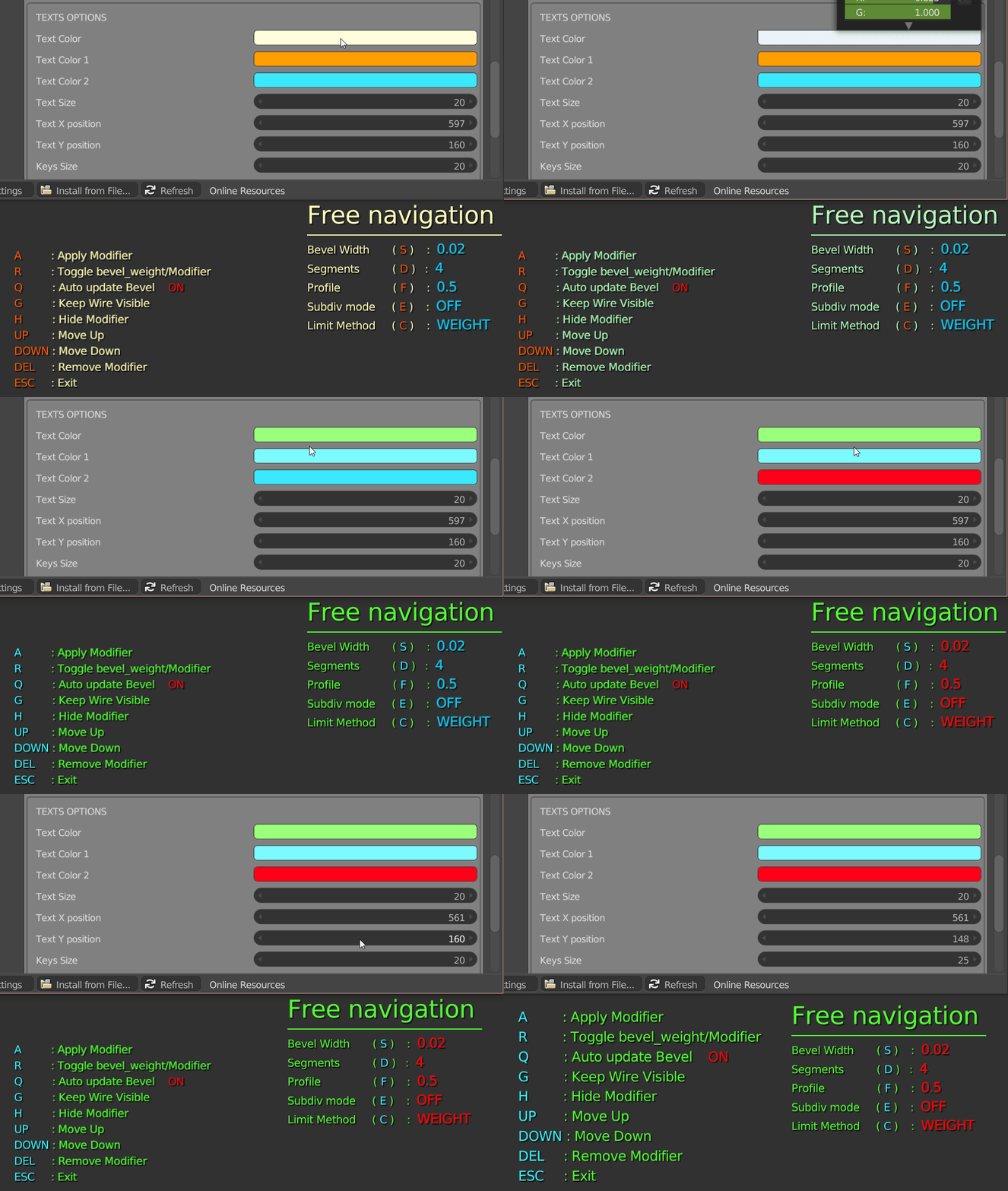
You can also customize the text in the 3D view
- Choose the color and the size
- Change the position
- Activate shadows
- etc.
– SPEEDFLOW COMPANION –
With Speedflow you can use Speedflow companion, a second addon really useful to manage your modelings.
You can :
- Create primitives for fast booleans
- Manage Sharps (Bevel weight, Crease Sharp)
- Relax wire, clean faces, select Ngons
- Works with curves
- Etc
– ASSET MANAGEMENT – CARVER – FLUENT(2.8) – HARDOPS – BOX CUTTER –
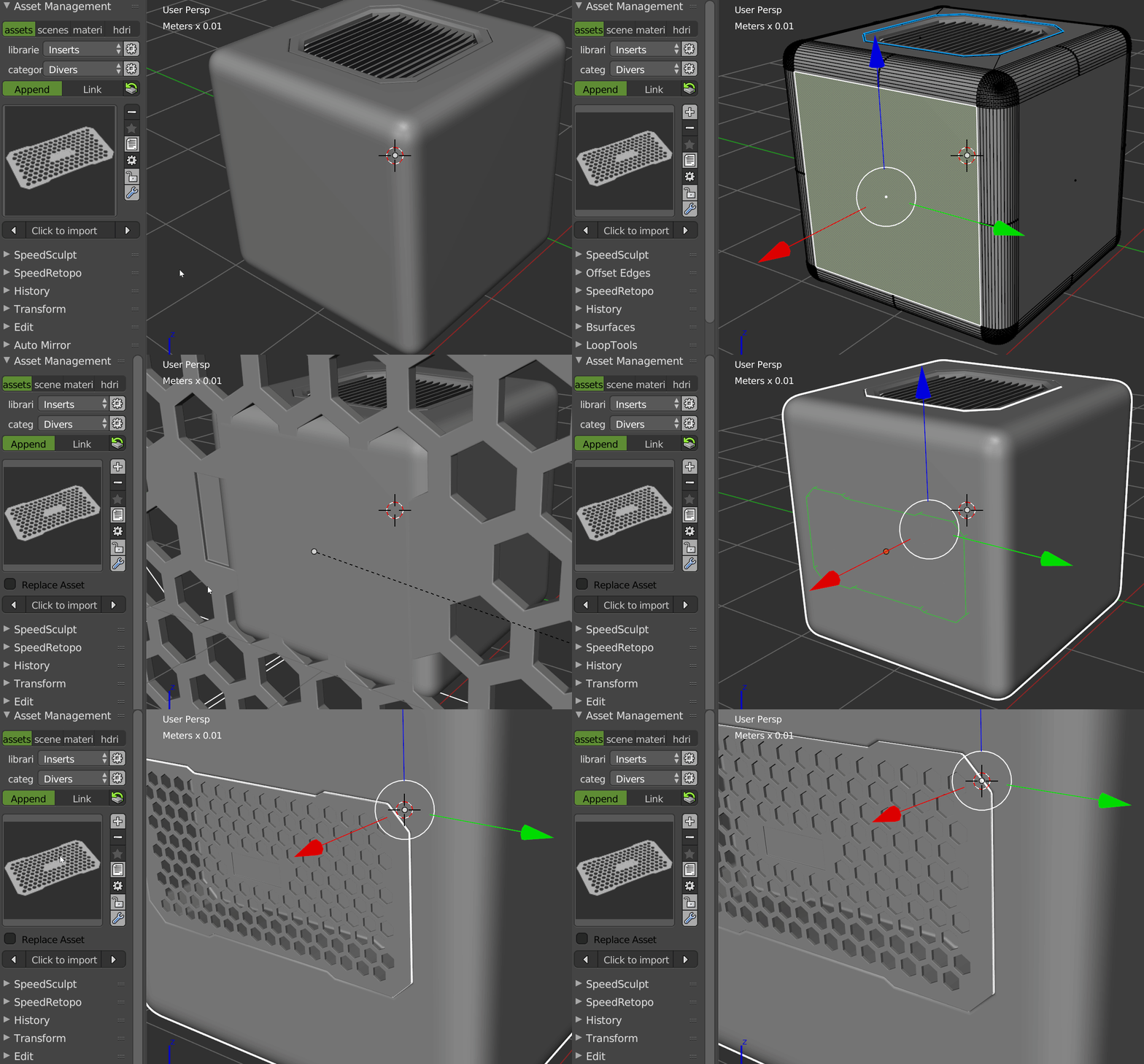
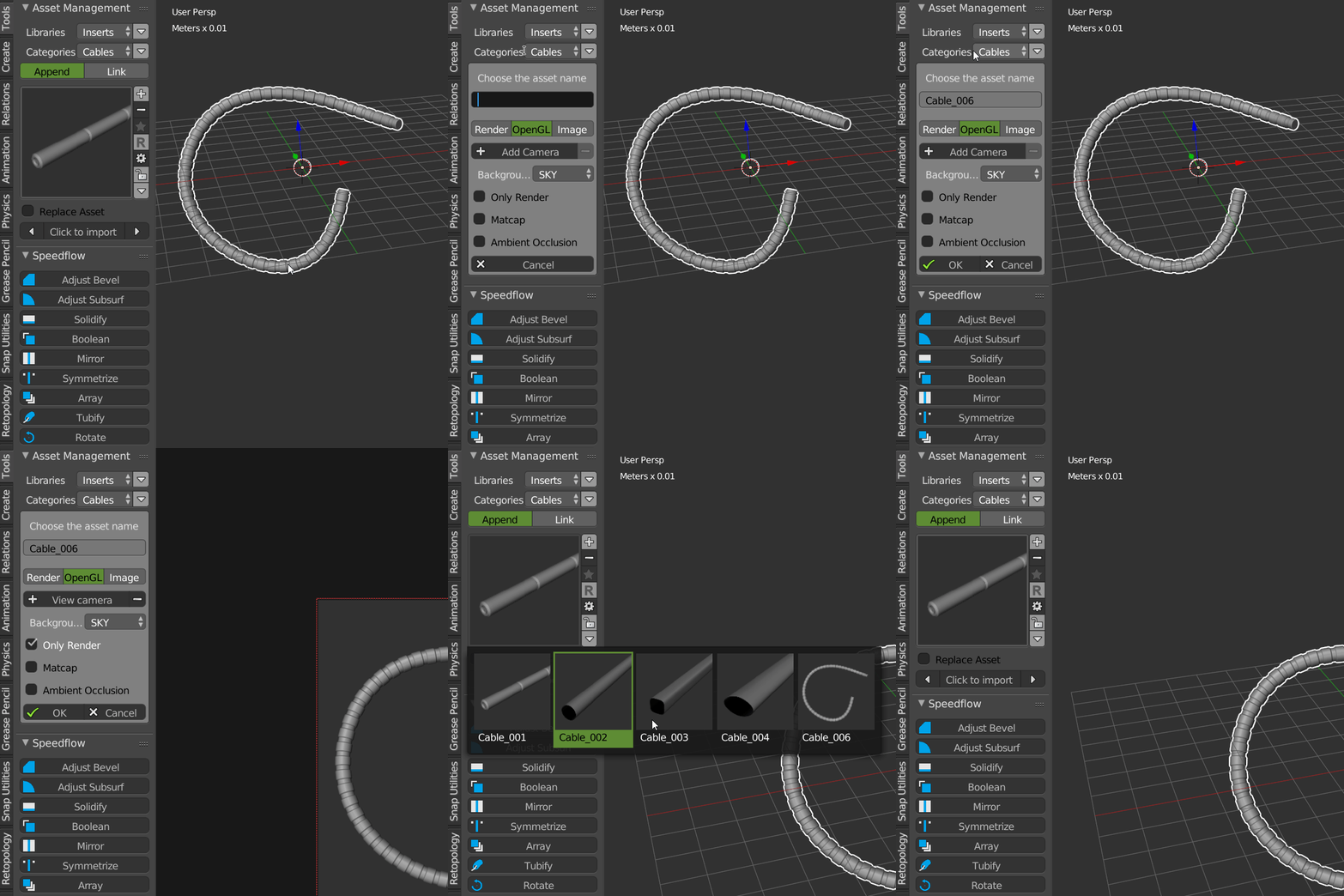
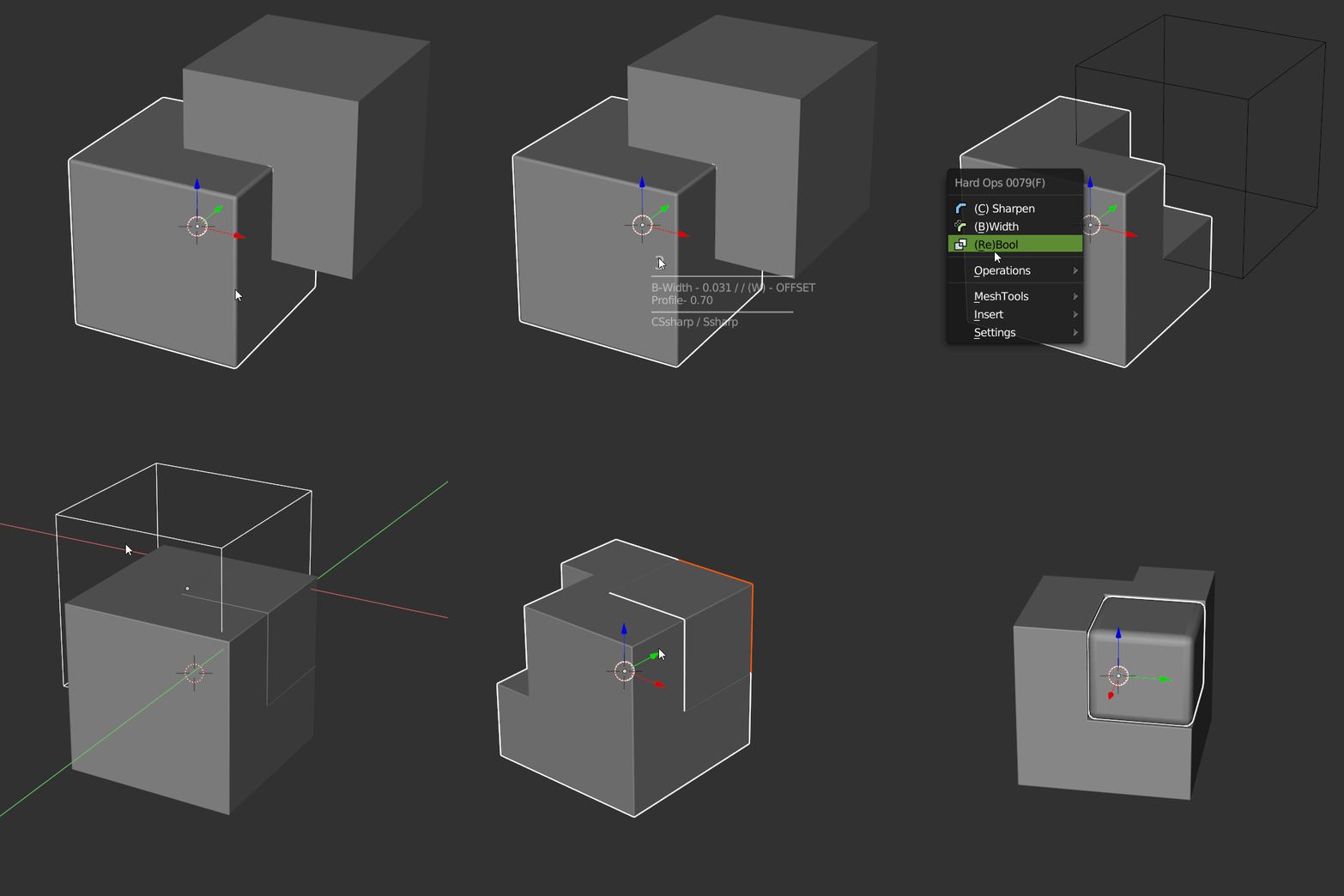
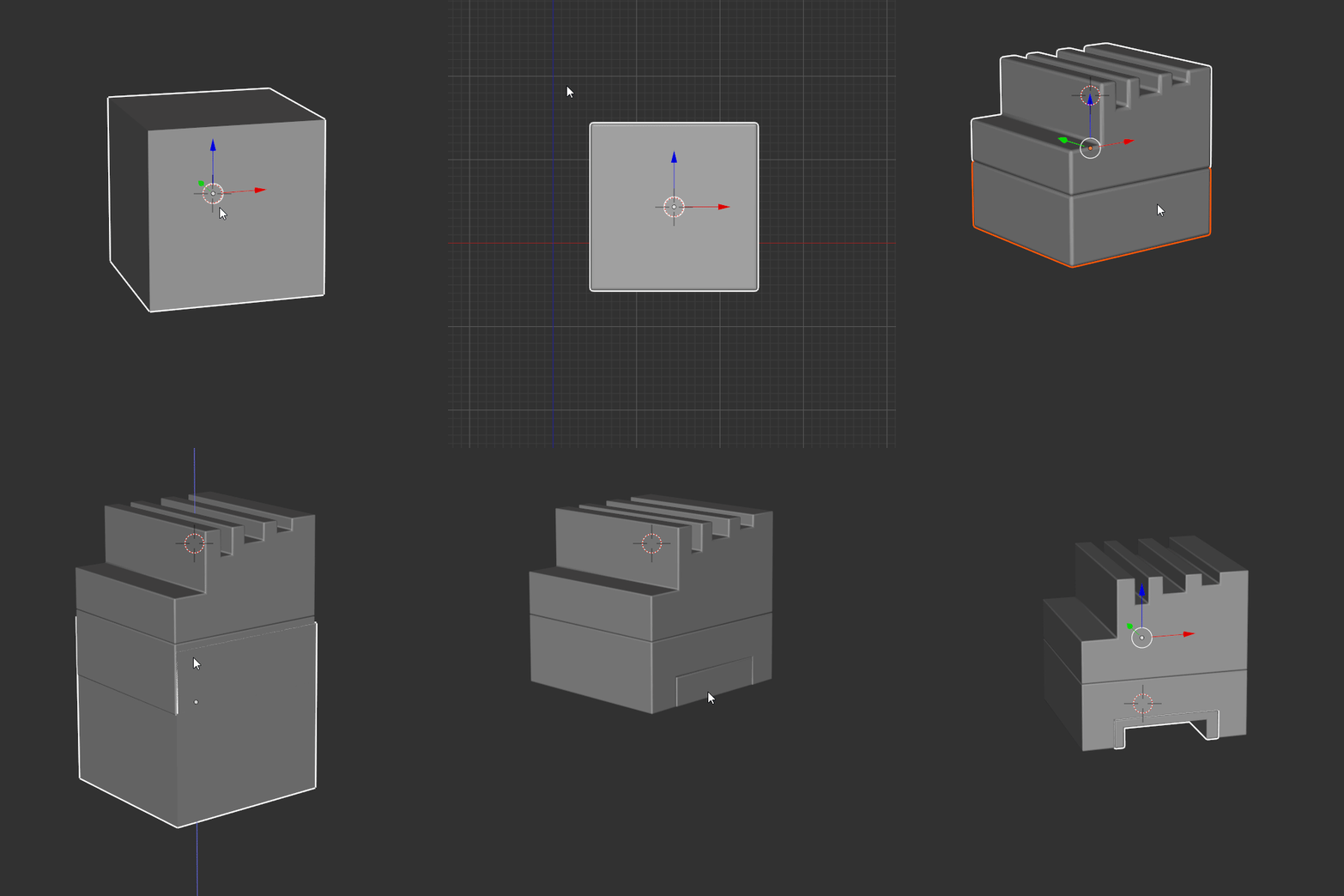
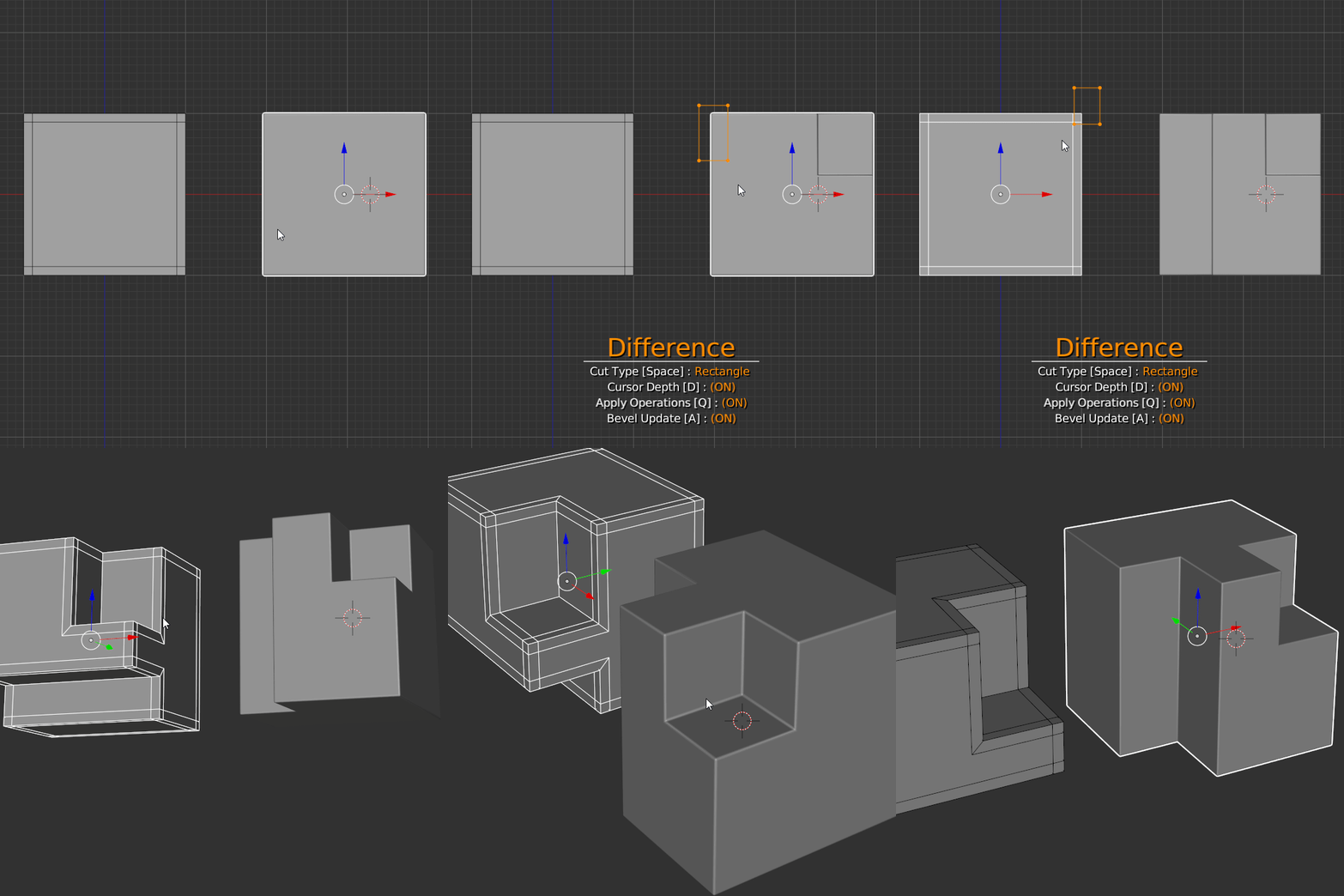
Speedflow is fully compatible with Asset Management, Carver, Hardops, and Box Cutter!
You can :
- Use Asset Management to store your models, inserts, booleans objects, etc.
- Use carver to create booleans, the bevel will be updated depending on the mode (Subdiv/Nosubdiv)
- Use Hardops and Speedflow together
- Use Box Cutter to make fast Booleans
- Add your assets to the Asset Management addon
- Etc
– DOCUMENTATION –
Supercharge your 3D creation workflow with premium selection of Blender Add-ons. Whether you are modeling intricate characters, sculpting realistic environments, or animating cinematic sequences, the right add-on can transform how you work inside Blender. Our curated collection includes powerful tools for UV unwrapping, procedural texture generation, rigging automation, rendering optimization, and more—each rigorously tested for compatibility with the latest Blender versions. Eliminate tedious manual processes and unlock advanced functionality that lets you focus on what matters most: bringing your creative vision to life. Explore our full range of professional Blender plugins today and take your 3D projects to the next level.
➡️ ➡️ For more Blender Plugins 😀 😀
Reviews
There are no reviews yet.