
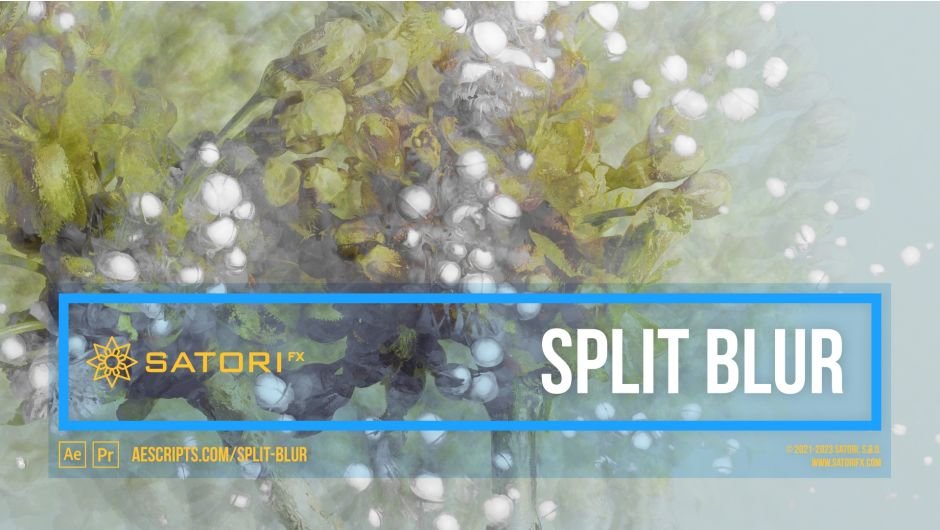
Split Blur for After Effects
Download Split Blur V1.3.2, a powerful After Effects and Premiere Pro plugin that creates kaleidoscopic blur effects with an organic, painterly feel. This innovative tool splits images into multiple blended copies, with split distances dynamically calculated based on pixel brightness, transforming ordinary footage into mesmerizing abstract visuals.
Key Features of Split Blur V1.3.2:
- Dynamic Split Algorithm: Splits images into multiple blended copies with distances calculated per pixel based on brightness for unique organic results
- Progressive Transformation: Behaves like Gaussian blur at low levels, gradually evolving into distinctive kaleidoscopic imagery as intensity increases
- Channel-Specific Control: Apply effects to Luminosity, RGB, or individual Red, Green, Blue, and Alpha channels for precise color manipulation
- External Intensity Sources: Use other layers or Premiere tracks as alternative sources for split calculations
- Advanced Curve Control: Map pixel brightness to blur distance with custom curves, including phase offset for R/B components
- Split Management: Control split count and rotation angles, with ability to converge splits into fewer groups for visual simplification
- Edge Modes: Choose from Wrap, Mirror, Repeat Last, or Transparent options for handling missing edge pixels
- GPU Accelerated: Optimized for NVIDIA and Apple Silicon (M1/M2) chips with Multi-Frame Rendering support
- Real-Time Updates: Graph adjusts immediately when modifying parameters (v1.3.2+ in After Effects)
Perfect For:
- Motion designers creating abstract visual transitions
- Music video producers seeking psychedelic aesthetics
- VFX artists adding organic, painterly textures
- Title sequence designers crafting unique introductions
- Anyone wanting to transform footage into kaleidoscopic art
System Requirements:
- Adobe After Effects 2025 down to CC 2014
- Adobe Premiere Pro 2025 down to CC 2014
- Windows or macOS (including native Apple Silicon support from v1.0.3+)
- Multi-Frame Rendering supported from v1.1.0+
- 4GB RAM minimum (8GB+ recommended)
- 50MB available disk space
Version 1.3.2 Updates:
- Graphs update immediately when adjusting parameters (After Effects only)
- Updated to After Effects SDK May 2023
Kaleidoscopic blur with an organic painterly feel.
How it works
The effect splits the image into multiple blended copies of itself. The distance of the splits is dynamically calculated according to the luminosity of each pixel and can be modulated in many ways. Split Blur looks like a regular gaussian blur on small blur levels, but gradually transforms into a unique kaleidoscopic image split with greater distances. An additional new feature (from v1.5), Twirl Angle, opens up new visual possibilities with adaptive rotation according to luminosity and can be driven by a different layer source.
Available parameters rundown
- Channels – allows you to specify which color channels should the effect be applied to.
- Luma – the effect is applied to all channels equally using the overall luminance of a pixel.
- RGB – the effect is applied on each of the RGB components separately.
- Red, Green, Blue, Alpha – affects just the selected channel.
- Intensity Source – the splitting effect is calculated using the image itself by default, but you can provide a completely different layer/track, as an input, for unconventional results. If the secondary layer has different dimensions, it’s stretched to match the primary layer.
- Blur Level – the strength of the blur effect – ie. the maximum distance of split pixels from the origin pixel. By using a slider, the maximum value is 512, but via the value field, you can adjust up to 2048.
- Split Count – how many copies the image should be split into. The splits are spaced out evenly on a circle around the original image.
- Splits Rotation – changes the angle of the splits.
- Splits Grouping – adds the ability to converge split directions into fewer groups and disrupt the even distribution around the circle. The value defines the maximum number of points belonging to one group.
- Splits Grouping Intensity – determines how much the grouping feature is applied and gradually changes evenly spaced splits into smaller numbers of groups. With a value of 100%, the points in the groups converge to one point, which is in their angular center. The number of groups derives from the number of splits in use and the size of the groups defined by the Splits Grouping parameter.
- Splits Graph* – is visual representation of split configuration to help you understand how Split Count, Splits Rotation, and grouping parameters work.
- Curve – specifies how the pixel luminosity is mapped to blur distance. (details in the manual)
- Curve Phase – offsets the curve by a set amount of degrees. (details in the manual)
- Curve Smoothness – helpful for smoothly connecting the beginning and the end of discontinuous curves (linear ramps and exponentials) or smoothing out a triangular curve.
- Curve Floor – defines the minimum split distance.
- Curve Phase Split (RGB) – can be used when filtering RGB channels for an extra colorizing effect by utilizing an additional shift of curve phase for R and B channels.
- Curve Graph* – visualizes the curve mapping for your convenience.
- Twirl Angle – defines the maximum intensity of the twirl effect. This parameter applies additional split rotation using an daptive method based on pixel luminosity and Twirl Curve settings. For context, Splits Rotation sets the base rotation applied uniformly to all splits, while Twirl Angle adds variable rotation to the splits according to their luminosity.
- Twirl Intensity Source – specifies the input used to calculate the twirl effect. By default, the effect is derived from the image itself, but you can assign a different layer as the source.
- Twirl Curve – defines how pixel luminosity is mapped to the twirl angle. The curve determines how strongly pixels of different brightness values contribute to the twirl effect.
- Twirl Curve Phase – applies an angular offset to the Twirl Curve. This parameter shifts the curve by a specified number of degrees, altering how luminosity values correspond to rotation.
- Twirl Curve Smoothness – helpful for smoothly connecting the beginning and the end of discontinuous curves.
- Twirl Curve Floor – sets the minimum twirl angle applied by the effect. Pixels will not receive rotation below this threshold, regardless of their luminosity.
- Twirl Curve Graph* – provides a visual representation of the Twirl Curve mapping.
- Edge Mode – when the image is offset by the effect a number of pixels on the edges will always be missing, this specifies how they’re filled in.
- Wrap – wraps around the image.
- Mirror – mirrors the edge pixels.
- Repeat Last – repeats the last edge pixel.
- Transparent – leaves the missing pixels empty.
* The graphs are not available in CC2014 or earlier.
Usage Hints
- Try to make a copy of the footage you want to use with Split Blur and apply Gaussian Blur to it, then set the layer as hidden. Choose this layer as the Intensity Source (don’t forget to select Effects & Masks). This way, you gain smoother blurring and turn your image into more organic/abstract results.
- Nice results are achieved by combining a layer with Split Blur applied and duplicate content in a different layer above, without effect, and then combining both by using a blending mode that fits best. The result is maintaining original details and adding a painterly/dreamy feel to it.
- Be encouraged to experiment with gradient maps as intensity sources and try tweaking Curve Phase parameters. With Sine Wave/Triangle Wave curves, you gain an easily loopable effect, or use Curve Smoothness with other curves to remove discontinuity while animating the phase parameter.
- You can achieve excellent results by using the depth map of your 3D render or footage as an intensity source.

| PLATFORMS | |
| Microsoft Windows | ✓ |
| macOS Intel | ✓ |
| macOS Apple Silicon | ✓ |
| APPLICATIONS | VERSIONS | |
| After Effects | ✓ | CS6 – 2025 |
| Premiere Pro | ✓ | CS6 – 2025 |
| FEATURES | |
| Max. Rendering Resolution | no limit |
| Multi-Frame Rendering | ✓ |
| Utilizing GPU | ✗ |
Compatibility
After Effects
2025, 2024, 2023, 2022, 2021, 2020, CC 2019, CC 2018, CC 2017, CC 2015.3, CC 2015, CC 2014, CC, CS6
Premiere Pro
2025, 2024, 2023, 2022, 2021, 2020, CC 2019, CC 2018, CC 2017, CC 2015.3, CC 2015, CC 2014, CC, CS6
Elevate your motion graphics workflow with premium collection of After Effects plugins. Whether you are a seasoned professional or just starting your VFX journey, powerful tools designed to streamline complex tasks, unlock creative possibilities, and save you hours of rendering time. From stunning glitch effects and seamless transitions to advanced 3D extrusion and text animation tools, each plugin in our library is rigorously tested for compatibility with the latest versions of Adobe after Effects. Enhance your video production value today and download industry-leading plugins that help you create breathtaking visuals without the technical headaches. Browse our full range and find the perfect extension to supercharge your editing suite now.
➡️ ➡️ For more after effects Plugins 😀 😀
➡️ ➡️ System requirements AE
Reviews
There are no reviews yet.