
ToOptimize Tools for Blender
ToOptimize Tools v1.2.7.4 for Blender – The Ultimate Game-Ready Asset & Real-Time Performance Toolkit
Versions: v1.2.7.4
File Size: 161 KB
Download ToOptimize Tools v1.2.7.4 for Windows and Mac, a comprehensive technical art and pipeline utility designed specifically to bridge the gap between high-fidelity 3D modeling and real-time game engine performance. When moving assets from Blender to Unity, Unreal Engine, or Godot, artists often face the dreaded “performance bottleneck”—massive file sizes, excessive draw calls, and broken UVs. ToOptimize Tools acts as your automated technical director, providing a suite of powerful tools to decimate meshes, generate texture atlases, create LODs, and clean up scene data, ensuring your assets are lightweight, clean, and 100% ready for real-time rendering.
Key Features of ToOptimize Tools v1.2.7.4:
- Smart Edge-Aware Decimation: Reduce polygon counts by up to 90% without destroying your model’s silhouette. The algorithm intelligently protects sharp edges, UV seams, and hard-surface bevels while aggressively reducing geometry in flat or organic areas.
- Automated Texture Atlasing & Batching: Combine multiple materials and texture maps into a single, optimized texture atlas. This drastically reduces material slots and draw calls, which is critical for maintaining high frame rates in real-time engines.
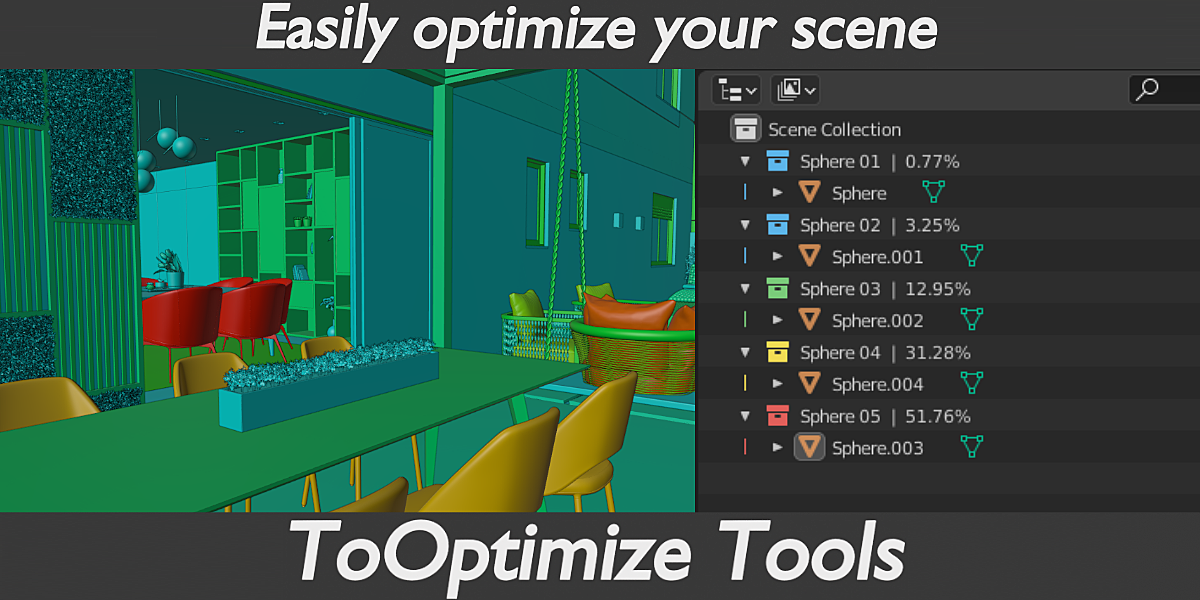
- Draw Call & Material Analyzer: A visual viewport overlay that color-codes your objects based on their material count and draw call contribution. Instantly see which assets are hurting your performance and need to be batched or atlased.
- One-Click LOD Generator: Automatically generate LOD1, LOD2, and LOD3 variants for any asset. The tool calculates the optimal polygon reduction for each level and ensures seamless transitions without popping or visual artifacts.
- Lightmap UV Unwrapper: Instantly generate a clean, non-overlapping secondary UV channel specifically optimized for lightmap baking in Unreal Engine or Unity, respecting your primary UV seams.
- Instance & Dupli-Optimizer: Detects duplicate meshes in your scene and automatically converts them into linked instances. This simple switch can reduce memory usage and viewport lag by up to 80% in heavily populated environments.
- Deep File Purge & Cleanup: Instantly remove orphan data blocks, unused materials, hidden geometry, and custom undo history. Reclaim megabytes of RAM and reduce file bloat before exporting.
- Collision Mesh Generator: Automatically generates simplified, low-poly convex hulls or box colliders for your assets, naming them correctly (e.g.,
UBX_,UCX_) for automatic recognition by Unreal Engine. - Transform & Scale Normalizer: Automatically applies all transforms, fixes negative scaling, and standardizes object dimensions to prevent the “tiny or giant asset” issue when importing into external engines.
- Batch Processing Queue: Select entire collections or the whole outliner and run optimization passes (decimation, material merging, cleanup) on hundreds of objects simultaneously in the background.
Perfect For:
- Game Developers & Environment Artists needing to strictly enforce polycount limits, reduce draw calls, and prepare clean FBX/glTF exports for real-time engines.
- Technical Artists establishing clean, standardized pipelines, managing lightmap UVs, and troubleshooting performance bottlenecks.
- VR/AR Developers optimizing scenes to maintain the strict 90+ FPS requirements for virtual reality headsets.
- Architectural Visualizers converting massive, high-poly interior scenes into lightweight, real-time walkthroughs for clients.
- Indie Studios & Freelancers who need to quickly deliver “game-ready” versions of their assets without spending days on manual retopology and UV packing.
- Beginners who struggle with the technical requirements of game engines and want a guided, automated approach to asset optimization.
System Requirements:
- Blender: 3.6, 4.0, 4.1, 4.2, 4.3, 4.4+ (Latest LTS recommended).
- OS: Windows 10/11 (64-bit) or macOS 10.15+.
- RAM: 8GB minimum (16GB+ recommended for batch processing massive scenes and high-res texture atlasing).
- No external dependencies required.
Installation:
- Download the ToOptimize Tools v1.2.7.4
.zipfile. - Open Blender and go to Edit > Preferences > Add-ons.
- Click Install…, select the downloaded file, and enable the checkbox next to Object: ToOptimize Tools.
- Access via the 3D Viewport Sidebar (N-panel) under the ToOptimize tab, or the Object Context Menu (Right-Click) > Optimize for Engine.
What’s New in v1.2.7.4?
- Blender 4.4 Full Compatibility: Updated all mesh evaluation and material APIs to ensure rock-solid stability and correct UI scaling in the latest Blender 4.4 release.
- New “Draw Call Heatmap”: Added a highly requested viewport overlay that visually highlights objects contributing to high draw calls, making it easy to spot optimization targets at a glance.
- Faster Texture Atlas Packing: Rewritten the UV packing algorithm for the atlasing tool, reducing calculation time by 60% when combining dozens of materials into a single 4K atlas.
- Improved Edge Preservation: The decimation algorithm now features a “Sharpness Multiplier” slider that better protects hard-surface bevels and mechanical details from melting during poly-reduction.
- Unity & Unreal Export Presets: Added dedicated one-click export buttons that automatically apply the correct scale, forward/up axis, and file naming conventions for Unity and Unreal Engine.
- Bug Fix: Resolved a rare issue where the instance converter would occasionally break custom particle system settings on the original objects.
Note:
ToOptimize Tools v1.2.7.4 is the ultimate bridge between artistic freedom and technical reality. Artists want to use millions of polygons and hundreds of unique materials to make their scenes look perfect, but game engines and real-time viewers demand strict performance budgets. This addon removes the friction between those two goals. By automating the most painful parts of the optimization pipeline—like UV packing for atlases, edge-safe decimation, and deep file cleanup—it allows you to focus on making your scene look beautiful, knowing that the technical requirements for real-time performance are being handled flawlessly in the background.

What is ToOptimize Tools?
ToOptmize Tools is an addon for Blender that will help you optimize your scene in a simple way with very useful tools. The addon will show you what is making your scene heavier, comparing each object, collection, texture, and material in your scene!
Features
- Collection Analyzer
- 3D View Analyzer
- Image Data Analyzer (New)
- Image Resizer (New)
- Material Benchmark (New)
- Find in Scene Tool
- Extra Useful Tools
3D View Analyzer
The addon will do all the hard work for you!
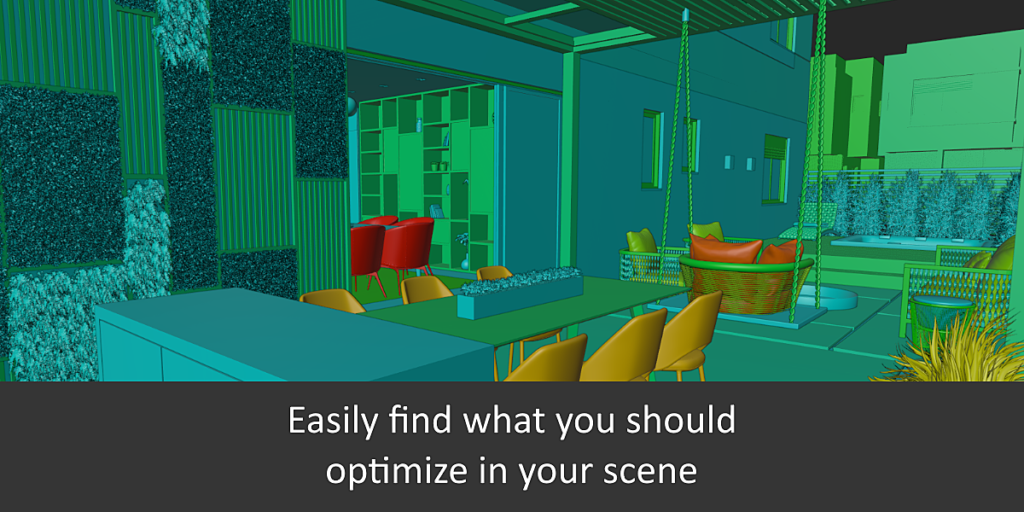
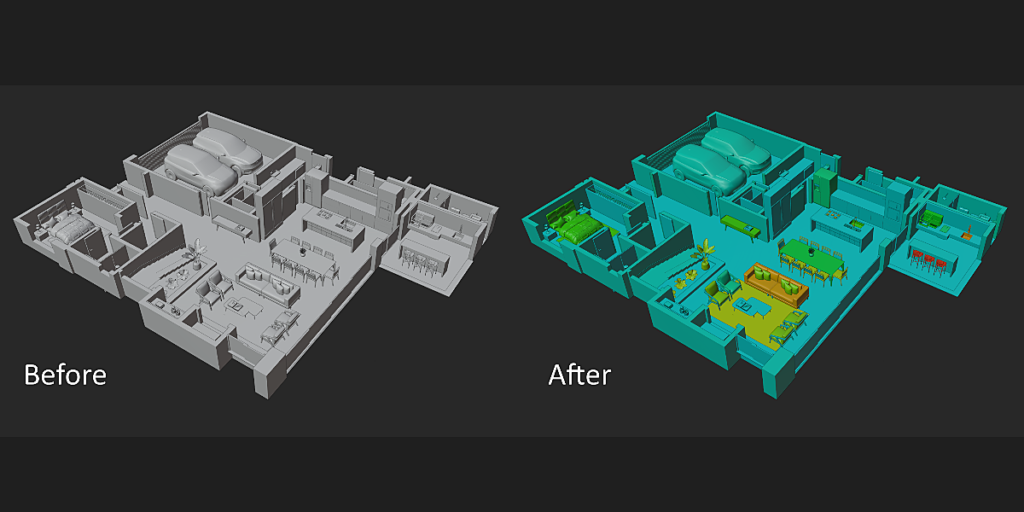
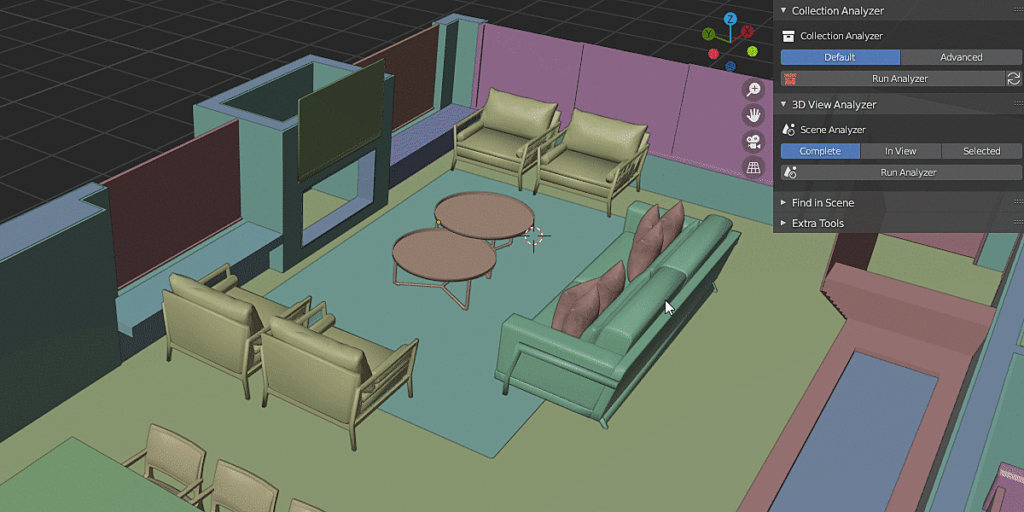
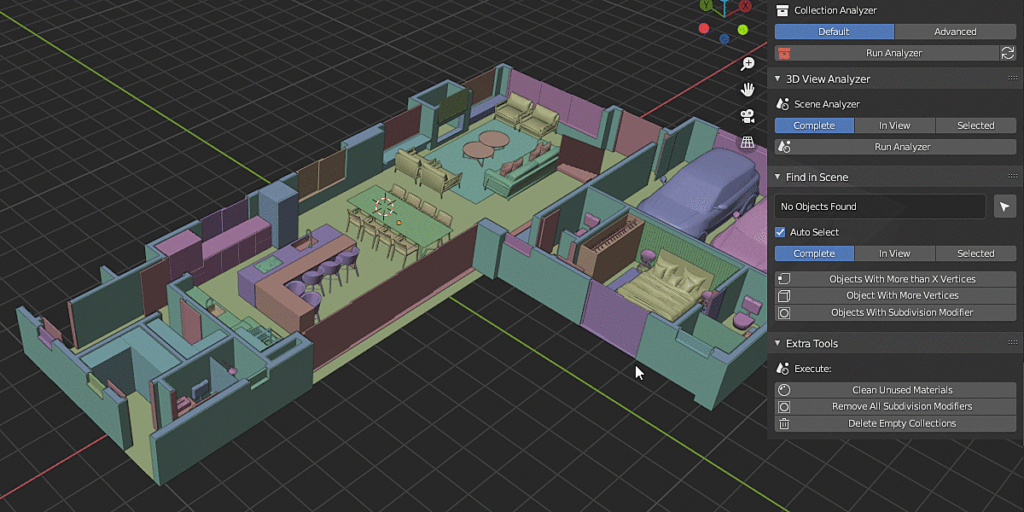
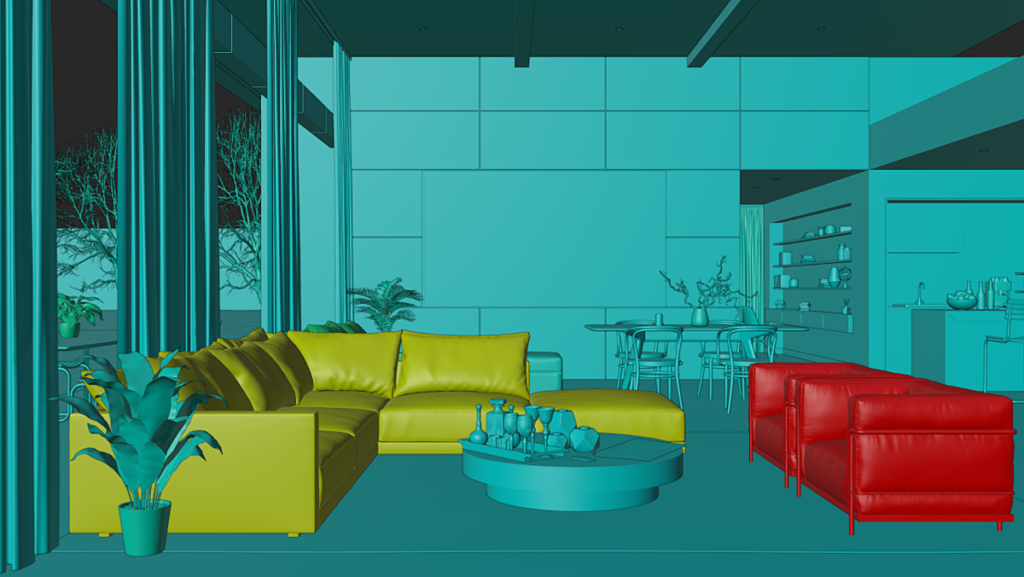
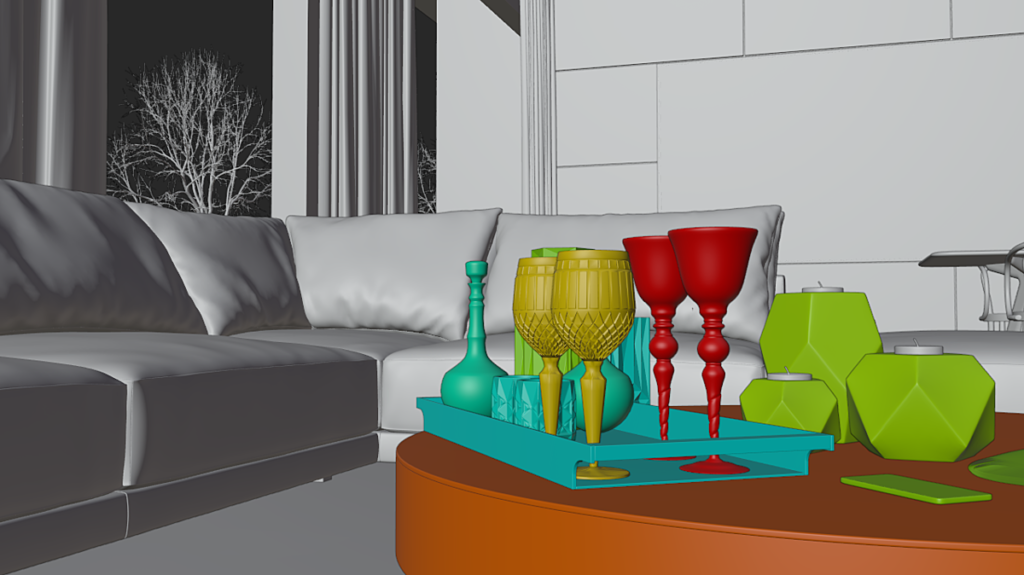
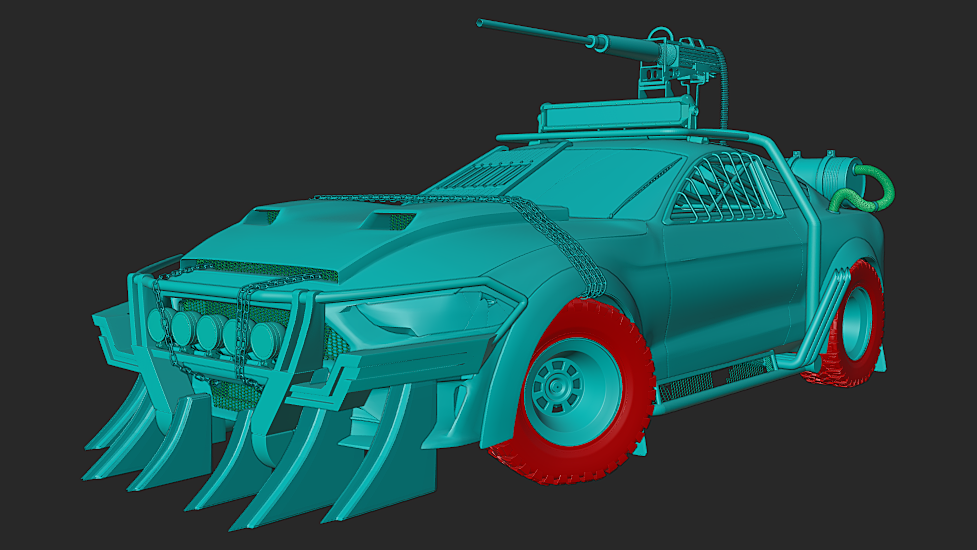
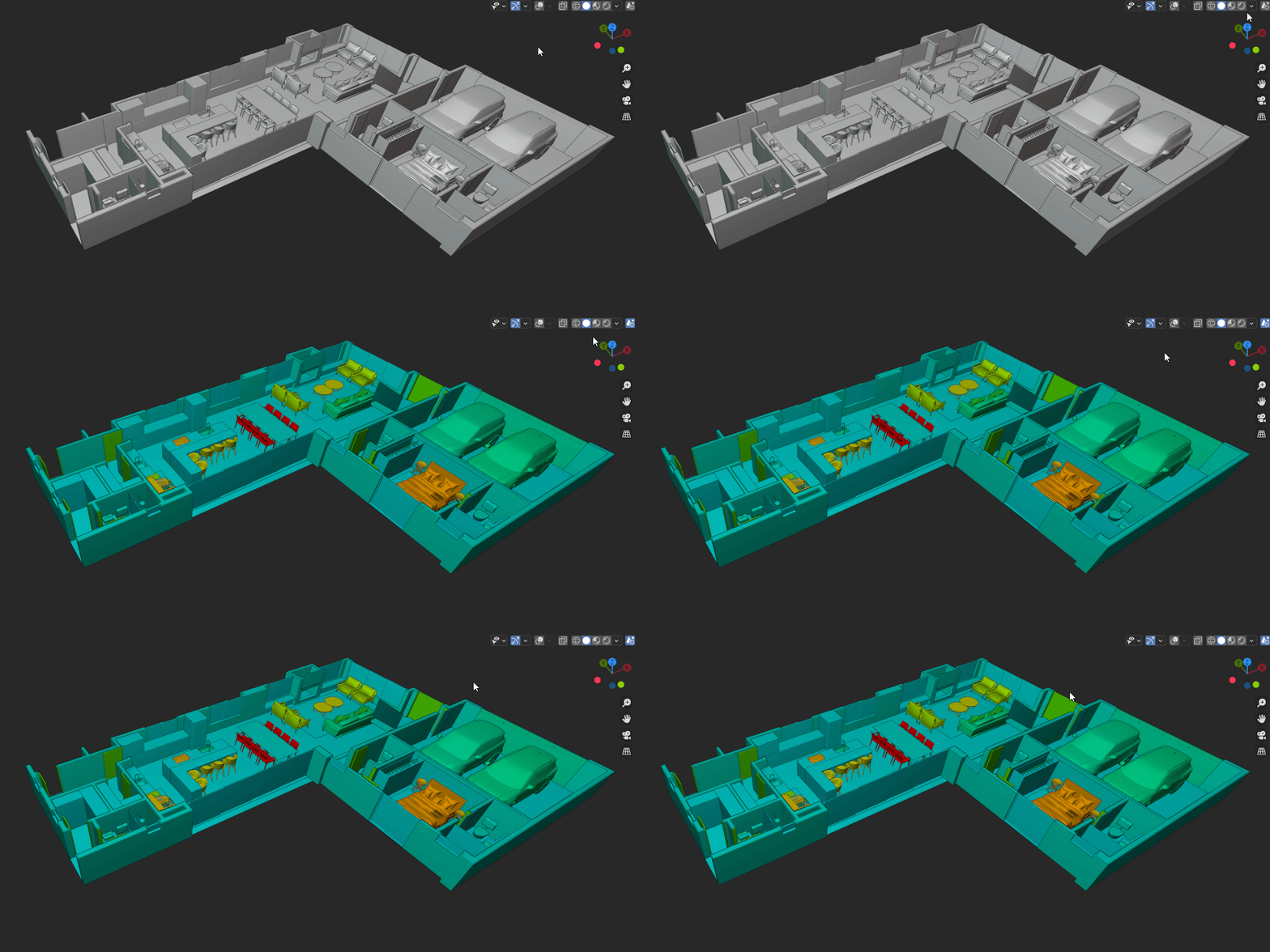
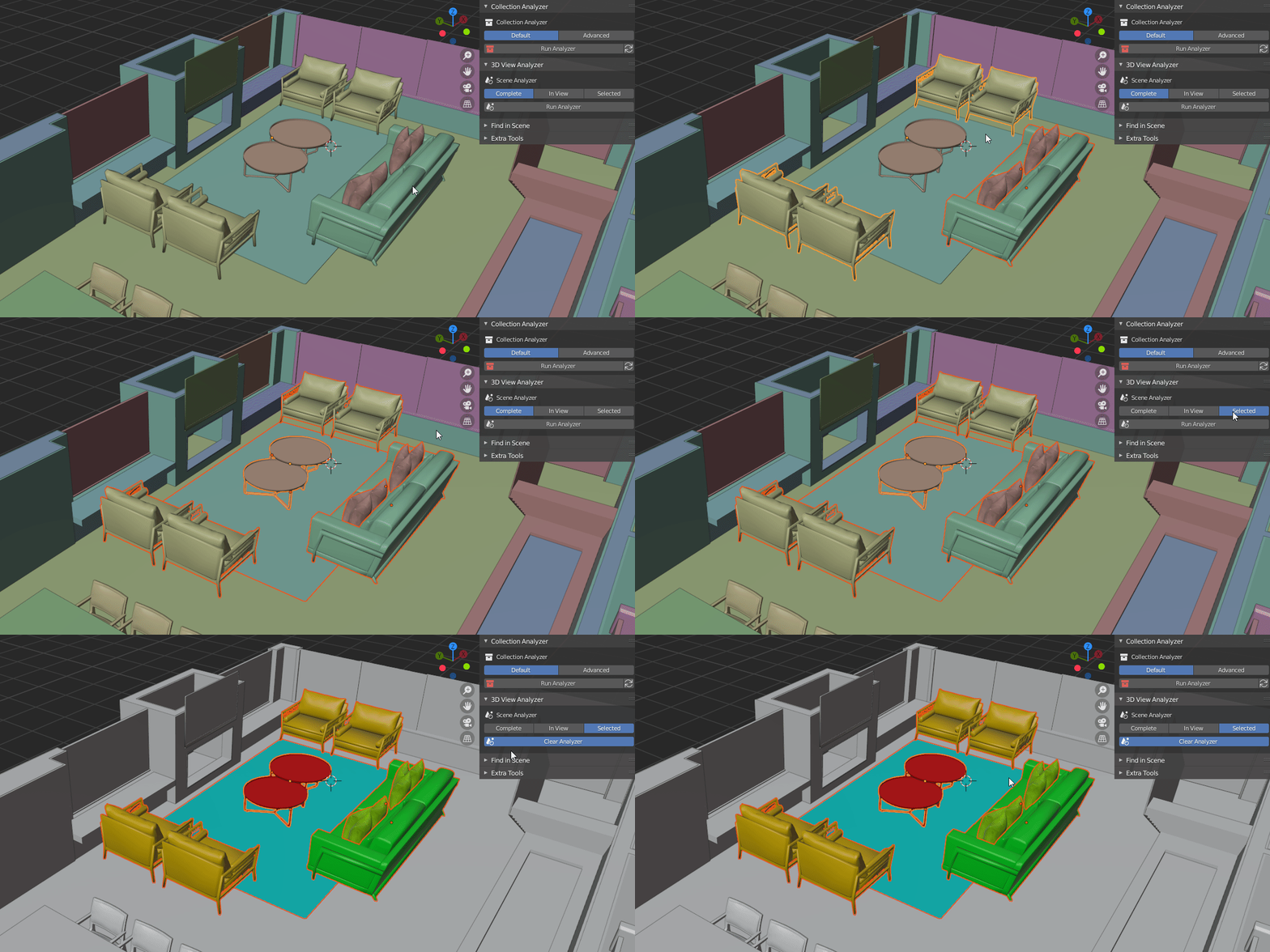
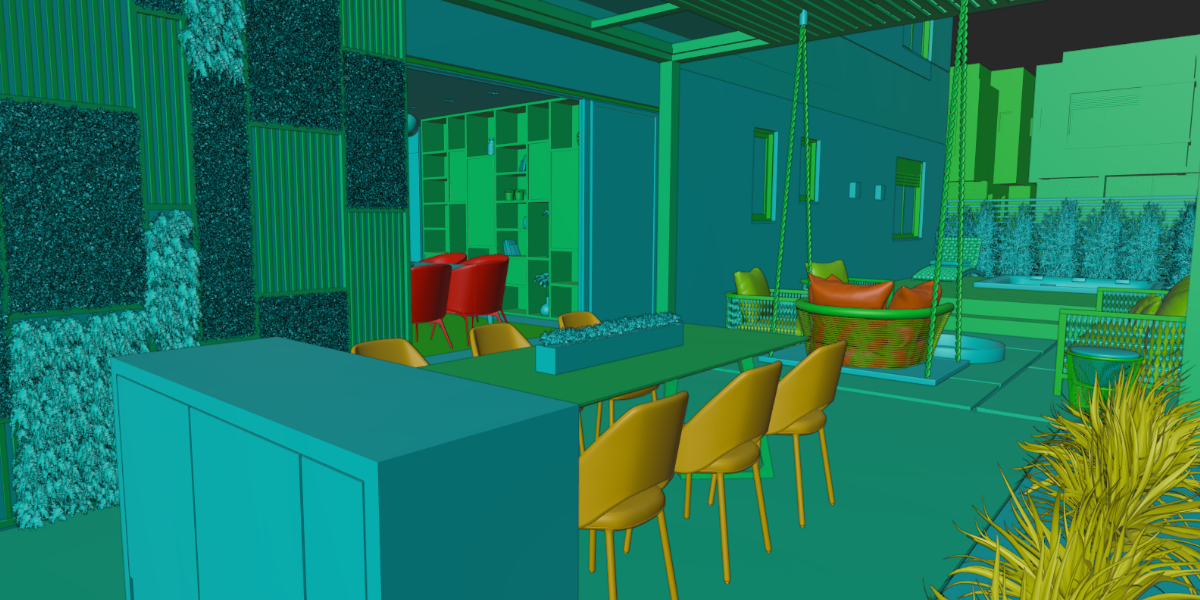
With One Click the addon will get the number of vertices in each object in your scene, returning you the size of each one with colors!
- No more hours of searching to find the object that is making the polycount of your scene go to space!
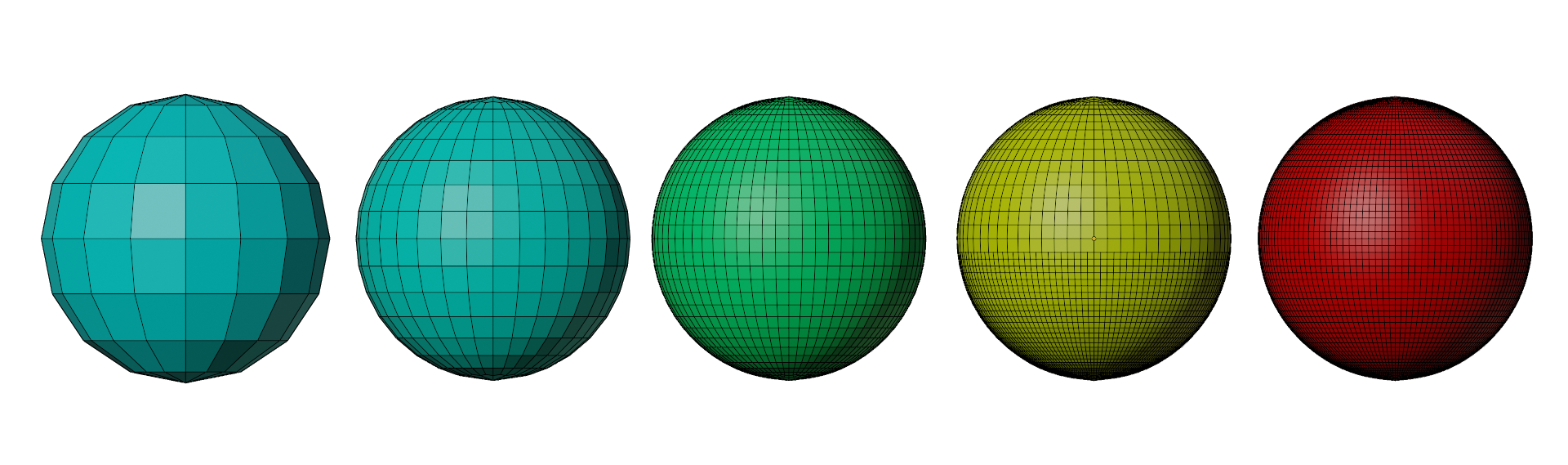
Find which objects are making your scene heavier…
- One-click and this addon will tell you what to do next, directly in your viewport!
Collection Analyzer
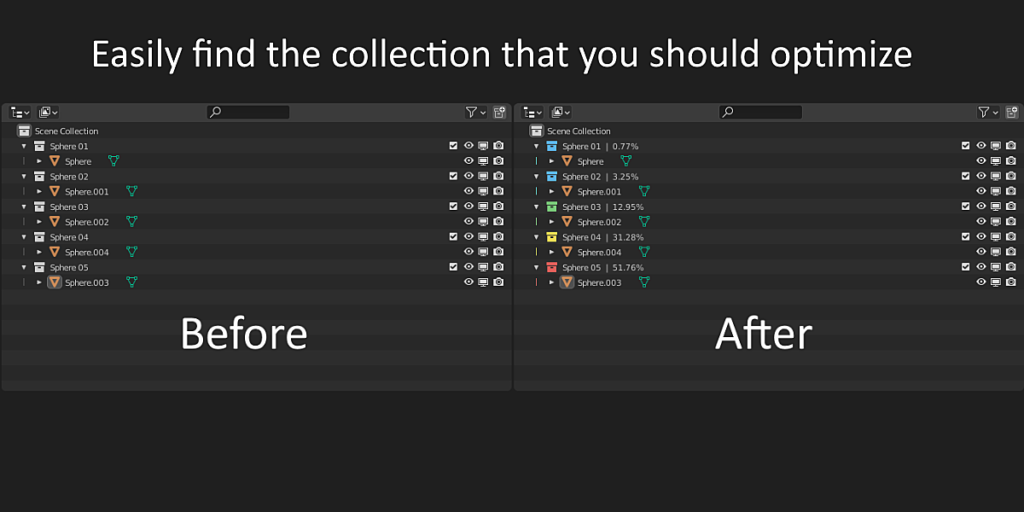
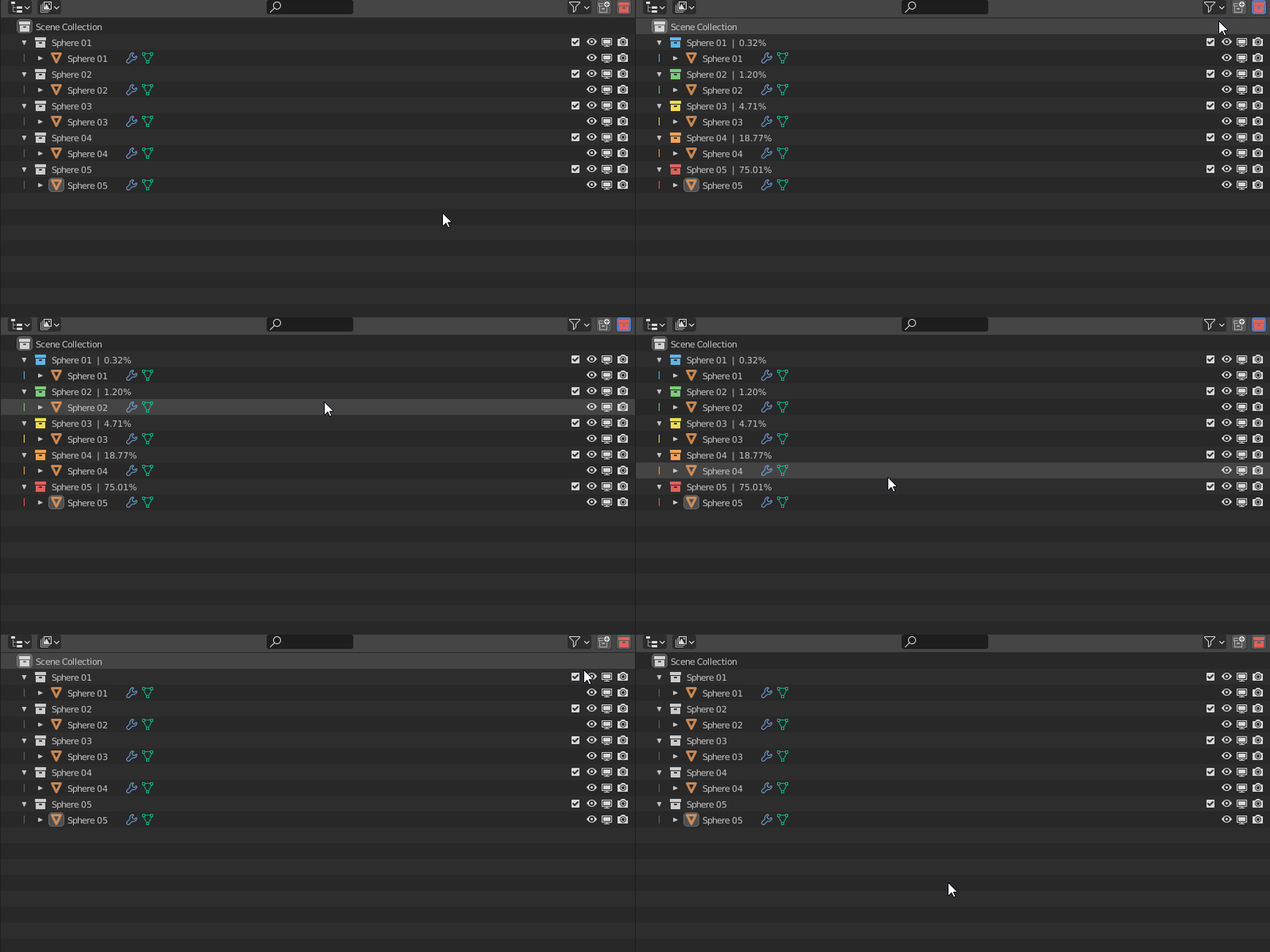
What collection is making my scene heavier?
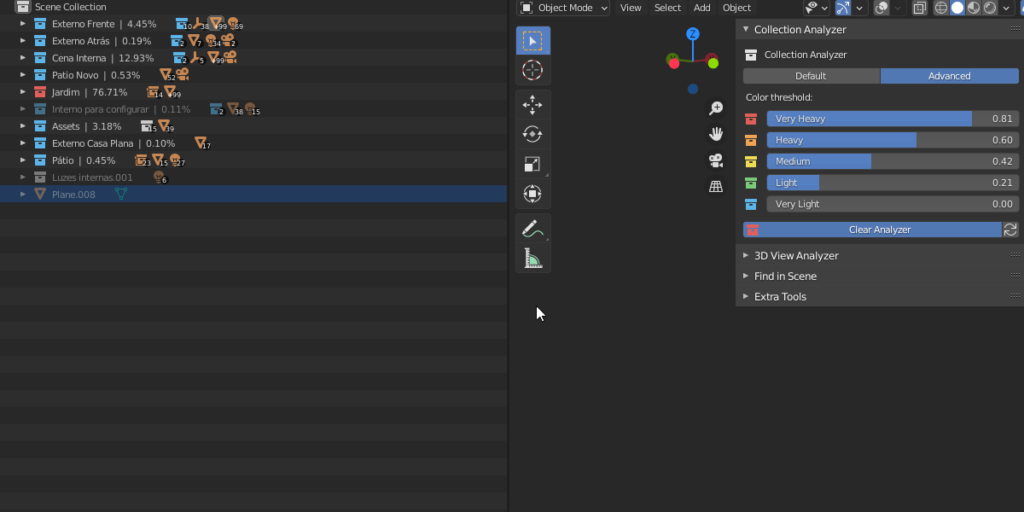
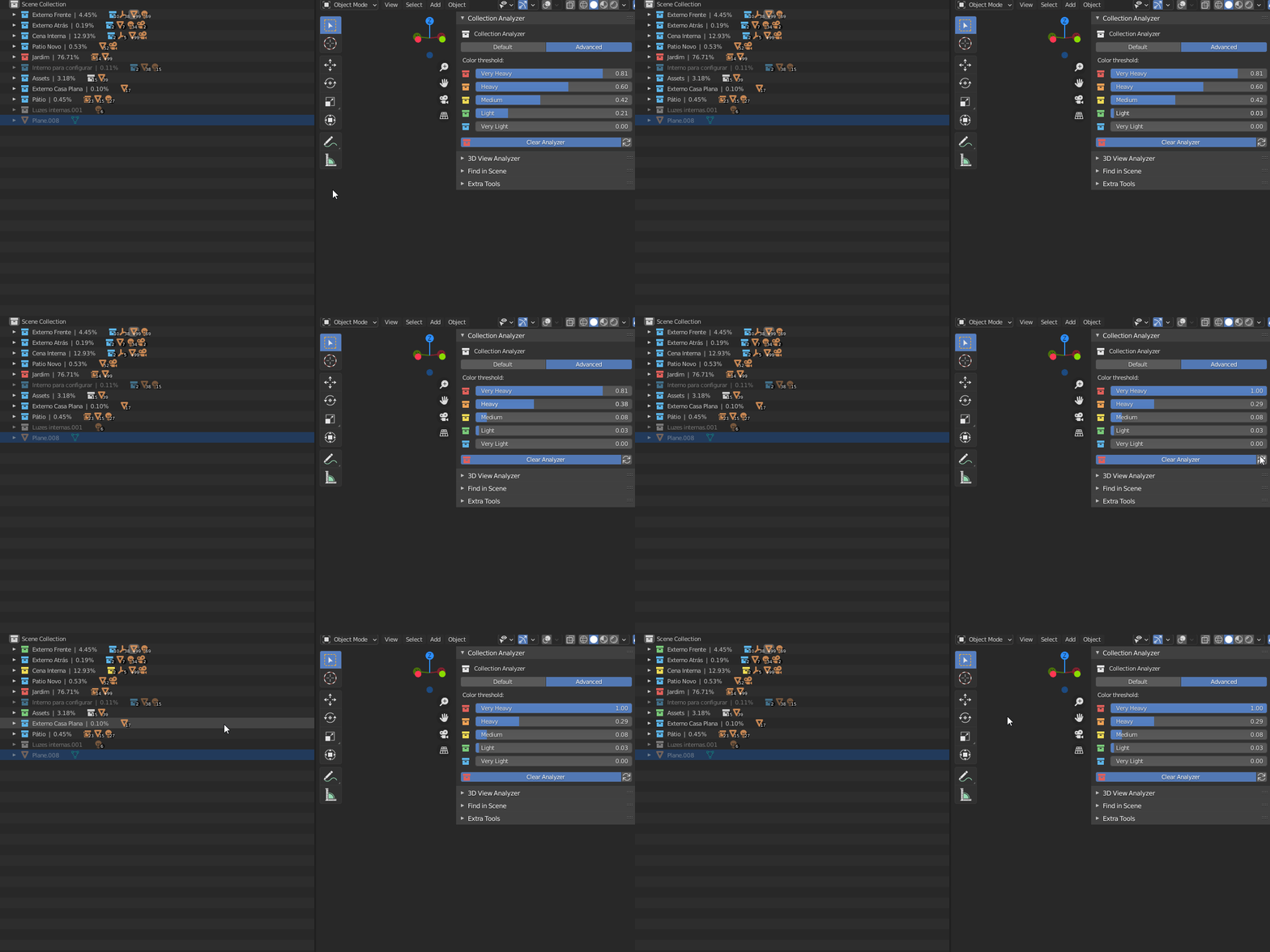
This addon will compare each collection and object in your scene, and will return you a new outliner view! where you will be able to find how many vertices each collection has at the moment, in a simple and visual way!
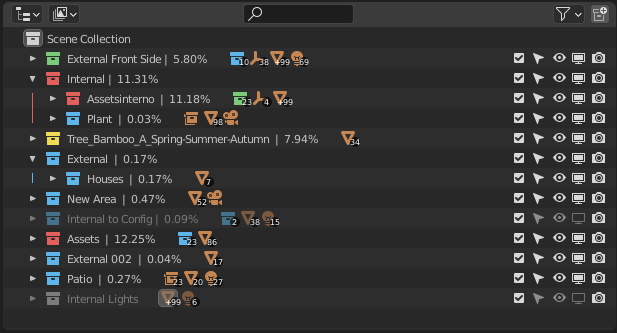
You can have more control of each color with advanced options!
Material Benchmark Tool
Ever wondered what material may be costing you a lot of memory space? but you have no idea how to check it?
So here is your solution!
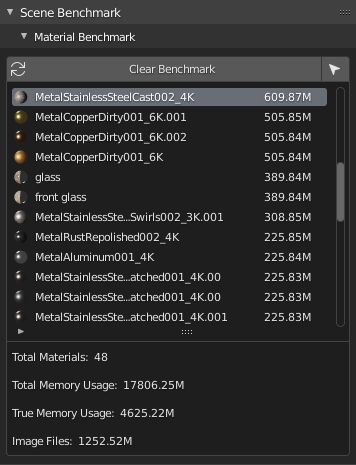
This tool will run a benchmark in each material in your object/scene and will return you a list of tested materials with its used memory.
This tool will also return the total memory usage and other useful information.
And now you can easily select and try to optimize heavy materials with our next tool…
Image Analyzer/Resizer
This tool will return you a list of each image file loaded in your blend file
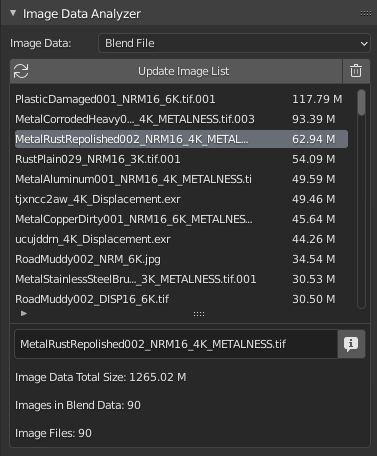
And will show you the memory usage of each image file, and after that, you can easily select and resize images to lower sizes!
Clear duplicates
When working on big projects, sometimes you can end with multiple duplicates of the same image file in your blend file.
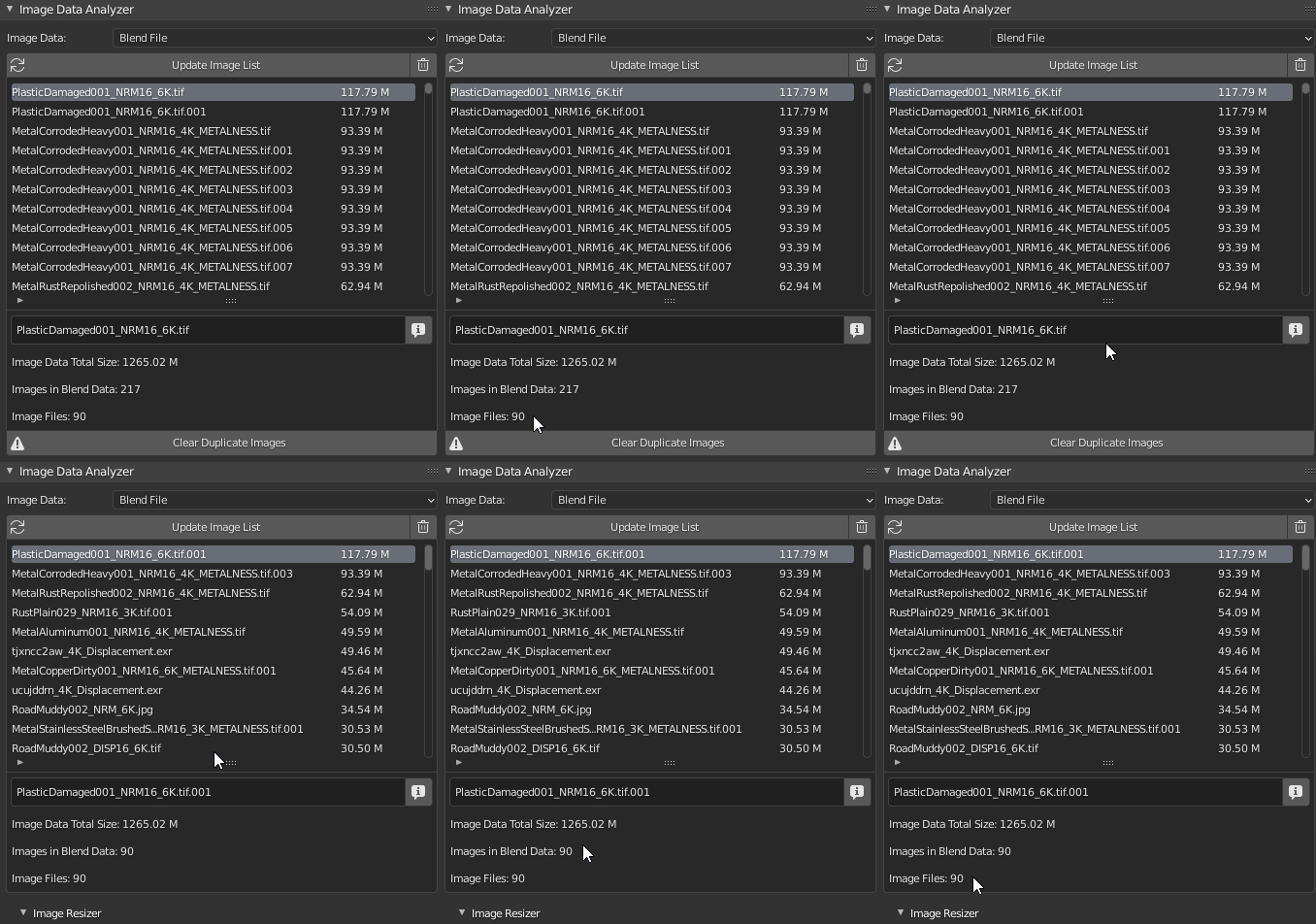
You can easily clear all duplicate images in your file with one click, the addon will remove the duplicate image data and will replace it with the original image in each material in your scene.
Image Resizer
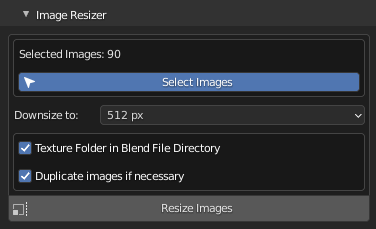
The Addon will generate new resized images and will auto-replace the old ones in the current file only.
Note: This feature is to resize only! but we have another complete Addon for texture conversion and resizing, with advanced filtering, batch converting, and more! you can check it here.
Find in Scene Tool
Find the object with more vertices in your scene!
- The addon will select the object with more vertices in your scene, and you decide what to do with it…
Find objects with Subdivision Modifiers!
- Sometimes you have a finished scene and have to create a lighter one, and subdivision modifiers are the worst in this case. Would you like to find all the objects with subdivision modifiers from your scene with one click? so here is one more button.
Find objects with more than a specific number of vertices!
- The addon will select all objects with more vertices than you selected.
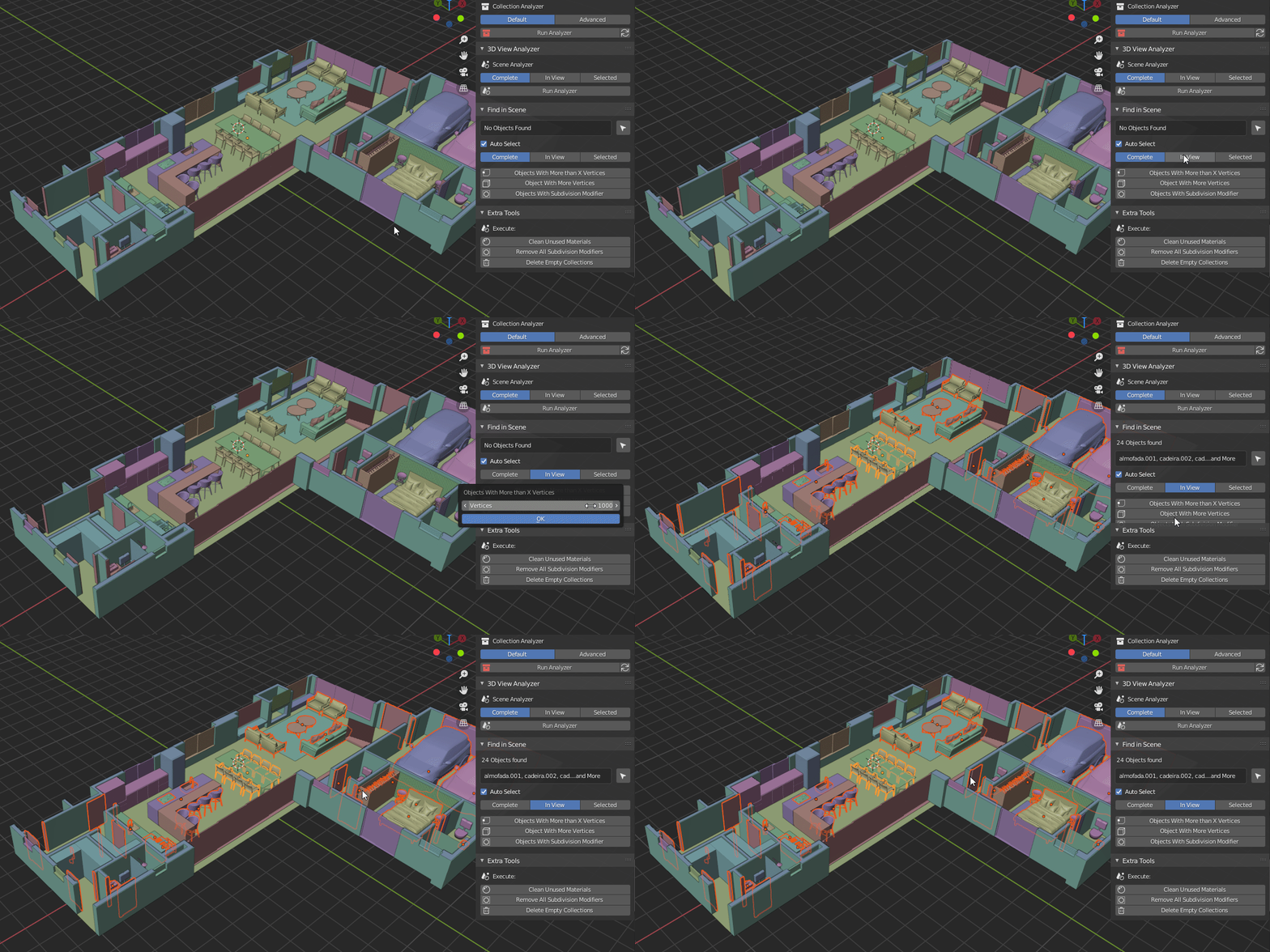
Will the add-on turn my workspace into a rainbow forever?
No! With one click, Everything can get back to normal, without colors and percentages!
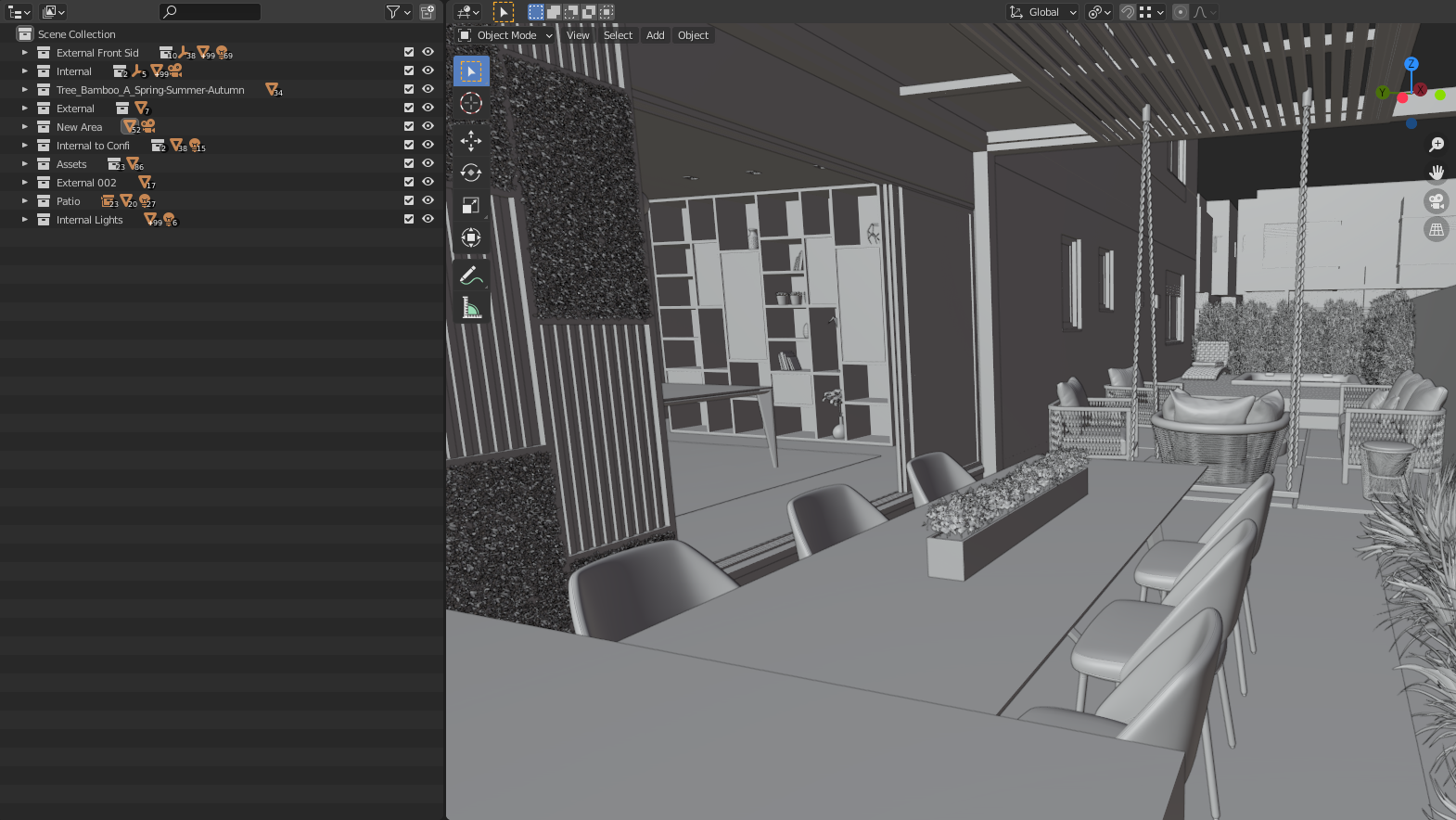
The add-on also has some tools that will make your 3d modeling life better!
A Material Slots Cleaner (That Works with Huge Scenes)
- With one click, delete all materials that are in the material slots, but are not in use (Usually appear in objects imported from other software).
Just delete Subdivision Modifiers from any object
- Do you just want to delete all subdivision modifiers in your scene? okay.
Delete Empty collections
- The addon will clean your outline view removing unused collections!
If you are working in one of these fields, this addon is for you:
- Low Poly Modeling
- ArchViz Modeling
- High Poly Modeling
- Animations
- 3D Web Visualization
- GLTF Workflow
- Or if you just want a lighter scene for better-rendered performance
Limitations:
– Compatible with Windows OS only
– Scene Analyzer cannot run on linked objects or collections.
Supercharge your 3D creation workflow with premium selection of Blender Add-ons. Whether you are modeling intricate characters, sculpting realistic environments, or animating cinematic sequences, the right add-on can transform how you work inside Blender. Our curated collection includes powerful tools for UV unwrapping, procedural texture generation, rigging automation, rendering optimization, and more—each rigorously tested for compatibility with the latest Blender versions. Eliminate tedious manual processes and unlock advanced functionality that lets you focus on what matters most: bringing your creative vision to life. Explore our full range of professional Blender plugins today and take your 3D projects to the next level.
➡️ ➡️ For more Blender Plugins 😀 😀
Reviews
There are no reviews yet.