
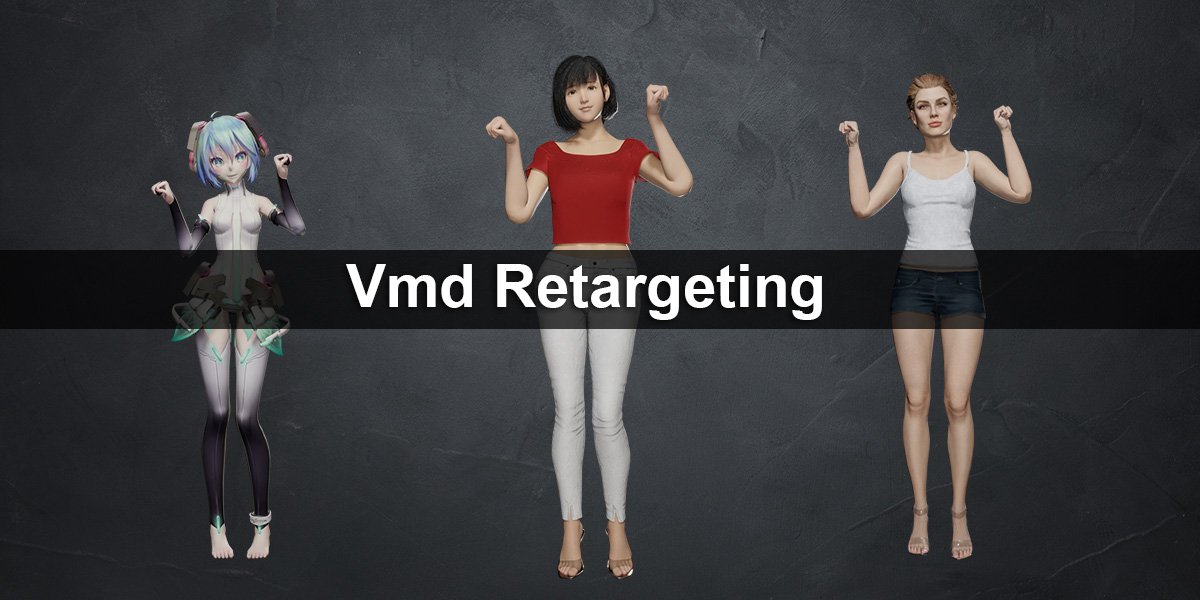
Vmd Retargeting for Blender
vmd retargeting addon
VMD Retargeting v1.24.2 for Blender – Motion Capture Data Import & Retargeting Tool
Versions: v1.24.2
File Size: 130 KB
Download VMD Retargeting v1.24.2 for Blender on Windows, Mac, and Linux, a powerful add-on that imports and retargets VMD (Vocaloid Motion Data) motion capture files to any rigged character. Perfect for animators, MMD creators, and game developers who want to apply realistic motion capture animations to custom characters .
Key Features of VMD Retargeting v1.24.2:
- VMD Import: Import Vocaloid motion data (.vmd files) directly into Blender
- Automatic Retargeting: Maps VMD bone animation to any rigged character automatically
- Bone Mapping Editor: Customize bone mapping for non-standard rigs
- Motion Cleanup: Remove foot sliding, filter noise, and smooth curves
- Loop Support: Loop motion data for walk cycles and repeating animations
- Scale Adjustment: Automatically scales motion to match character proportions
- Facial Animation: Imports facial expression data when available
- Batch Import: Import multiple VMD files with consistent settings
- Real-Time Preview: See retargeted motion update instantly
- v1.24.2 Updates: Enhanced mapping, improved import, and compatibility with Blender 4.0+
Perfect For:
- Animators using motion capture data for characters
- MMD creators bringing Vocaloid animations to Blender
- Game developers prototyping character animations
- VFX artists adding realistic motion to CG characters
- Anyone working with VMD motion capture files
System Requirements:
- Blender 3.6, 4.0, 4.1, 4.2, 4.3
- Windows 10/11 (64-bit), macOS, or Linux
- 4GB RAM minimum (8GB+ recommended)
- 15MB available disk space
Installation:
- Download the add-on zip file
- In Blender, go to Edit > Preferences > Add-ons
- Click “Install” and select the downloaded zip file
- Enable the add-on by checking the box next to “VMD Retargeting”
Note: VMD Retargeting brings Vocaloid motion capture data to Blender, making it easy to apply realistic animations to any rigged character . The automatic retargeting and bone mapping editor make it essential for animators, MMD creators, and game developers . Version 1.24.2 includes full compatibility with Blender 4.0 and above . Designed for Blender 3.6 and above . Perfect for motion capture workflows . Essential for any VMD animation pipeline .
Blender Addon Vmd Retargeting
This blender addon will import motion from mmd’s .vmd file onto Daz or CC models, with or without mmd model.


Demo Video
Tutorial Video:
Related blender tutorial:
Daz Hair and cloth physics in Blender: https://youtu.be/1RzwmTgcfys
Feature
- Import motion from vmd file without a mmd model
- Or retarget body motion from a mmd model.
- Import body, eyeball, facial, viseme and camera motion separately
- Ignore feet rotation when Daz/CC character is on high heel.
- Set interpolation and easing as you wish
- Set arm rotation rate, to prevent hands poke into chest.
- Set camera height offset or rotation rate if needed
Install
- Buy it at Blender official market website.
- Install the .zip file you get from online shop in Blender. Be noticed, Blender now has extension and addon. They are different.
- Search “Vmd retargeting” in your addon list and enable it.
- In viewport, press “N” to display tool panels, select “Vmd Retarget” panel
If you are new to blender and don’t know how to install a blender addon, search: “blender install addon” in google.
How to use
Prepare a character
This addon supports:
* Daz Genesis 8 imported by diffeomorphic daz importer addon
* Daz Genesis 8 imported by Official Daz to Blender Bridge(updated version for blender 3.x) [This one is for advanced user, check github repo for more]
* Daz Genesis 8 imported by Official Daz to Blender Bridge 2022
* CC4(Character Creator) model imported by cc blender tools addon
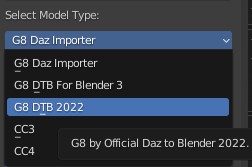
For characters imported by fbx, cc model works too. But for daz model, retargeting facial and viseme motion won’t work.
For Blender 5.x
You need Diffeomorphic import_daz version 5.0.0+:
If the downloaded file’s name is something like “Diffeomorphic-import_daz-xxxxxxxxxx”.

Unzip it, and rename this folder to “import_daz“, zip it into a new `.zip` file. Install this new zip file as Blender addon.
Prepare CC4 model
Make sure you export it from Character Creator, not from iClone. Also, mesh only, no animation, with A-Pose, not T-Pose
Use Blender addon cc_blender_tools to import it into Blender.
Before import, go to “Import options” at addon panel, **uncheck** shape key drivers for Eyes, Jaw and Head.

For CC4, when exporting, choose A-Pose
Prepare Daz model [with Diffeomorphic daz importer]
Diffeomorphic import_daz is complex. But we just need click a few buttons to get it done.
You need to know the basic of how to setup and export a daz model from Daz Studio for Diffeomorphic daz importer. Check its official tutorial for that.
Then, when importing model to blender, you need 3 things:
- Merge all armatures into body’s armature
- Facial morphs
- Make all bone poseable.
The easiest way for these, is importing a character by clicking “Easy Import Daz” button.
By default, it already checked Merge Rigs and “Make All Bones Poseable” for you. If not, check them.
* For Genesis 8/8.1
** For Diffeomorphic import_daz 5.0 or earlier
Check “Face Units” and “Visemes“, then import.
** For Diffeomorphic import_daz 5.0+ or development version.
Check “Head“, then import.
* For Genesis 9
Check “FACS“, then import.
Be noticed, Genesis 9’s twist bones are no longer in arms. Which makes MMD’s twist bones can not map to Genesis 9’s arm. So, any vmd motion uses twist bones, won’t work well on Genesis 9.
Prepare Daz model (with Official Daz to Blender Bridge(DTB) )
Official DTB is released, with many old bugs and problems in it, never fixed. So, we really recommend you do not use this addon.
For now, the only good part for Official DTB is, it is very easy to install. But it is not as good as Diffeomorphic import_daz .
You can learn it here about how to install or use it:
https://www.daz3d.com/forums/discussion/572806/official-daztoblender-bridge-2022-what-s-new-and-how-to-use-it
After you installed DTB 2022:
- In Daz, when exporting your model, check “Export Morphs”
- Go to “choose morphs” dialog window, From “Pose Controls” category, add Eyes, Mouth, Brow and Visemes morphs to the “Morphs to Export” list.
- Export.
- In Blender, on DTB’s panel, click import, Done.
Prepare a vmd file
No preparing is needed in most cases.
But, there are some old or weird vmd files don’t use normal bone names or file structure.
If you imported a vmd file like this onto Daz or CC4, your model gonna jump from one pose to another, like a robot dance.
For those vmd files, just open MikuMikuDance, load a TDA model, and load this vmd file on it, then re-export it as a new vmd file.
This new vmd file will work.
Import vmd
It is pretty simple:
- Select your character’s armature
- Select a vmd file
- Select your model type(CC or Daz)
- Check which part you’d like to import
- If this vmd motion doesn’t use IK, uncheck IK
- Make sure your active armature is your Daz or CC model, Click “Execute”, done.
Each part will be an action wraped into a strip on a track, in NLA(Nonlinear Animation).
So, it won’t mess up your timeline, and you can move or delete them like clips.
Options
Move your mouse onto those operators(button, checkbox or list), will display a useful tooltip.
High Heel Tooltip:

High Heel
check to ignore rotation on feet.
Body Motion
Tracks
Body motion is separated into mutiple tracks.
For example, mmd doesn’t have motion layers, so they use mutiple bones which does the same thing, to simulate motion layers. And we handle that by adding this bone’s motion into a real new layer.
For now, we only do this for: center and groove bone’s location.
IK and IK Pole Bone
CC and Daz model don’t have IK by default. So this addon creates IK for legs when importing body motion from vmd file. So, once you import an motion to a CC/Daz model, it is not a CC/Daz model any more, it gets some new bones.
Arm rotation rate
Daz/CC has different arm length with mmd model. So, if mmd model puts hands on chest, when do the same with Daz/CC model, hands always poke into body.
Set upperarm and forearm rotation rate to 0.8 will fix that in most cases.
For CC model, 1.0 could be better with most cases.
Arm rotation Euler plus
Works on forearms only. Use this with Arm rotation rate together to deal with hand poking issue.
Default value:
Upperarm rotation rate: 0.9
Forearm rotation rate: 1.0
Forearm left: -5, 0, 3
Forearm right: -5, 0, -3
If forearm pokes into body with default value, try following values:
Upperarm rotation rate: 1.0
Forearm rotation rate: 1.0
Forearm left: 0, 0, 0
Forearm right: 0, 0, 0
or
Upperarm rotation rate: 0.8
Forearm rotation rate: 0.8
Forearm left: -15, 0, 9
Forearm right: -15, 0, -9
Pick a mmd model as Source
If you picked a mmd model, addon will ignore body motion from vmd file and retarget body motion from your picked mmd model.
Eyeball and morph motion are still loaded from vmd file. So you need to pick the same vmd file on addon, if you want to import eyeball and morph motion.
You need blender mmd tools to import a mmd model into blender:
When importing a mmd model, uncheck rename bones! We use its japanese bone name to map bones.
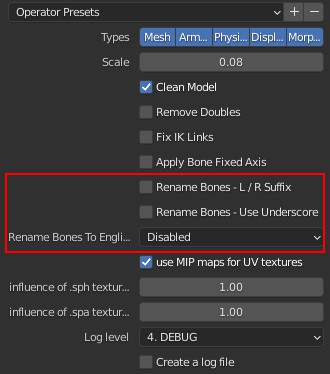
Then import your vmd motion onto this mmd model by using mmd tools, not this addon!
Which is: select your mmd model, go to File menu->Import->Vmd file, and select a vmd file.
Now, your mmd model should has a motion on it.
Then select your Daz or CC model, use the pick tool of “Source” from this addon’s panel, pick the armature of your mmd model. Not the empty parent.

Make sure you select your Daz or CC model, then click “Execute”.
It will retargeting every frame of evey mapping bone’s final rotation from mmd model, not just key frames, so it will be very slow.
And it doesn’t need an IK bone on Daz/CC model.
We made a video tutorial for this:
Interpolation/Easing
You can find examples from https://easings.net/

This setting won’t affect camera motion. Camera motion is always linear.
With default options, this addon will convert each vmd keyframe’s interpolation into a blender’s most similar build-in interpolation. This works fine for most cases but not all cases.
If you want your motion on Daz/CC is the exactly as smooth as on a mmd model, there are 2 choices:
- You can pick a mmd model as source on this addon, so it will convert every frame, not just keyframes
- Or, you can download MikuMikuMoving, load mmd model and vmd motion into MikuMikuMoving, then export motion into a new vmd motion file. And when exporting, check “Integrate layer“. So it will save every frame, not just keyframe. Then use that new vmd file with this addon. (Only use the new vmd file for body motion. For facial morph, still use the original vmd file)
Camera Rate/ Height Offset
Daz/CC model has different model size with mmd model. So, camera motion need to be adjusted.
Default value works fine for almost every case.
But if your model is a CC character with high heel, you may need to move camera up with 8cm.
Limits
Mother Bone
On a mmd model, there is a bone called “全ての親”, which means mother bone in English. A vmd motion should never uses this bone. It is designed for final user adjusts model’s position after loading a vmd motion. In Blender, it is just like moving the whole object, not a bone.
Since no vmd motion should use it, this mother bone is not handled in this addon.
But, there is a few vmd motion creators ignore this rule. They just uses mother bone as another hip bone. Which makes it into an issue in mmd world.
So, in mmd world, there is a free tool, to convert mother bone’s motion into body bones, called “Motion Supporter” tool. If you have a vmd motion uses mother bone, you need to use this tool, do the conversion, then uses the converted motion with this addon.
MotionSupporter’s How To
- Download: https://bowlroll.net/file/233713
- Unzip and run, select “全親移植” Section:

- Line 1, select or drag vmd file into it.
- Line 2, select or drag a TDA or YYB Miku mmd model file into it.
- Line 3, location for converted vmd file.
- Line 4, Do not check anything.
- Click the big button at bottom, to start converting.
- After converting, import this new vmd file with VMD Retargeting addon, Done.
Shoulder Rotation
There are 3 shoulder bones on a mmd model: shoulder, shoulder P, shoulder C. This addon ignored shoulder P and shoulder C.
Twist Bone
MMD model also comes with twist bones, only a few vmd motions use them. With Daz Model, this can be converted nicely. But CC and Genesis 9’s twist bones work in a different way and won’t be converted.
So, if you are using a vmd file come with motion on twist bones, you better use Daz G8 model.
So far as I know, only Natsumi San’s vmd motion uses twist bones.
Waist Bone
Mmd’s Waist Bone, is the parent of upper body and lower body. Which makes it can turn the whole body together, like a hip bone.
There is No other Character model treat Waist Bone that way. So, we convert Waist Bone’s data into lower spine bone.
Since most vmd motion never uses Waist Bone, it won’t be a problem.
But, again, Natsumi San’s vmd motion may use it. Still, as long as vmd motion does not use Waist Bone as hip bone to rotate the whole body, it gonna be fine.
Prop motion
This addon won’t handle that.
Common Issue
We made a video for some common issues, check it out:
Leg won’t bend
This vmd motion does not use IK, so, at addon panel, set IK to off before importing.
If feet are slipping after uncheck IK, set Position Rate X to 0.5.
Arm rotation angle is different
Try arm rotation rate 1.0. Default is 0.8, to prevent poking.
Also try Upperarm 1.0, Forearm 0.8 to get the best result.
For CC character, just set all arm rotation to 1.0.
Character can not turn around, some motions are wrong
- Make sure your Diff Daz Importer addon’s version is the latest 1.6.1, not the old version 1.5.
- At Diff Daz Importer addon’s panel, in “Global Setting” dialog window, Rigging section, make sure you unchecked every option there. They gonna limit your model’s rotation.

Body motion is totally wrong
This addon now is stable and handles most vmd motions very well. So, check following checklist to fix your issue quickly.
- For CC character, make sure you export it from CC, not from iclone
- Make sure Blender version is 3.0+
- Make sure your addon version is the latest
- Make sure Daz model is Genesis 8
- In Daz, make sure using “Export to Bender” menu to export “.dbz” file before importing to blender.
- In Blender, diffeomorphic daz importer’s global setting, make sure you have set Daz lib path with “Load Root Path” button.
- Does this vmd motion use IK? If not, set IK to off before importing.
- In Blender, Right side, Scene panel, Units section, make sure it is set to 1 Metre. (User or another addon may change this and forget to change it back)
- Try another vmd motion from a different author.
If only this author’s vmd motion can not be imported correctly, contact us, tell us the name of this vmd motion, we will test it.
Eye can not be fully closed
MMD model comes with 5 morphs can close eyes. But other character like Daz or CC only has one morph to close eye.
Normally, vmd motion’s creator only use 1 of those 5 morphs to close eyes, to avoid chaos. But, there are a few vmd motion’s creator will play with all 5 morphs.
In that case, all 5 mmd morphs data is converted into 1 daz/cc morph, so one morph’s data will cover another, which make eyes can not be fully closed.
The only solution for this, is remove all other 4 morphs’ data in MMD, only keep one of them.
These 5 morphs are: ウィンク, ウィンク2, まばたき, 笑い, なごみ
Or you can just remove all 5 morphs’ data.
Supercharge your 3D creation workflow with premium selection of Blender Add-ons. Whether you are modeling intricate characters, sculpting realistic environments, or animating cinematic sequences, the right add-on can transform how you work inside Blender. Our curated collection includes powerful tools for UV unwrapping, procedural texture generation, rigging automation, rendering optimization, and more—each rigorously tested for compatibility with the latest Blender versions. Eliminate tedious manual processes and unlock advanced functionality that lets you focus on what matters most: bringing your creative vision to life. Explore our full range of professional Blender plugins today and take your 3D projects to the next level.
➡️ ➡️ For more Blender Plugins 😀 😀
Reviews
There are no reviews yet.