
ZenDock for Blender
ZenDock v1.2.1.7 for Blender
The Ultimate One-Click Window Management and Workspace Organization Tool
Download ZenDock v1.2.1.7 today. Consequently, you can take full control of Blender’s complex interface through intuitive, one-click window management that transforms how you navigate and organize your workspace. Because professional 3D production often involves juggling multiple editors and panels, having access to efficient area management tools is absolutely essential. Nevertheless, Blender’s native interface can quickly become cluttered, especially when working with multiple monitors or complex projects. Fortunately, ZenDock solves this problem elegantly. Moreover, it provides a customizable window bar that lets you minimize, maximize, and close workspace areas instantly, all without tedious manual dragging or menu navigation. In short, you can maintain a clean, focused workspace that adapts to your workflow in seconds.
One-Click Area Management System
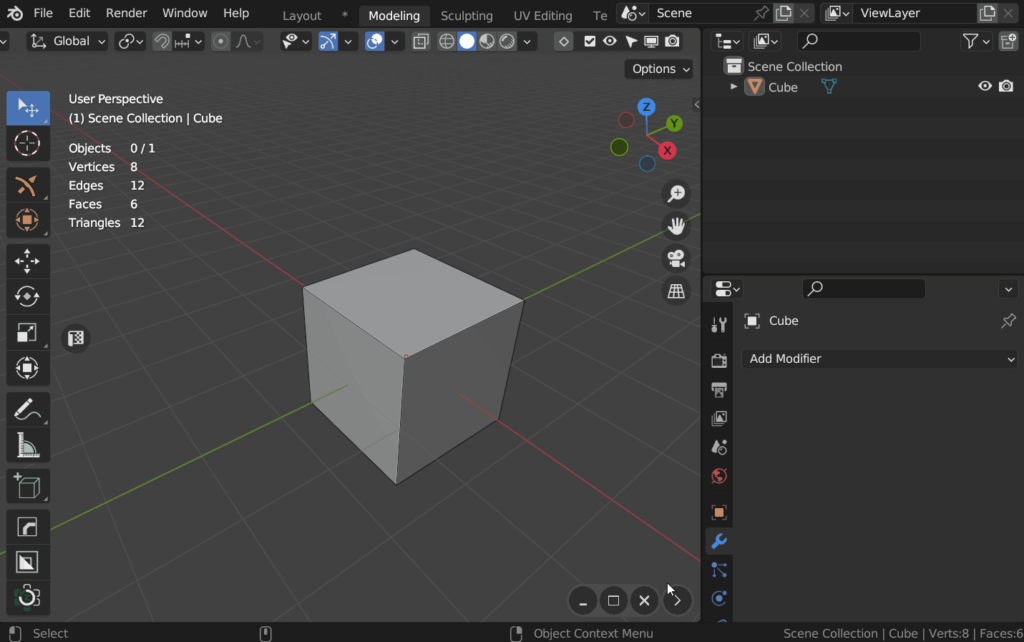
The foundation of this addon lies in its simple yet powerful approach to interface control. For instance, ZenDock places an intuitive button bar at the edge of your windows, allowing you to perform area management operations with a single click . Furthermore, you can minimize or restore any area, maximizing your workspace when you need focus, or instantly expand a specific area to fill the entire interface for dedicated tasks . Additionally, you can close unwanted panels entirely, keeping your workspace free of distracting elements .
Highly Customizable Button System
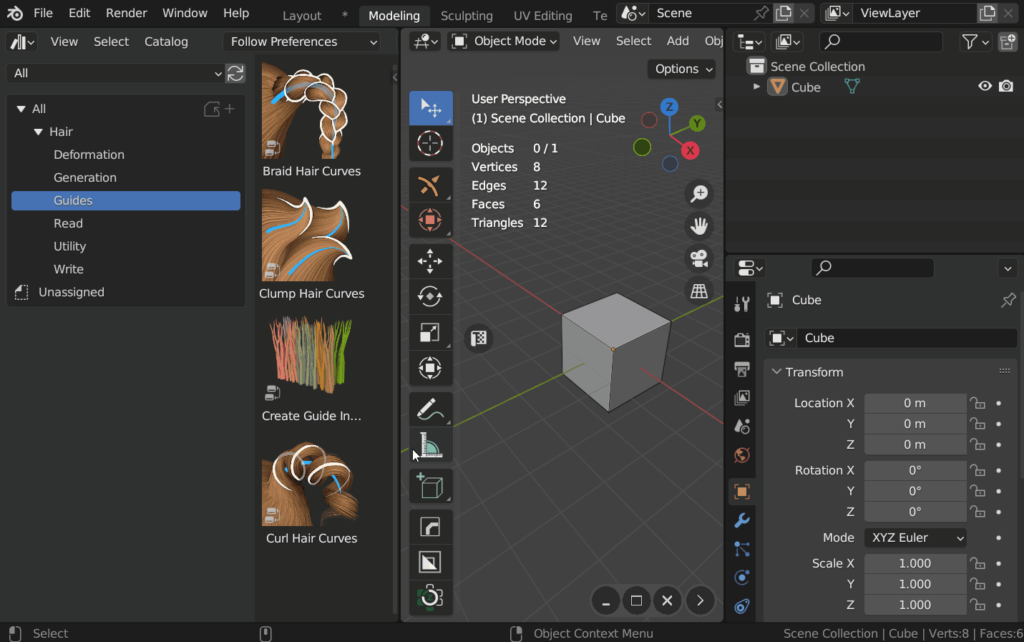
Professional workflows demand flexibility and personalization. Therefore, ZenDock allows you to create custom button layouts that match your specific project requirements . For example, you can configure the dock to include only the editors you use most frequently—such as the 3D Viewport, UV Editor, Shader Editor, and Compositor—and arrange them in a way that streamlines your workflow . Furthermore, you can assign custom toggle behaviors to each button, ensuring that your interface responds exactly how you expect it to .
Smart Workspace Memory and Multi-Monitor Support
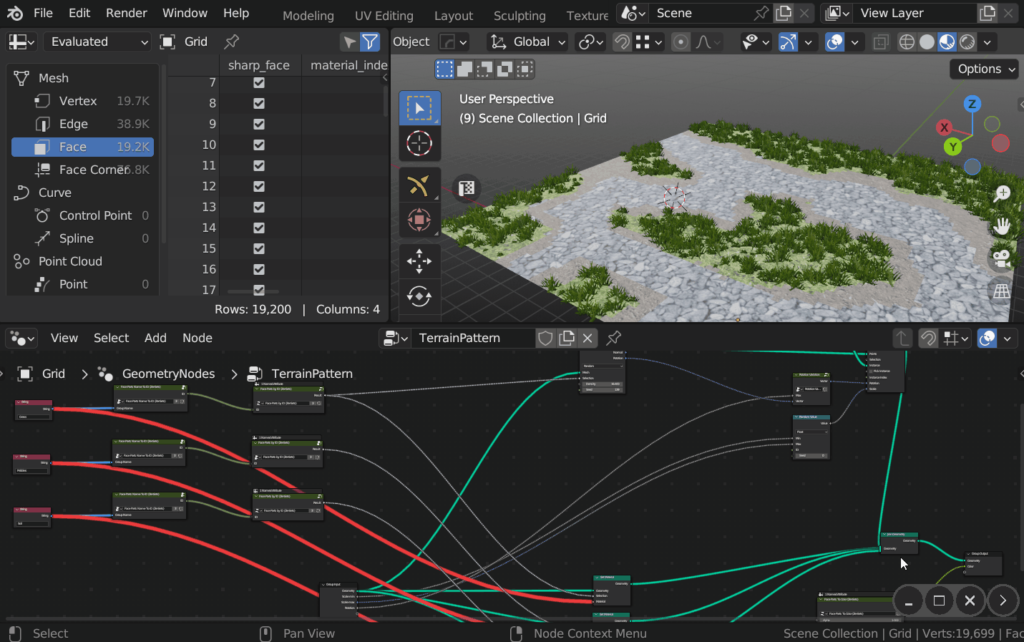
Efficiency extends beyond just the current session. Accordingly, ZenDock automatically remembers your window layout states, enabling seamless switching between different configurations for different tasks . This feature is particularly valuable for multi-monitor setups, where you can quickly transfer panels between screens or restore complex arrangements with a single click. Consequently, you can maintain consistent, productive environments across different projects and workspaces.
Broad Compatibility and Active Development
ZenDock v1.2.1.7 supports an extensive range of Blender versions, spanning from 3.0 through 5.1, ensuring compatibility with almost any production environment . The development team is actively maintaining the addon, with recent updates addressing user feedback and improving stability . However, it is worth noting that a known issue exists with rapid toggling of the Asset Browser, which can cause Blender to crash if the toggle is performed too quickly—the developers are aware and continue to investigate potential solutions .
Perfect for Generalists, Animators, and Power Users
This addon is particularly well-suited for Blender generalists who regularly switch between modeling, sculpting, UV editing, shading, and compositing. Similarly, animators working with Dope Sheets, Graph Editors, and Timelines will appreciate the ability to instantly call up and dismiss these tools. Additionally, users with multiple monitors will find the workspace memory feature invaluable for maintaining consistent layouts across their entire setup. Ultimately, ZenDock accelerates your entire production workflow.
System Requirements and Compatibility
ZenDock v1.2.1.7 supports Blender versions 3.0 through 5.1 . Furthermore, it works across all major operating systems including Windows, macOS, and Linux. You will need a standard workstation with at least 8GB of RAM, though system requirements are minimal given the addon’s lightweight nature.
Installation and Usage Guide
To install, first download the ZIP file from your library. Next, open Blender and navigate to Edit > Preferences > Add-ons. Then, click Install and select the downloaded ZIP file. After that, enable ZenDock. Finally, access the ZenDock bar from the edge of your workspace, customize the buttons to suit your needs, and begin managing your workspace areas instantly. Thus, your professional window management workflow will be ready instantly.
Final Thoughts on the Addon
Effortless one-click window management evokes profound creative freedom. Therefore, this addon provides the ultimate foundation for your workspace organization workflows. You can maintain a clean, focused interface with unprecedented speed and simplicity. Consequently, your workspace vision becomes a stunning reality.
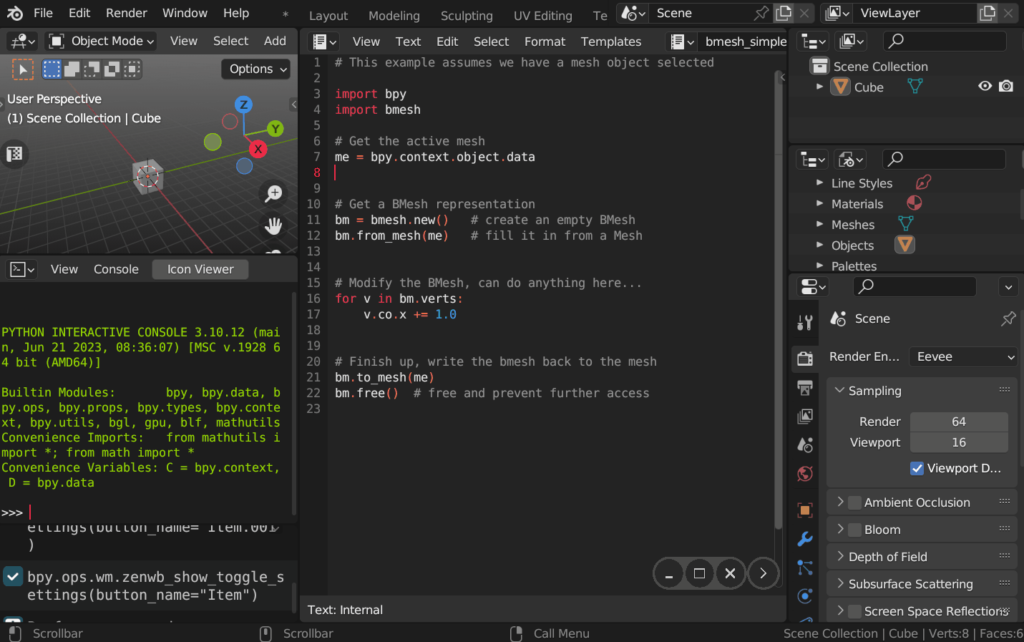
Control every Blender area without breaking your workspace
Zen Dock adds a compact window control bar for toggling editors, minimizing and restoring areas, maximizing views, closing panels, and launching custom commands in one click.
01
Switch editors instantly
Open, hide, replace, or move Blender editors without rebuilding the current layout.
02
Keep layouts organized
Minimize areas temporarily and restore them with their tools, sidebars, and space settings intact.
03
Build your own controls
Create buttons for editors, operators, panels, menus, pie menus, and custom scripts.
Core workflows
Custom Toggle Buttons
Open an editor, replace the active area, or launch it in a separate window from one button.
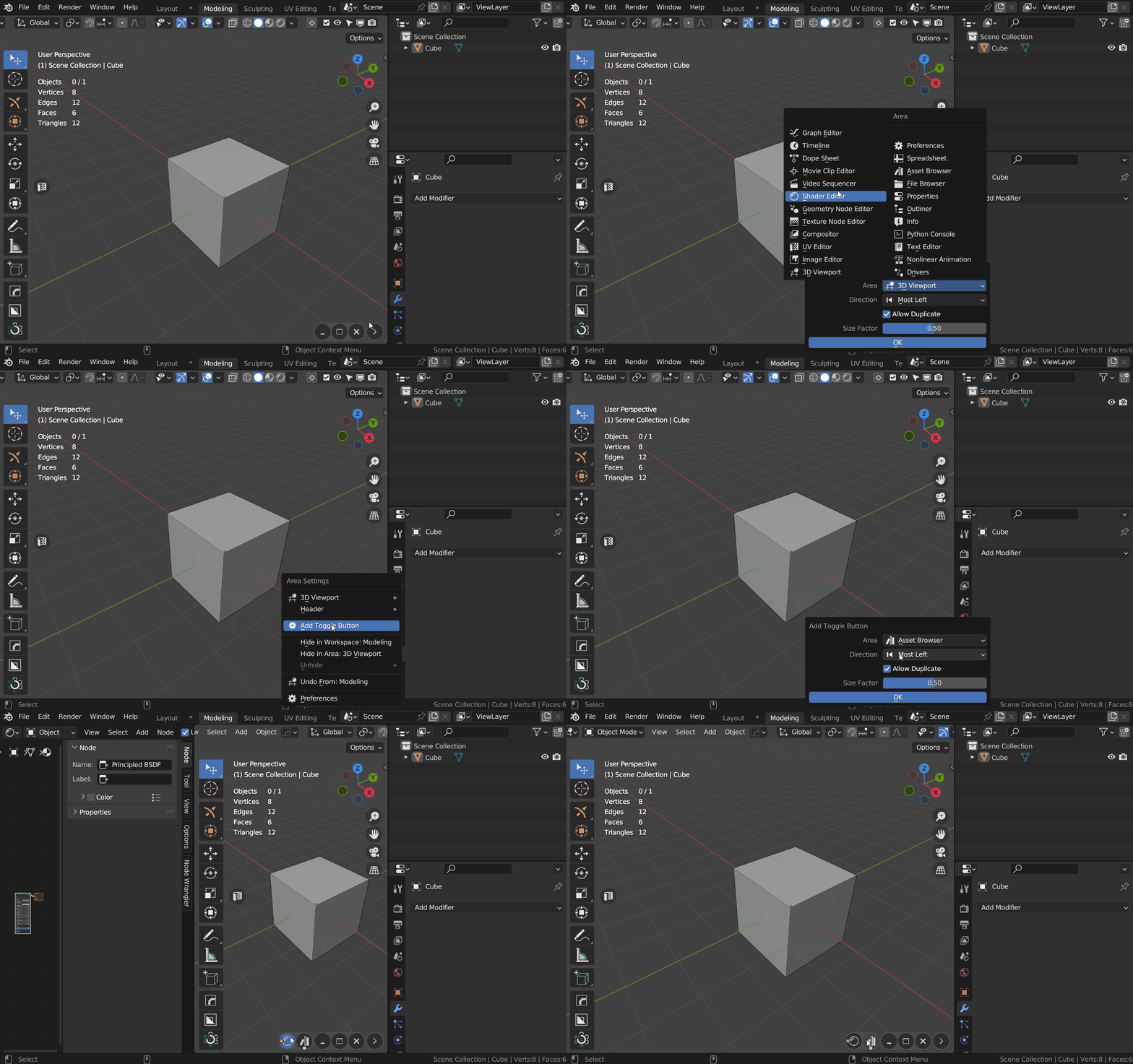
Minimize & Restore
Hide an area without closing it, then restore it from the floating control bar.
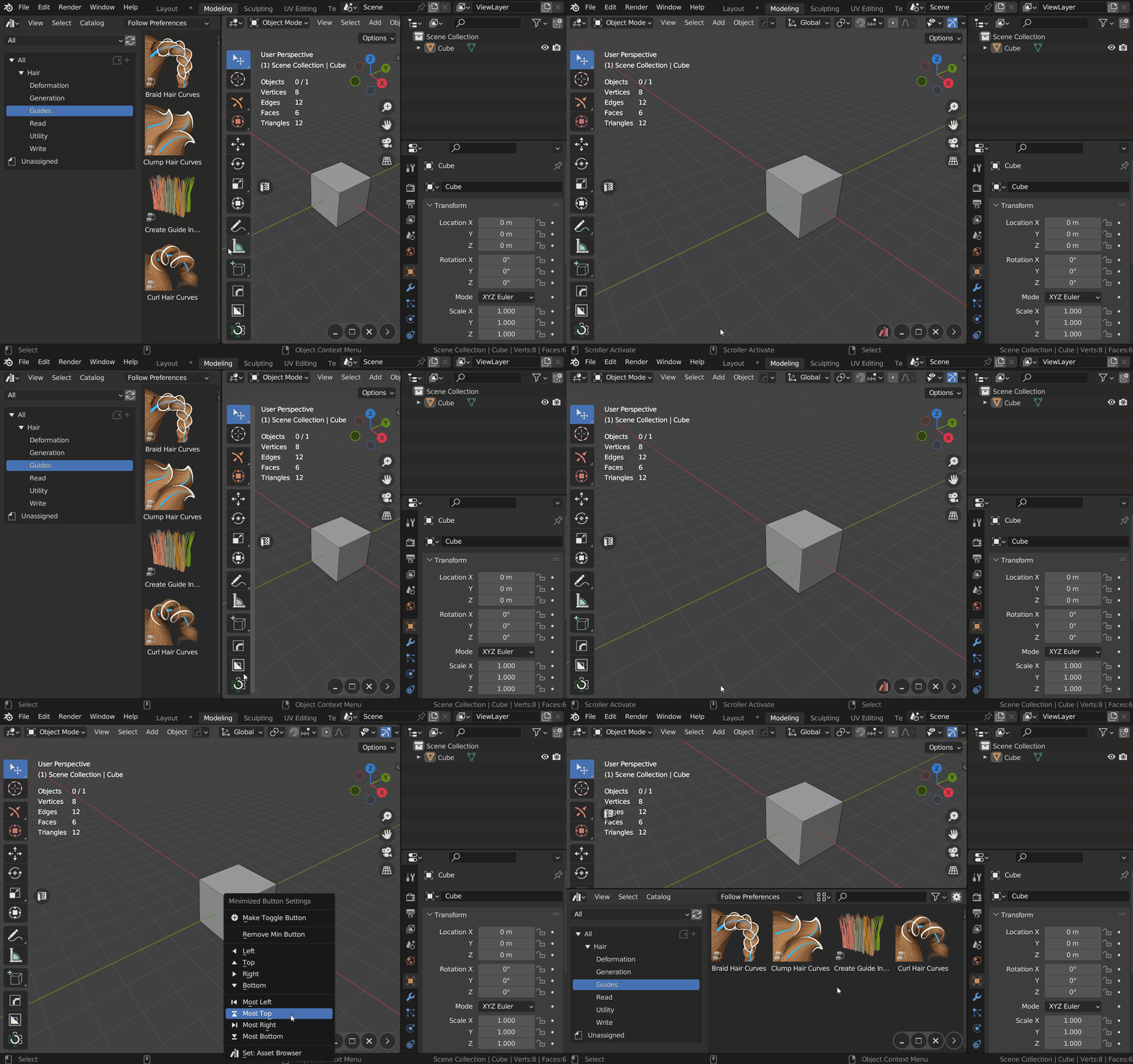
Maximize & Restore
Focus on one editor at full size and return to the previous layout with a single click.
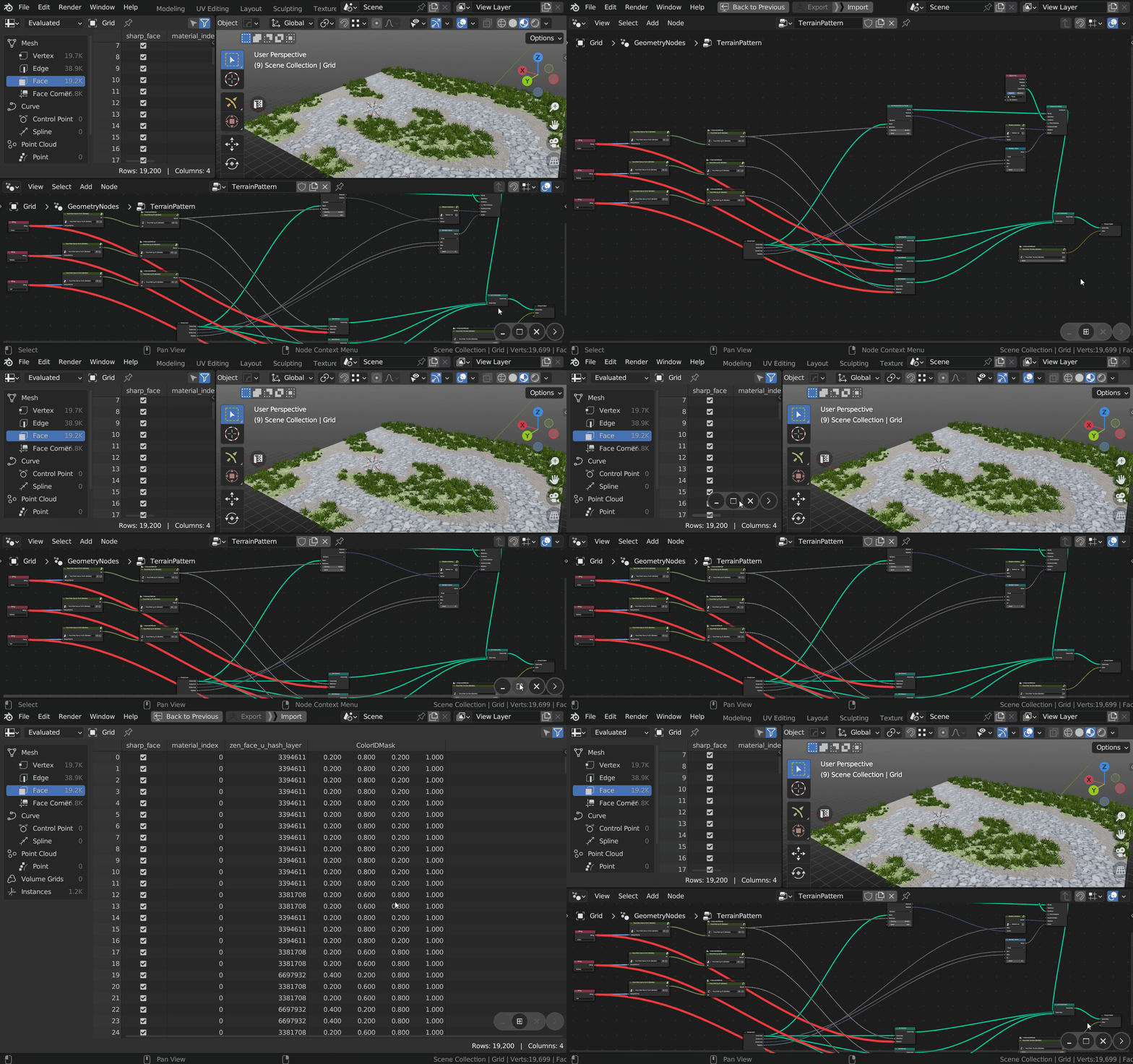
Close Area
Remove an editor cleanly through a familiar window-style control instead of dragging borders.
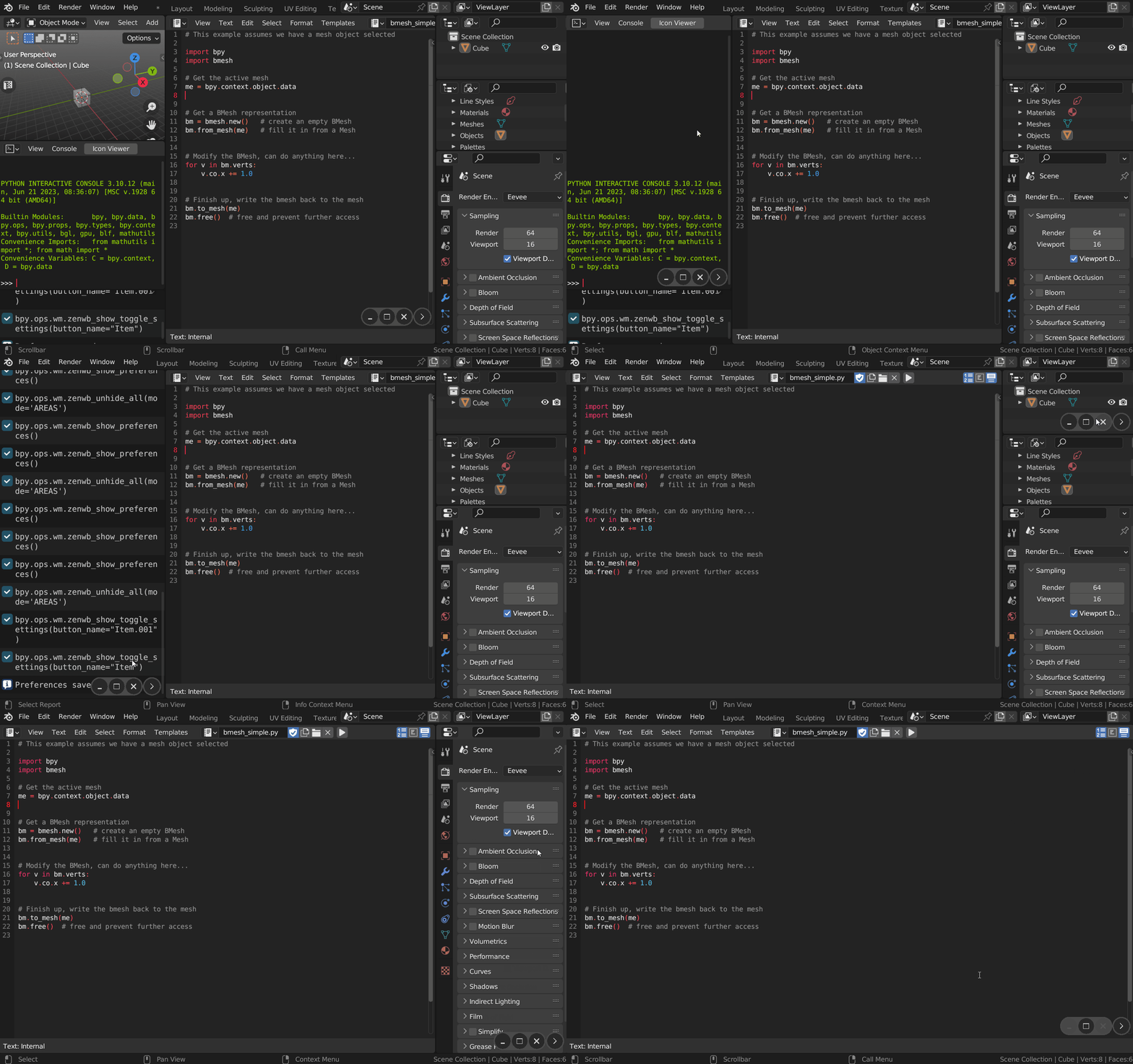
A complete workspace control toolkit
Turn Blender’s area system into a faster, clearer, and fully customizable part of your daily workflow.
Area Management
Control which editors are visible, where they appear, and how much of the window they occupy.
Toggle Mode · Open Mode · Close Mode · Replace Active Area · Direction & Size
Custom Commands
Use the Dock bar as a compact launcher for Blender tools and your own automated actions.
Operators · Panels · Menus · Pie Menus · Scripts
Window-Style System Controls
Use familiar controls for common layout operations without hunting for borders or context menus.
Horizontal Split · Vertical Split · Minimize · Maximize · Expand / Collapse Bar
Workspace Windows
Move complete workspaces to separate windows for multi-monitor setups and focused secondary views.
See how Zen Dock turns Blender’s area controls into a fast and familiar window-management workflow.
Help and resources
Explore tutorials and release notes, install Zen Dock, browse the complete manual, or get help from the support forum.
YouTube Playlist
Watch feature overviews, workflow demonstrations, and practical Zen Dock tutorials.
Main Features Guide
Explore toggle buttons, minimized areas, system controls, and workspace windows.
Full Changelog
Browse the complete history of new features, improvements, compatibility updates, and fixes.
Installation
Install or update Zen Dock and confirm that the add-on is ready in Blender.
Documentation
Browse every toggle, minimize, system-control, command, and workspace option.
Supercharge your 3D creation workflow with premium selection of Blender Add-ons. Whether you are modeling intricate characters, sculpting realistic environments, or animating cinematic sequences, the right add-on can transform how you work inside Blender. Our curated collection includes powerful tools for UV unwrapping, procedural texture generation, rigging automation, rendering optimization, and more—each rigorously tested for compatibility with the latest Blender versions. Eliminate tedious manual processes and unlock advanced functionality that lets you focus on what matters most: bringing your creative vision to life. Explore our full range of professional Blender plugins today and take your 3D projects to the next level.
➡️ ➡️ For more Blender Plugins 😀 😀
Reviews
There are no reviews yet.