
CreativeMarket 30 Bokeh Photoshop Brushes
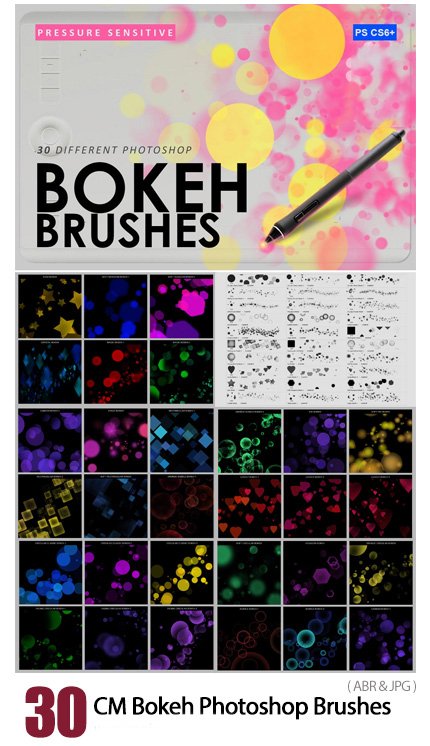
30 Photoshop brushes of colored bokeh with various shapes | 20.9 MB | With preview | ABR & JPG format
This section includes 30 Photoshop brushes entitled Color Bokehs with various shapes, which are placed on the site for download in ABR and JPG formats.
CreativeMarket 30 Bokeh Photoshop Brushes
30 Pressure sensitive photoshop brushes inside to create beautiful and realistic bokeh and magic effects for your photos, artworks, designs, products. It is easy to use them, no skills required, you can paint even by a mouse but better to have a graphics tablet to enjoy all brush power.
A powerful tool for digital artists, designers, photographers and any other person who works with computer graphics.
Works only with PHOTOSHOP CS6 – CC (All versions)
About:
- 30 different & good quality brushes
- high resolution
- 1 .ABR file inside
- Easy to use, add color
- Great results and time-saving
- Professional VFX in seconds.
Tips
- Duplicate layers to make effects more intensive!
- Combine brushes together!
- Use Filter – Sharpen – Unsharp mask to make effects more sharpen
- Use Filter – Blur – (Blur of your choice) to add more motion & blur effects


The Brush tool allows you to paint on any layer, much like a real paintbrush.
It’s easy to use the Brush tool to paint in your document. Simply Import The Brushes, locate and select the Brush tool from the Tools panel, then click and drag in the document window to paint. You can also press the B key on your keyboard to select the Brush tool at any time.
Brush Size: If you want to make the brush larger or smaller, click the Brush Picker drop-down arrow in the Control panel, then adjust the Size slider. You can also press the bracket keys [ ] to quickly increase or decrease the brush size at any time.
Hardness: If you want to make the edges of the brush harder or softer, you can adjust the hardness from the same drop-down menu. A harder brush will have clear, defined edges, whereas a softer brush will have blurry, less-defined edges. For most situations, we recommend setting the hardness to 50% or less because it will help to make individual brush strokes less obvious.
Brush Tip: If you want to create a unique effect, there are different brush tips to choose from in the same drop-down menu. Some of these are designed to mimic real-life drawing tools like pens and markers, while others are simpler.
Opacity: By default, the opacity of your brush is set to 100%, meaning the brush will use the highest intensity. However, you can reduce the opacity of your brush to make it less intense.
➡️ ➡️ For More Brushes Products 😀 😀
System Requirement For Photoshop CC


Reviews
There are no reviews yet.