
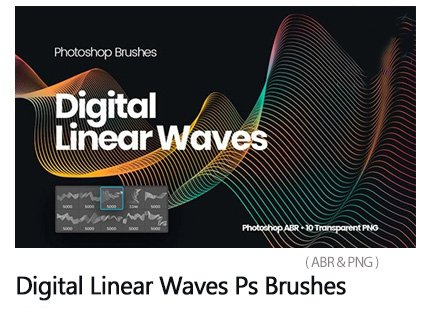
Digital Linear Waves Photoshop Brushes
10 Photoshop Brushes Digital Wavy Lines | 34.0 MB | ABR & PNG format
This section includes 10 Photoshop brushes called digital wavy lines, which are available for download in ABR and PNG formats.
Digital Linear Waves Photoshop Brushes

The item consists of 10 high-quality Adobe Photoshop Brushes. Thanks to high resolution of 5000+ pixels, the set can be used even for professional digital art and web design projects. The collection is designed in a techno-futuristic style depicting the smooth flow of contour isolated lines.
You’ll get 1 file in ABR format compatible with PS only and created in Adobe Photoshop CC, 10 transparent PNG files included. This set of minimalist style network waves brushes is easy to install and will be a perfect modern tool for any digital artist and designer aiming at creating high-quality artwork and commercial projects. You can use this item created with high-resolution textures as a template for your projects as well as a decoration for your artworks.
Abstract Generative Graphics Waving Lines Brushes
This collection of generative art PS brushes in tech style can be used for many purposes:
- Creating high quality 3D graphic digital artworks and commercial projects;
- Developing templates and styles for social network pages decoration;
- For creating beautiful grid waves backgrounds and wallpapers.
And many more…
Additional information:
Before purchasing the item, please check its additional characteristics:
- Add-on File Included: Photoshop ABR
- Graphics Files Included: Transparent PNG
- Pixel Dimensions: 5000+
The Brush tool allows you to paint on any layer, much like a real paintbrush.
It’s easy to use the Brush tool to paint in your document. Simply Import The Brushes, locate and select the Brush tool from the Tools panel, then click and drag in the document window to paint. You can also press the B key on your keyboard to select the Brush tool at any time.
Brush Size: If you want to make the brush larger or smaller, click the Brush Picker drop-down arrow in the Control panel, then adjust the Size slider. You can also press the bracket keys [ ] to quickly increase or decrease the brush size at any time.
Hardness: If you want to make the edges of the brush harder or softer, you can adjust the hardness from the same drop-down menu. A harder brush will have clear, defined edges, whereas a softer brush will have blurry, less-defined edges. For most situations, we recommend setting the hardness to 50% or less because it will help to make individual brush strokes less obvious.
Brush Tip: If you want to create a unique effect, there are different brush tips to choose from in the same drop-down menu. Some of these are designed to mimic real-life drawing tools like pens and markers, while others are simpler.
Opacity: By default, the opacity of your brush is set to 100%, meaning the brush will use the highest intensity. However, you can reduce the opacity of your brush to make it less intense.
➡️ ➡️ For More Brushes Products 😀 😀
System Requirement For Photoshop CC


Reviews
There are no reviews yet.